
Advanced Search Syntax: What you need to know
Tezenari@Tezenari
5 min read


Utilizing the search functionality found within the Unreal Engine editor is a no-brainer for most developers. Typing in the name of the asset you want to find and you're done. However, what if I tell you that there is a whole other dimension to the search functionality that will simplify your hunt for assets by magnitudes?
In this article, I will be teaching you how you can utilize the Advanced Search Syntax to its full potential to quickly and efficiently find the assets you need in the Unreal Engine content browser.
If you're already familiar with the search syntax, check out the Search Syntax Cheat Sheet that I have compiled. There, you'll find syntax details and common search arguments.
Consider watching the YouTube video as well as reading this article. They both contain key information that will help you better understand the content.
There are multiple different search fields found within the Unreal Engine editor. To name a few --
However, for this article, I will only be covering the search syntax for the content browser.
By default, entering a string of text into the content browser's search field will instantly yield results. These results will either be based on the name of the asset or by its class. And these results will only be from the current director and any child directories.
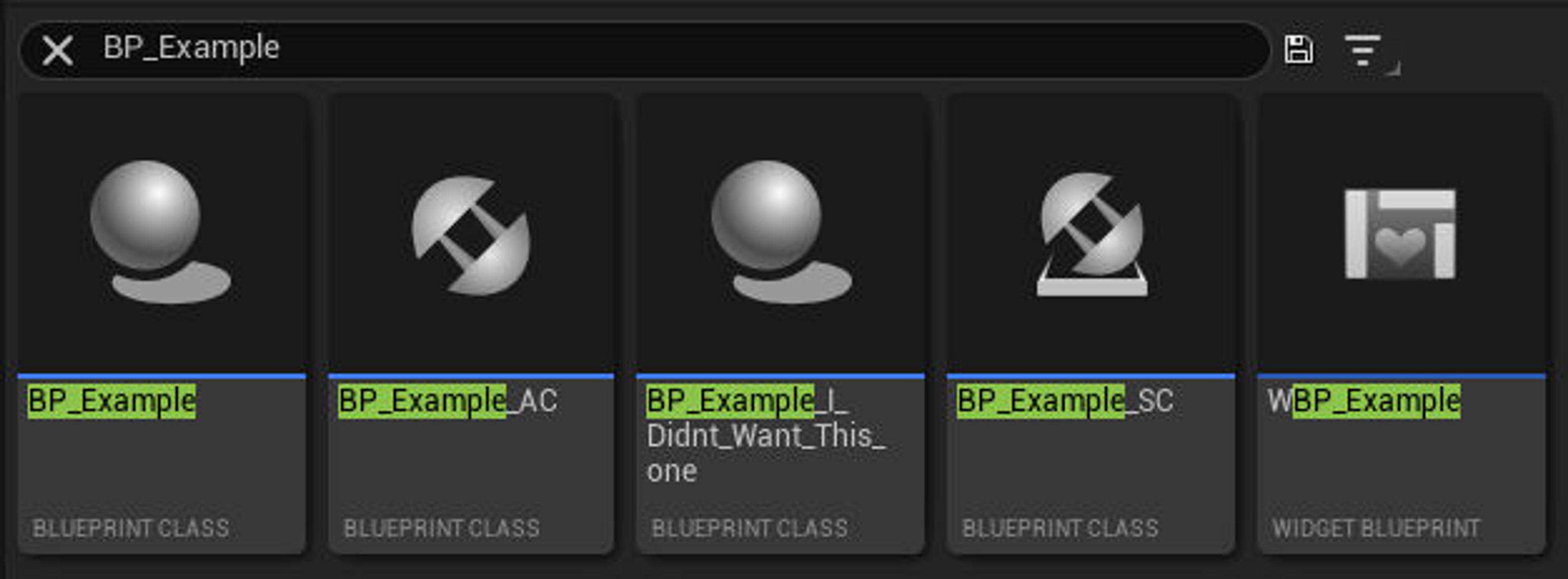
For example, typing in BPExample will yield _every asset that contains the string BP_Example in its name. Like so --
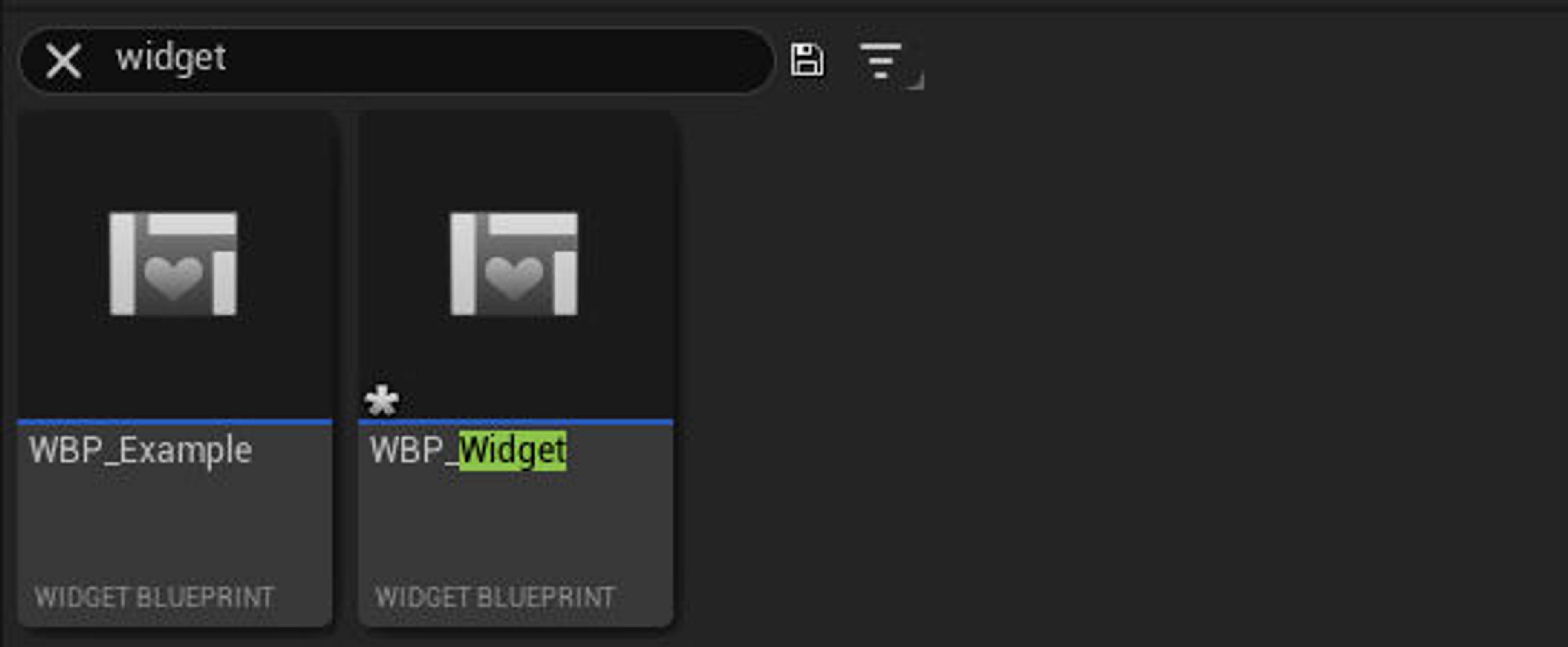
And if Widget is typed into the search field, the content browser will yield every asset that contains widget in its name, along with all Widget Blueprints.
Now, while this method is useful, it doesn't necessarily help if there are hundreds, if not thousands, of results. This is where operators come in.
Operators are a special command that controls the logic, or flow, of the search argument.
For example, appending the plus operator + as a prefix to BPExample will yield results that only contain _exactly that string.

And as an inverse -- append the negative operator - as a prefix to BPExample will yield only the assets that do _not contain that string.

And these are only a few of the operators available. However, to take full advantage of those, a proper search argument will need to be utilized.
A proper search argument consists of a --
As an example, a proper search argument to find all assets with the name BP_Example would be --
Name = BP_Example
Name is the key. = is the operator. BP_Example is the string value.
Within Unreal Engine, there are hundreds of available keys that can be effectively utilized to pinpoint assets in a search argument.
The primary key that all assets have are --
These are the ones that are active by default when typing into the search field. However, there's another key type that will be the dominant force in search arguments -- metadata.
Metadata are key-value pairs that reside within the assets -- and each asset type has its own specific set of metadata.
Tip: Add a space to the blank seach field to see all of the available keys.
For example, typing in the search argument Triangles > 10000 will yield all Static Mesh assets that have more than 10,000 triangles.

The key Triangles is metadata specific to Static Mesh assets. And the greater than operator > is an operator specific to numeric values.
As another example, typing in the search argument BlendMode = Masked will yield all Materials with the Blend Mode set to Masked.

And one final example -- Typing in sRGB = false will yield all Texture assets that have sRGB disabled.

As stated prior, there are hundreds of keys that can be utilized to accurately and effectively target the assets you want.
##Chaining search arguments
Chaining search arguments together is where the true mastery of searching the content browser comes to fruition. By using specific operators, multiple search arguments can be chained in succession.
This chaining can be done via two specific operators -- the AND operator and the OR operator.
Note: Many of the operators have alternative characters. For these examples, the AND operator is represented by the & character and the OR operator is represented by the | character.
For example -- typing in the search argument chain Name = Rocks & Triangles > 10000 will yield all Static Mesh assets with more than 10,000 triangles AND has the string of text rocks in its name.
And by extending the search argument by typing in Name = Rocks & Triangles > 10000 & LODs = 1 & NaniteEnabled = false will yield all Static Meshes that --

By chaining more and more search arguments together by using the AND operator, the search becomes more tuned. To make the search argument more encompassing, the OR operator should be used.
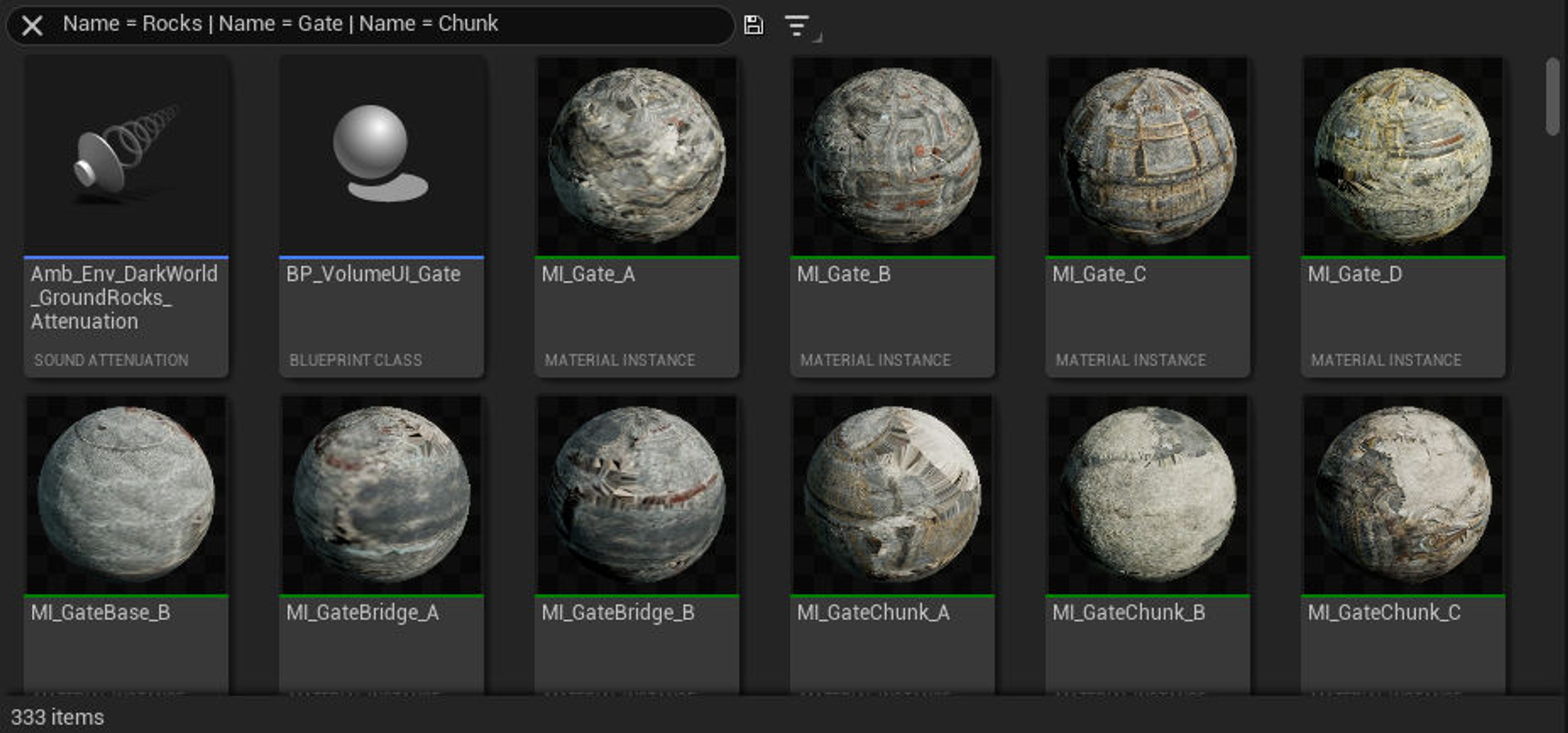
For example -- typing in the search argument chain Name = Rocks | Name = Gate | Name = Chunk will yield every asset that contains Rock, Gate, or Chunk in its name.
Now, if both of the previous examples are used together, the results will not be ideal.
Name = Rocks | Name = Gate | Name = Chunk & Triangles > 100000 & LODs = 1 & NaniteEnabled = false
This search argument chain will basically yield all assets that --
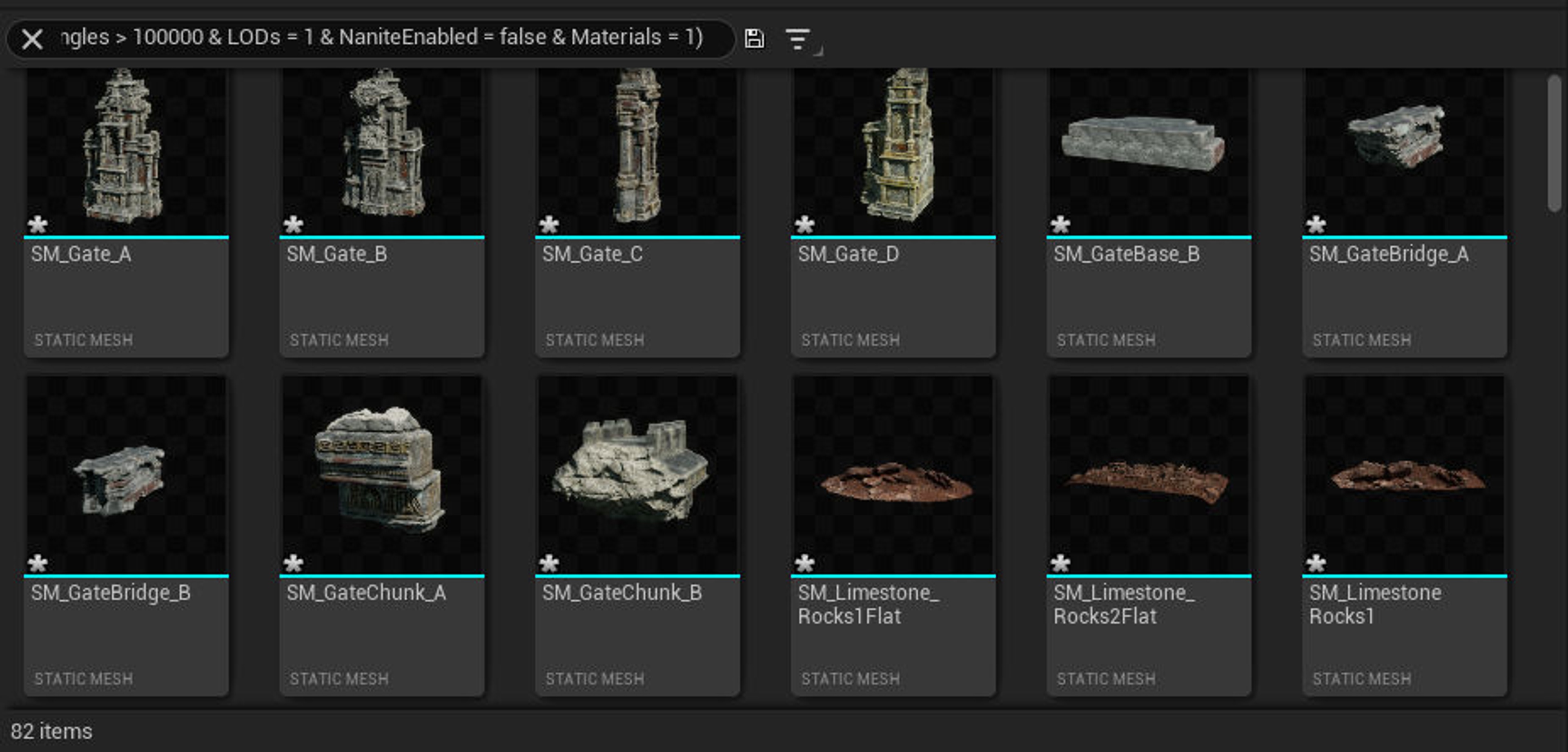
Thankfully, there is an easy way to fix this argument. By encompassing the two primary arguments with parentheses, both search arguments will be evaluated.
(Name = Rocks | Name = Gate | Name = Chunk) & (Triangles > 100000 & LODs = 1 & NaniteEnabled = false & Materials = 1)
While search arguments already enhance the asset hunting capability by magnitudes, take the next step and save the most common ones as collections.
Collections are neat ways to save sets of assets within the content browser. A common use case is to create a collection and manually drag assets into those collections.
For search arguments, there's a handy little save button. To save a search argument --
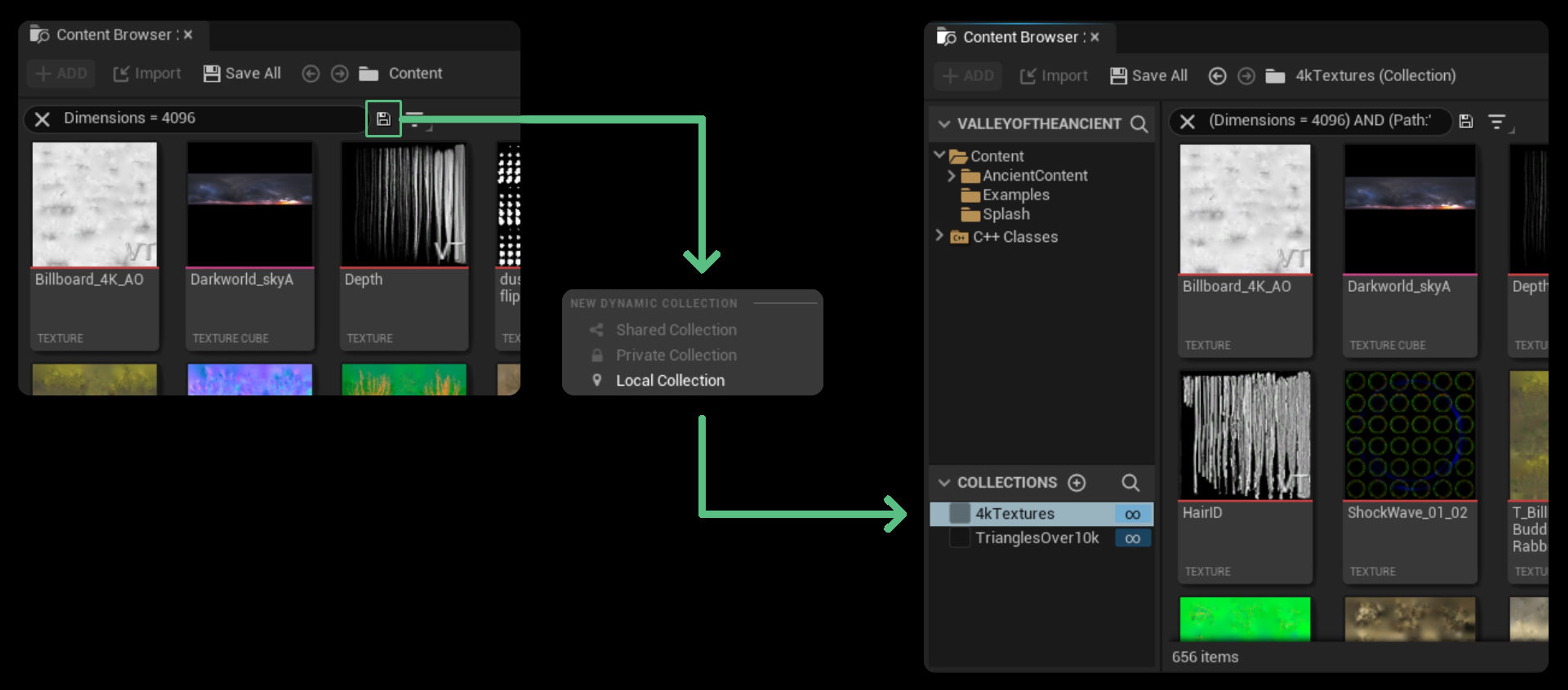
Once saved as a collection, the search argument can be activated by simply clicking on the collection.
As a reminder -- search arguments only yield results from the current and child directories. Therefore, it's ideal to save a search argument to a collection from the highest directory needed to yield the desired results.
By smartly utilizing search arguments and chaining them together, almost any asset can be quickly found even if there are hundreds of thousands of assets. And saving those search arguments to collections will streamline the workflow.
I recommend checking out the Search Syntax Cheat Sheet I have prepared as it contains many common search arguments.
Check out the following resources to learn more about the subject.