
Blueprint Variables: What you need to know
Tezenari@Tezenari
5 min read
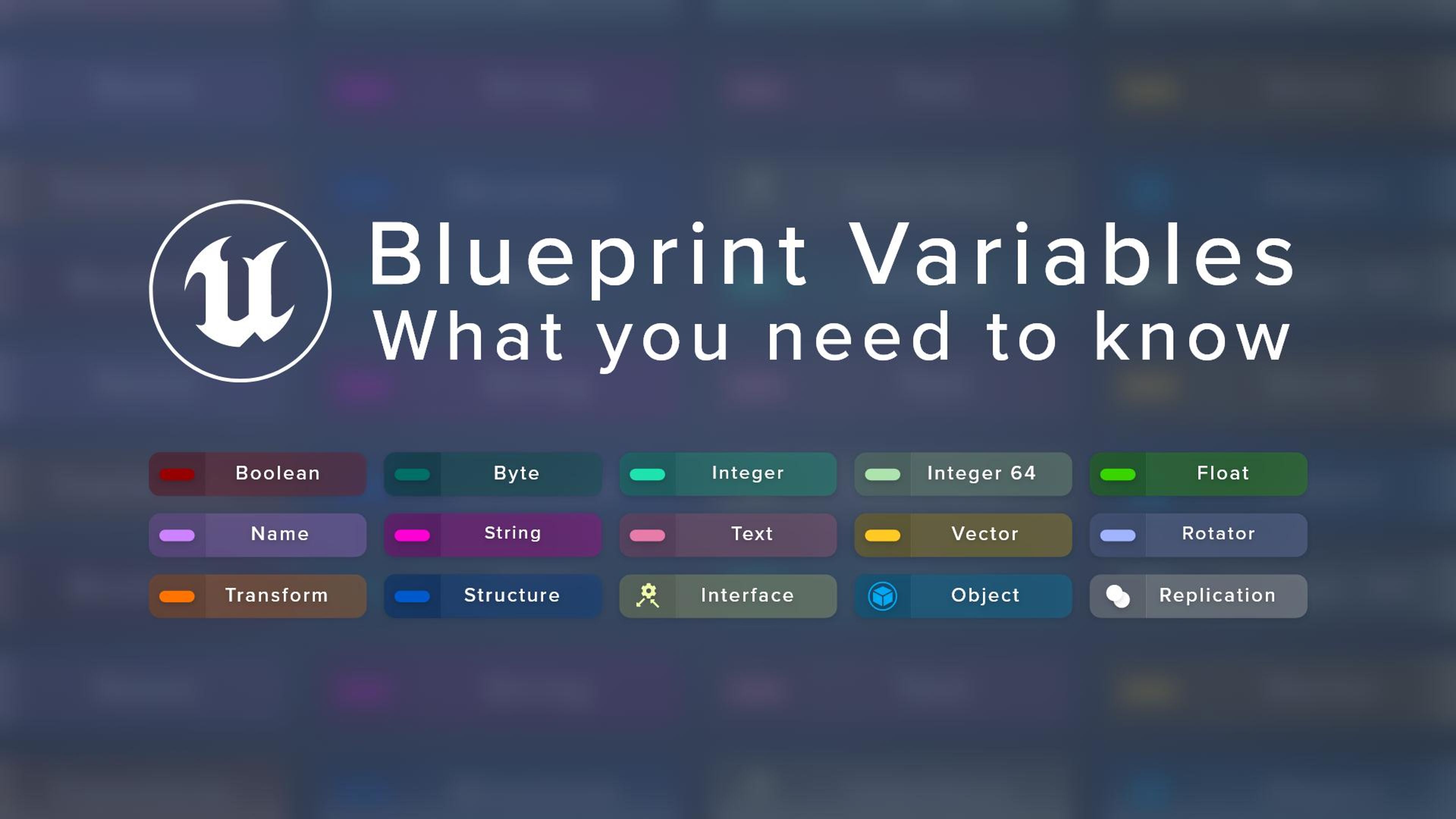

When it comes to Unreal Engine development and programming in general, there is a requirement to have an information storage container that can be referenced and mutated (we call these variables). Without variables, it's the equivalent of processing information without memories.
In this article, I will be teaching everything you need to know about Unreal Engine variables as they pertain to blueprints.
Variables are used everywhere inside of Unreal Engine development. Having a core understanding of what variables are will go a long way in being better prepared to create and utilize variables properly.
A variable is an information storage container that stores a value or reference to an object. These containers can then be referenced and/or mutated at a later time.
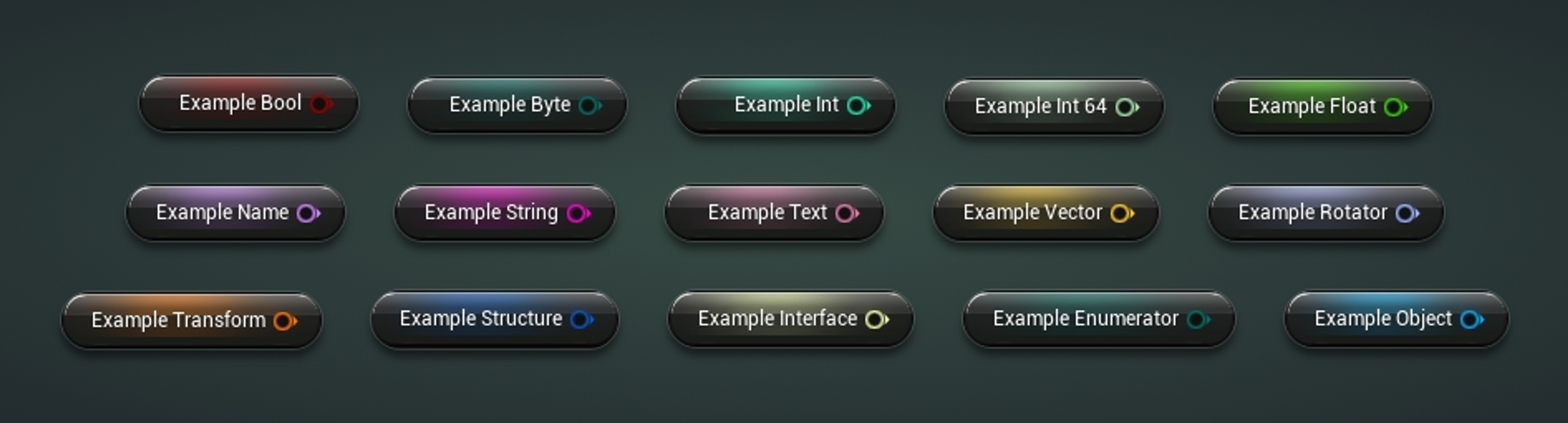
| Data Type | Example Value |
|---|---|
| Boolean | True / False |
| Float | 3.14159 |
| Integer | 12 |
| String | "Demonquin" |
| Text | "It's dangerous to go alone! Take this." |
| Name | spine_03 |
| Vector | X = 44.5, Y = 19.25, Z = -404 |
| Rotator | Roll = 180, Pitch = -90, Yaw = 45 |
| Enumerator | Running |
Variables are used to enable your programmed logic to react to changing environments, rather than always return the same output in all scenarios.
There are multiple methods to create a variable –
This is the primary and most common method to create variables for blueprints.

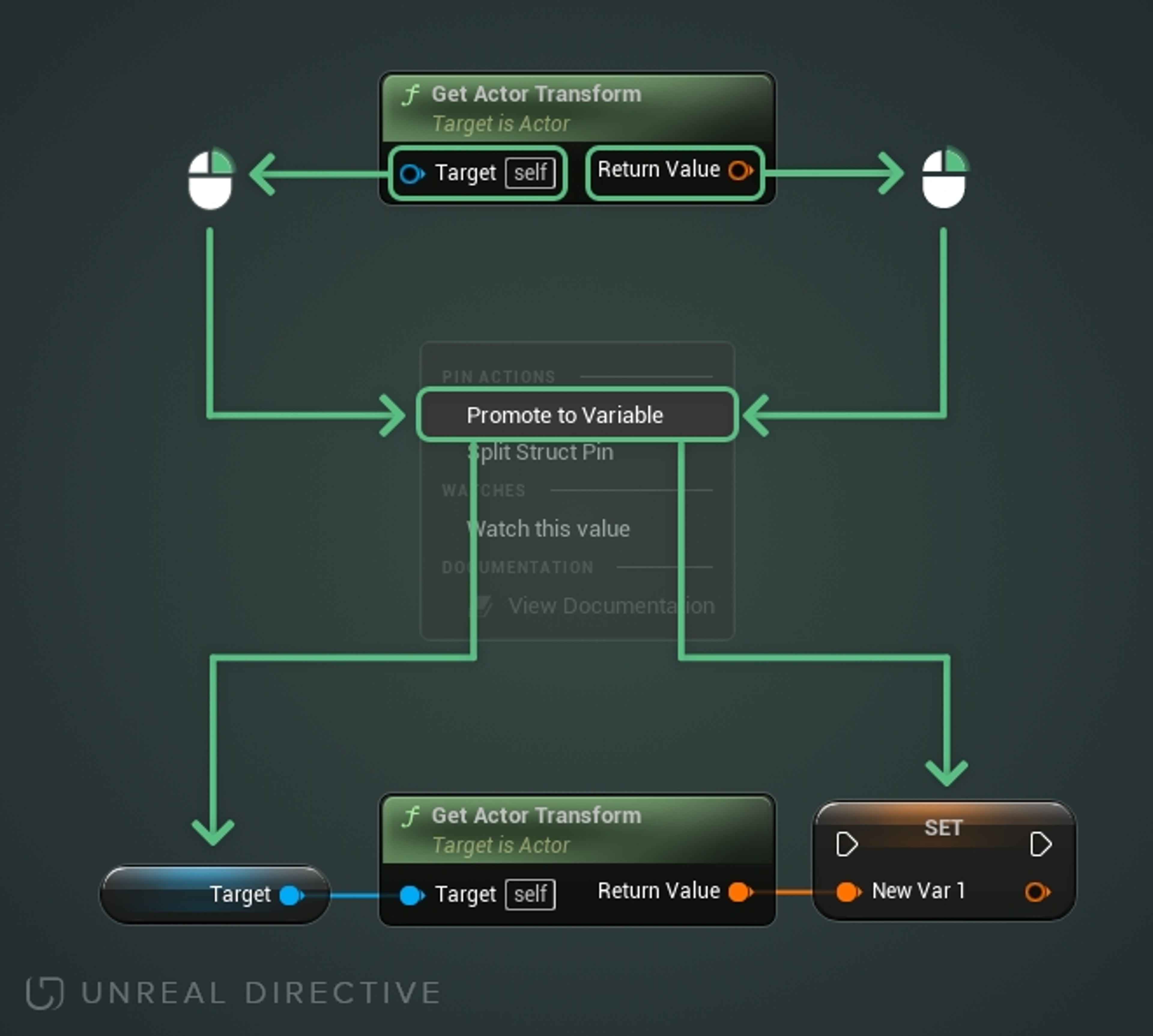
All blueprint node property pins can be promoted to a variable.
Right-click on a property pin → Select the Promote To Variable option
The GET variable node allows the retrieval of the variable's information.
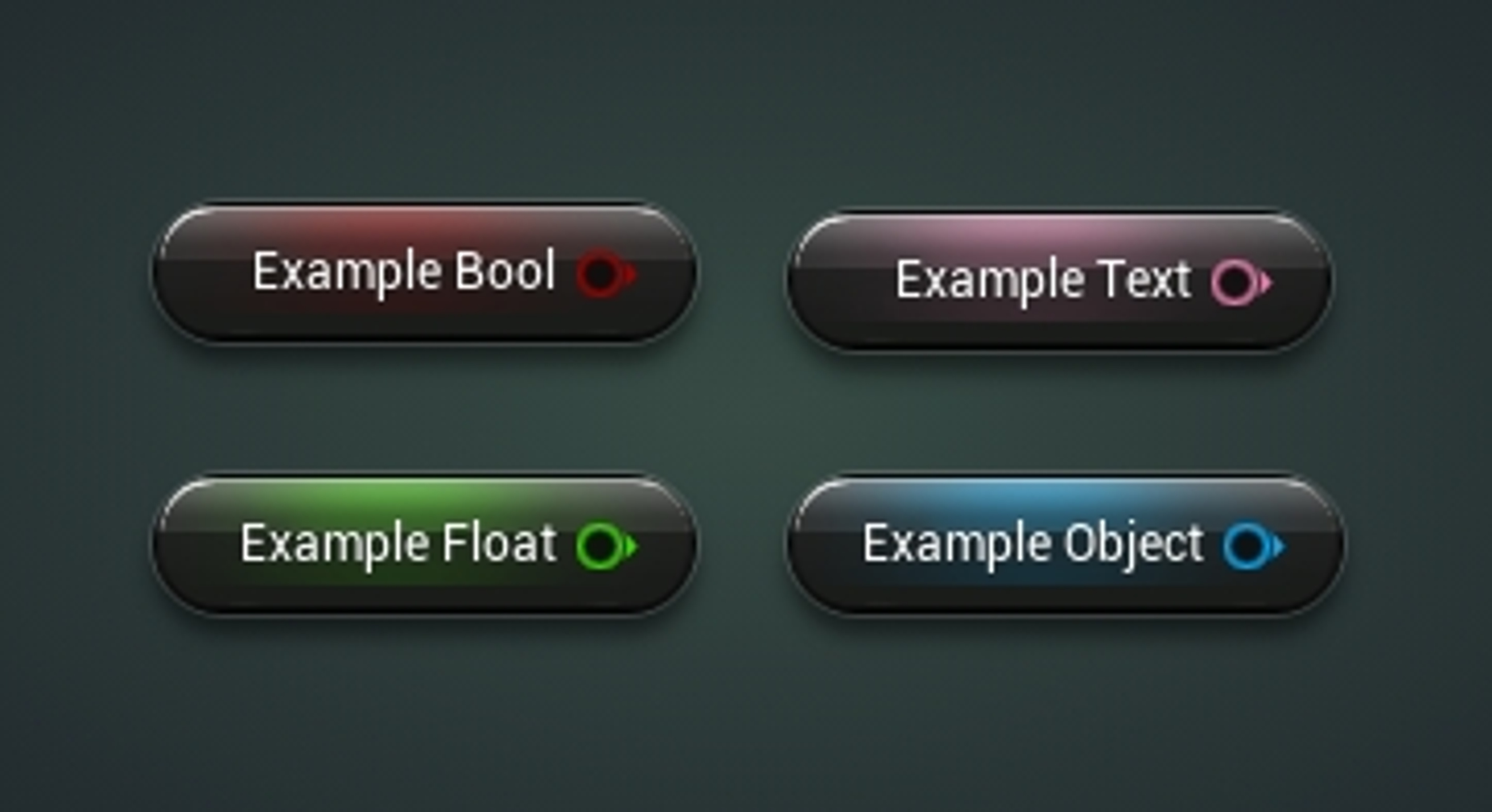
The SET variable node allows for the mutation of the variable's stored information.
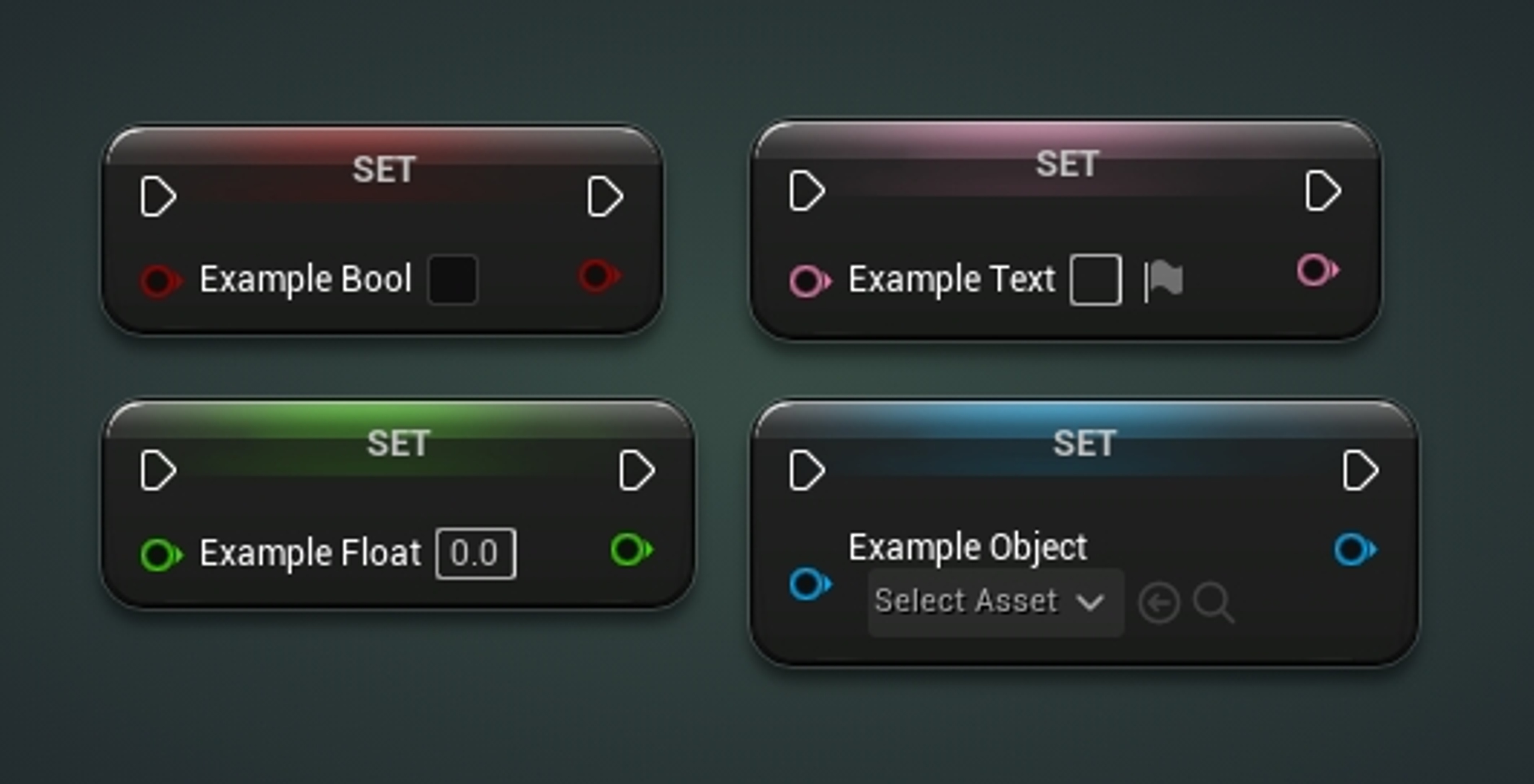
There are multiple different methods to retrieve the GET/SET variable nodes --
A variable can be dragged from the variable or local variable sections and dropped onto the blueprint graph.
Tips
The SET/GET variable node of the desired variable can be found within the Action Menu.
The SET/GET variable nodes can be retrieved by drag dropping from an existing node's property pin.
Notes
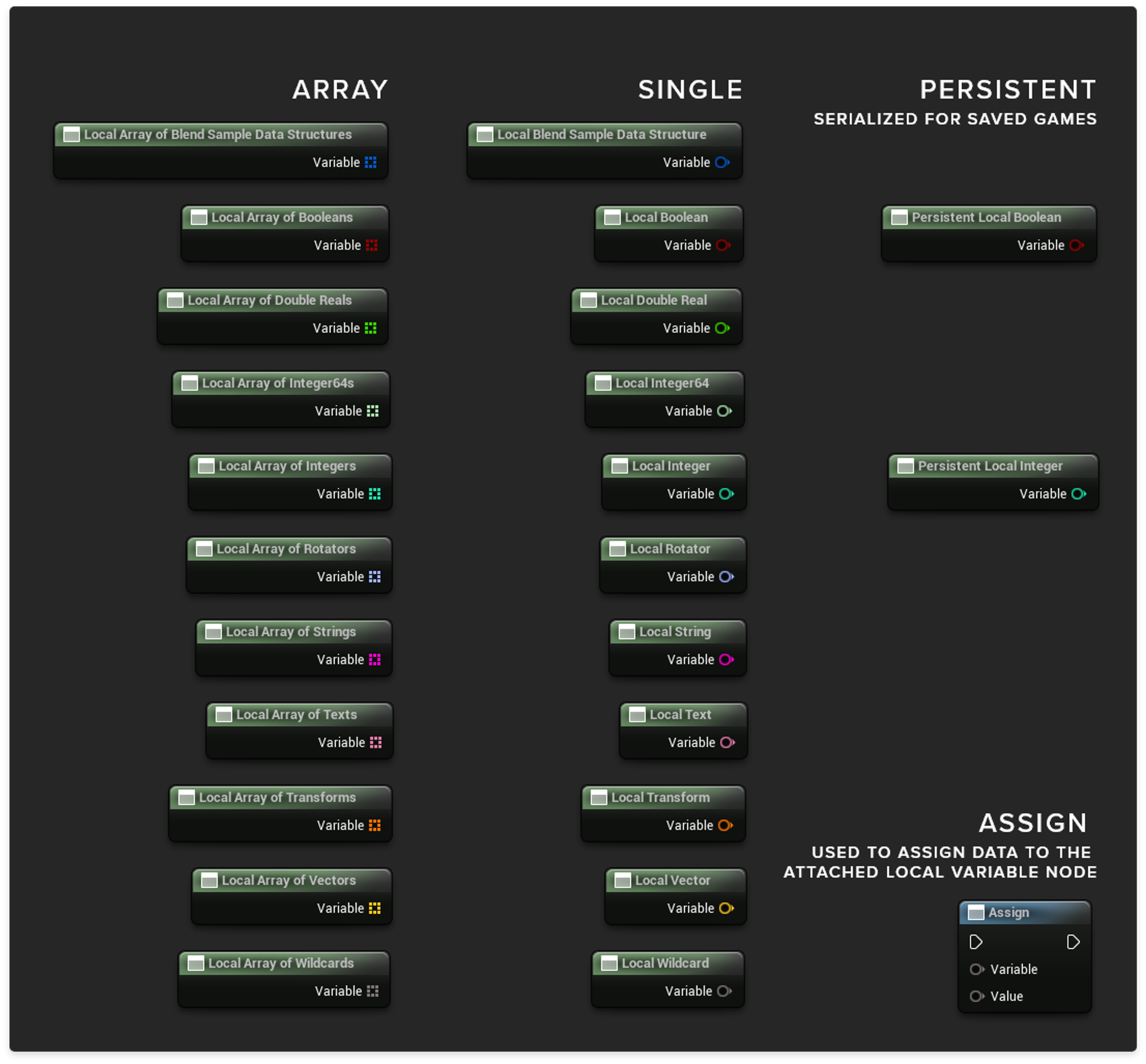
A local variable is a variable that only exists where they are defined. In the case of blueprints, both functions and macros allow for local variable creation and utilization.
Local variables within functions can be created via the Local Variables section found within the My Blueprint Panel.
Notes

Local variables within Macro's are fundamentally different with two clear differences –
Notes
In this section, I will be going over every aspect of a variable.
The variable section, located within the My Blueprint Panel, is where variables are mainly interfaced.

Here is everything you can do within this section –
New variables can be created by clicking on the plus button within the Variable Bar

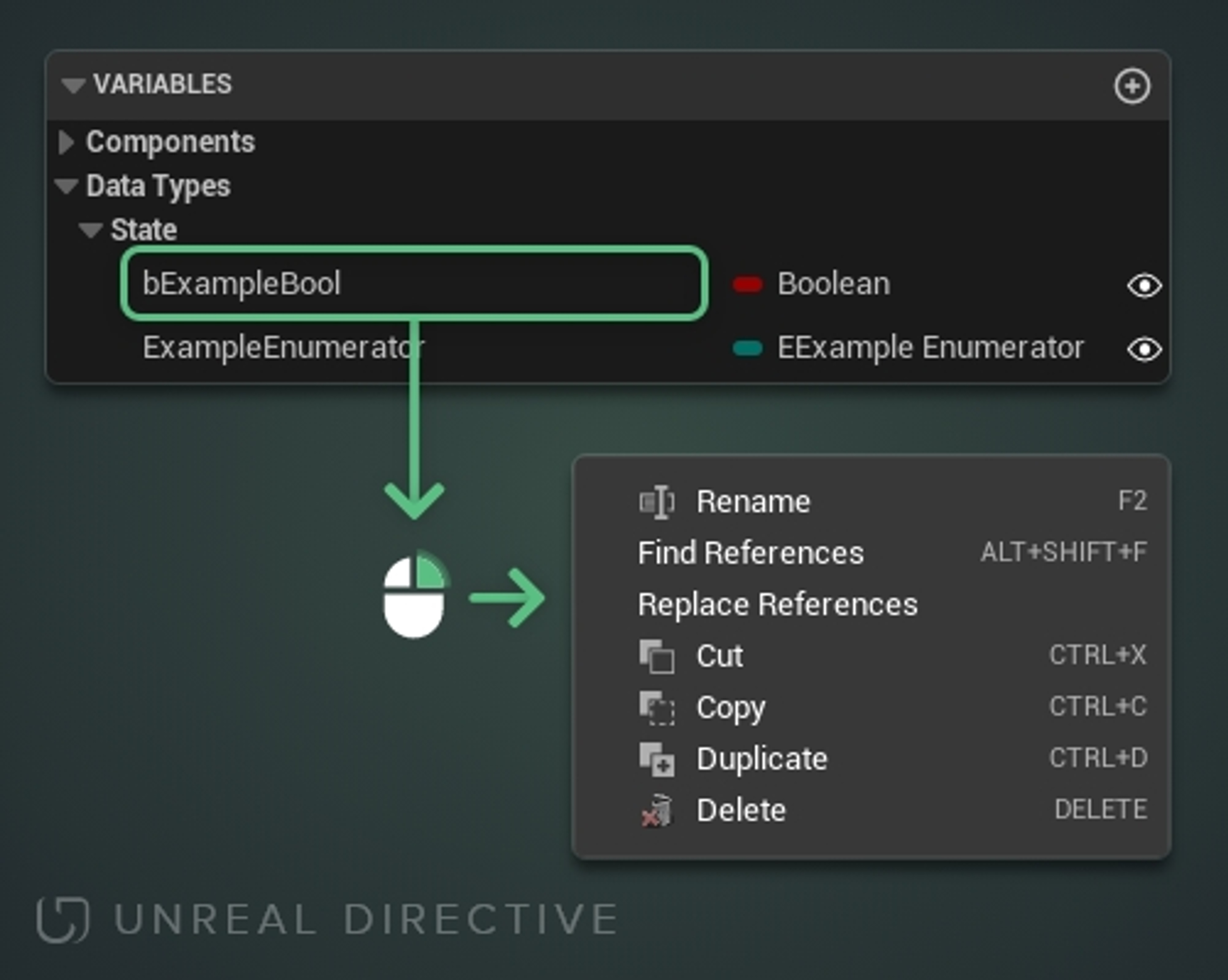
Right-clicking on a variable opens up an action menu. From this menu, you can –
| Action | Shortcut | Description |
|---|---|---|
| Rename | F2 | Allows the renaming of a variable. (Make sure to follow proper naming conventions!) |
| Find References | ALT+SHIFT+F | Searches the blueprint for all references of the variable. |
| Replace References | Replace all references of the variable with another variable of the same type. | |
| Cut | CTRL+X | Copies the variable to your clipboard AND deletes the variable. |
| Copy | CTRL+C | Copies the variable to your clipboard. |
| Duplicate | CTRL+D | Duplicates the variable. |
| Delete | DEL | Deletes the variable from the blueprint. |
| Move To Parent | Moves the variable to the direct parent blueprint. (Only available in child blueprints.) |
Variables can be copied over to different blueprints.
Note, using the cut option will remove that variable once the variable has been pasted.
A variable's type can be changed.
A variable's container type can be changed between single and array.
Note, additional options can be found within the Variables Details Panel.
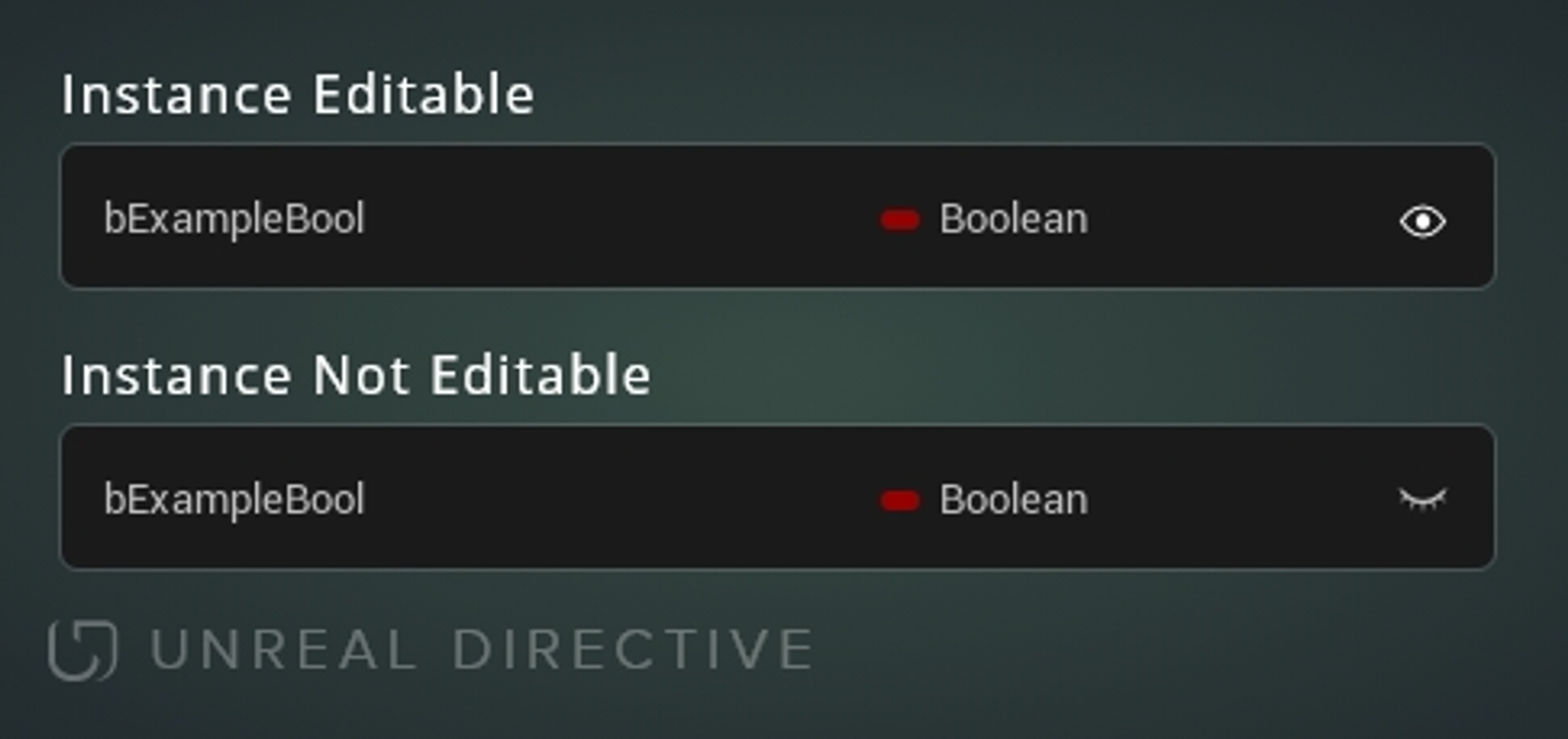
A variables instance editing option can be toggled on or off.
The details panel for a variable is where the variable's properties are configured.
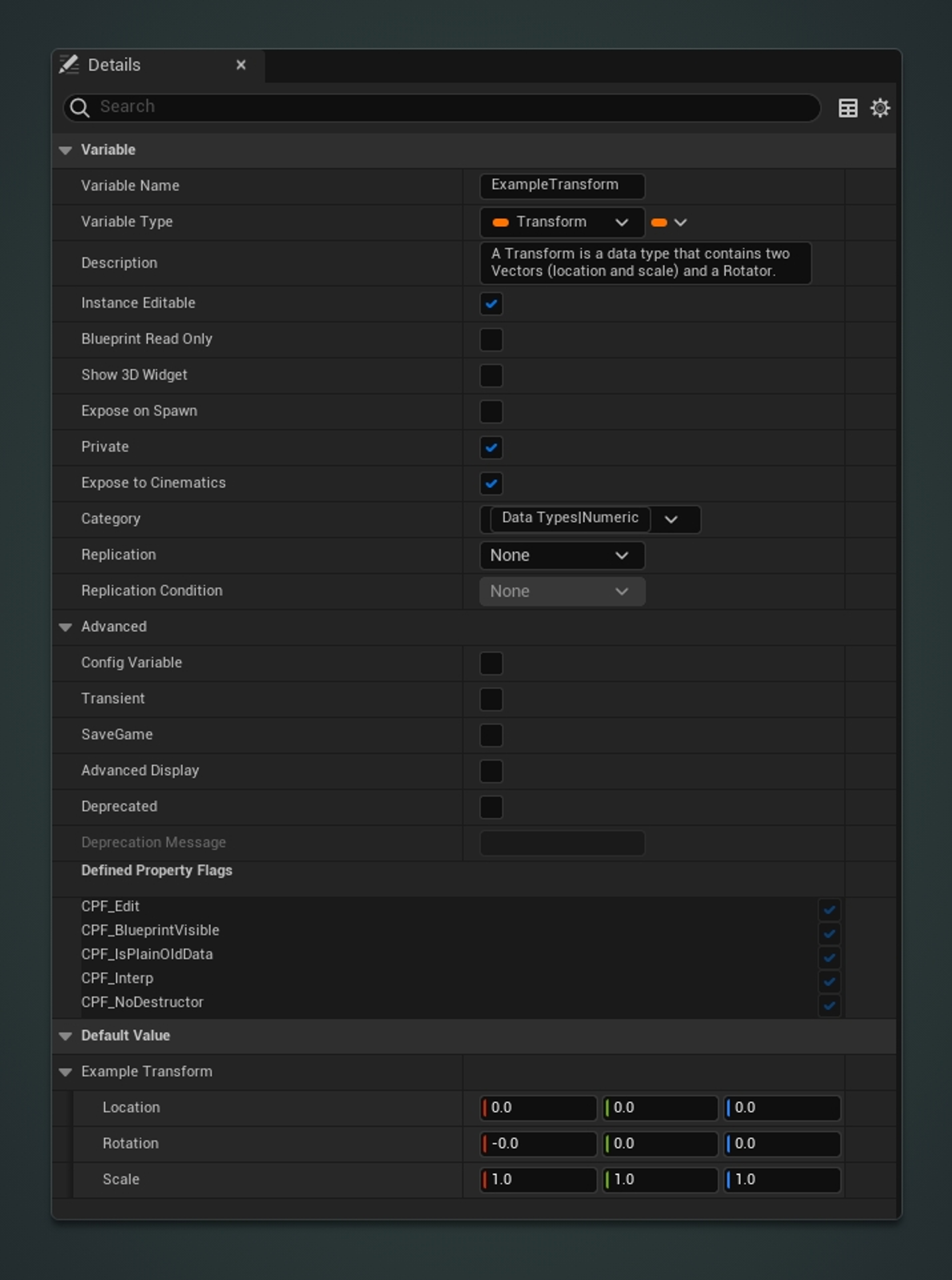
This is where the name of the variable will be declared.
Make sure to follow proper naming conventions as it is critically important that the name of the variable clearly states the variable's intended purpose.
Examples Here are some good and bad examples to provide a better understanding of how to property name variables –
| Type | Container Type | Good Example ✓ | Bad Example ✘ |
|---|---|---|---|
| Boolean | Single | bDead | isplayerdead? |
| Actor | Array | Targets | TargetList |
| Vector | Single | CurrentLocation | Loc |
| Transform | Array | ActorTransforms | transforms |
| Int | Single | Score | IntScore |
| Int | Array | PlayerScores | ScoreArray |
| Real | Single | Height | Var_0 |
This is where the variable type and variable container type are set.
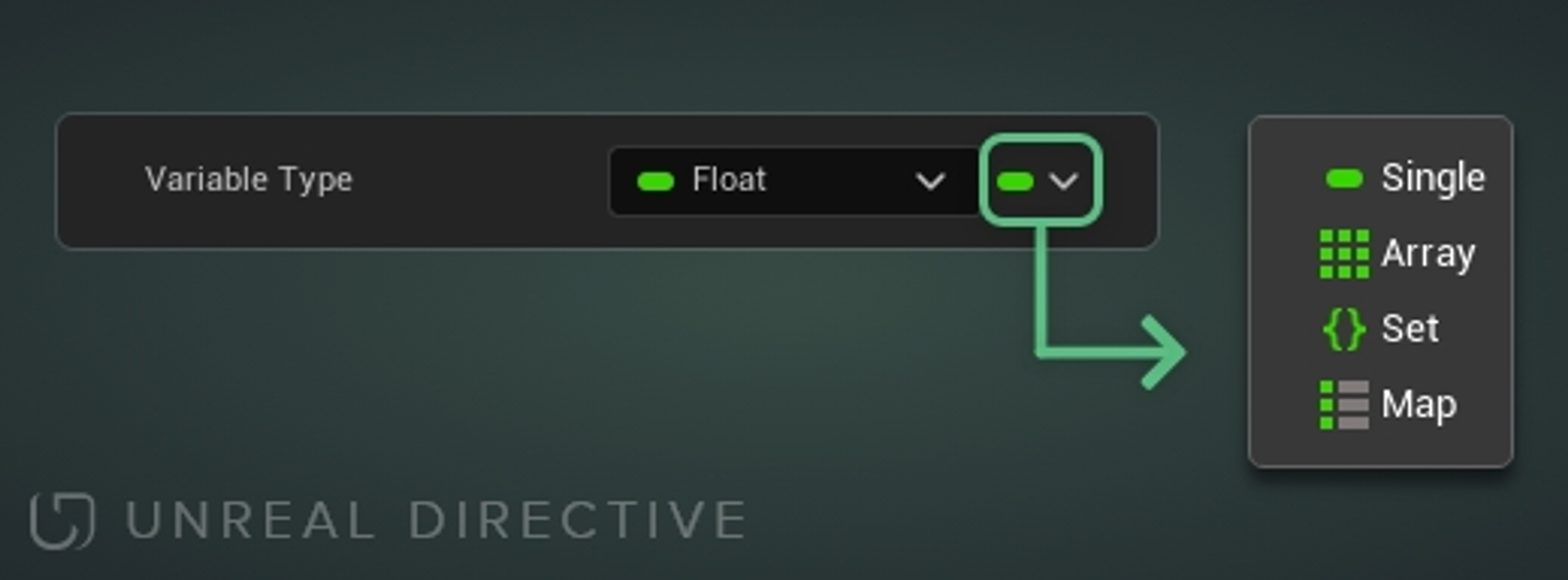
| Type | Description |
|---|---|
| Single | Contains a singular variable. |
| Array | Contains multiple values of a given variable type. |
| Set | Contains multiple unique values of a given variable type. |
| Map | Contains key/value pairs that support efficient lookups and retrievals of values. |
The description will explain what the variable is for.
It's critically important that this field gets filled out and that it clearly states what the variable is intended for.
Where will the description of the variable be viewable from? Hovering the mouse over the variable in the My Blueprint Panel
Enable this option to allow the variable to be editable on any instance of the blueprint.
Note: This can also be adjusted by locating the variable within the My Blueprint Panel and clicking on the eye icon.
When a variable has been set to Instance Editable, the variable will be editable via the blueprints details panel when it has been placed in a level.

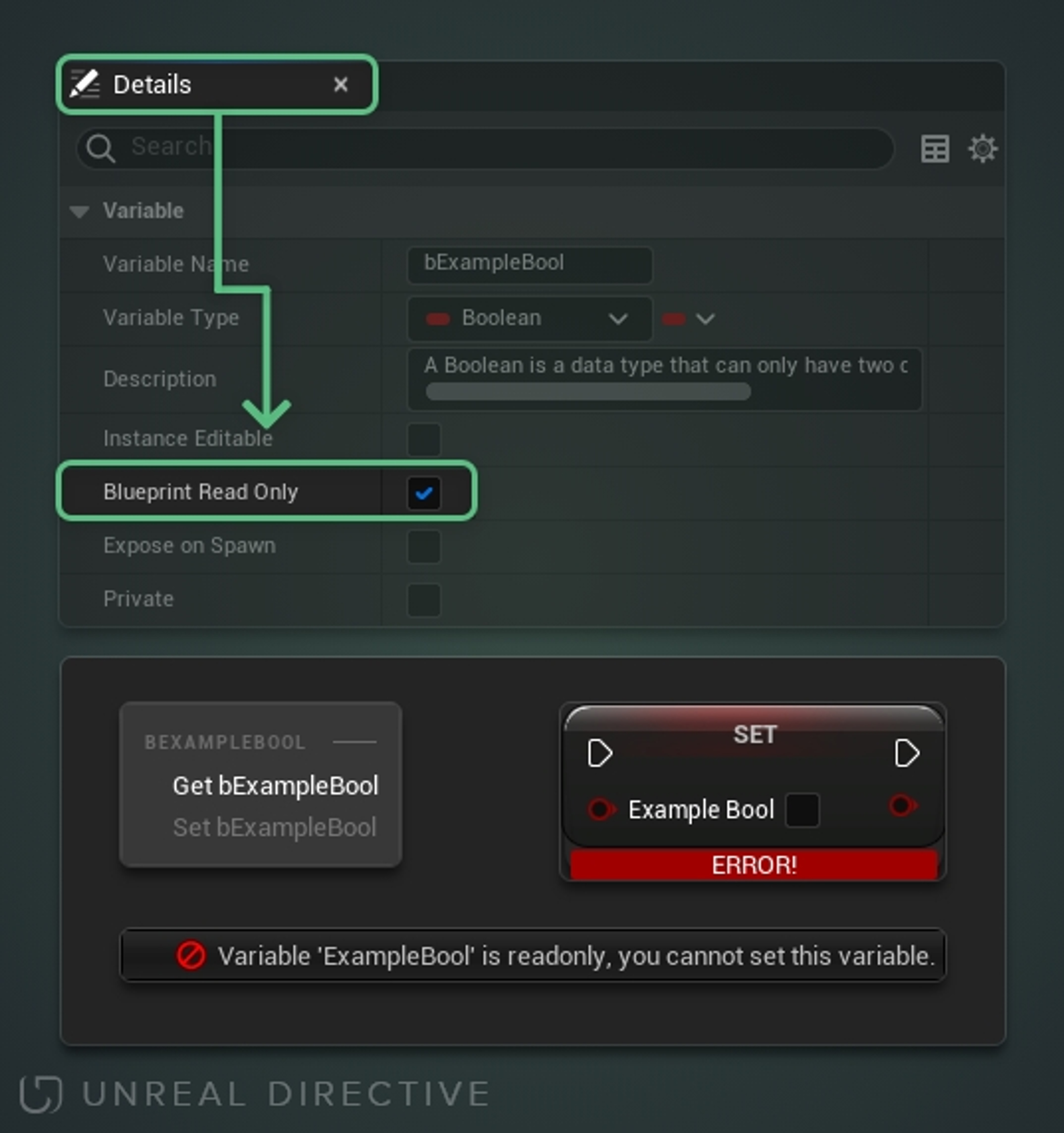
As the name suggests, this makes the variable read only. This means that the variable's value can not be changed away from the established default value.
In addition, all SET nodes for the variable will be disabled.
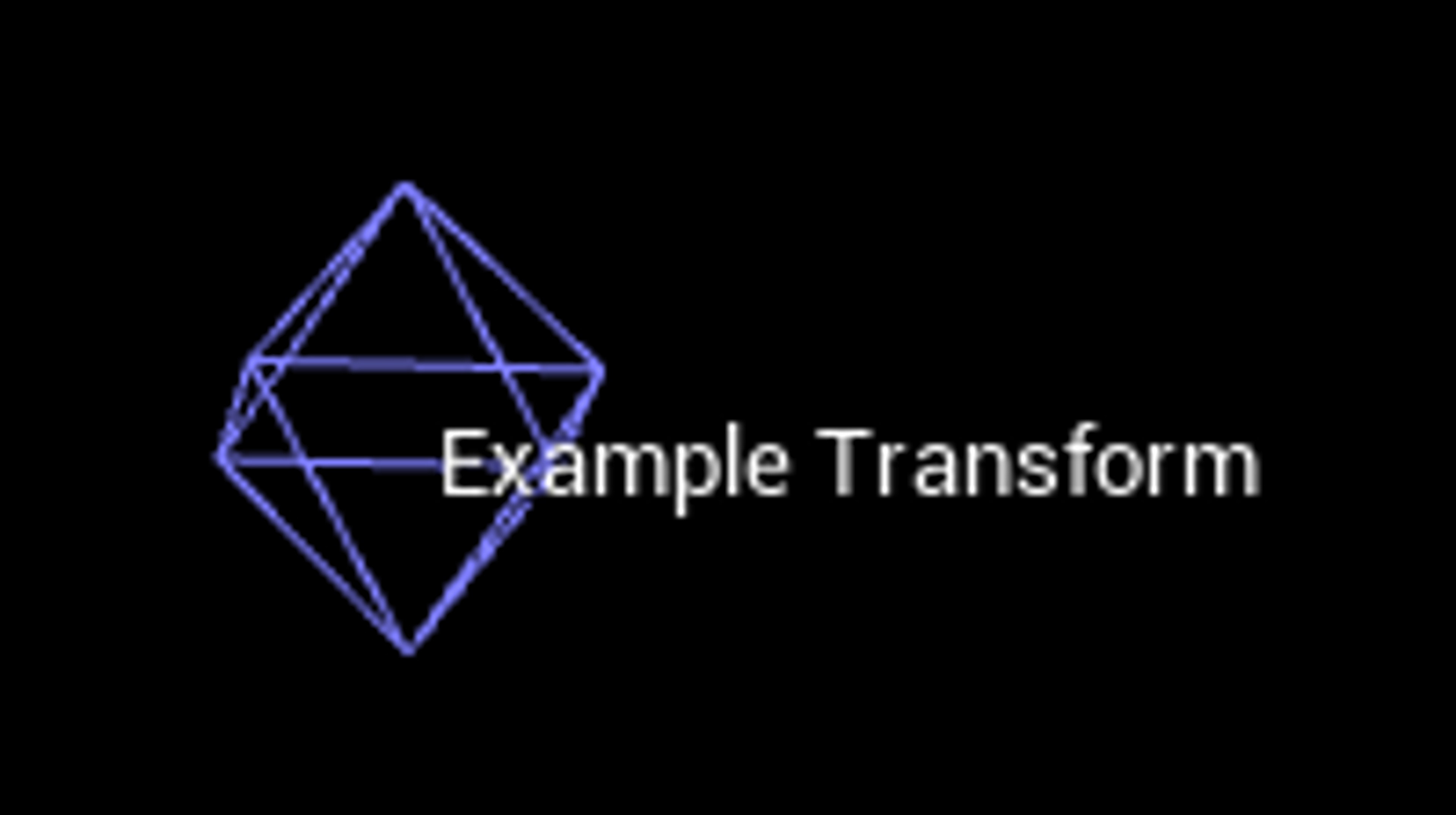
Enable this option to gain access to a 3D Transform Widget within the level viewport. This will allow direct manipulation of the variable.
Only available on the following variable types –
| Data Type | Option Available |
|---|---|
| Boolean | |
| Byte | |
| Integer | |
| Integer 64 | |
| Float | |
| Name | |
| String | |
| Text | |
| Vector | ✓ |
| Rotator | |
| Transform | ✓ |
| Structure | |
| Interface | |
| Object | |
| Enumerator |
Important: Requires Instance Editable to be enabled.
3D Widget
When the actor is selected in the Editor Viewport, a diamond wireframe with the variables name will be visible. Select this diamond to start manipulating the variables location.
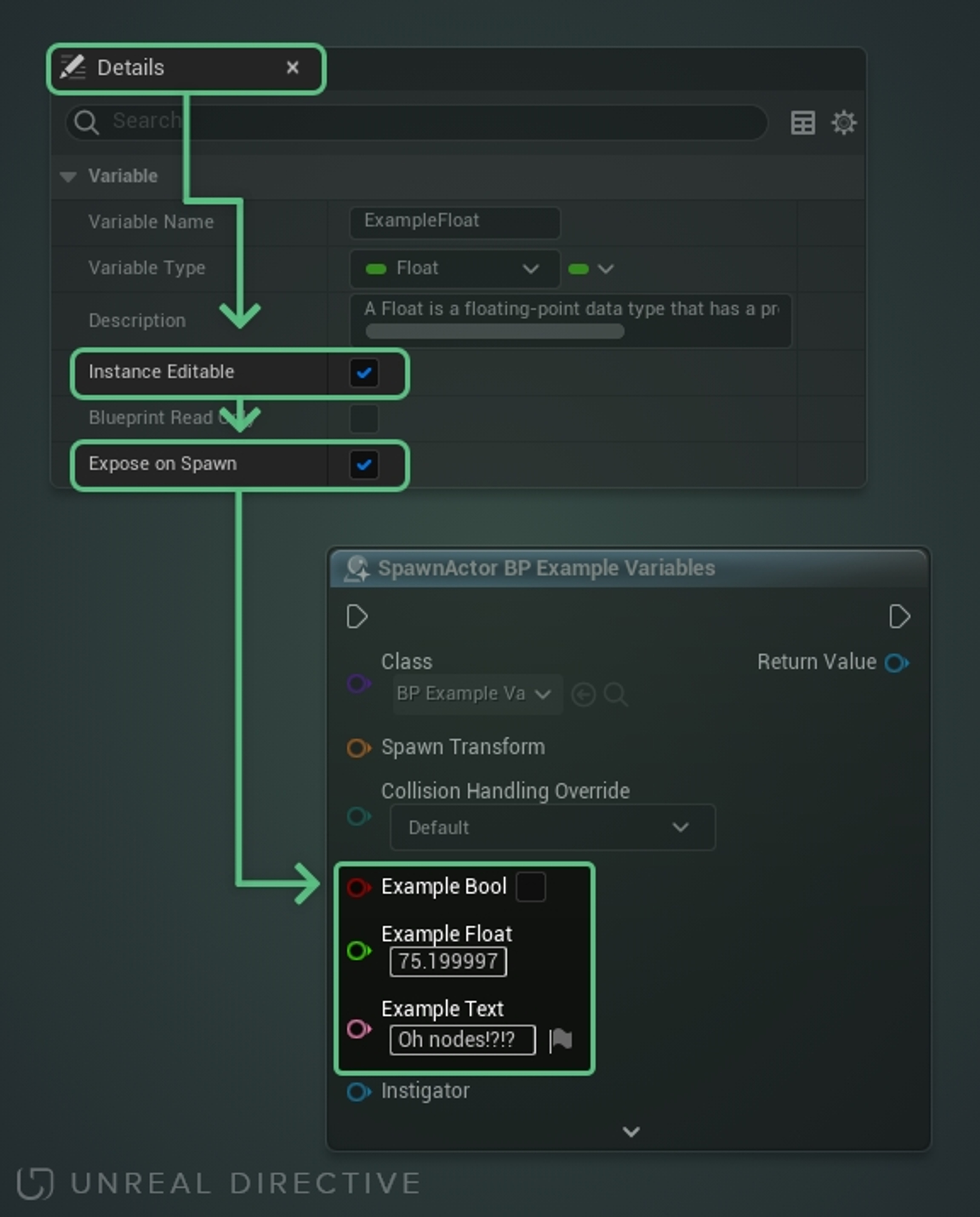
Enable this option to allow the variable to be configurable on the Spawn/Creation nodes; such as the Spawn Actor node.
Important: Requires Instance Editable to be enabled.
Enable this option to make the variable only accessible from within the owning blueprint. No other blueprint, including child blueprints, will be able to access it.
It's ideal to enable this option for variables you don't want to be accessed outside of the owning blueprint.
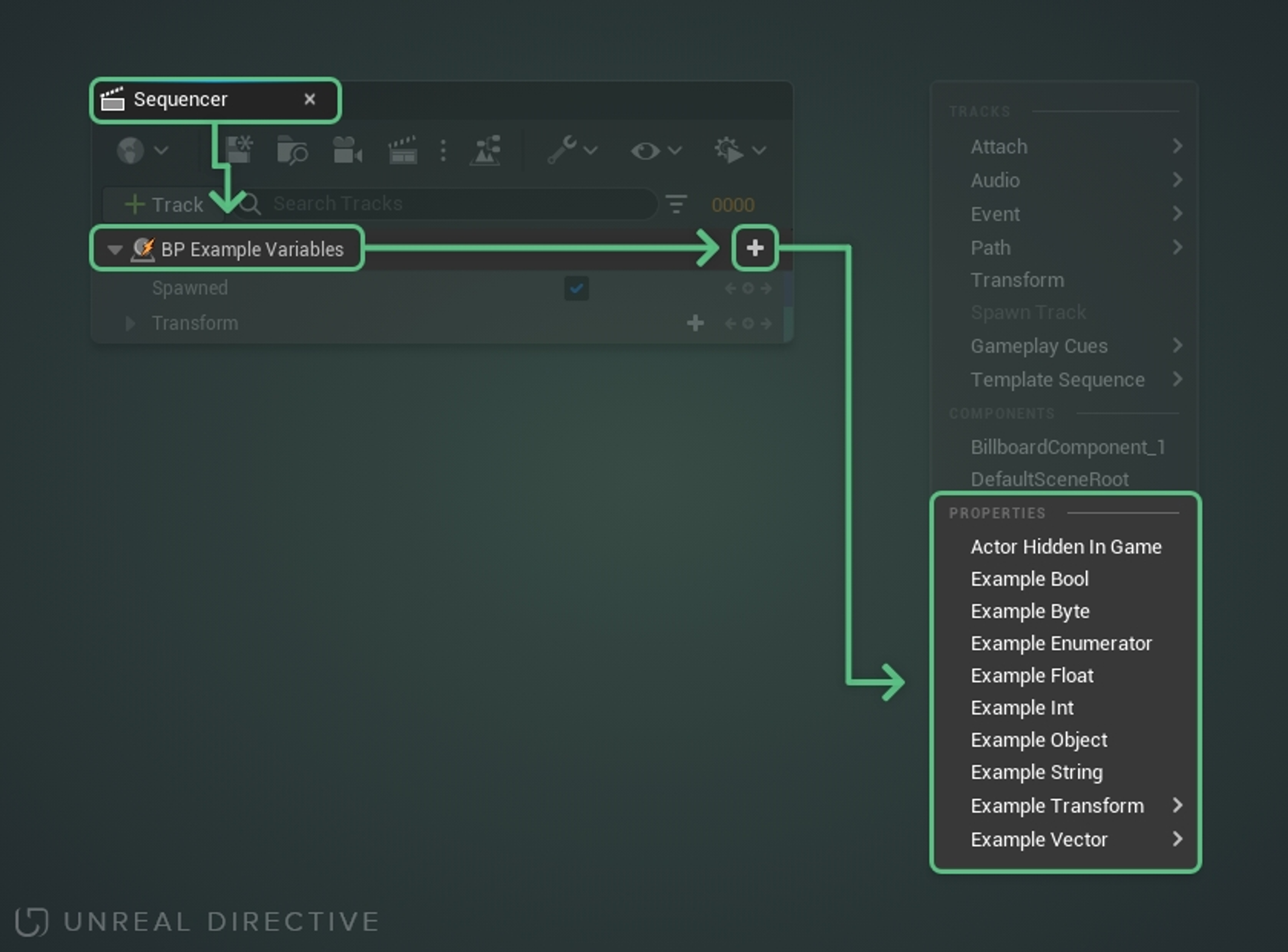
Enable this option to expose the variable to the sequencer.
| Data Type | Option Available |
|---|---|
| Boolean | ✓ |
| Byte | ✓ |
| Integer | ✓ |
| Integer 64 | |
| Float | ✓ |
| Name | |
| String | ✓ |
| Text | |
| Vector | ✓ |
| Rotator | |
| Transform | ✓ |
| Structure | |
| Interface | |
| Object | ✓ |
| Enumerator | ✓ |
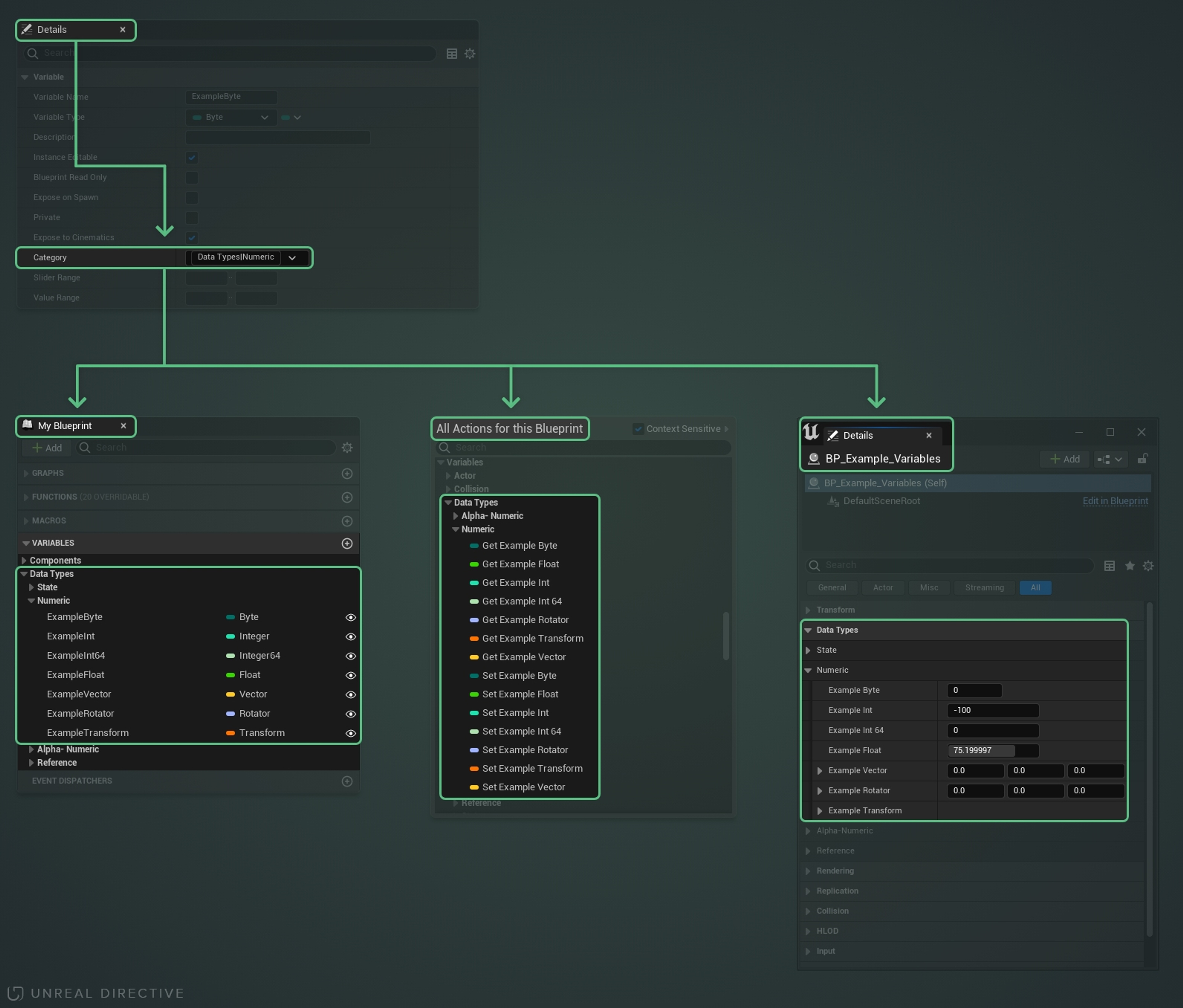
When set, this will change where the variable will be located in both the Actions Menu and in the Variables section under the blueprints My Blueprint Panel.
It's ideal to set a category rather than leave it to the default as it will allow developers to find the variable more easily.
Nested categories can be accomplished by placing a vertical bar ( | ) in between the two category names.
Used to establish a minimum and/or maximum range when sliding numeric variables within the editor.
Only available on the following single variable types –
| Data Type | Option Available |
|---|---|
| Boolean | |
| Byte | ✓ |
| Integer | ✓ |
| Integer 64 | |
| Float | ✓ |
| Name | |
| String | |
| Text | |
| Vector | ✓ |
| Rotator | ✓ |
| Transform | |
| Structure | |
| Interface | |
| Object | |
| Enumerator |
Tip: You can slide a numeric variable by holding the left mouse button and dragging left or right.
Used to establish a minimum and/or maximum range when editing numeric variables.
Only available on the following single variable types --
| Data Type | Option Available |
|---|---|
| Boolean | |
| Byte | ✓ |
| Integer | ✓ |
| Integer 64 | |
| Float | ✓ |
| Name | |
| String | |
| Text | |
| Vector | ✓ |
| Rotator | ✓ |
| Transform | |
| Structure | |
| Interface | |
| Object | |
| Enumerator |
Note: Acts as a Slider Range
Enable this to treat the variable as a bitmask.
Only available to Integer variables.
Choose an optional enumeration type for bitmask flags.
Notes
Enable to have the variable be replicated over the network. This is generally for multiplayer purposes only.
Available Options –
| Option | Description |
|---|---|
| None | The variable is not replicated. This is the default value. |
| Replicated | The blueprint will receive updates that are performed by the Server. |
| RepNotify | Creates a special function that is automatically called any time the variable's value changes. This is great for when additional logic should be executed when the variable changes. Occurs on both Network Authority and Remote Machines. |
A double sphere icon will be visible on variable nodes that have been set to Replicated or RepNotify.
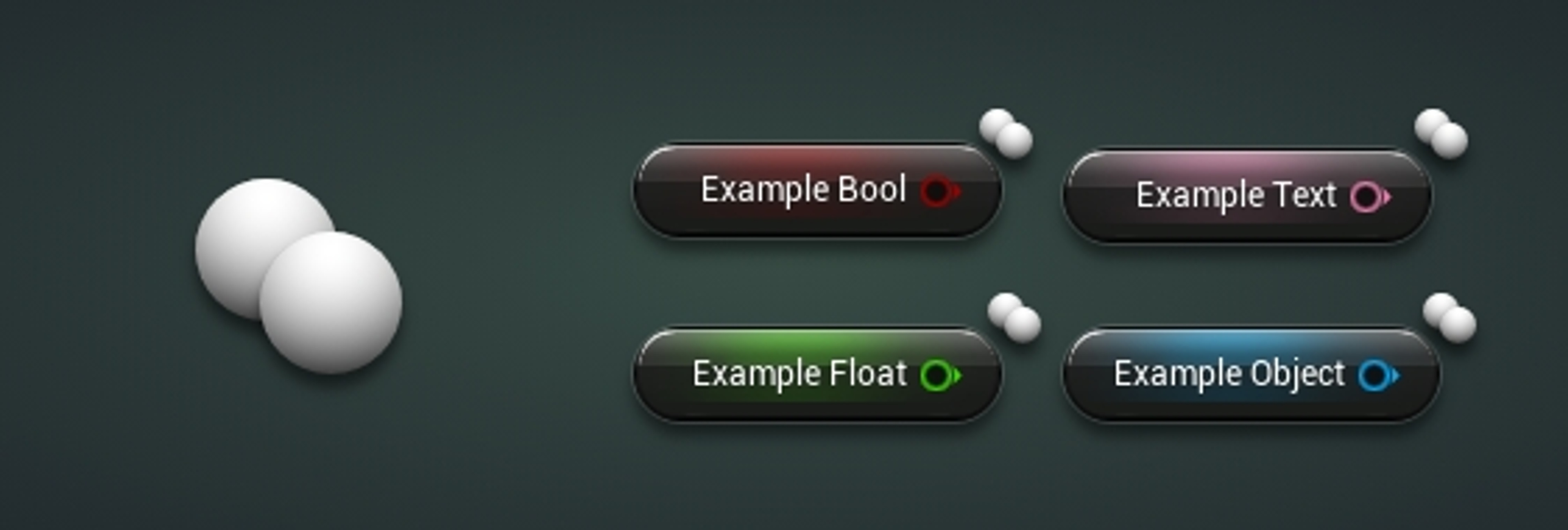
The SET variable node will have an w/ Notify appended to its name when set to RepNotify.
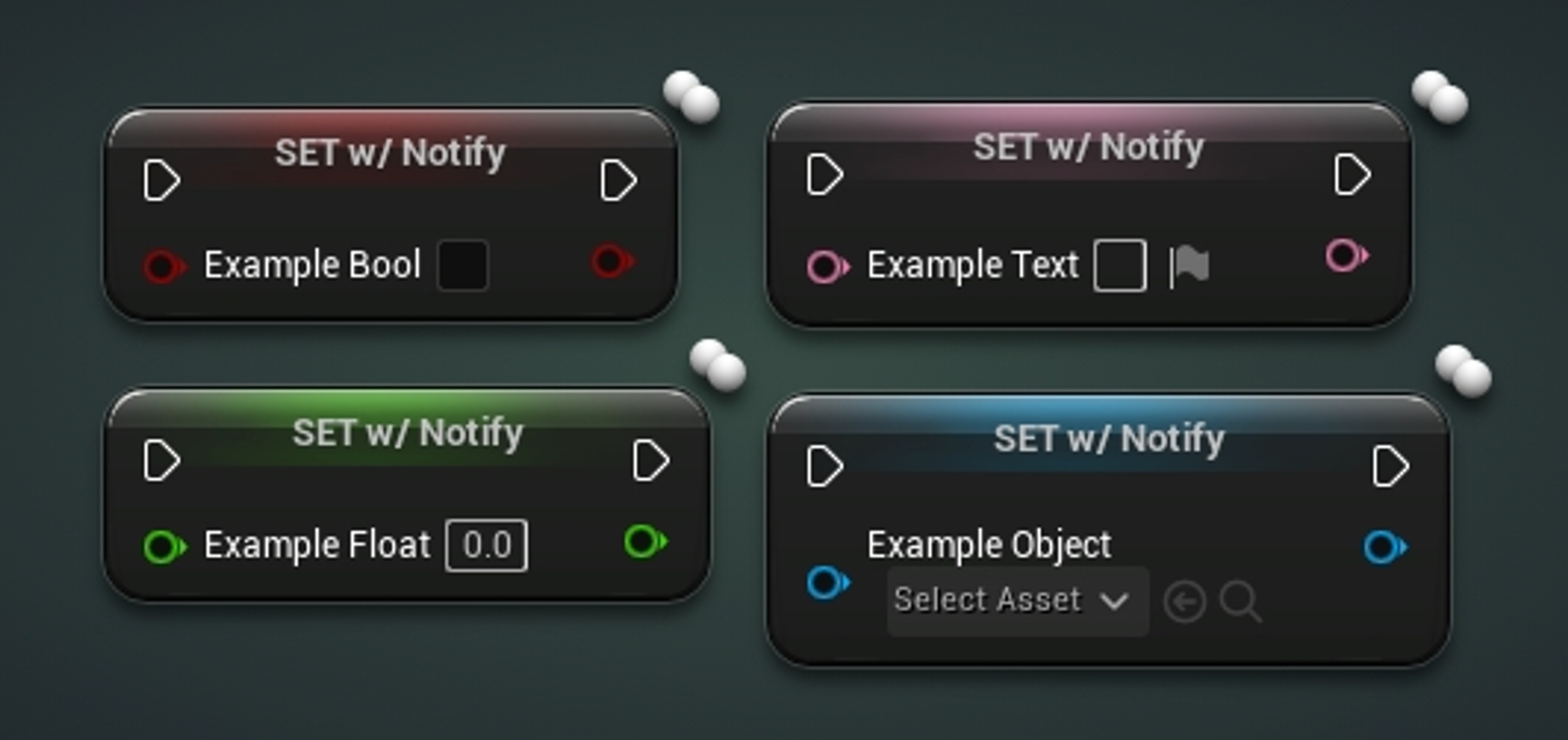
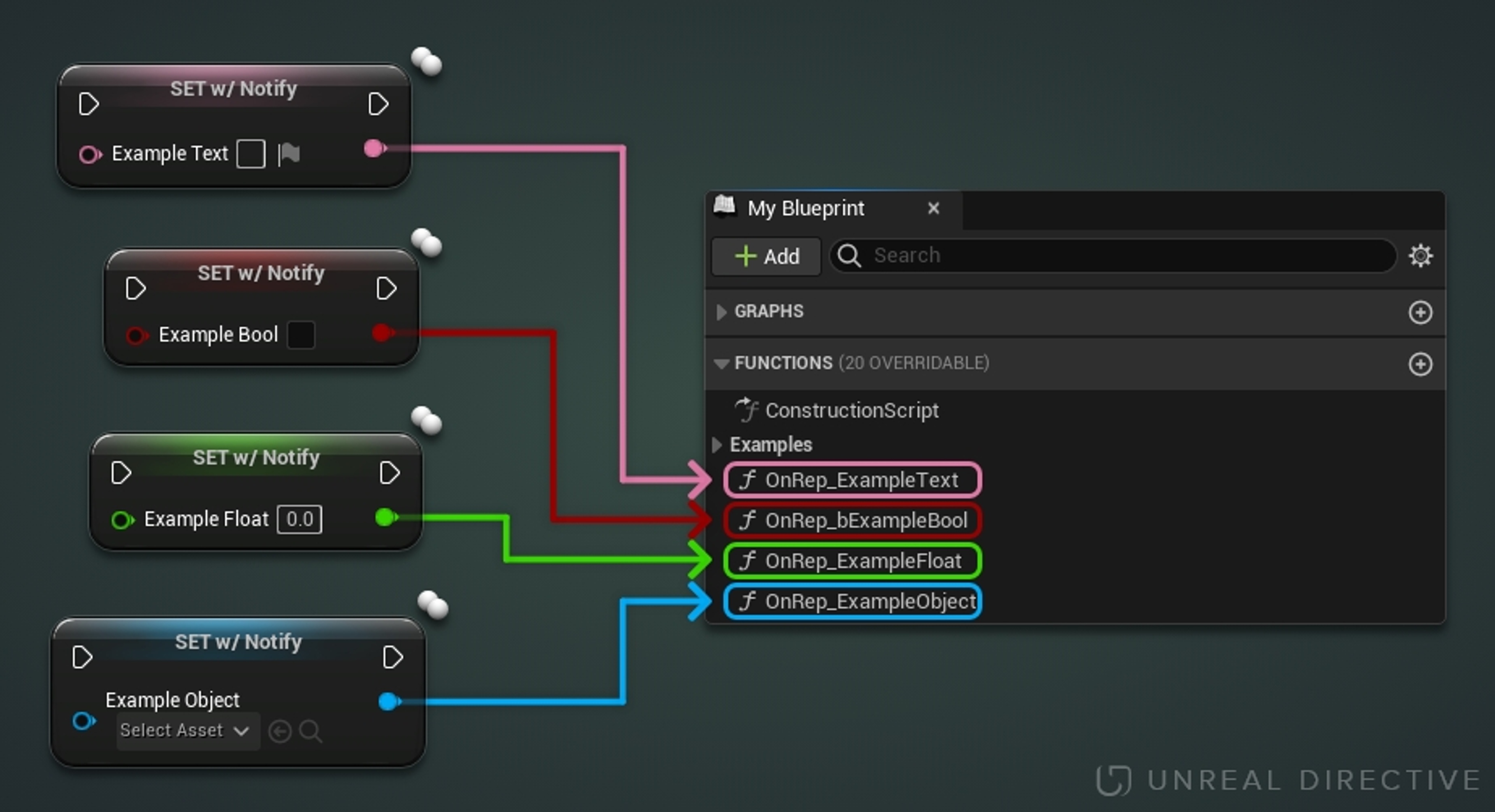
When a variable is set to RepNotify, an OnRep Function will automatically be created in the My Blueprint Function section. This function will be called on both Network Authority and Remote Machines whenever the RepNotify variable is changed.
This method is ideal when requiring logic to be executed in conjunction to any changes in a variable.
The condition when the variable should be replicated.
Available Options –
| Option | Description |
|---|---|
| None | No special condition set. The default option. |
| Initial Only | Will only attempt to send on the initial bunch. |
| Owner Only | Will only send to the actor's owner. |
| Skip Owner | Will only send to every connection EXCEPT the owner. |
| Simulated Only | Will only send to simulated actors. |
| Autonomous Only | Will only send to autonomous actors. |
| Simulated Or Physics | Will only send to simulated OR bRepPhysics actors. |
| Initial or Owner | Will only send on the initial packet, or to the actors owner. |
| Custom | No special condition, but wants the ability to toggle on/off via SetCustomIsActiveOverride |
| Replay Or Owner | Unknown |
| Replay Only | Unknown |
| Only No Replay | Unknown |
| Simulated Or Physics no Replay | Unknown |
| Skip Replay | Unknown |
Enable to have the variables default value be established via a config file (if present).
This option is useful when needing to customize default values and behaviors between different projects.
Enable to flag the variable as not needing to be saved or loaded and to have its initial value be zero or null.
This option is useful when needing to reference an object or actor whose value isn't established until run-time.
Enable to make the variable serializable by a Save Game object.
This option is useful when the variable should be a part of a save system.
Enable to hide the variable in the blueprints Class Defaults section.
This option is useful when you don't want other developers from adjusting this variable from the blueprint, and child blueprints, Class Defaults section.
Marks the variable as obsolete and produces a compiler warning indicating that the variable should be either removed or replaced.
Make sure to fill out the deprecation message.
The message that will be included with the compiler warning.
It is ideal to state what variable is replacing the deprecated variable. This helps other developers, and future you.
X is no longer being used. Please replace with Y.
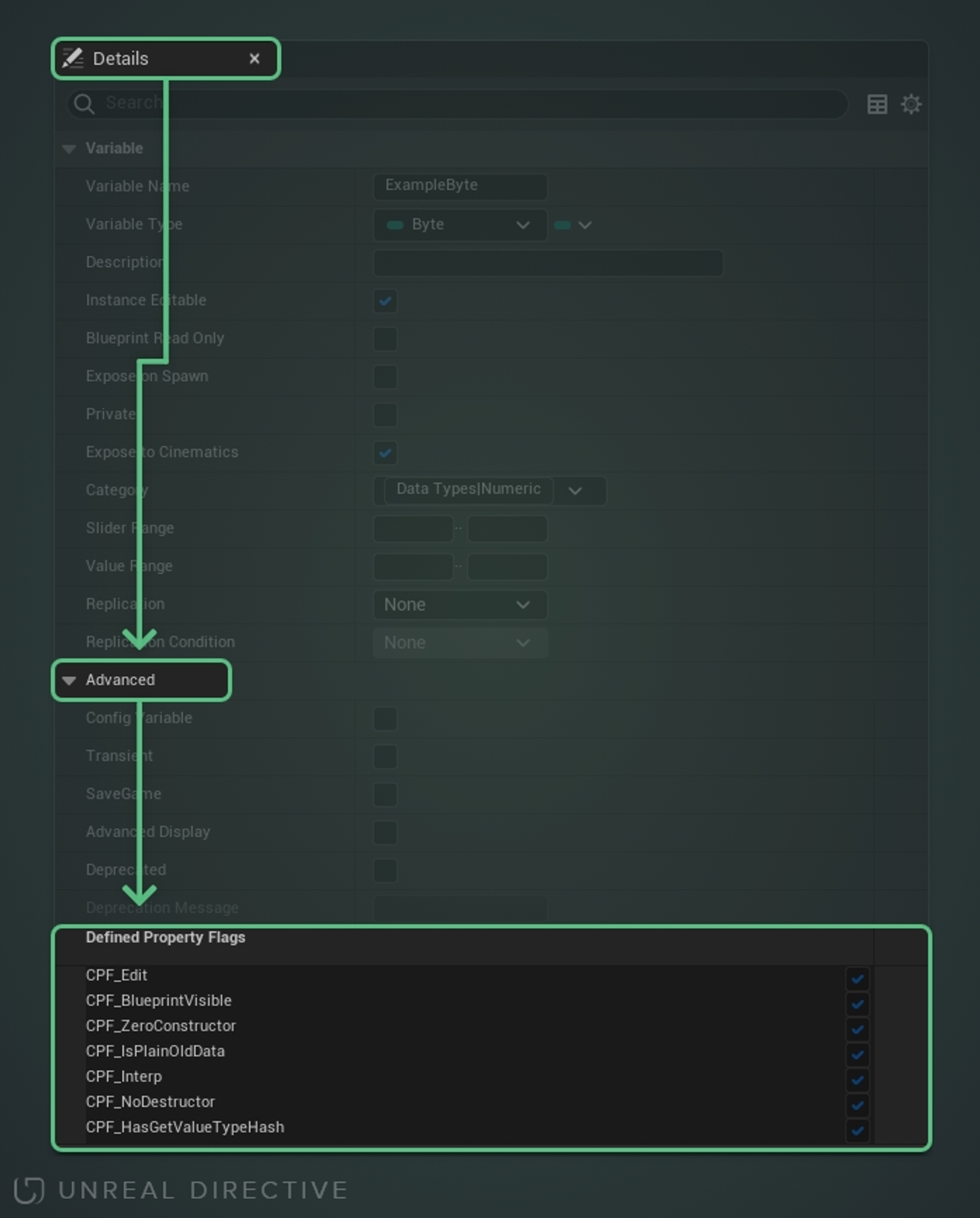
Displays the current property flags attached to the variable. While these cannot be set directly, they change based on the other Details Panel options.
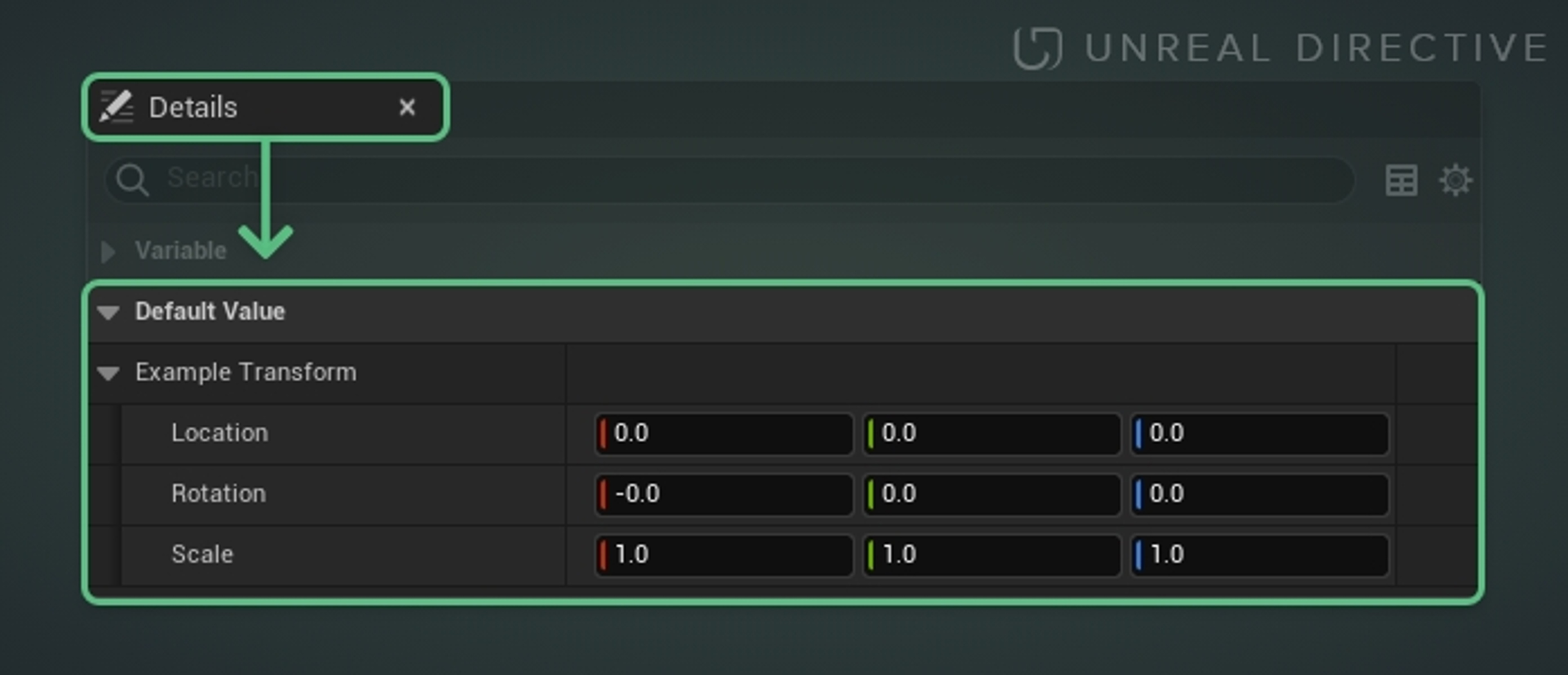
The value the variable has by default before any modifications.
In this section, I will be going over every variable type found within Unreal Engine.
A Boolean is a data type that can only have two different values; true or false.
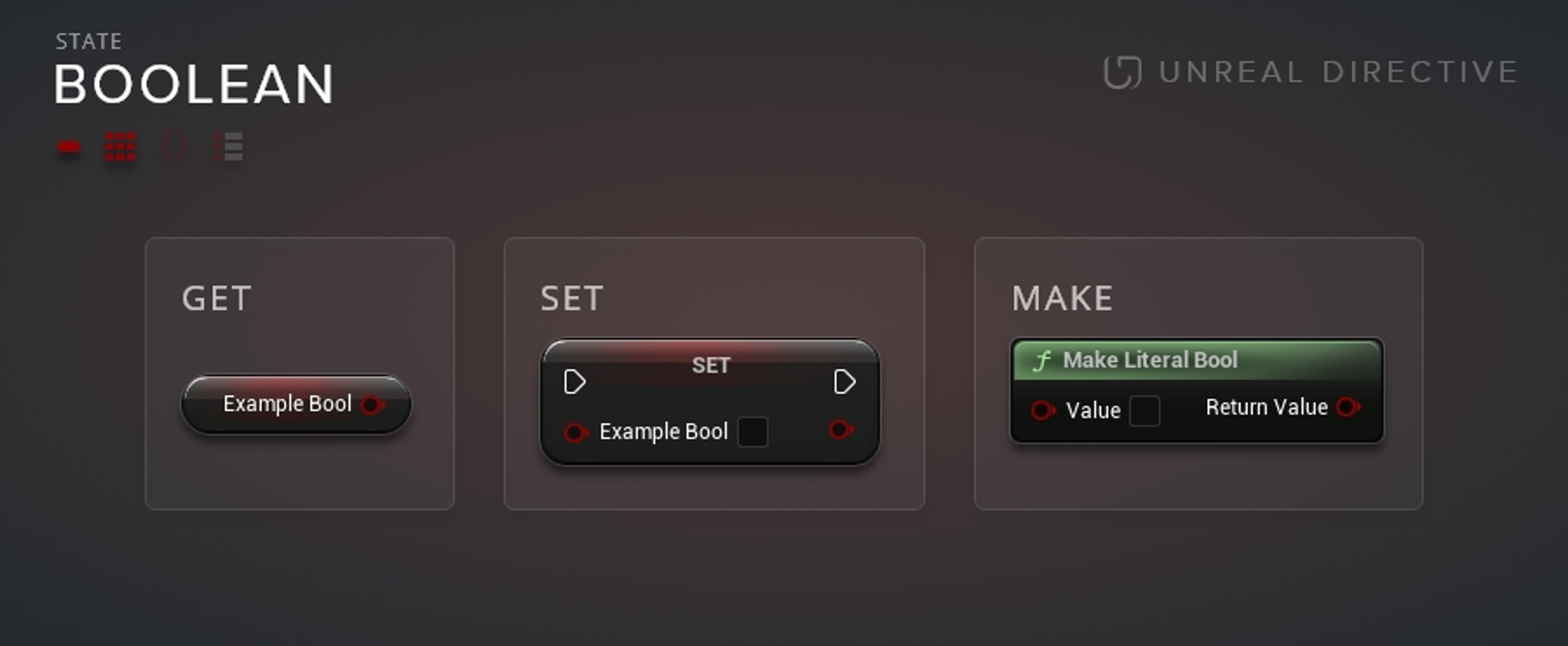
Booleans are great for control statements, such as Branch Nodes, to determine the flow of execution.
A Byte is a data type that can hold the whole number values from 0 to 255.
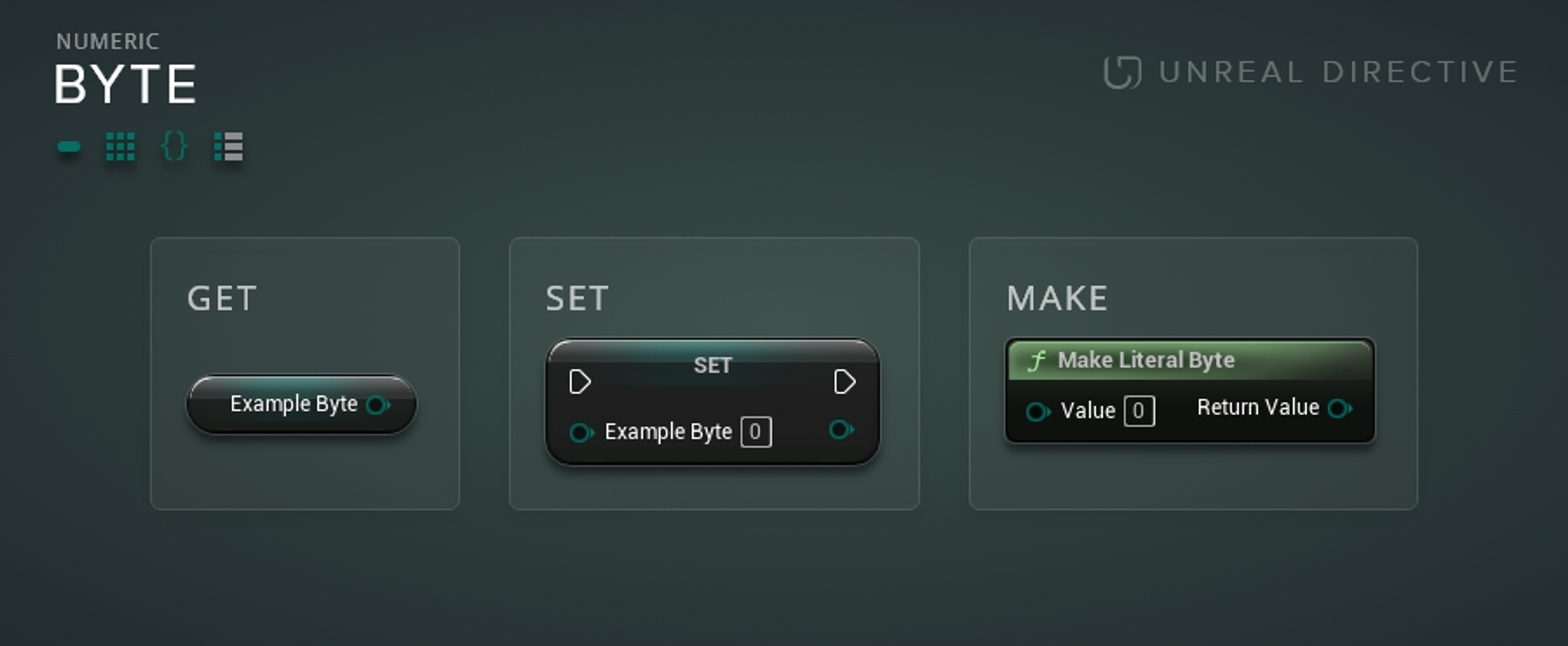
Bytes are great when high efficiency and speed are required; e.g. networking or control systems.
For all practical purposes, it's recommended to use an integer instead.
A Double is a floating point data type that has double the precision of a regular float. This precision is roughly typical at 16 significant digits.
As of Unreal Engine 5, this is the default option when creating a Float variable. During packaging, it will be converted to a regular float if it doesn't exceed the precision of a regular float.
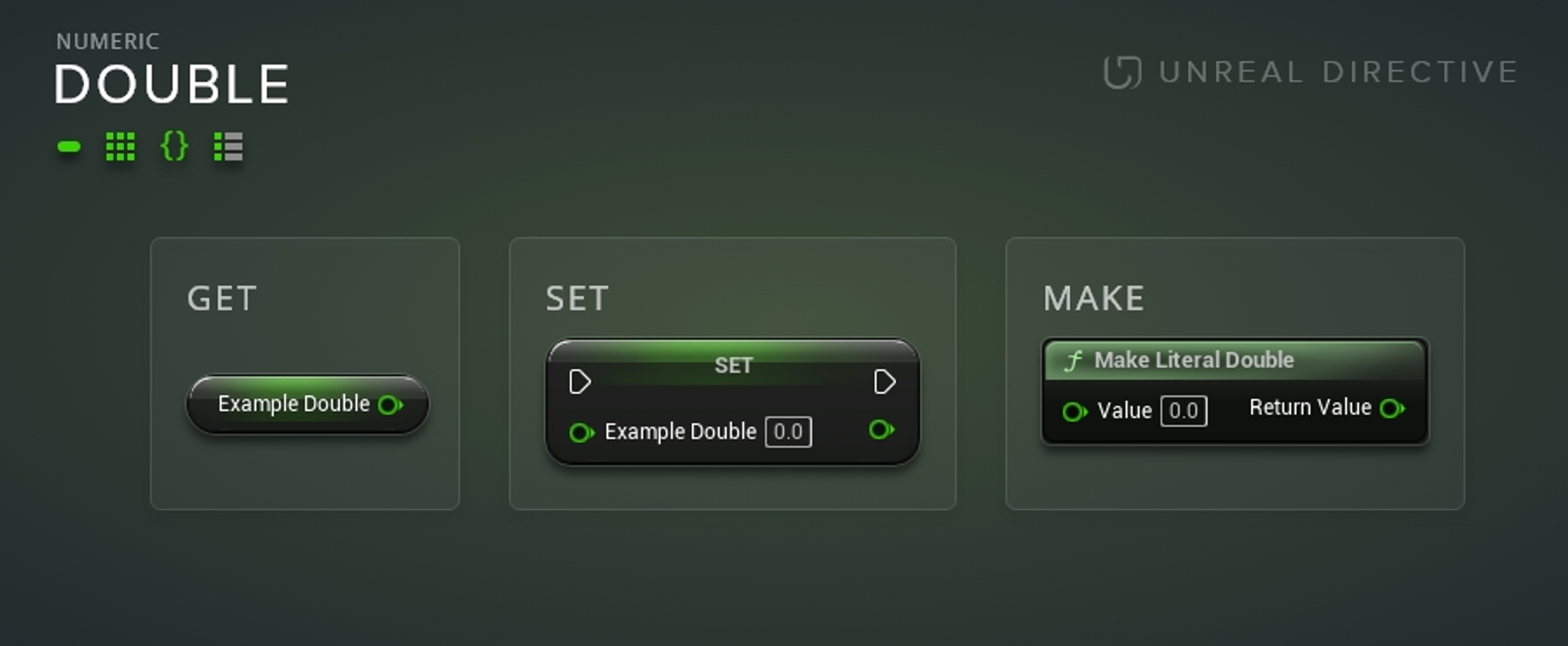
Doubles are great when a high degree of precision is required; e.g. large world coordinates.
An Enumerator is a data type that assigns names to integer values.
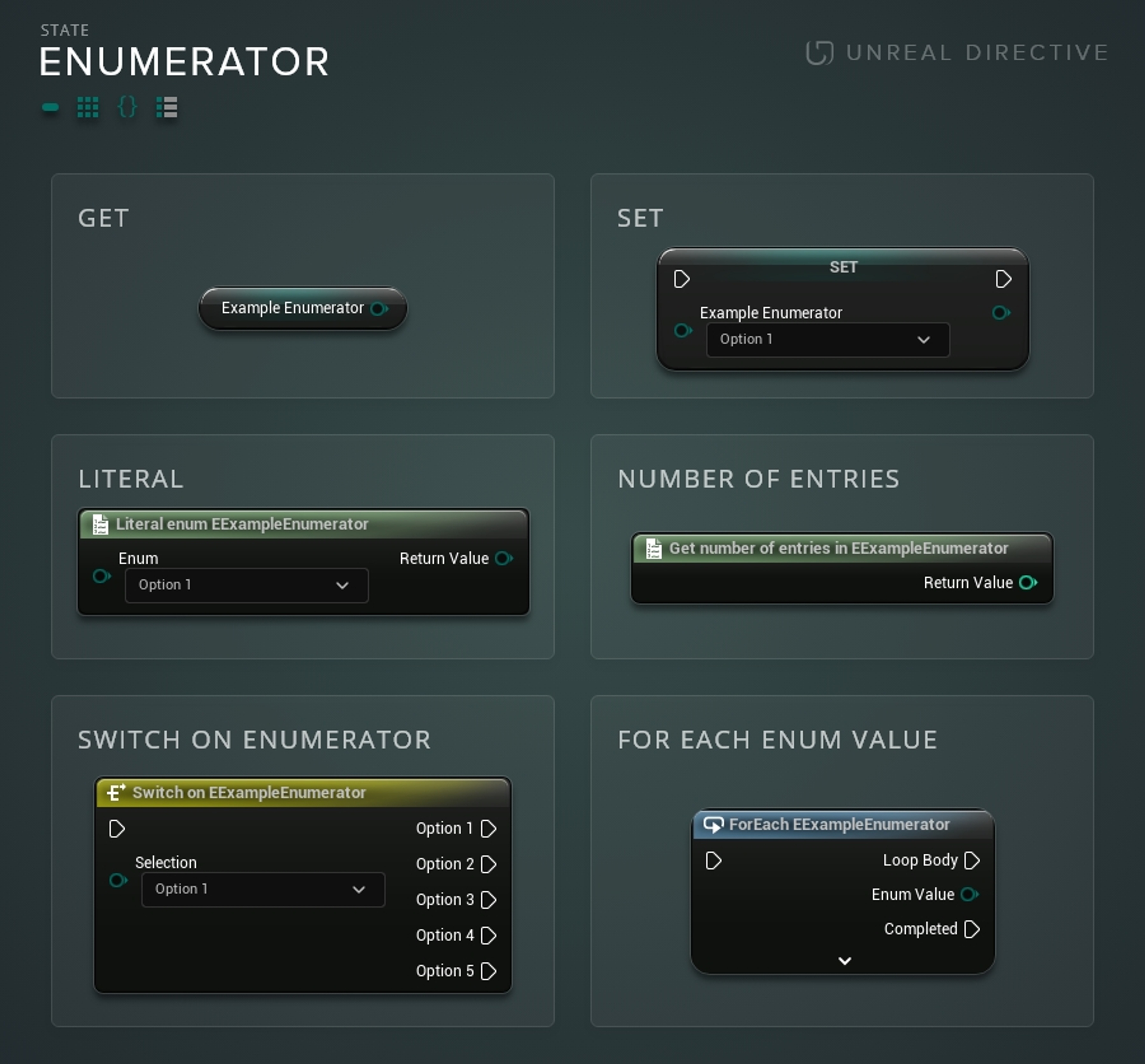
An Enumerator should be used when defining complex states. e.g. --
| Index | Enumerator |
|---|---|
| 0 | Standing |
| 1 | Walking |
| 2 | Jogging |
| 3 | Running |
| 4 | Sprinting |
A Float is a floating-point data type that has a prevision of roughly 7 significant digits.
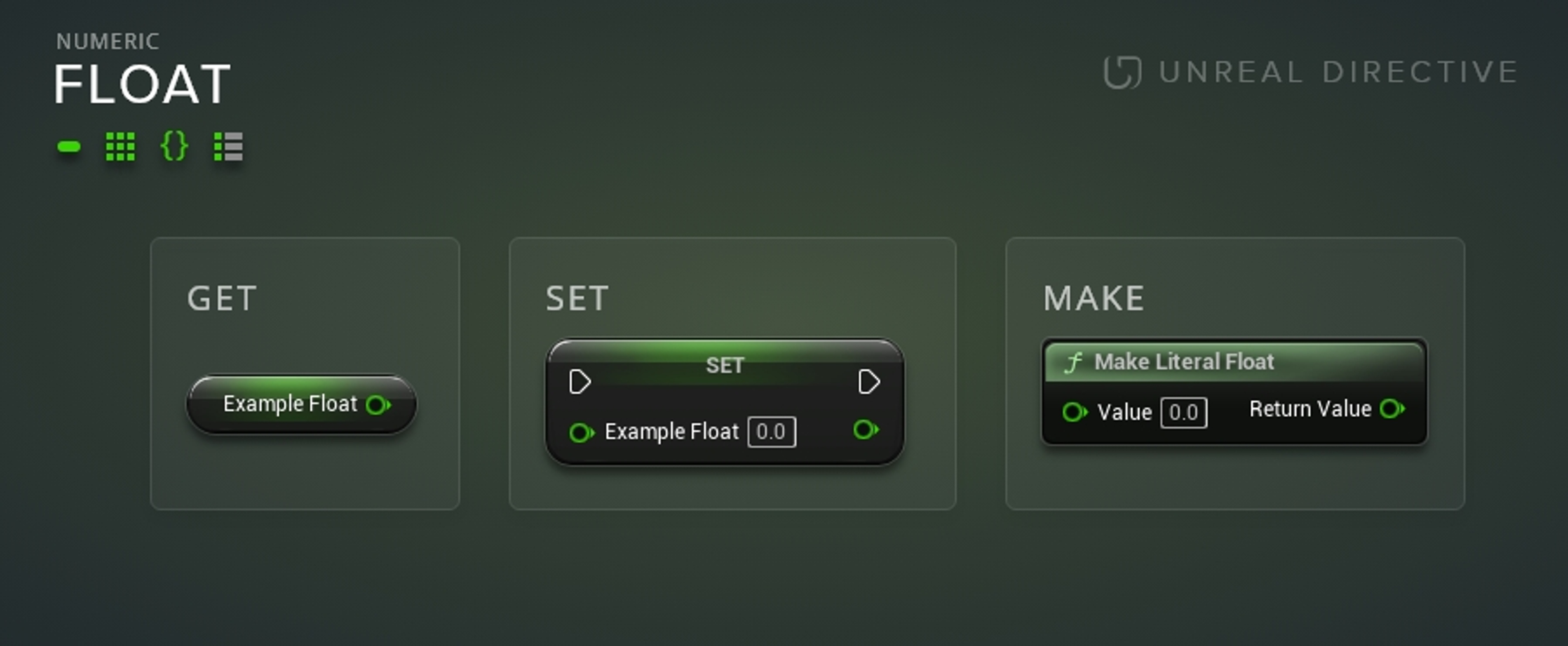
Floats are ideal when decimal point precision (up to 7 significant digits) is required.
An Integer is a data type that can hold the whole number values from -2,147,483,648 to 2,147,483,647.
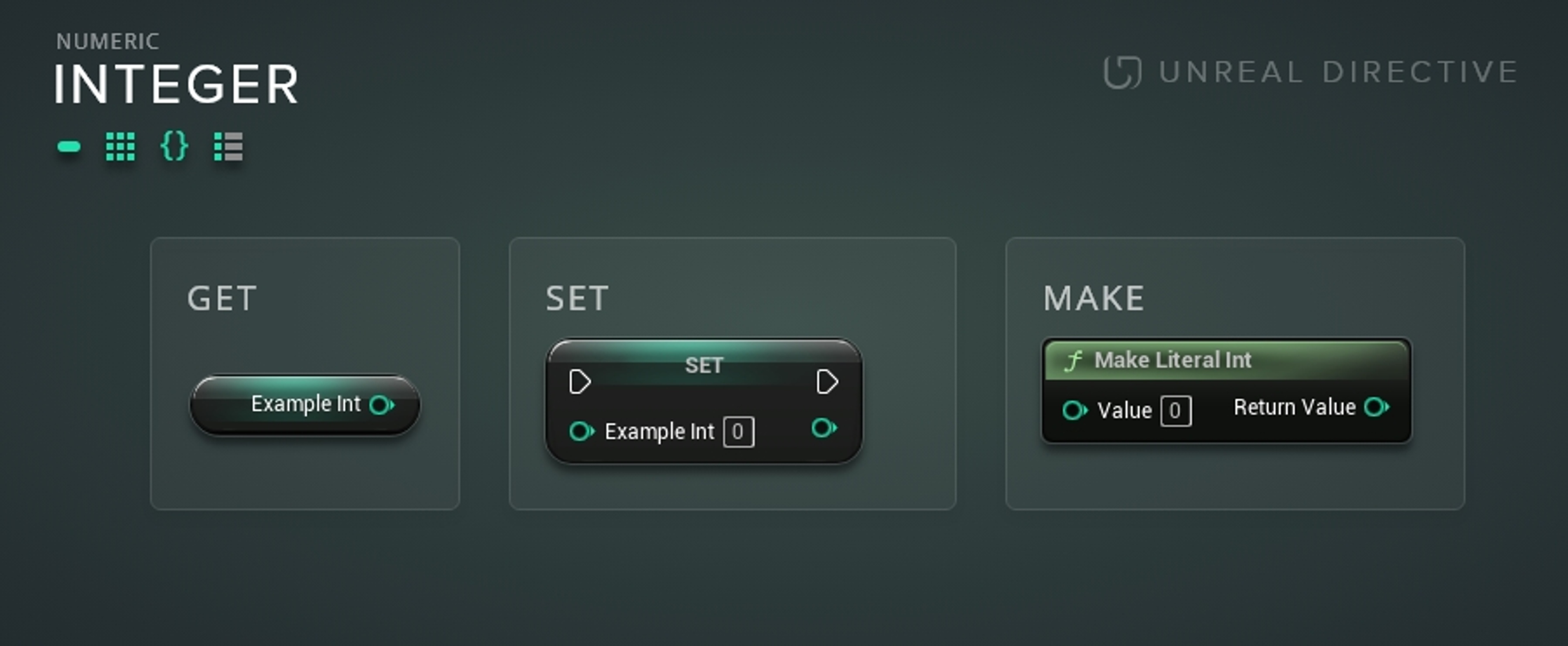
Integers are useful for indexing or when decimal point precision is not required.
A Integer 64 is a data type that can hold the whole number values from -9,223,372,036,854,775,808 to 9,223,372,036,854,775,807.
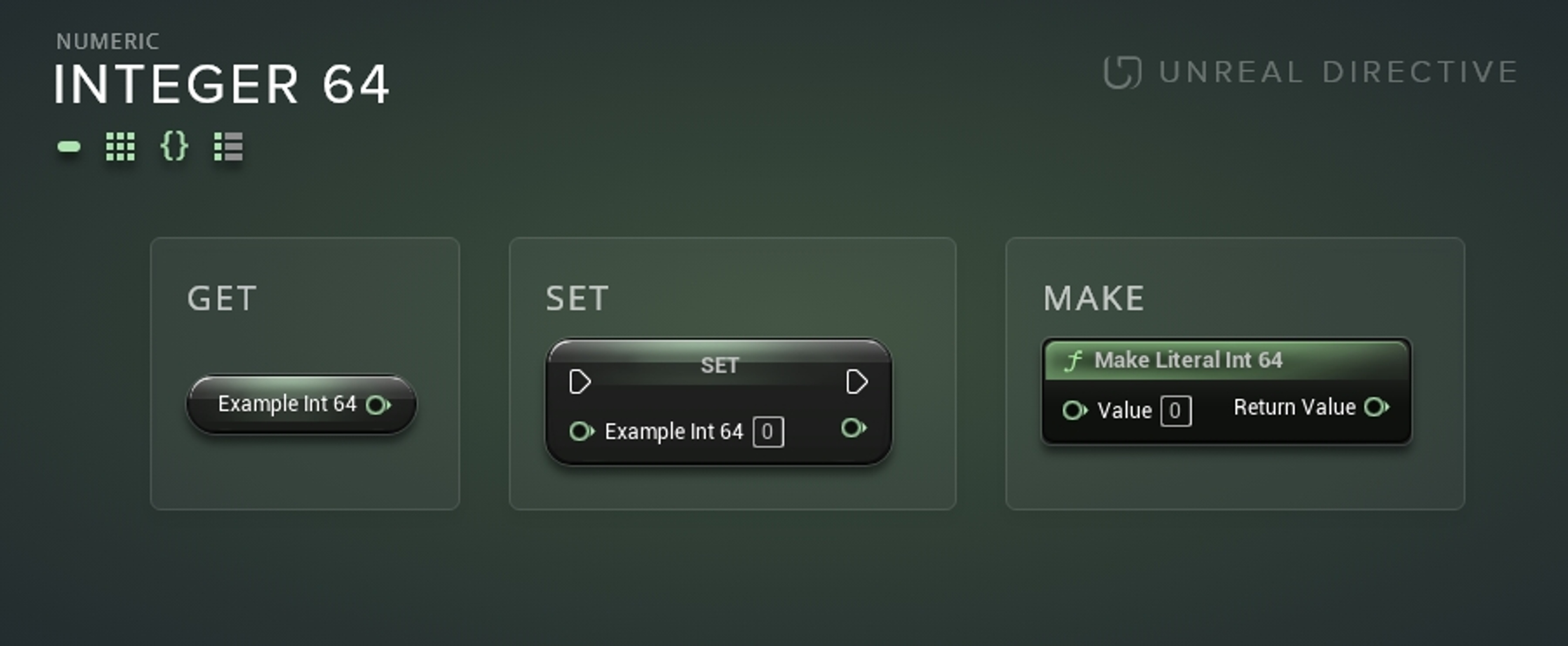
An Integer 64 is generally used when the value required is beyond the limits of a regular Integer and doesn't require decimal precision.
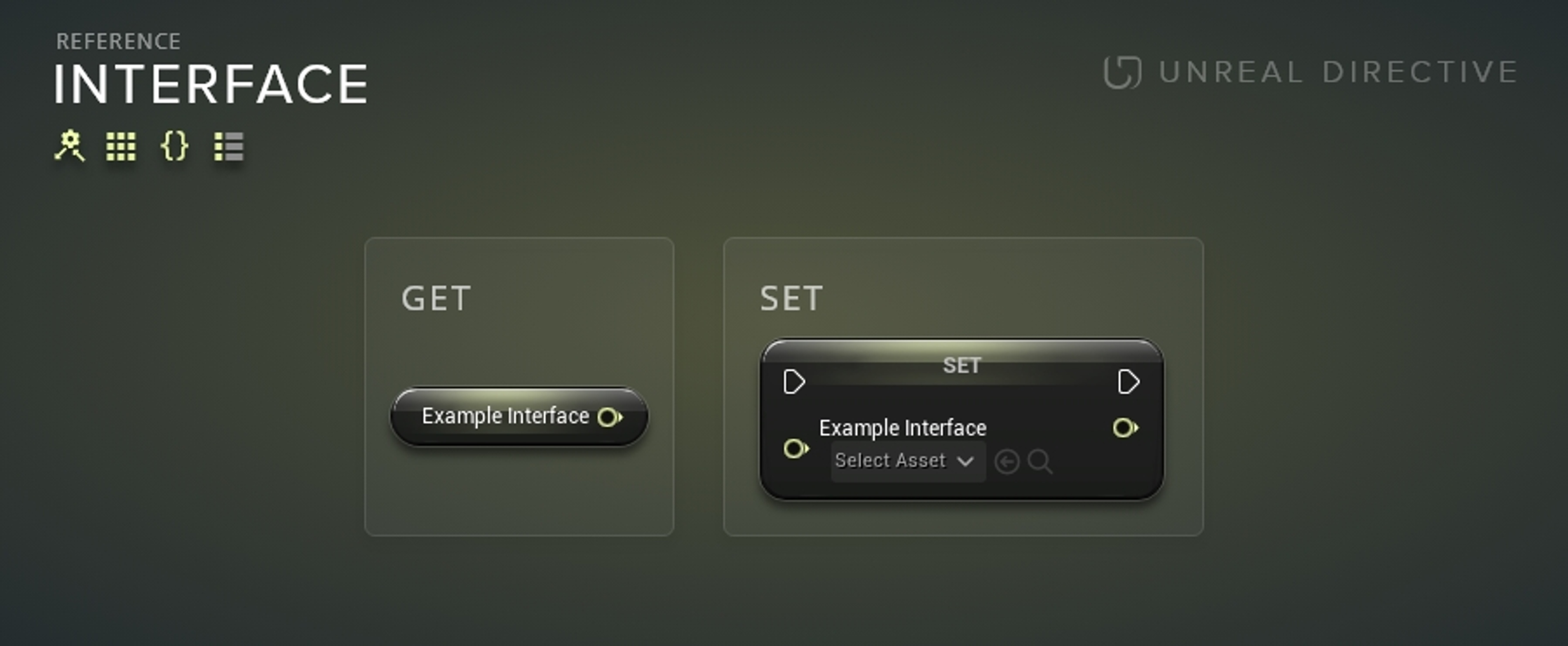
An Interface is a data type that stores a reference to an Unreal Engine Interface.
A Name is a data type that can hold alpha-numeric characters.
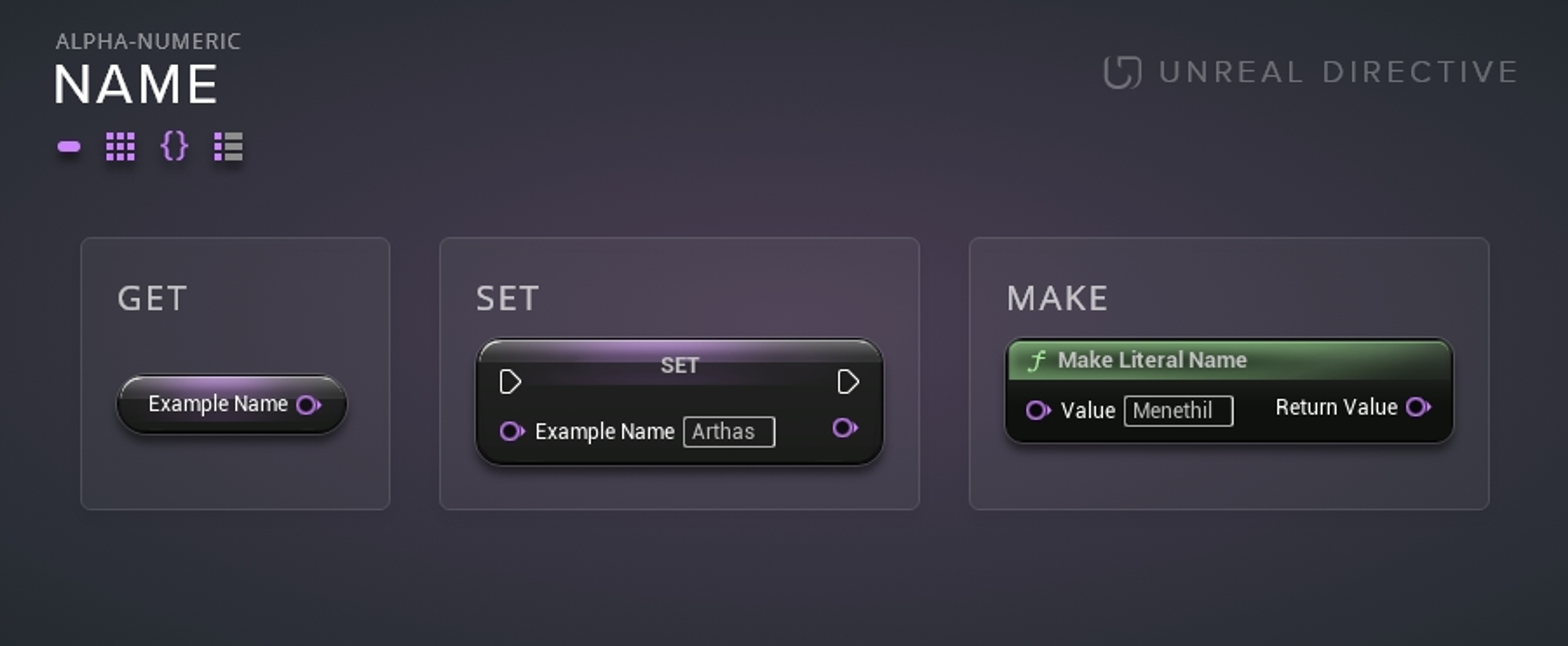
Name variables are generally used for --
or when a small memory footprint is required; e.g. sending over a network or saving to disk.
An Object is a data type that stores a reference to an Unreal Engine Object.
Objects are references to other blueprints, actors, pawns, widgets, etc.
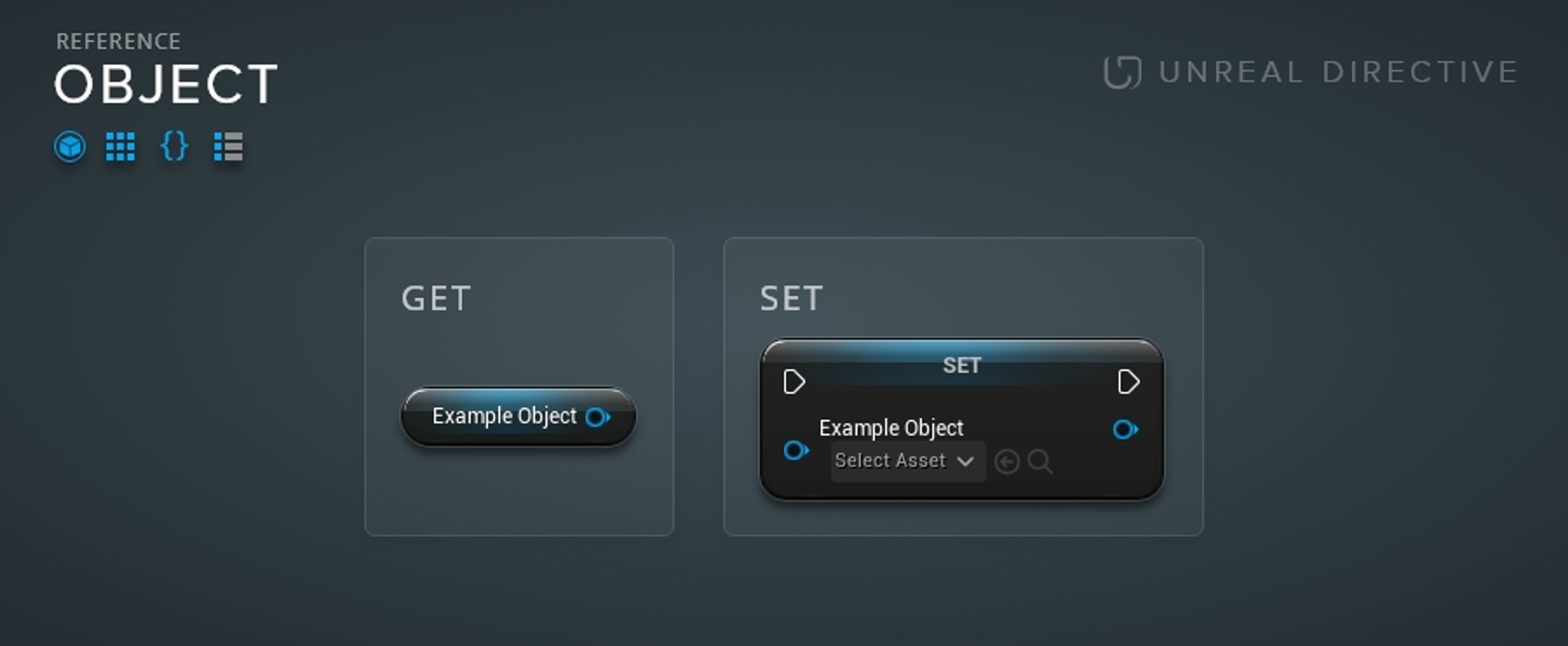
It's generally ideal to reference an object if it's going to be used often.
A Rotator is a data type that holds rotational information comprised of three Float components -- Roll, Pitch, and Yaw.
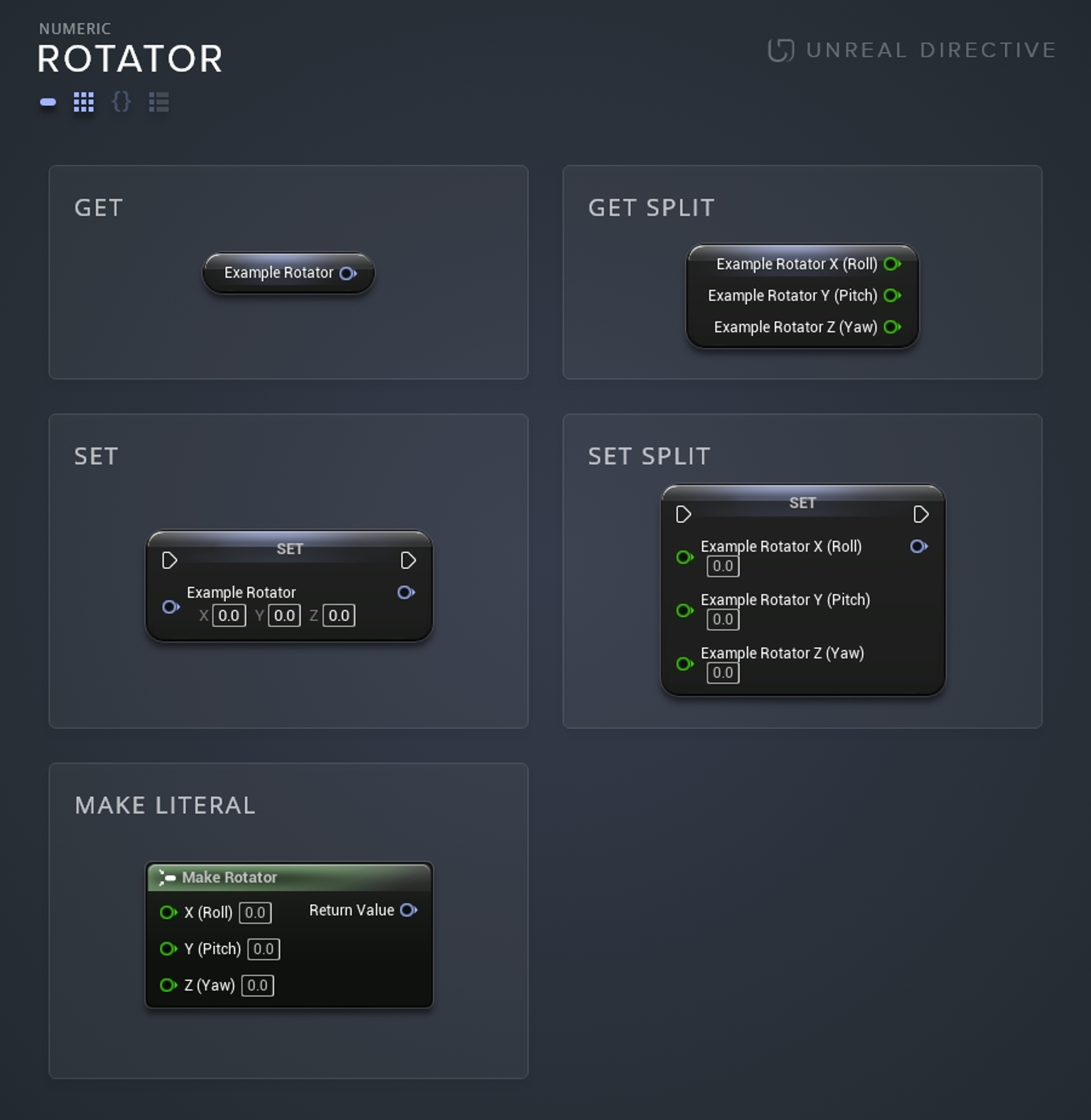
The Roll, Pitch, and Yaw are terms based on aircraft terminology.
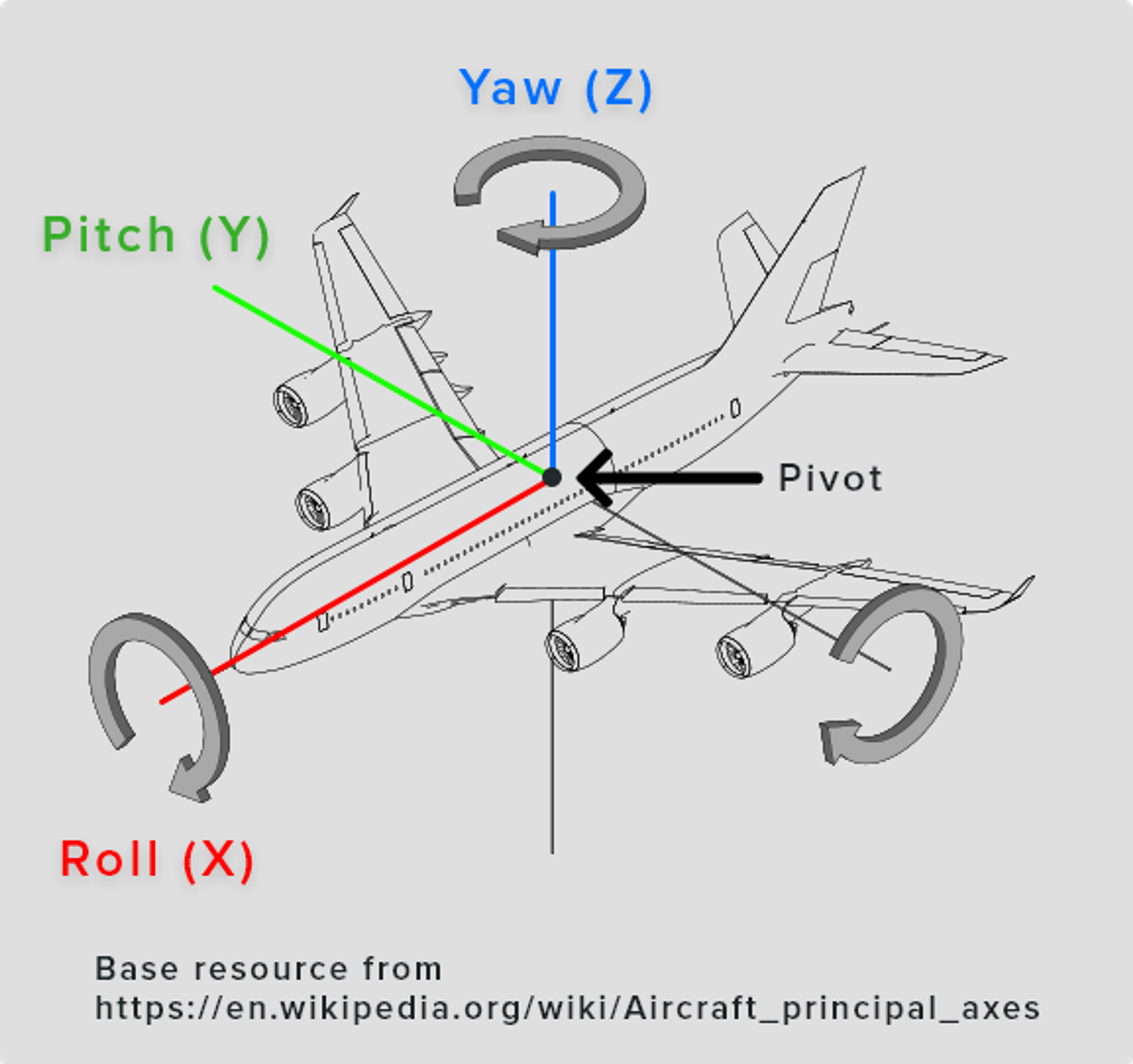
Roll is the rotation based on the X-axis of the object's center of gravity (pivot). An increase in the roll value will rotate the object clockwise, and a decrease in the roll value will rotate the object counterclockwise.
Pitch is the rotation based on the Y-axis of the object's center of gravity (pivot). An increase in the pitch value will rotate the object upward, and a decrease in the roll value will rotate the object downward.
Yaw is the rotation based on the Z-axis of the object's center of gravity (pivot). An increase of the yaw value will rotate the object to the right, and a decrease of the yaw value will rotate the object to the left.
Other things to keep in mind --
A Rotator is used to store three-dimensional rotational data of an object.
A String is a data type that can hold alpha-numeric characters.
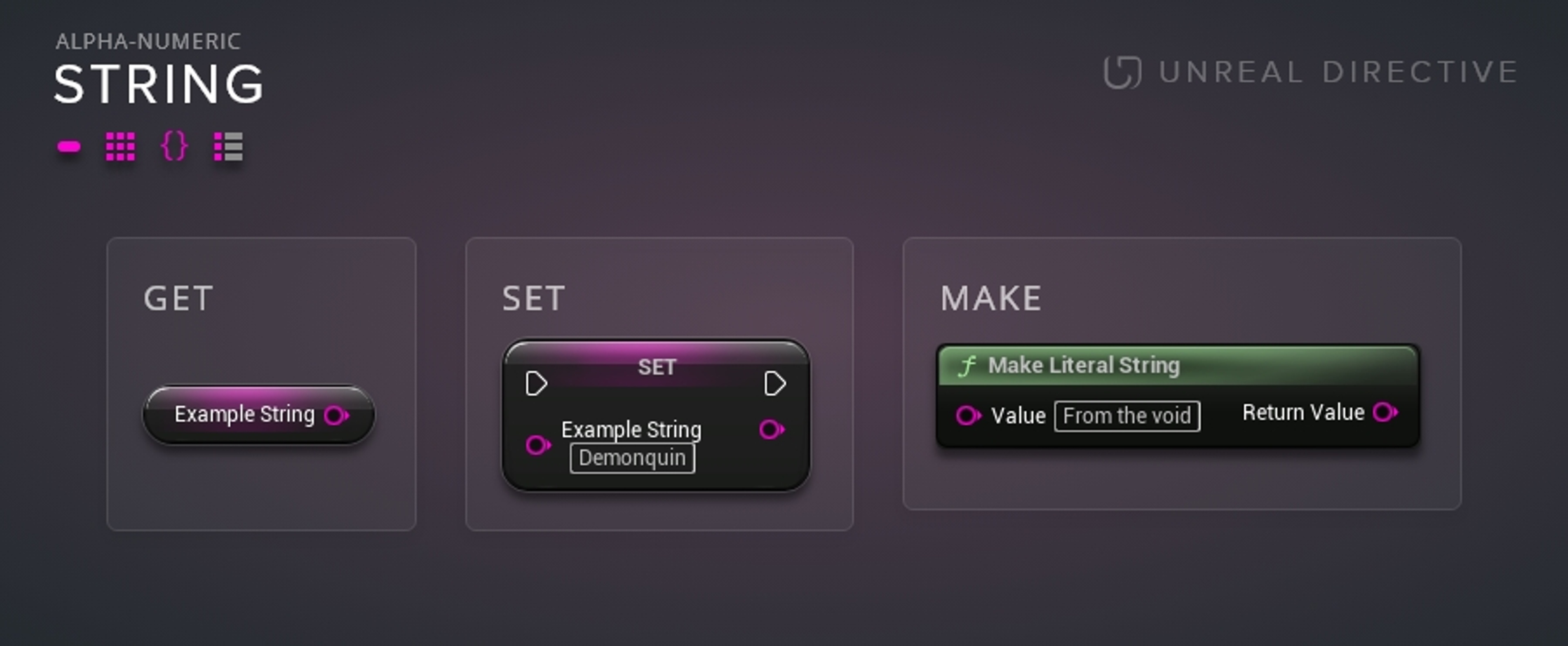
Strings are generally used when alpha-numeric characters need to be manipulated. In addition, Strings are often used for internal naming schemes alongside Names.
Unlike the Name and Text variable types, Strings can be searched, modified, and compared against each other. Do note that string manipulation can be quite performance inhibitive and should be used sparingly.
A Structure is a collection of different data types.
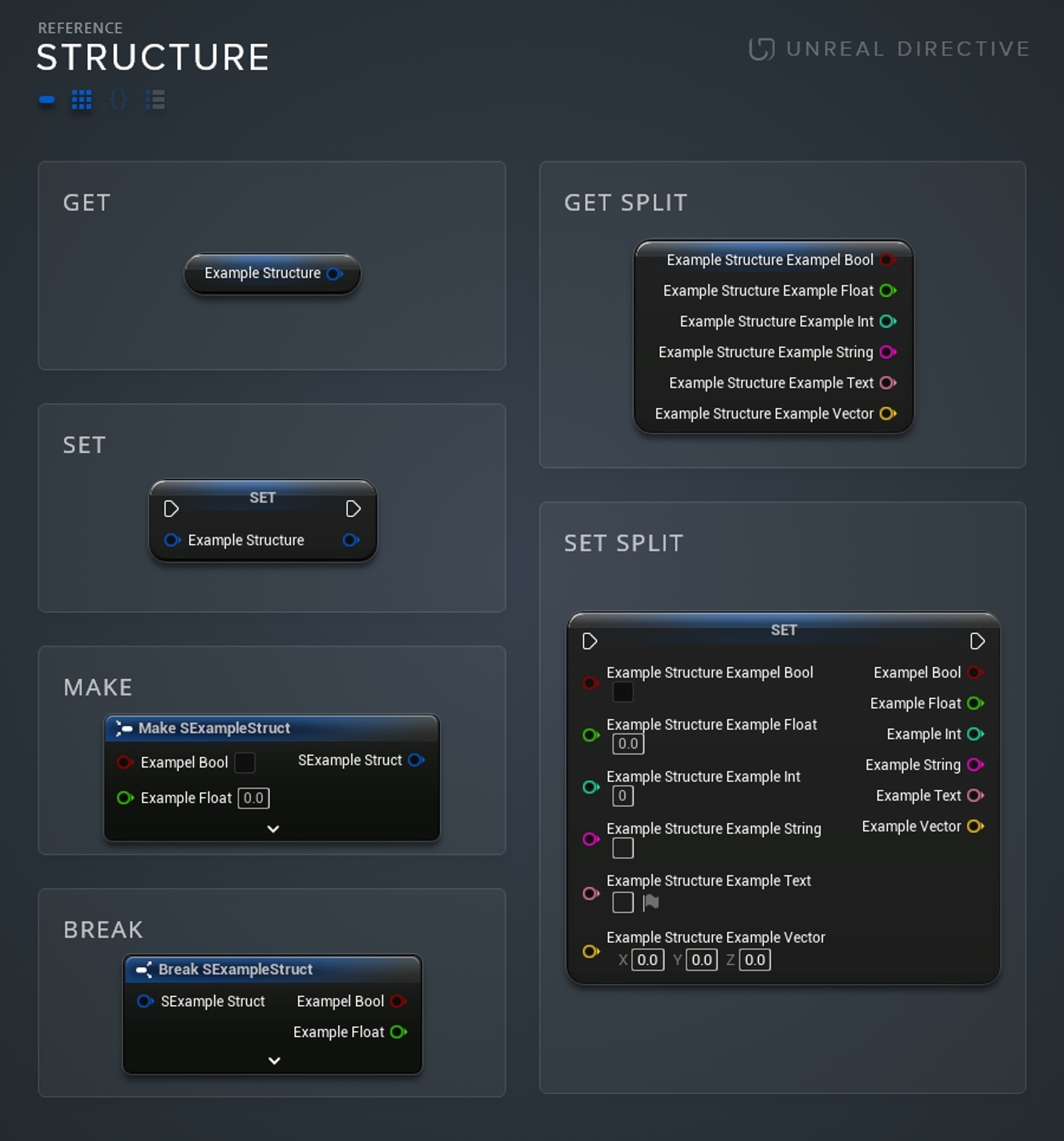
Structures should be created and used when needing to store and manipulate many different data types.
A Text is a data type that can hold alpha-numeric characters and supports Text Localization.
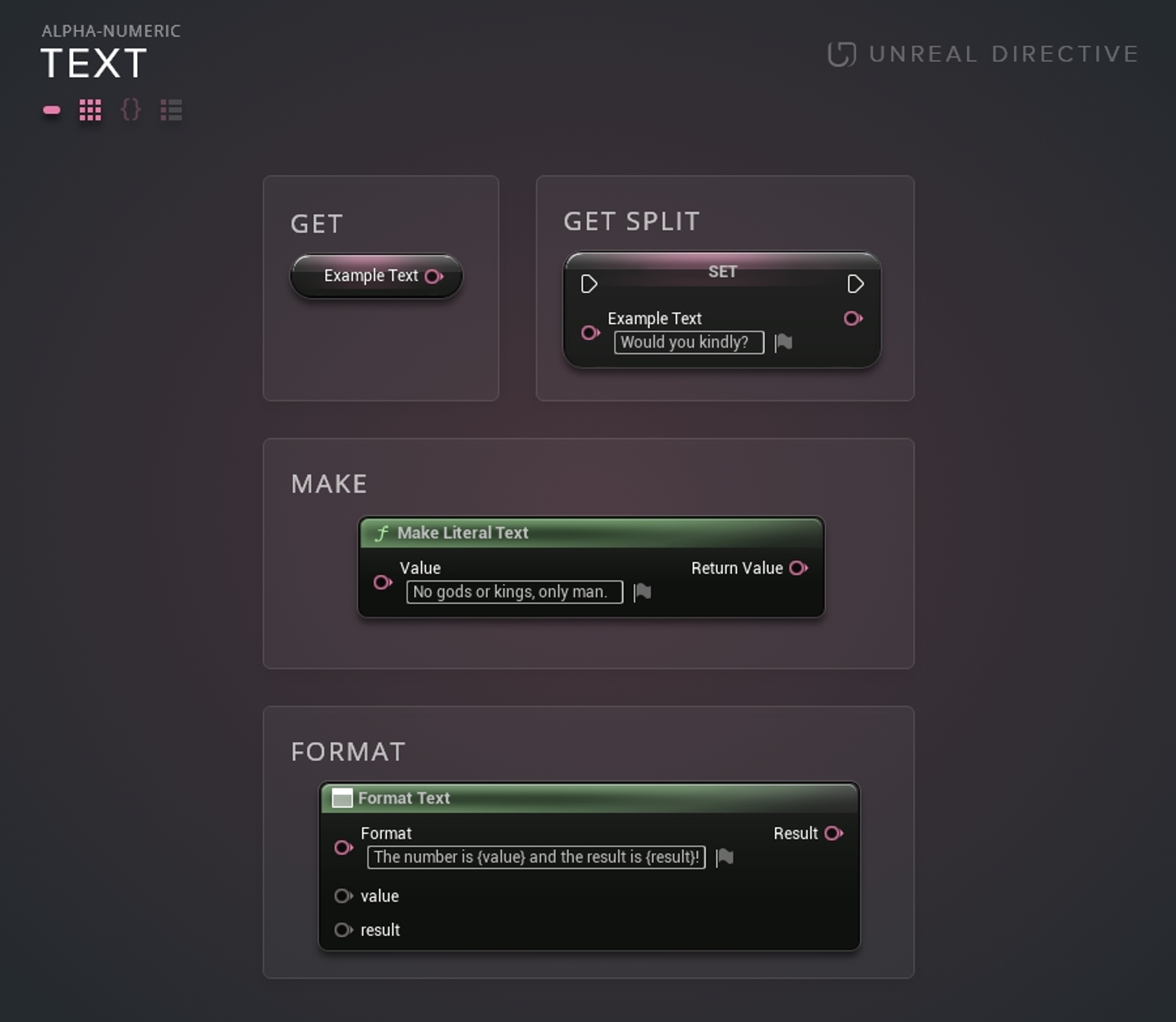
Text data types are generally used when visibly displaying text (e.g. Player HUD, Quest Log, etc.) or when language localization is required.
A Transform is a data type that contains two Vectors (location and scale) and a Rotator.
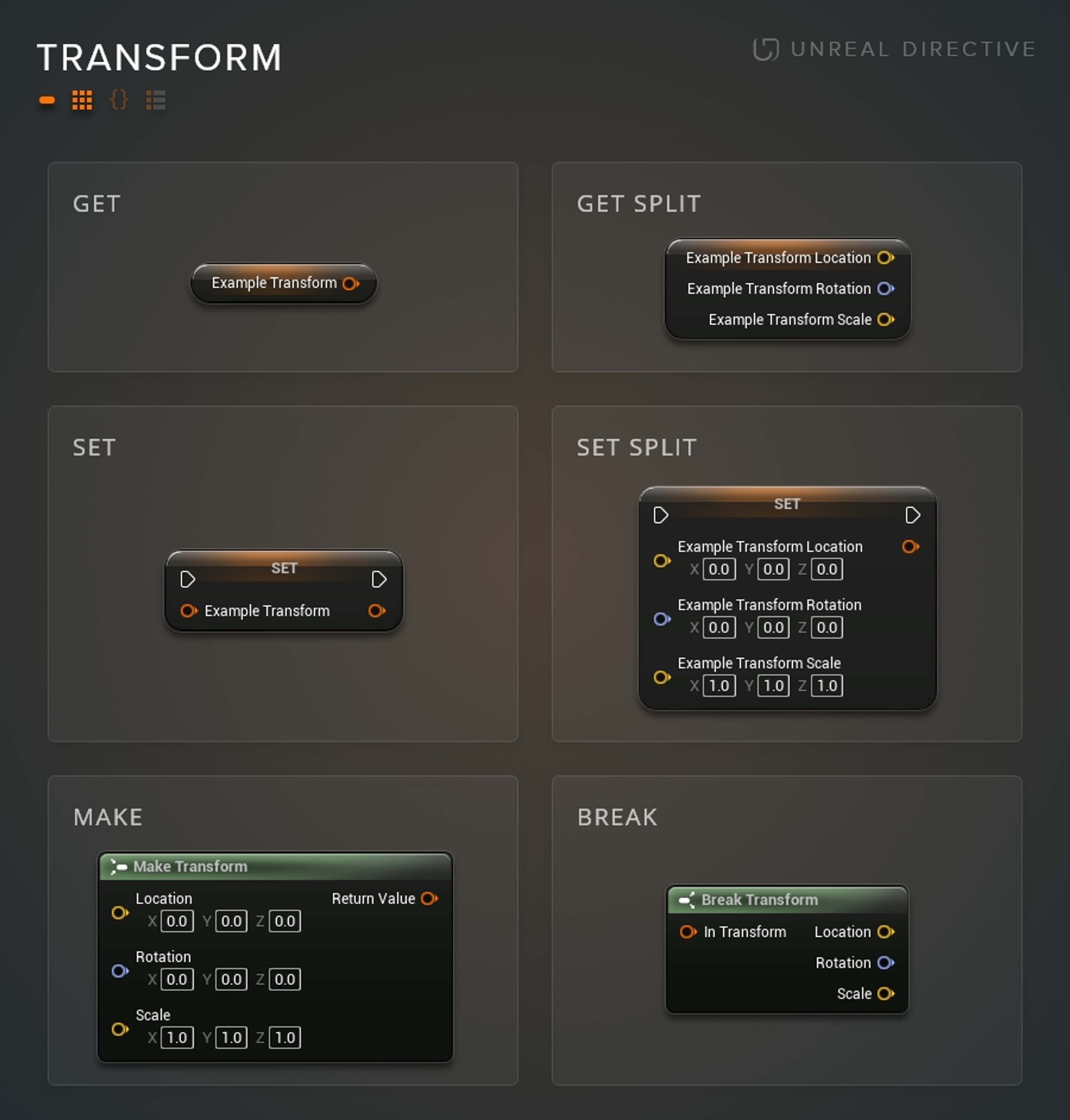
Transforms are used when needing to store the location, rotation, and/or scale of an object.
A Vector is a data type that is comprised of three Float components (X, Y, Z).

Vectors are generally used to store three-dimensional location or scale data of an object.
In this section, I will be going over the four different variable containers types.
The Single container type allows variables to only store a singular value.
This is the most commonly used container type for variables.

Use the Single container type when needing to store, read, and/or modify a singular data entry.
The Array container type allows variables to hold an ordered list of values. Arrays can contain duplicate values.
The Array container type is ideally used when needing to store, read, and/or modify multiple data entries. Array's are especially useful when retrieving a value based on an Integer index.
The Set container type allows for variables to hold an ordered list of unique values. Sets cannot contain duplicate values.
The Set container type is ideally used when the uniqueness of a variable entry is important. e.g. Sets helps tremendously when trying to compare two different containers and finding the difference.
| Data Type | Option Available |
|---|---|
| Boolean | |
| Byte | ✓ |
| Integer | ✓ |
| Integer 64 | ✓ |
| Float | ✓ |
| Name | ✓ |
| String | ✓ |
| Text | |
| Vector | ✓ |
| Rotator | |
| Transform | |
| Structure | |
| Interface | ✓ |
| Object | ✓ |
| Enumerator | ✓ |
The Map container type allows for variables to hold key/value pairs that support efficient lookups and the retrieval of values.
The Map container type is ideally used when efficient look-ups and retrieval of values are important.
| Data Type | Option Available |
|---|---|
| Boolean | |
| Byte | ✓ |
| Integer | ✓ |
| Integer 64 | ✓ |
| Float | ✓ |
| Name | ✓ |
| String | ✓ |
| Text | |
| Vector | ✓ |
| Rotator | |
| Transform | |
| Structure | |
| Interface | ✓ |
| Object | ✓ |
| Enumerator | ✓ |
Development practices that should be adhered to in order to improve code readability and stability.
Variable naming conventions have been established to make sure that other developers, and future you, clearly know what the variable does.
I recommend following Allar's Unreal Engine Style Guide.
Variables that shouldn't be accessed by external blueprints should be set to private.
Ideally, variables shouldn't be accessed by external blueprints. Instead, they should be read via getter functions and set via setter functions.
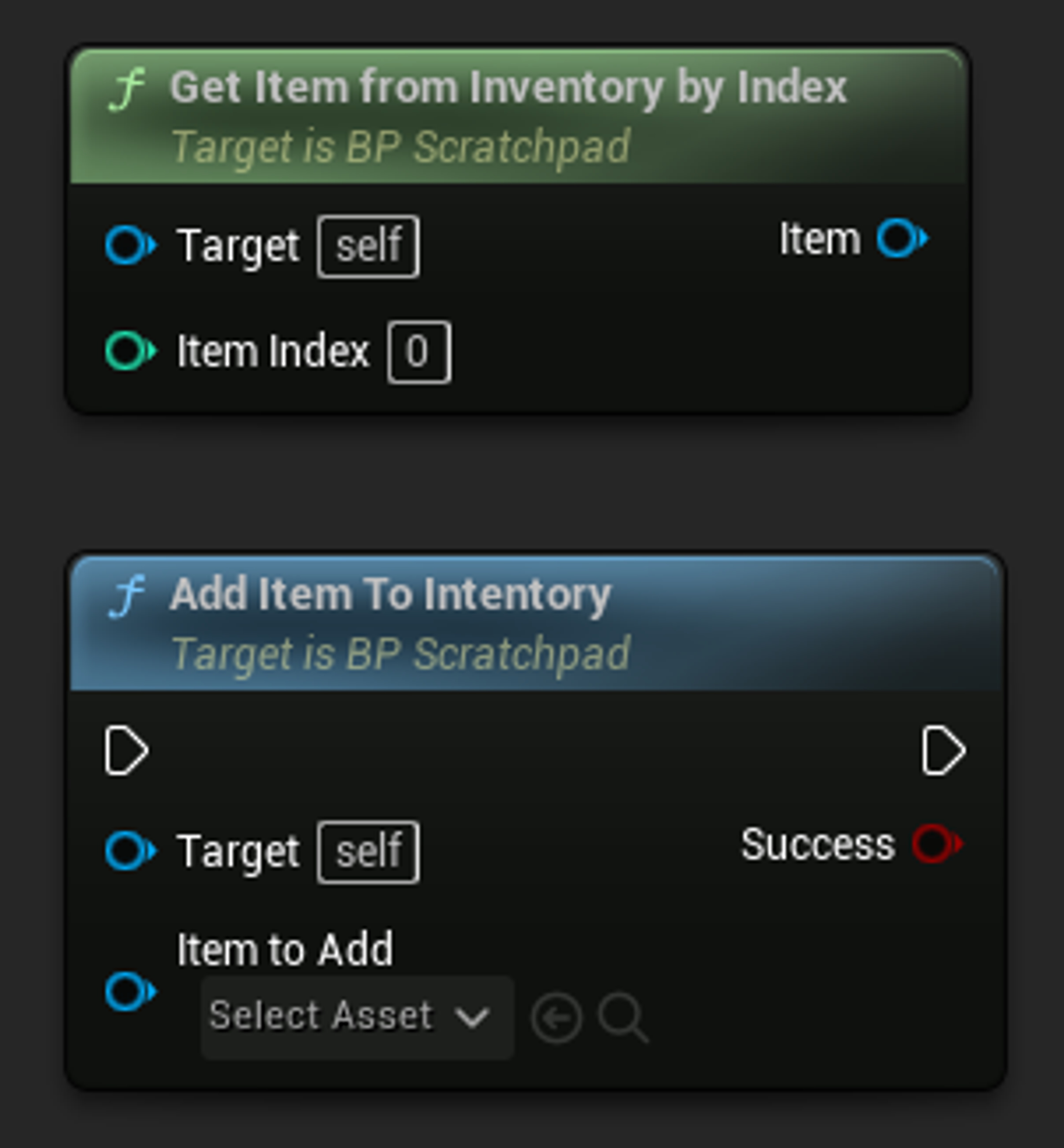
This massively helps with future extendability and debugging.
Notes
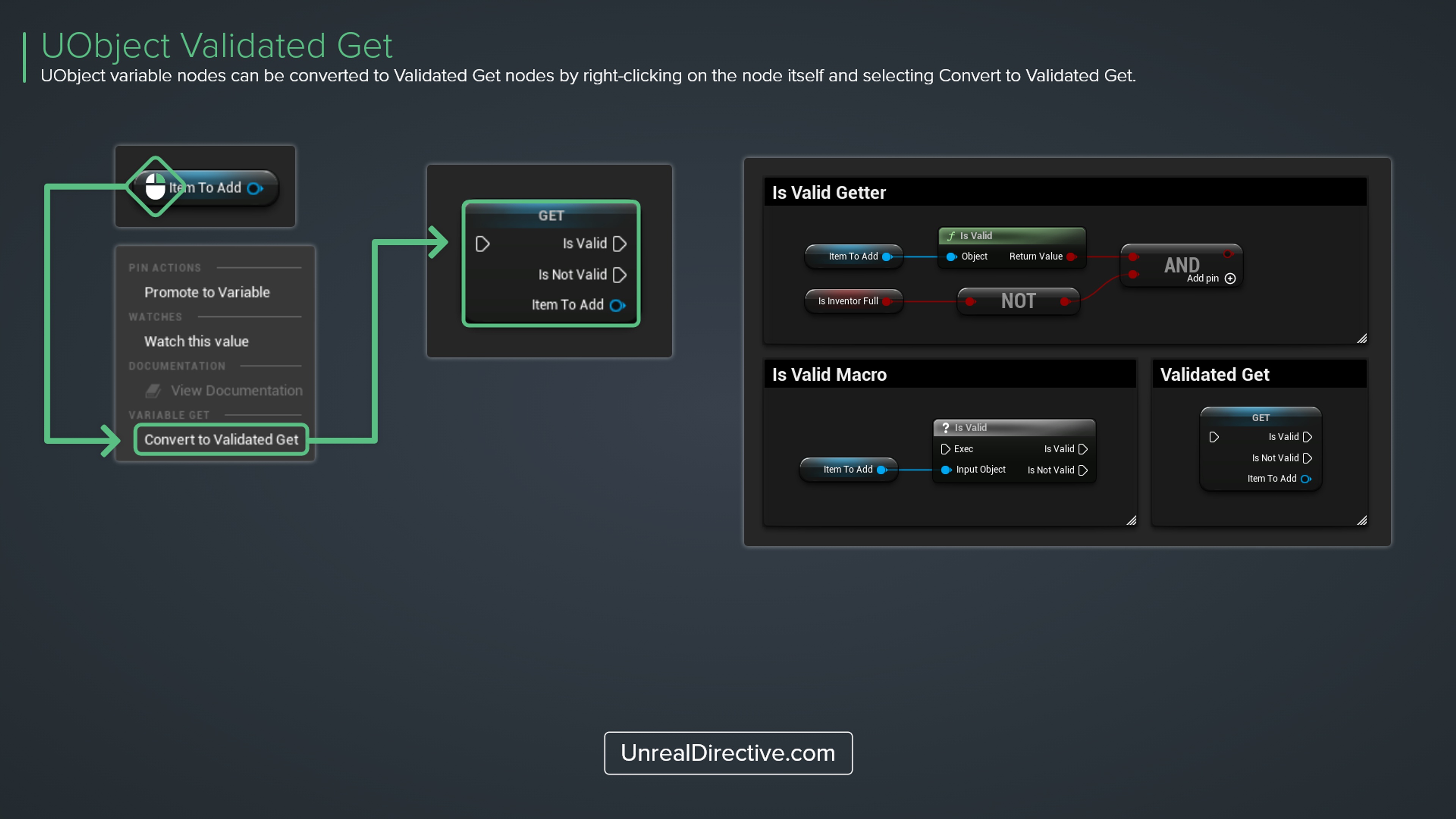
One of the leading causes of engine crashes is attempting is to attempt functionality on a null (empty) object reference. To safeguard against this, utilize the following --
| Method | Description |
|---|---|
| Validated Get | Object reference nodes have an option to be converted to a Validated Get node. This combines the Object Reference Node with a Is Valid Macro. |
| Is Valid Macro | A Macro used to verify if the object reference is valid or not. Used when Validated Get isn't an option. |
| Is Valid Getter | A pure function that returns a Boolean; true (valid), false (invalid). Useful when needing to chain arguments. |
Tips and tricks to help you improve your development workflow. You can find more tips like these here.
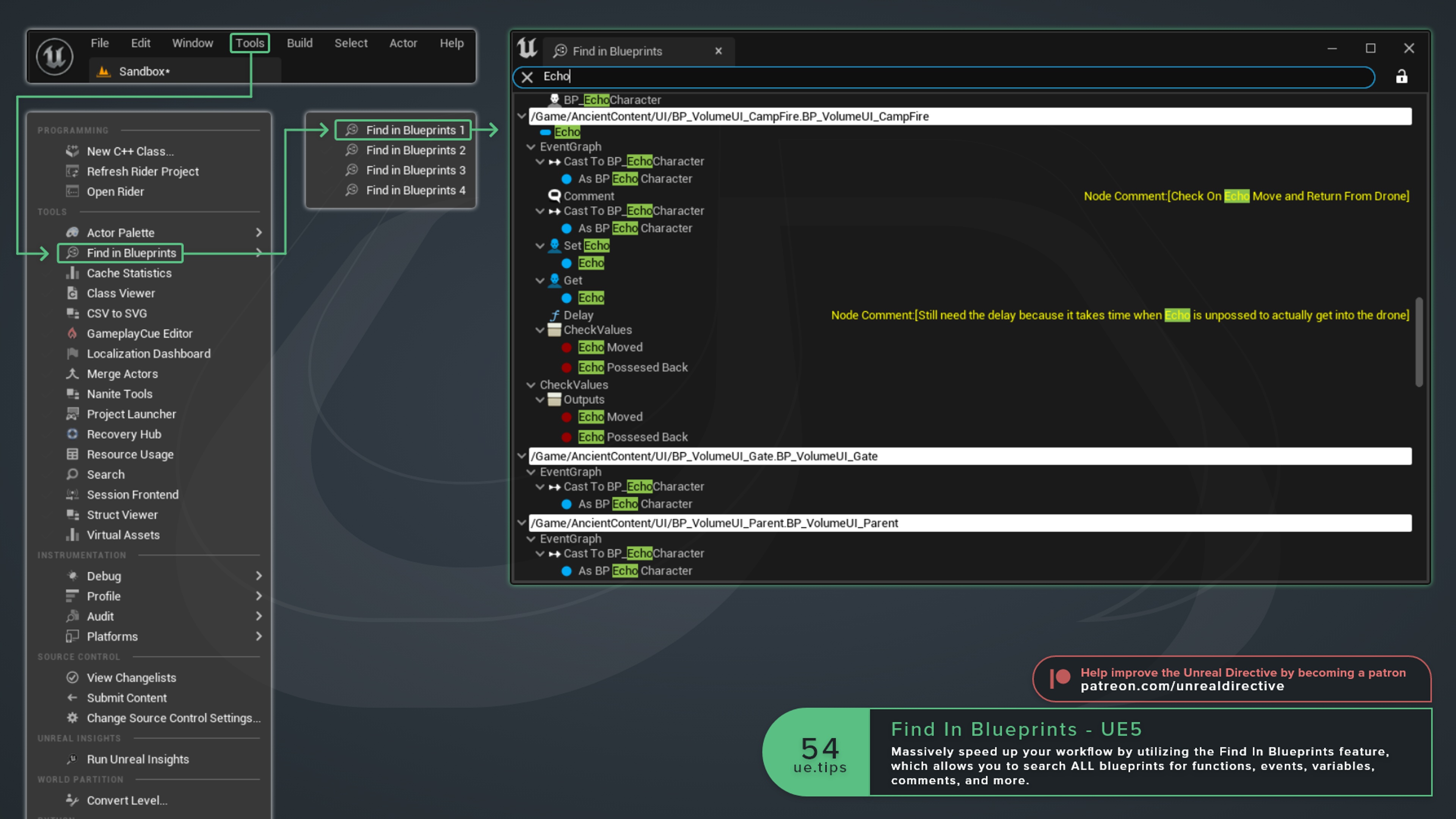
Utilize the Find In Blueprints tool to quickly search through ALL blueprints for specific functions, events, variables, comments, etc.
From within the Variable or Local Variable section, right-click on the variable container type to quickly change between single or array.
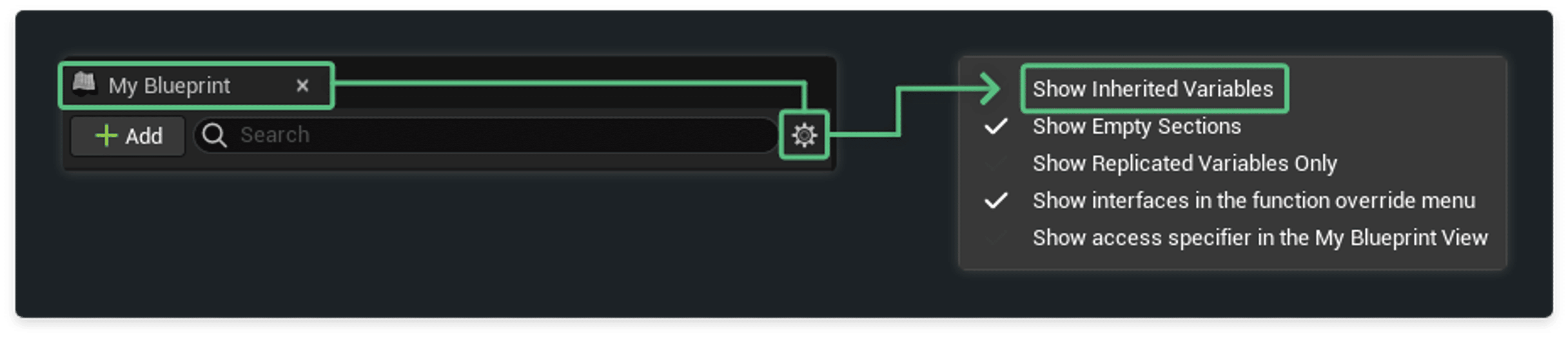
By default variables established in parent blueprint classes are not displayed. To display them --
Blueprint Variables can be quickly replaced with an alternative variable of the same type. Simply drag and drop the alternative variable onto the variable node you wish to replace.
Note: The drop location must be on the node itself and not on the pin or text.
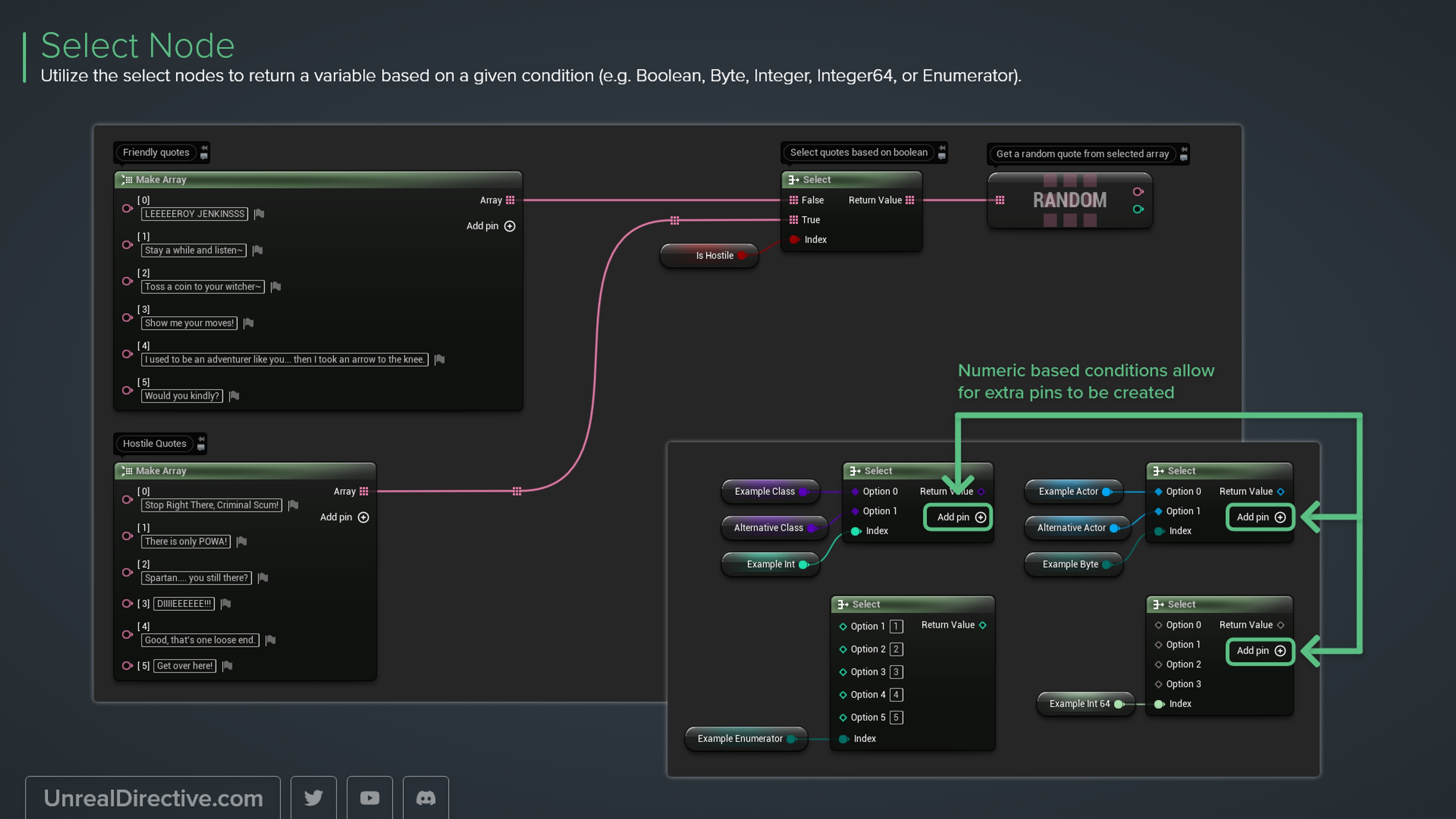
Utilize the select nodes to return a variable based on a given condition (e.g. Boolean, Byte, Integer, Integer64, or Enumerator).
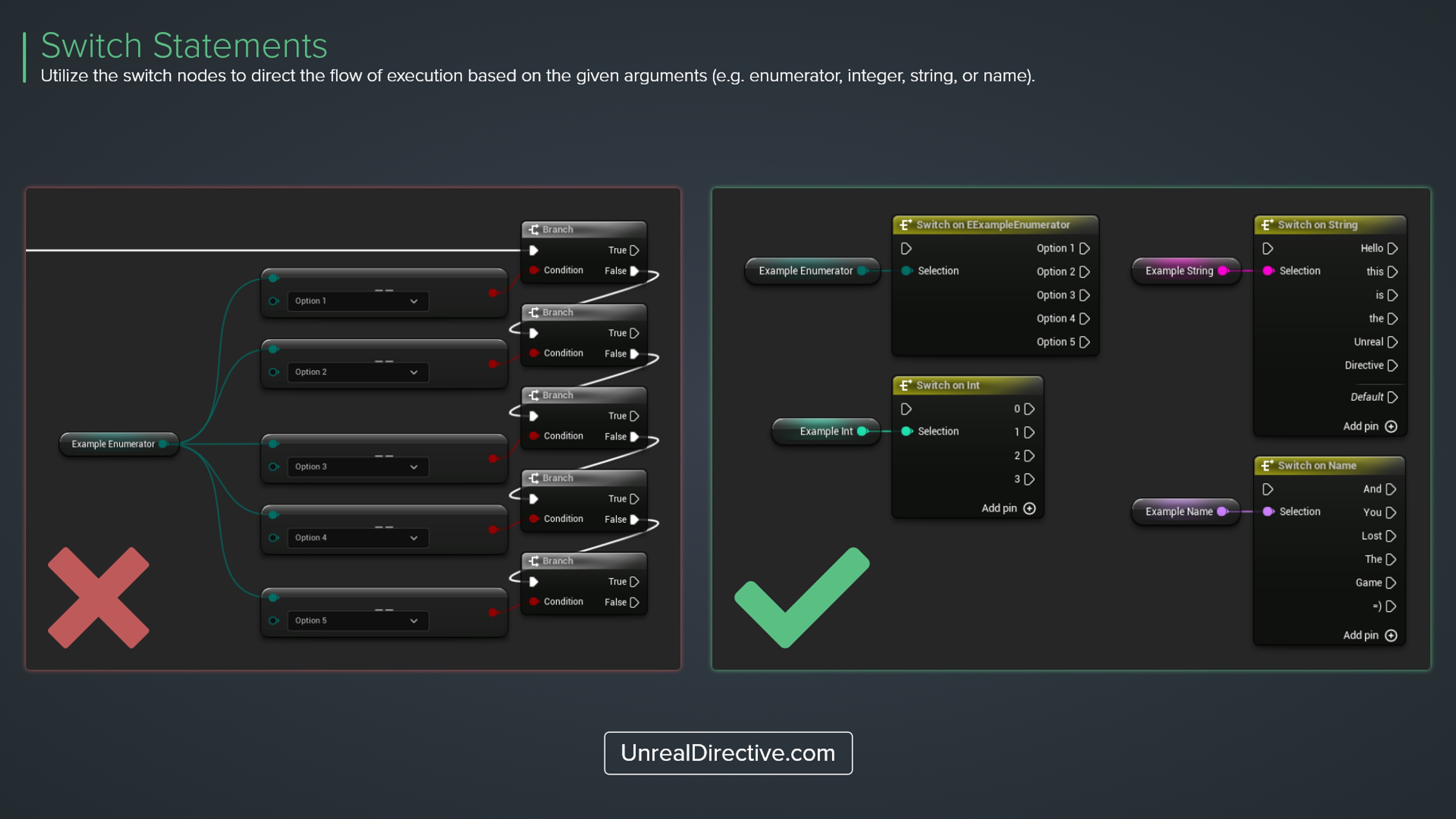
Utilize the switch nodes to direct the flow of execution based on the given arguments (e.g. enumerator, integer, string, or name).
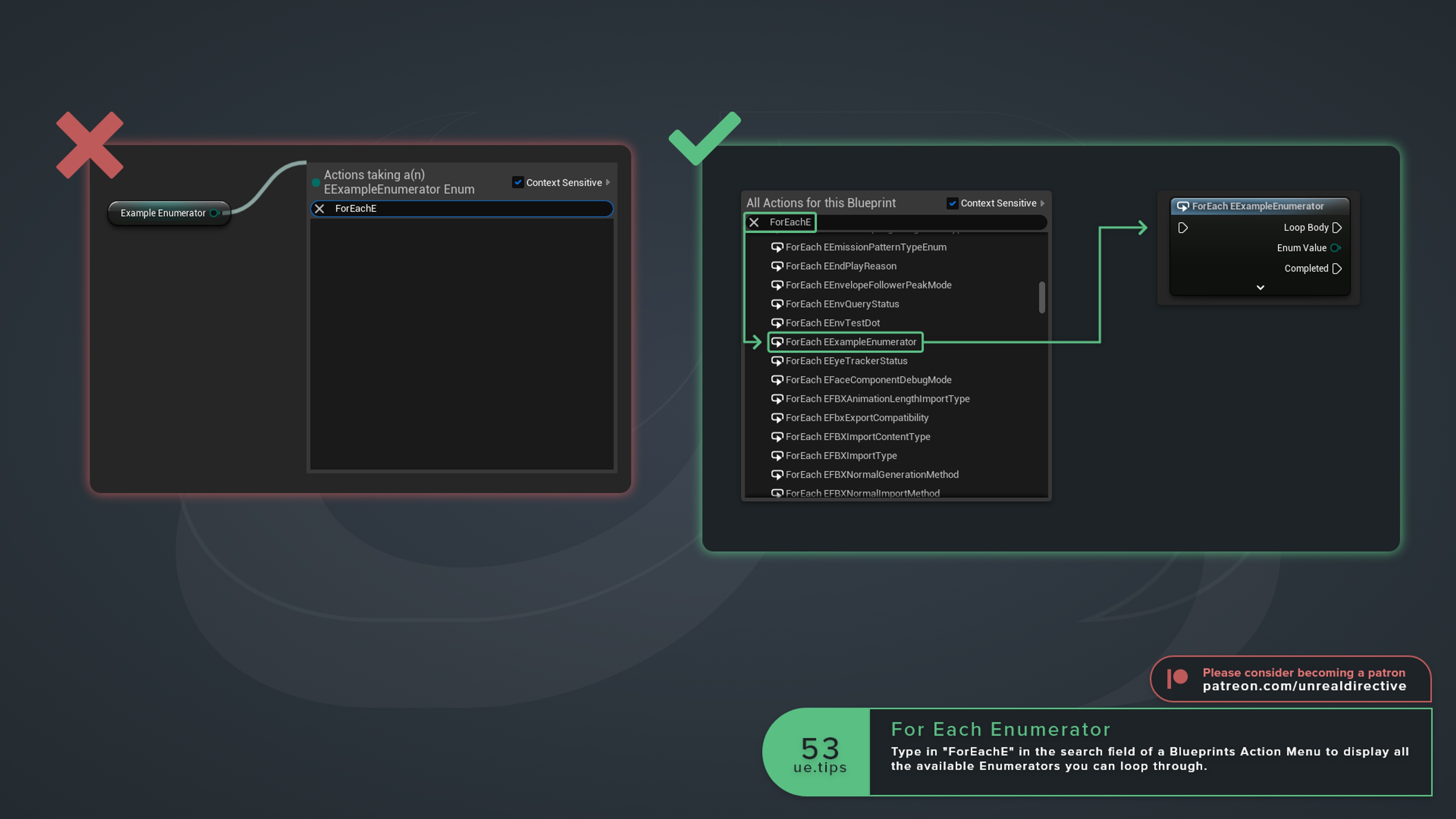
Enumerators can be looped through. Simply open up the Action Menu by pressing the TAB key and type in "ForEachE" in the search field. This will display all the available Enumerators you can loop through.
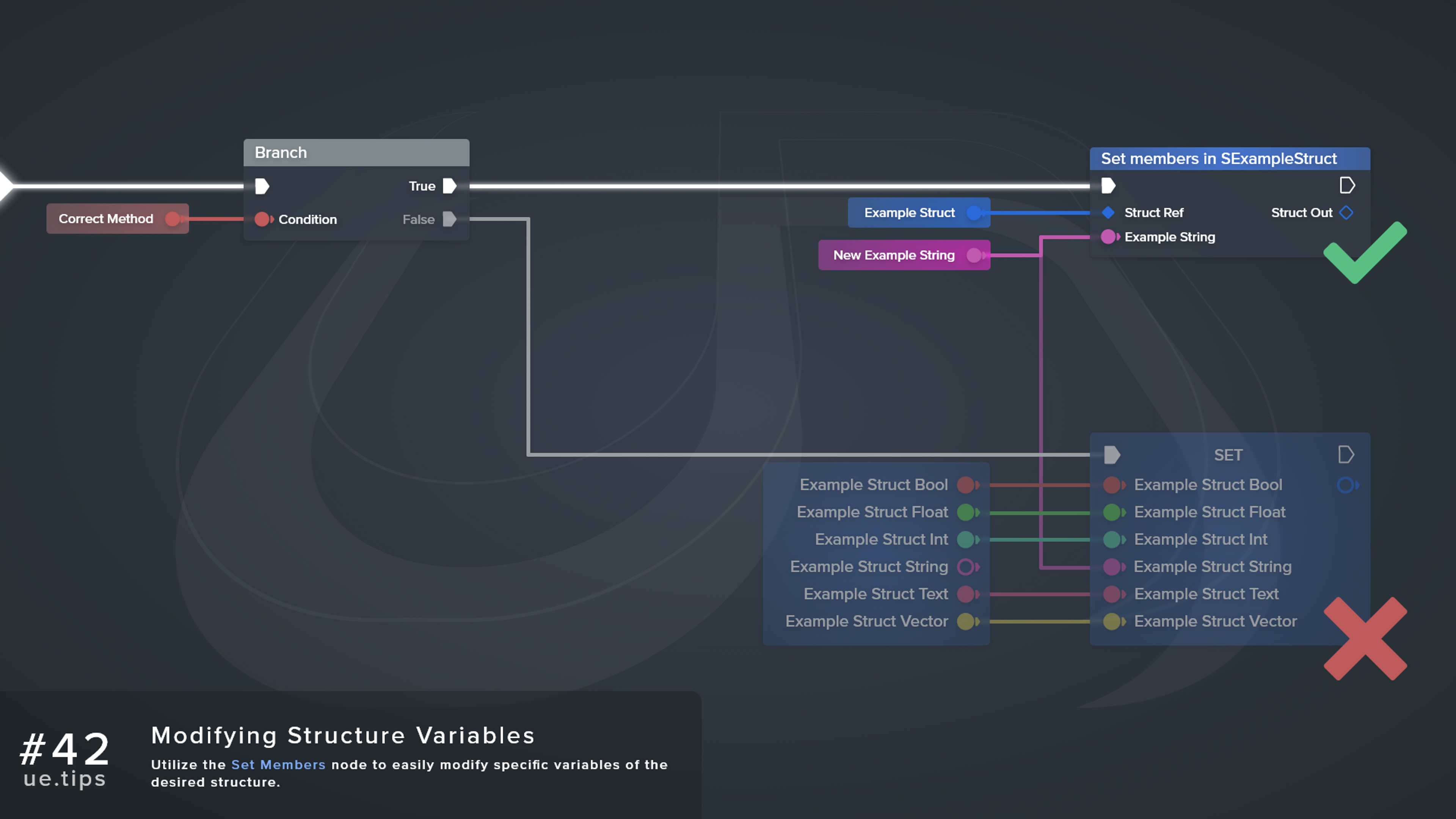
Utilize the Set Members node to easily modify specific variables of the desired structure.
Speed up blueprint workflows by drag dropping variables and functions onto existing node input and output pins. This will automatically spawn and connect them.
Here is a quick list of keyboard shortcuts to speed up node organization. Works for Blueprints, Materials, Niagara, ControlRig, etc.
Check out the Keyboard Shortcuts resource for a full list.
| Direction | Shortcut |
|---|---|
| Straighten | Q |
| Align Left | SHIFT+A |
| Align Right | SHIFT+D |
| Align Top | SHIFT+W |
| Align Bottom | SHIFT+S |
| Align Center | ALT+SHIFT+S |
| Align Middle | ALT+SHIFT+W |
Numeric inputs within Unreal Engine accept and automatically calculate simple mathematical equations.
All Actions for this Blueprint