
Modular Game Features: What you need to know
Tezenari@Tezenari
5 min read


The Modular Game Feature system is a new addition to Unreal Engine 4.27 and Unreal Engine 5 that allow developers to author standalone features for their projects.
These standalone features help compartmentalize Unreal projects, thus keeping the codebase clean and readable. And due to the nature of a modular game feature, these will help avoid accidental dependencies.
The essential aspects of this system are —
In this article, I will be going over what you need to know to get up and running with the Modular Game Feature system in Unreal Engine.
Prefer this content in video format?
4.27
experimental
5.0+
supported
Required Plugins
Game Features
Support for modular Game Feature Plugins.
Modular Gameplay
Base classes and subsystems to support modular use of the gameplay framework.
Here are critical aspects to know when you're implementing a new Game Feature —
/{ProjectName}/Plugins/GameFeatures/*Important notes that are C++-specific
#include "GameFeaturesSubsystem.h" is the required includeusing UnrealBuildTool;
public class UDR_ModularGameplay : ModuleRules
{
public UDR_ModularGameplay(ReadOnlyTargetRules Target) : base(Target)
{
PCHUsage = PCHUsageMode.UseExplicitOrSharedPCHs;
PublicDependencyModuleNames.AddRange(new string[] {
"Core",
"CoreUObject",
"Engine",
"InputCore",
"GameFeatures"
});
PrivateDependencyModuleNames.AddRange(new string[] { });
}
}Before you can create a Game Feature, you must enable the following two required plugins —
Once these two plugins have been enabled, restart the editor.
Once the editor has been restarted, you will receive a message in your message log stating the following —
Asset Manager settings do not include an entry for assets of type GameFeatureData, which is required for game features plugins to function. [Add entry to PrimaryAssetTypesToScan]
Adding this entry is required for the engine to acknowledge the Primary Asset Type associated with the Game Modules.
To fix this issue, follow either the automated or manual method below.
Note: If this message doesn't appear in your Message Log, you can skip this step
Click the link appended to the end of the message – Add entry to PrimaryAssetTypesToScan – to automatically fix that issue.
No further action is required.
Creating a game feature plugin is done the same way you make other plugins. To create a new Game Feature plugin, follow these steps —
Open the Plugins window
Editor Menu Bar → Edit → Plugins
Open the New Plugin window
Press the + Add button in the top left of the Plugins window
Choose a Game Feature Template from the list
Game Feature templates are prefixed with Game Feature.
Enter a plugin name
Enter descriptor data
Fill out all the necessary information.
Confirm and create the plugin
Press the Create Plugin button in the bottom right of the New Plugin window
New Game Feature plugin created!
*/{ProjectDir}/Plugins/GameFeatures/*The Game Feature configuration window automatically opens after it has been created. To find and open the configuration window manually —
Open the content browser
CTRL + Space shortcut to open the Content Browser.Navigate to the Game Feature directory
Plugins directory in the sources panelShow Sources Panel in the Content Browser settingsShow Plugin Content in the Content Browser settingsOpen the Game Feature Data Asset that has the same name as the new Game Feature
For example, if the Game Feature is named YourCustomFeature, the Data Asset will be named
YourCustomFeatureData in the root of the Game Feature directory.
With the Game Feature configuration window opened, you will find three primary categories —
Each of these plays a vital role in setting up and defining the game feature itself.
The Feature State category controls the initial and current state of the Game Feature. The state of a Game Feature is divided into four options – Installed, Registered, Loaded, and Active.
| State | Description | Notes |
|---|---|---|
| Initial State | The state of the Game Feature when initially loaded in Editor or Runtime. | |
| Current State | The state the Game Feature current is in. This can be adjusted at any time | |
| Installed | The Game Feature isn't registered with the engine and will not be visible in the Content Browser. | |
| Registered | The Game Feature is registered with the engine but not loaded into memory. | The ideal initial state. |
| Loaded | The Game Feature is loaded into memory and awaiting activation. | |
| Active | The Game Feature is loaded into memory and is currently active. | Avoid editing the Game Feature while it's set to active. |
The Actions category defines what actions occur when the Game Feature is enabled or disabled.
Here are the actions that are currently available as of Unreal Engine 5 Early Access 2 —
The Add Cheats action allows developers to easily add their own debug commands via registering a Cheat Manager Extension with the game.
Cheats are purely for debugging and will not be included in shipping builds.
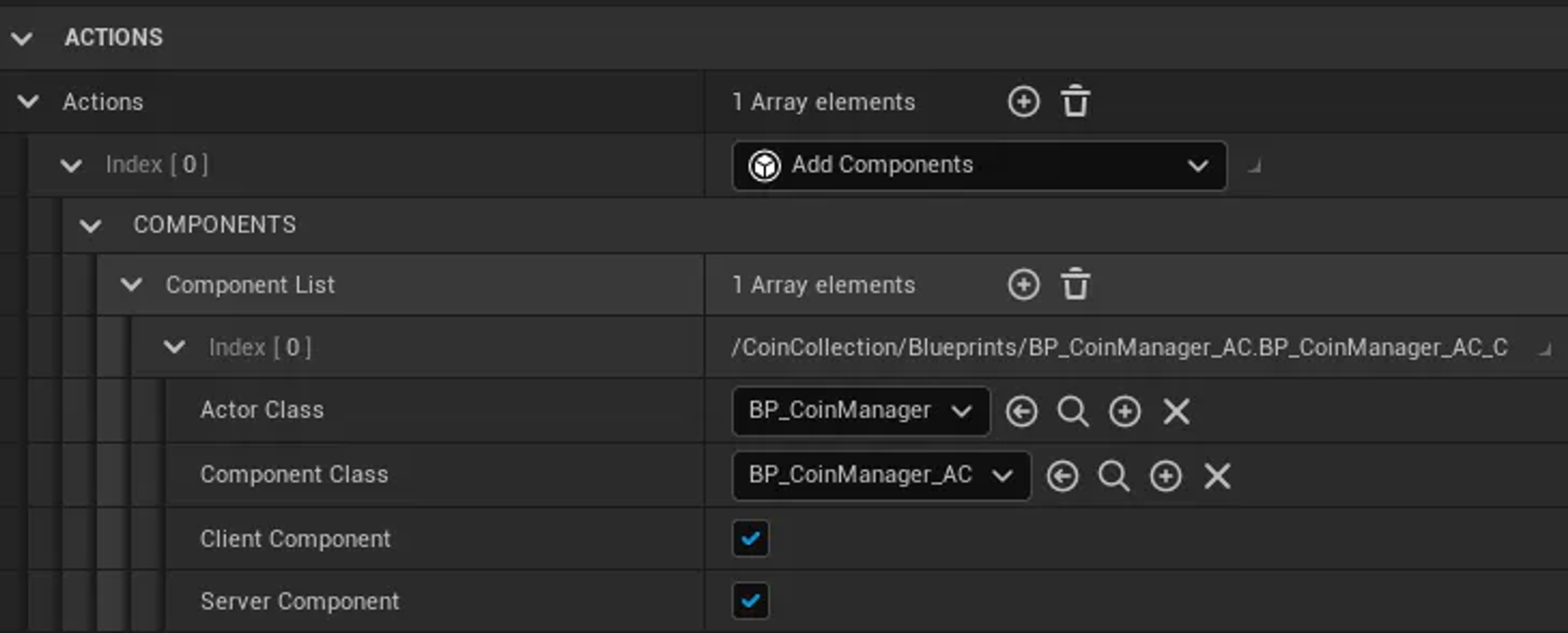
The Add Components action will add a component to the designated actor class if it has been registered to receive components via the Game Framework Component Manager.
There are four options within the action —
| Option | Description |
|---|---|
| Actor Class | The target actor type for component attachment. |
| Component Class | The component to add the actor. |
| Client Component | Adds the component to clients within a multiplayer session. Enabled by default. |
| Server Component | Adds the components to the server within a multiplayer session. Enabled by default. |
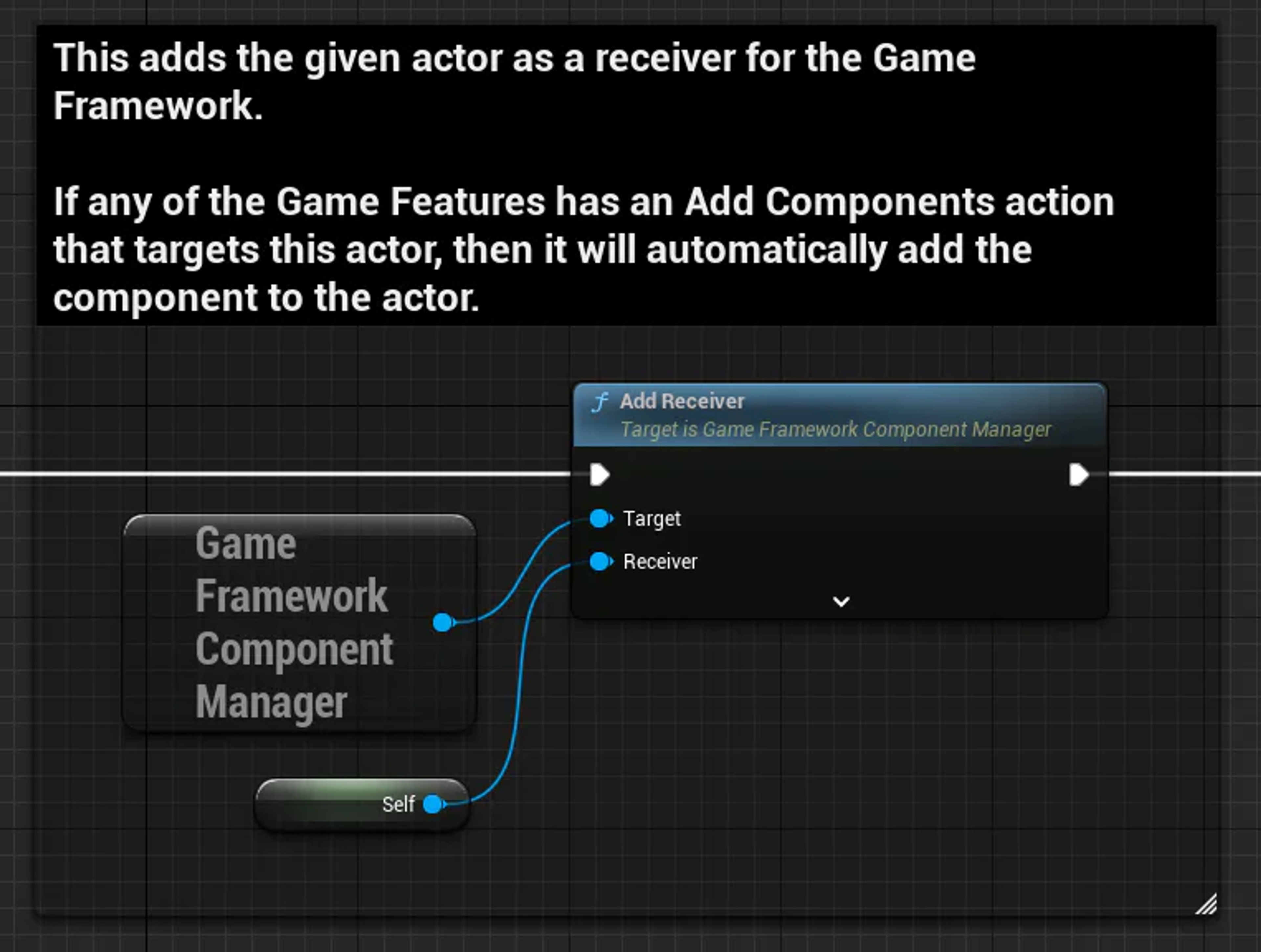
By default, actors have to be added as receivers to receive Game Feature Components. This step is generally done via BeginPlay.
Depending on the component and needs, consider using C++ to add the receiver during an earlier phase.
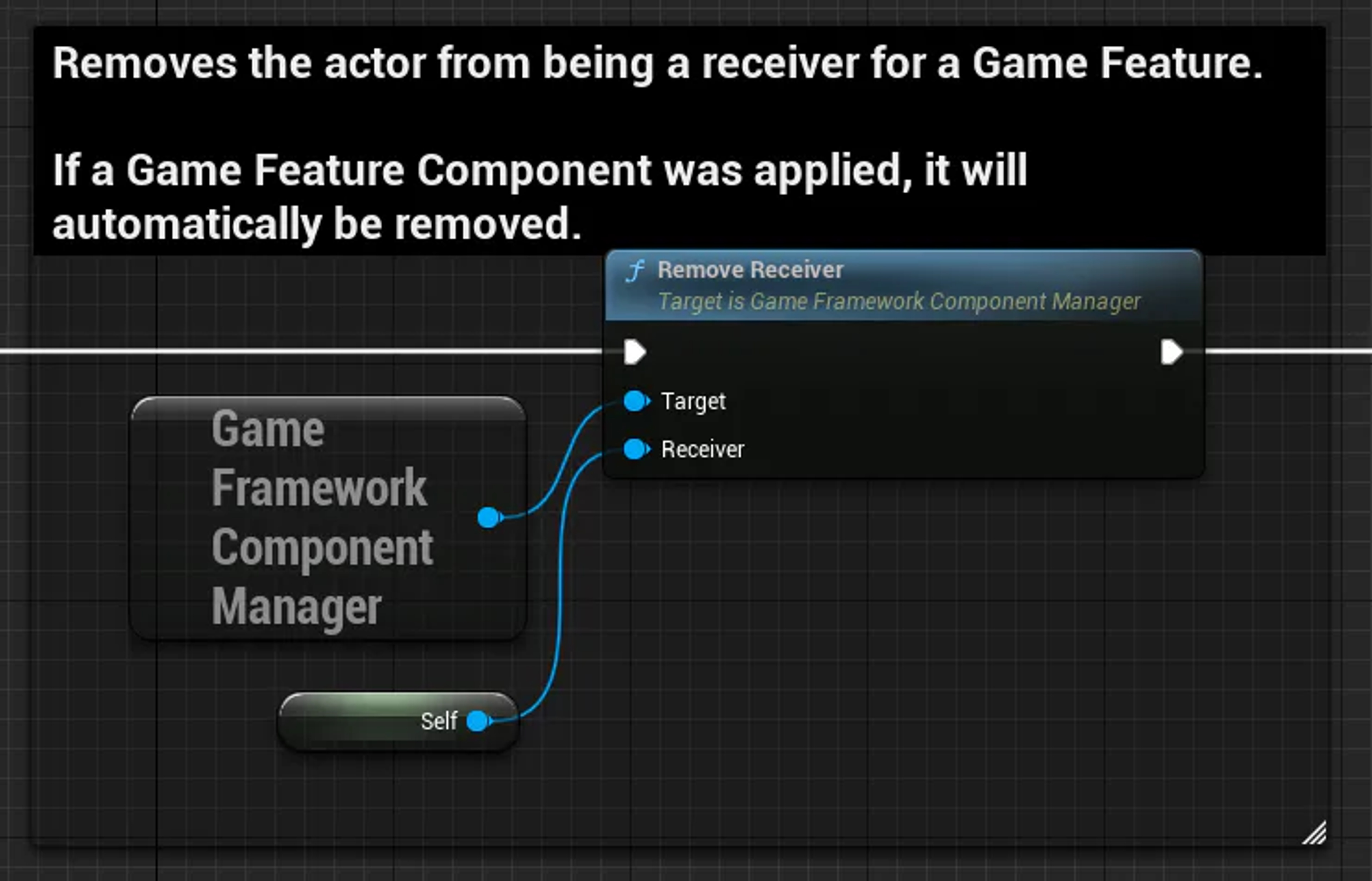
It is ideal to clean up and remove the actor from being a Game Feature Component receiver during the Destroyed or EndPlay events.
Note: **When an actor is removed as being a receiver, it will automatically remove the Game Feature Components added. There is no need to do that manually.
The Add Data Registry Action will add a Data Registry to your project.
The Add Data Registry Source will add a data source that will stream intoa Data Registry.
An example of what other actions can be added manually via C++. Some, if not all, will be available when Unreal Engine 5 fully releases.
You can find these in the Valley of the Ancients demo.
The Asset Manager category is utilized to tell the engine that new assets are available. For example, introducingnew weapons or items to your game.
Game Features can be dynamically enabled and disabled during a runtime session.
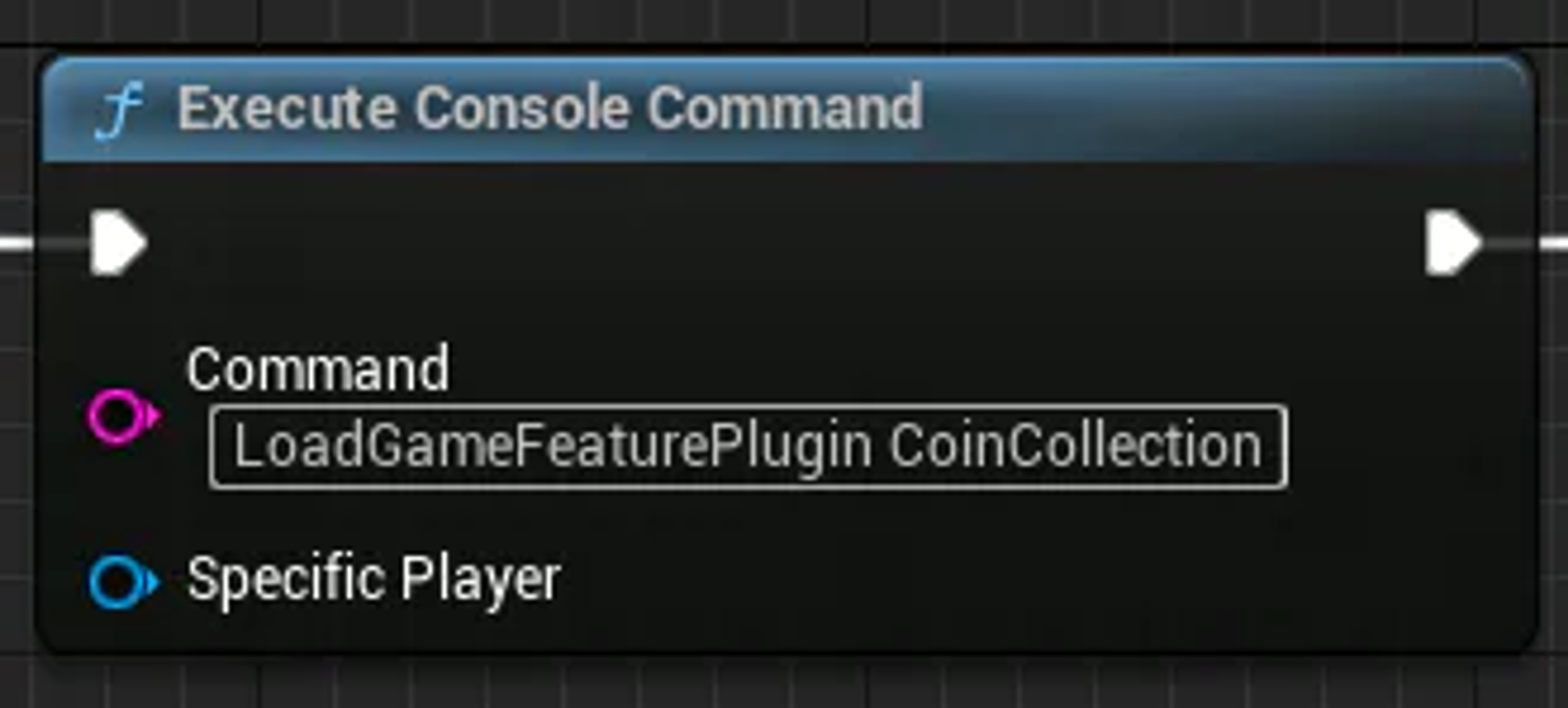
As of Unreal Engine 5 Early Access 2, there are no native blueprint nodes that allow you to toggle on or off Game Features. Thankfully, Epic has exposed that functionality through console commands. Simply utilize the following two commands with the Execute Console Command blueprint node.
As of Unreal Engine 5.0.3, the console commands do not work in Shipped Builds.
DeactivateGameFeaturePlugin
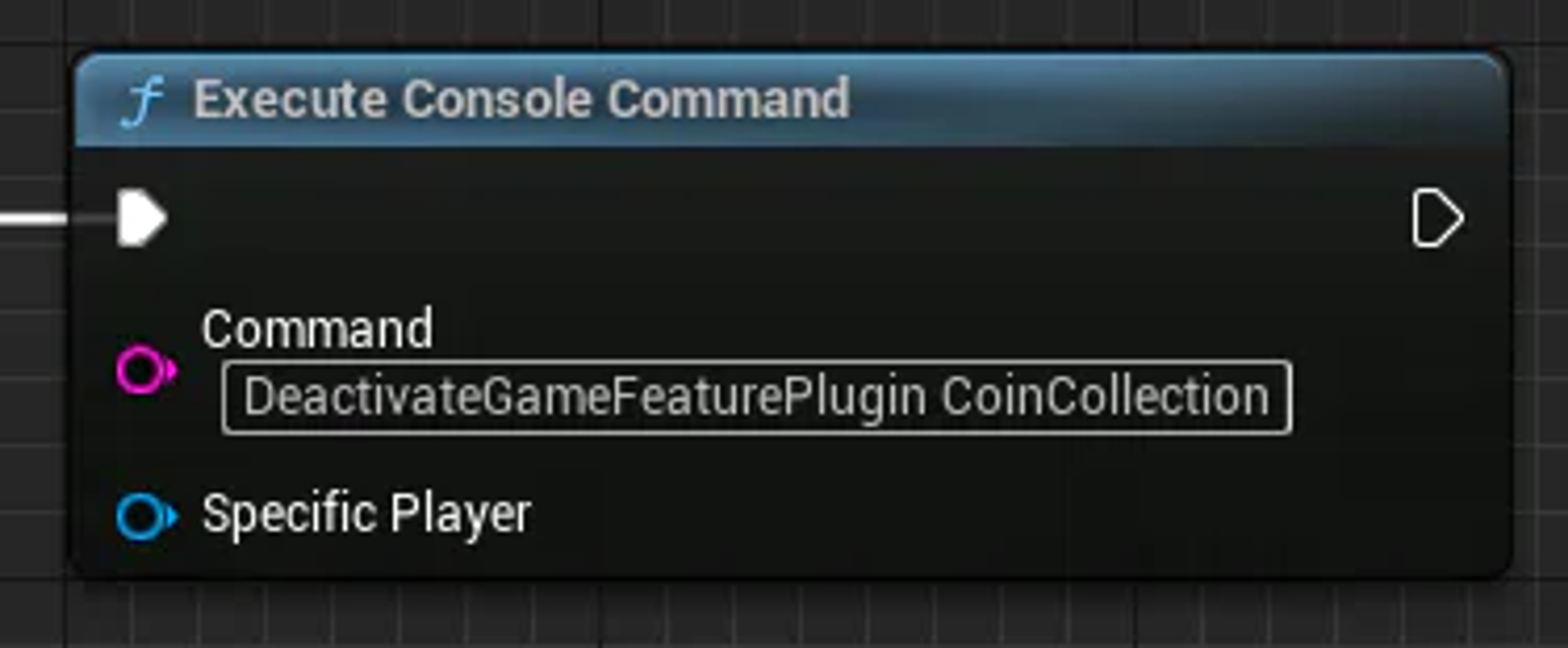
Load & activate the game feature
Unload the game feature
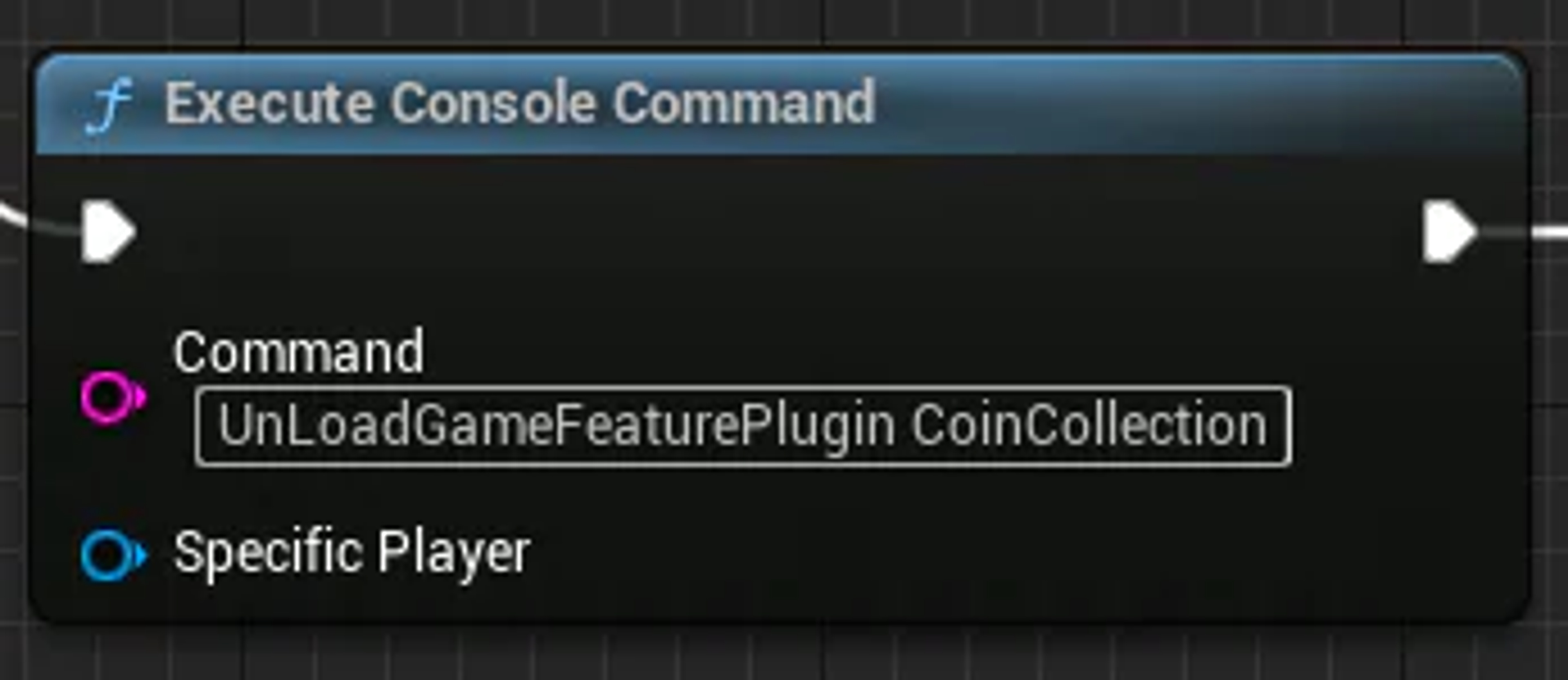
For this example, I have a Coin Collection Game Feature. When the green button is stepped on, the feature is toggled on. When the red button is stepped on, the feature is cleaned up and toggled off.
The Coin Collection Feature spawns collectible coins randomly and attaches a coin counter to the player's viewport.
A list of frequently asked questions regarding this feature, and their answers.
Module Game Features should be utilized when you need to update or create new features over the life of your project without the project specifically depending on them. You can also use them baseline for compartmentalizing both code and assets.
With Game Features not being referenced by core gameplay, they can be utilized to control aspects of gameplay, memory management, and more on the fly.
For example, the Fortnite dev team utilizes Game Features for their vehicles. This allows them to enable or disable them for the different game modes easily.
Here are some other example use cases —
Just remember that feature-specific Game Features should be self-contained, and disabling them should not affect the core game.
Make sure that you set your Game Feature state to Active when you want to enable it. Likewise, make sure to put it to Loaded or Registered to disable it.
If it still doesn't activate, check your logs. There is likely a warning or error that will help you pinpoint the issue.
When you take away something the engine is expecting to be there, it can cause a whole host of issues, such as —
Check out the following resources to learn more about the subject.