

Area-Specific Color Grading
Use this built-in plugin to apply area-specific color grading to your scene!
World Creation
Post Process
Plugins
Tezenari@Tezenari
•Updated 2 years ago
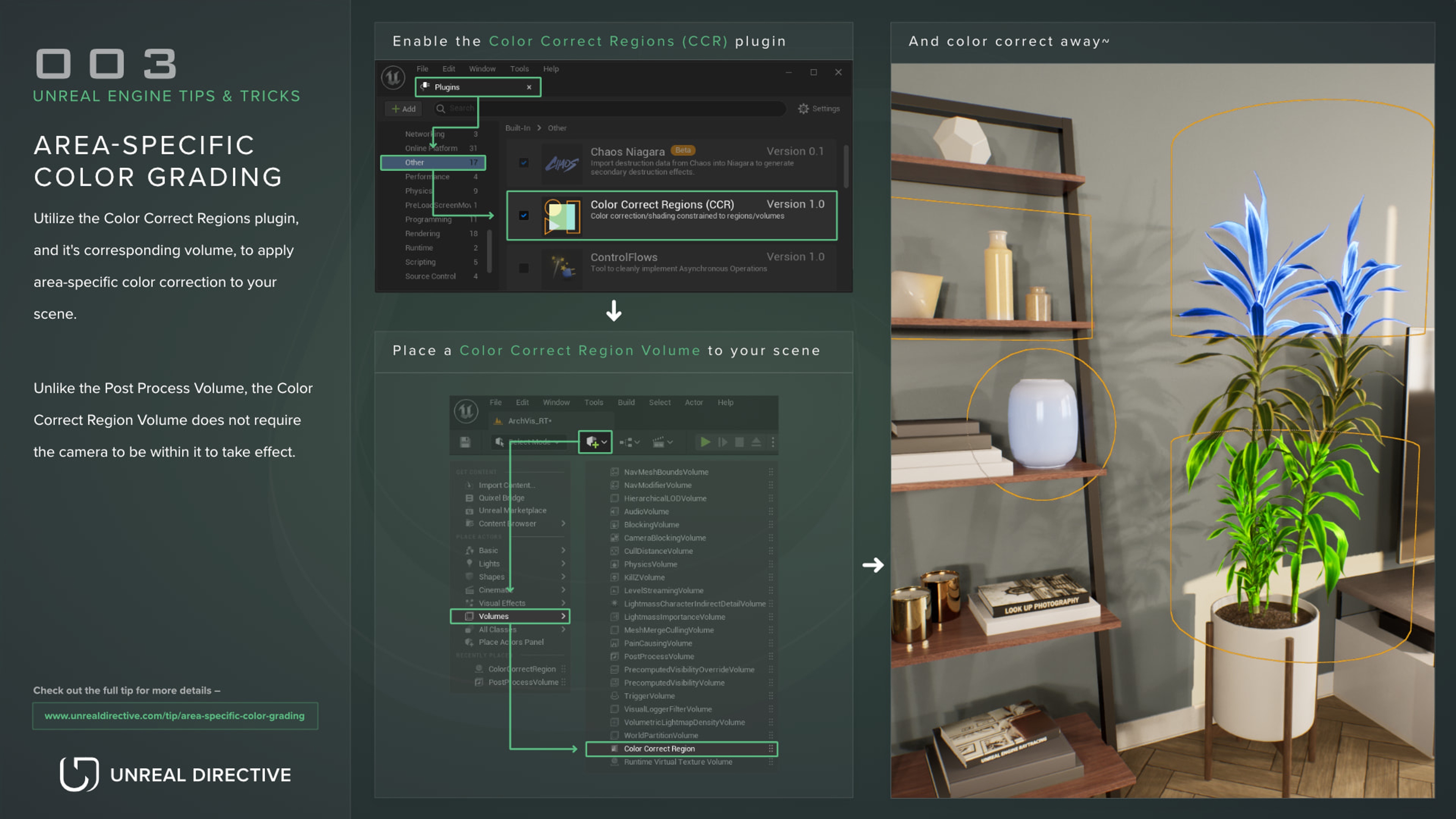
Use this built-in plugin to apply area-specific color grading to your scene!
Utilize the Color Correct Regions plugin, and it's corresponding volume, to apply area-specific color correction to your scene.
Unlike the Post Process Volume, the Color Correct Region Volume does not require the camera to be within it to take effect.
Color grading within Unreal Engine can prove to be quite tricky at times. Outside of the domain of adjusting lighting, materials, and the textures themselves -- you have the Post Process volume. This volume is a powerful tool for artists and designers to adjust the overall look and feel of the world.
However, there are two critical flaws with the Post Process volume that doesn't give artists and designers the creative freedom that they need.
The first flaw is proximity. Outside of enabling infinite extent, the Post Process volume only takes effect when a camera or entity enters within the volume.
The second flaw is that the Post Process volume affects everything equally. Once the volume is entered, it'll adjust the whole visual scene.

Thankfully, there is a built-in solution that addresses both of these flaws. That solution is the Color Correct Region plugin, CCR for short.
After enabling this plugin within the plugin browser, there will be a new option from within the Place Actors menu called Color Correct Region. This is a placeable blueprint with many adjustable color grading properties, similar to the Post Process volume, but it'll only apply that color grading to what's within its bounds.
The Color Correct Regions bounds can be adjusted based on scale, shape, falloff, intensity, and many other unique options. This provides artists and designers the means to truly fine-tune the world to meet their vision.

| Setting | Description |
|---|---|
| Type | The shape of the volume. Choose between Sphere, Box, Cylinder, or Cone. |
| Priority | The priority level of the volume. The higher number, the higher the priority. |
| Intensity | How much the volume affects the world on a 0 to 1 scale. 1 being at full intensity. |
| Inner | Adjusts the inner falloff amount. |
| Outer | Adjusts the outer falloff amount. |
| Falloff | Adjusts the overall falloff amount. |
| Invert | Enable to have the volume affect everything except what's in the volume. |
| Temperature Type | The type of temperature to adjust. |
| Temperature | Adjust the color temperature, similar to light temperature settings. |
| Color Grading Settings | The same color grading settings found in the Post Process Volume. Saturation, Contrast, Gamma, Gain, and offset options for Global, Shadows, Midtones, and Highlights. Along with ShadowMax, HighlightsMin, and HighlightsMax. |
| Enabled | Enabled/disable the Color Correct Region. |
| Exclude Stencil | Enabled to exclude stencils from being affected. |