
Dumpticks
Dump actors that are ticking to your log using this console command
Console Commands
Profiling
Event Tick
Actors
Tezenari@Tezenari
•Updated 2 years ago
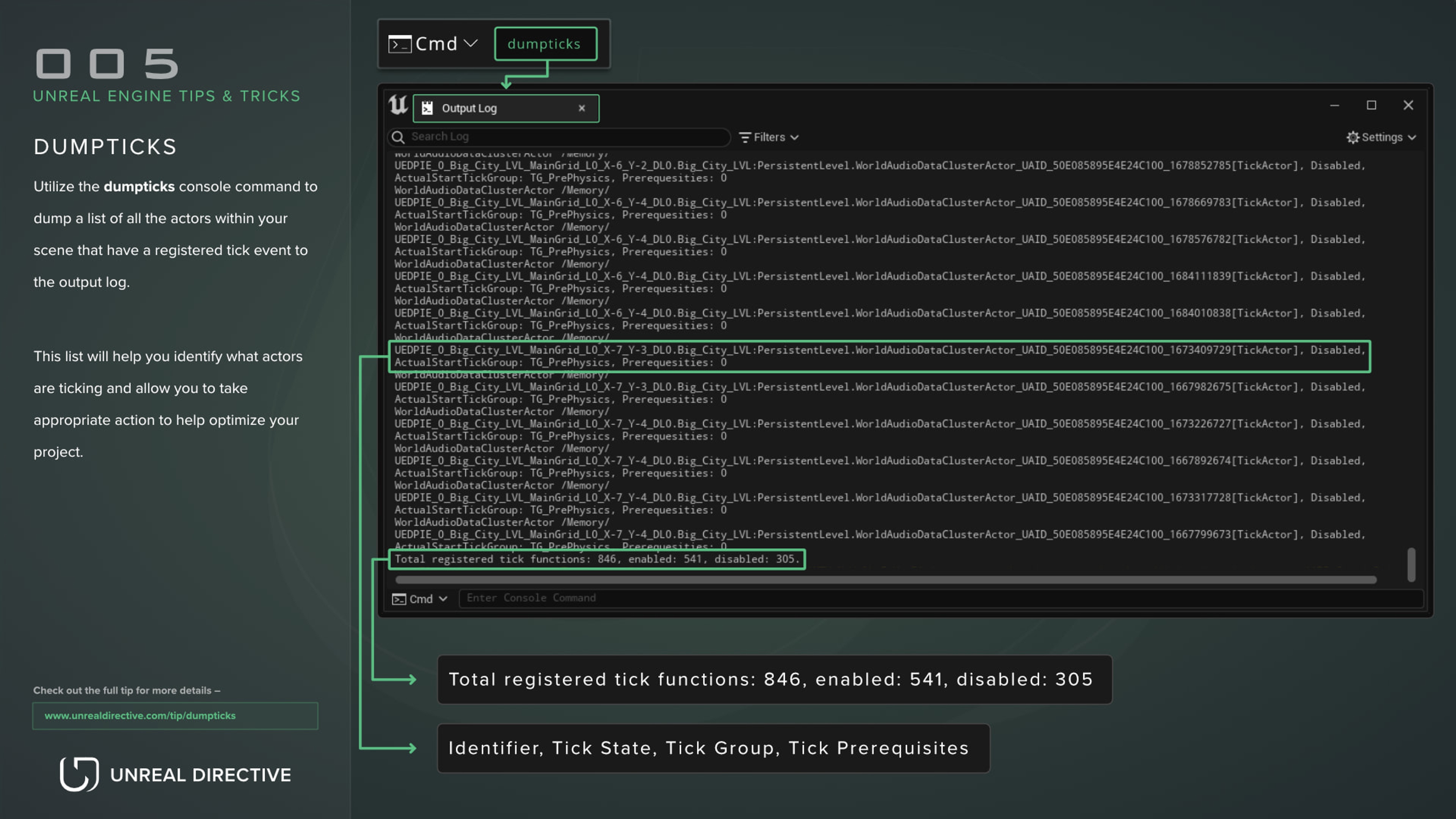
Dump actors that are ticking to your log using this console command
Utilize the dumpticks console command to dump a list of all the actors within your scene that have a registered tick event to the output log.
This list will help you identify what actors are ticking and allow you to take appropriate action to help optimize your project.
The dumpticks console command will dump a list of all actors with a registered tick event into your output log.

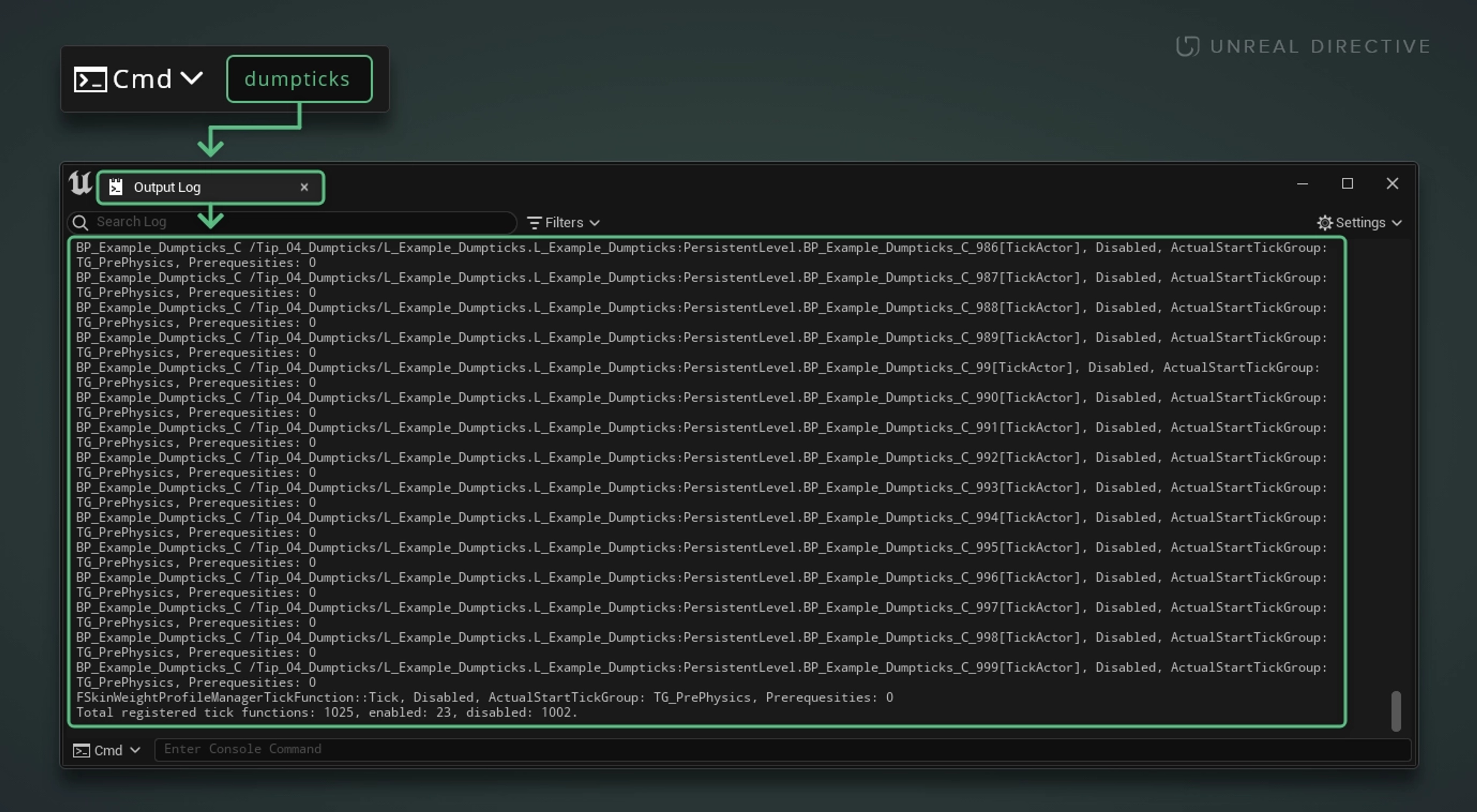
The dumped list appears after the Tick Functions (All) header. Each listed entry will contain helpful information, such as the identifier, the tick state, the tick group, and the tick prerequisites.
The total enabled and disabled counts can be found at the end of the dumped list.
Example - Matrix City Demo during editor runtime
For ease of development, all blueprint actors within Unreal Engine have their Event Tick enabled by default. Unfortunately, this comes at a cost.
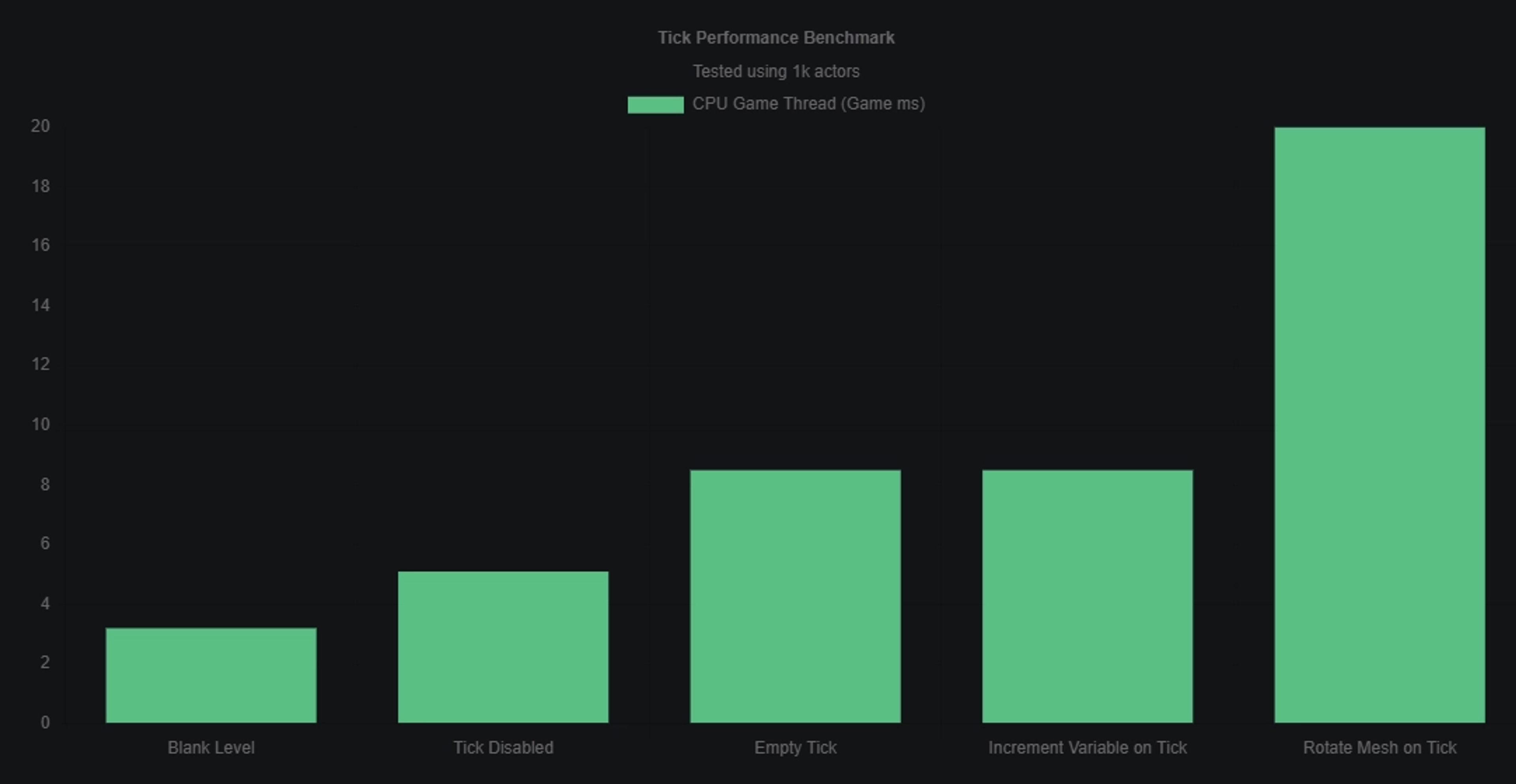
This graph displays performance metrics regarding different tick utilizations across one thousand (1k) instances of a simple blueprint actor.
With a blank level as a baseline, the game thread is updating at 3.2ms (3.2 milliseconds). Adding 1k basic blueprint actors to the scene with tick disabled bumps up the game thread from 3.2ms to 5.1ms -- a 1.9ms increase. Enabling tick bumps that up even further from 5.1ms to 8.5ms -- a 3.4ms increase.
This increase is by no means small as it can be the difference between a performant game, or inhibiting gameplay due to a hardware dependent bottleneck.
Therefore, make sure to utilize the dumpticks console command to help you identify which actors are ticking within your scene and disable those that do not require tick.
For all blueprints that do not require tick to function, it is ideal to disable tick altogether. You can do this by unchecking the Start with Tick Enabled option within the blueprints details panel.
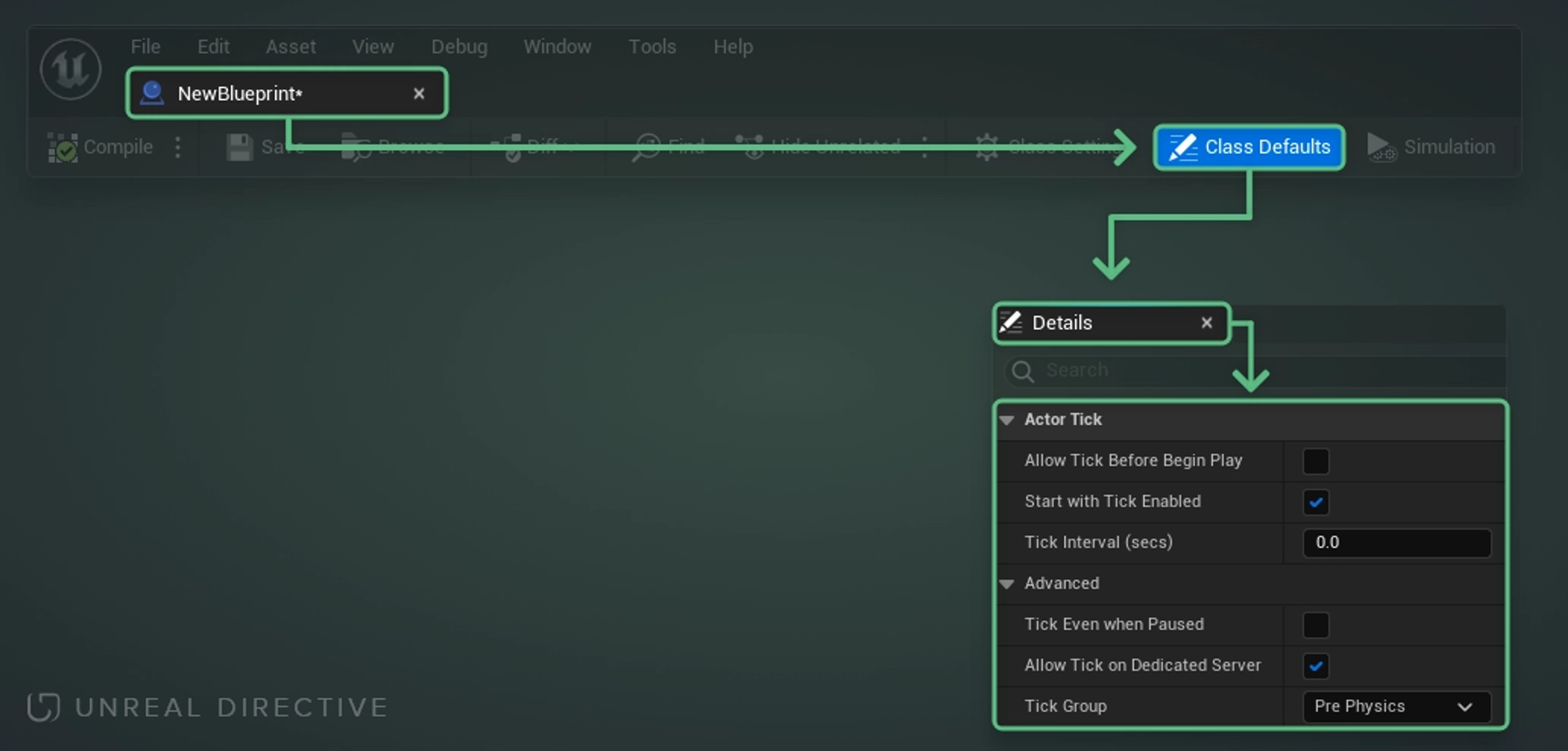
For those delving into C++, this can be accomplished by the following --
/*
* Establish if the actor starts with tick enabled or not.
* Disable to improve performance when tick is not needed.
* Important: This needs to be done during the construction phase -- such as during FObjectInitializer.
*/
PrimaryActorTick.bStartWithTickEnabled = false;

/*
* Establish if the actor can ever tick.
* Disable to improve performance when tick is not needed.
* If enabled, tick can be toggled later via `this->SetActorTickEnabled(bool);`
* Important: This needs to be done during the construction phase -- such as during FObjectInitializer.
*/
PrimaryActorTick.bCanEverTick = false;Looking through the dumpticks within the log file in a large project can be challenging to manage. Thankfully, there are multiple methods for making this data more users friendly and searchable -- pasting into a spreadsheet application, Python, etc.
The most accessible method would be to use Google Sheets or an equivalent spreadsheet application.
Steps
