

Actor Snapping Shortcuts
Use the vertex, floor, and grid snapping shortcuts to line up actors in the level viewport.
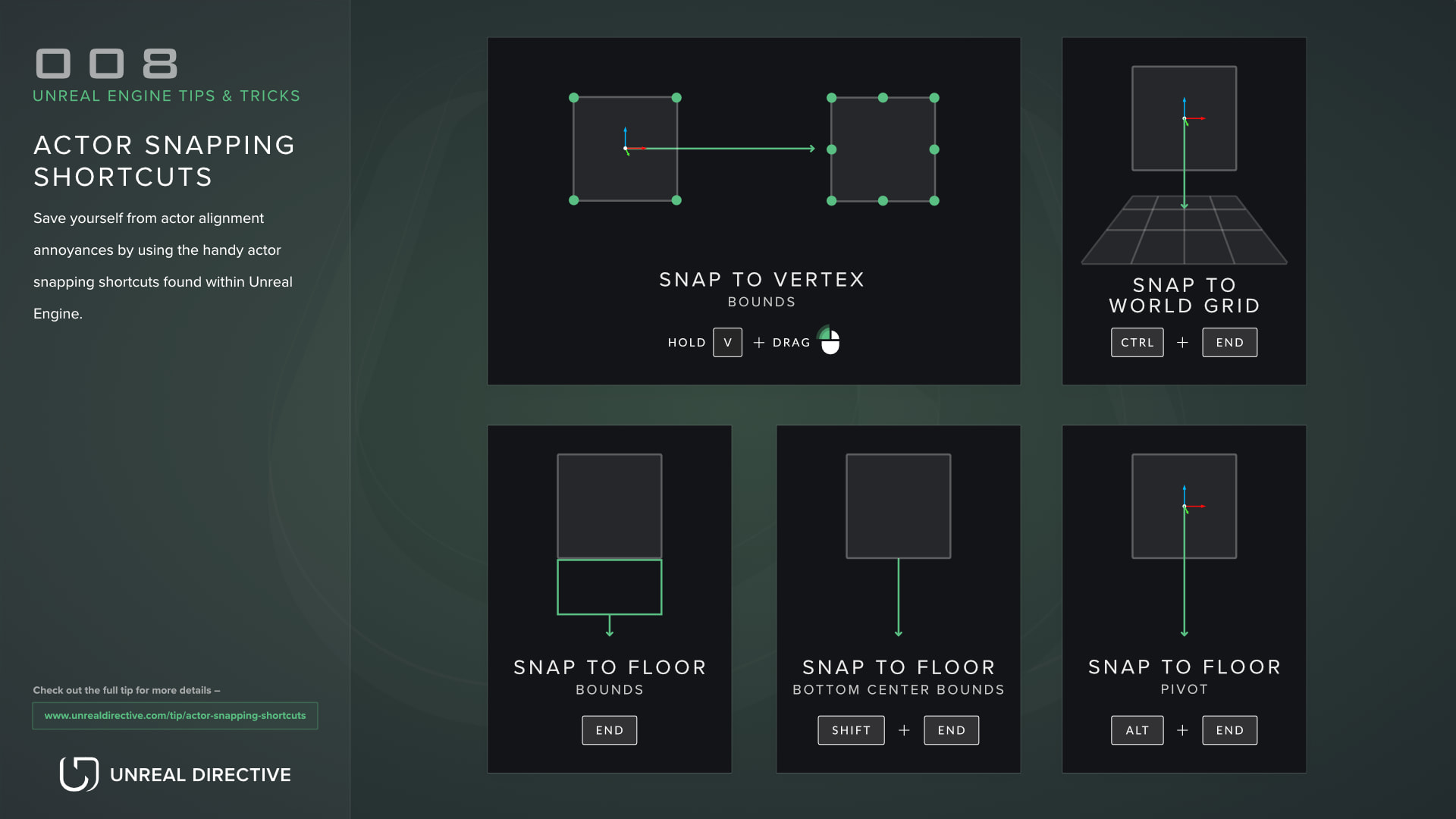
Use the vertex, floor, and grid snapping shortcuts to cut down on actor alignment annoyances.
| Shortcut | Description |
|---|---|
Hold V + Drag LMB | Snap the actor to the nearest mesh vertex while moving it. |
Hold Alt + V + Drag MMB | Snap the actor’s pivot to the nearest mesh vertex while moving the pivot. |
End | Snap the actor to the floor below it, using its full bounds. |
Shift + End | Snap the actor to the floor below it, using the bottom center of its bounds. |
Alt + End | Snap the actor to the floor below it, using its pivot. |
Ctrl + End | Snap the actor’s origin to the nearest grid location. |
Explanation
Save yourself from actor alignment annoyances by using the handy actor snapping shortcuts found within Unreal Engine.
Vertex snapping
First up, vertex snapping. By holding down V and dragging an actor with the translation gizmo, you can snap the actor to the vertices of any mesh within your scene, and the viewport shows the vertices you can snap to while V is held. This is extremely helpful for snapping together modular assets, aligning walls along a floor, and more.
Pivot vertex snapping
A helpful extension to vertex snapping is vertex snapping the actor’s pivot point. By holding down Alt + V and dragging the pivot with the middle mouse button, you can snap the actor’s pivot to any mesh’s vertex, including the actor’s own mesh. This allows fine-tuned control, as you’re no longer locked to the baked pivot point.
Snap to floor
Next up, snapping an actor to the nearest floor. By pressing End, the selected actor drops onto the nearest surface below it, based on the full bounding box of the actor.
Snap bottom center bounds to floor
By pressing Shift + End, the selected actor also drops onto the nearest surface below it. However, this time it’s based on the bottom center of the actor’s bounding box rather than the full box.
Snap pivot to floor
By pressing Alt + End, the selected actor drops onto the nearest surface below it, but rather than using the actor’s bounding box, it uses the actor’s pivot.
Snap origin to grid
Lastly, by pressing Ctrl + End, the actor snaps to the nearest world grid point. This one is quite handy for aligning the actor’s world location to the grid and removing those pesky decimal points.
Do keep in mind that this shortcut uses the current grid snap size, even when grid snapping is turned off. So if you have the grid size set to 100, the actor snaps to the nearest multiple of 100.
Frequently asked questions
Why doesn’t my actor snap to the floor when using the snap to floor shortcuts?
There are three likely reasons for this:
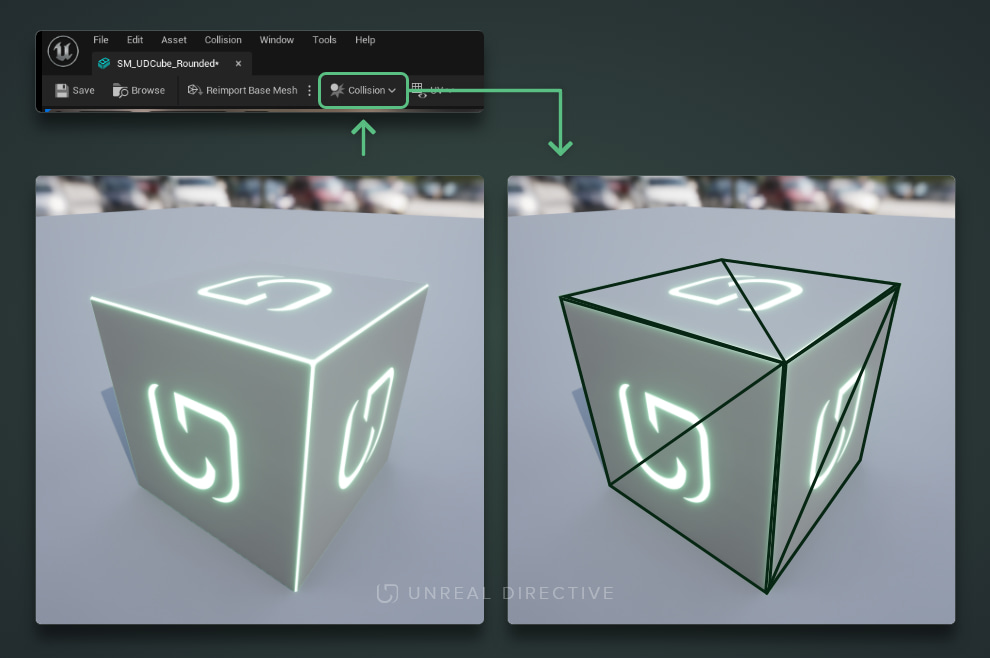
1. Your floor mesh doesn’t have any collision
Floor snapping uses simple collision rather than the visible mesh, so make sure your floor mesh has simple collision.
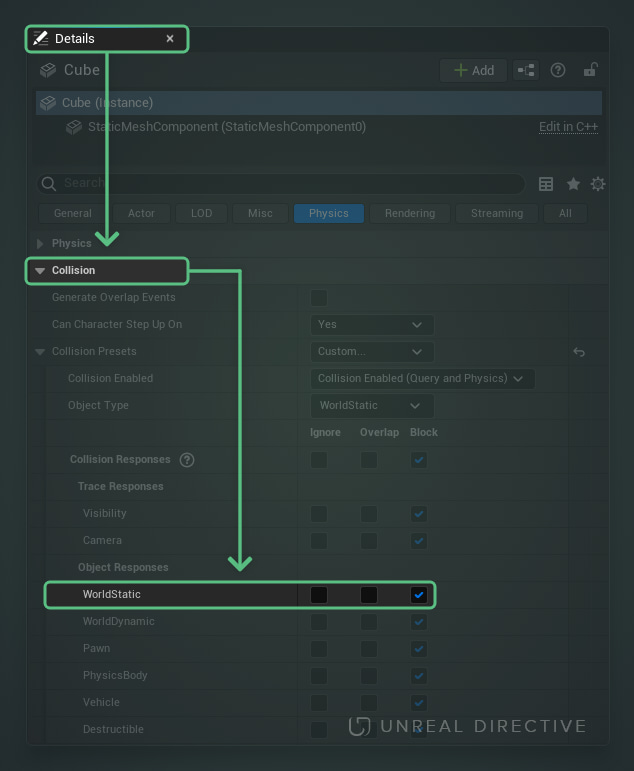
2. Your floor’s collision isn’t set correctly
Make sure your floor actor’s collision response to WorldStatic is set to Block. If it’s set to anything else, the actor passes straight through it.
3. The snap is being intercepted
End uses the actor’s whole bounding box, so if that box already overlaps another actor’s collision, the snap stops there. If it’s only partially intercepted, use Shift + End to snap from the bottom center of the bounds instead.
Why did all of my selected actors move together?
Ctrl + End snaps the selection’s pivot to the grid and moves every selected actor by the same offset. To snap each actor on its own, use Snap Origin to Grid Per Actor, which has no default shortcut.
Can I also rotate the actor to match the floor?
Yes. Each floor snap has an Align variant, such as Align to Floor, that also rotates the actor to match the surface. These have no default shortcuts either, but you can bind any of them in Editor Preferences > Keyboard Shortcuts under Level Editor.
Where do I change the grid size?
Grid sizes are set in Editor Preferences > Viewports > Snap.
Links
Check out the following resources to learn more about the subject.
Unreal Directive is free and ad-free.
If it saved you time, you can help keep it that way.