

Viewport View Mode Shortcuts
Hold Ctrl and drag with the middle mouse button to switch a level viewport between perspective and the orthographic views.
Use the CTRL + MMB + Drag shortcuts to quickly switch a level viewport between perspective and the orthographic views. The drag direction picks the view, and these are immensely useful for speeding up level design.
| View Mode | Mouse Drag Direction |
|---|---|
| Orthographic Top | Up |
| Orthographic Bottom | Down |
| Orthographic Left | Left |
| Orthographic Right | Right |
| Orthographic Front | Up-Left |
| Orthographic Back | Up-Right |
| Perspective | Down-Left or Down-Right |
Top, Bottom, Left, and Right each cover 15 degrees either side of their direction, and the diagonals cover the 60 degrees in between.
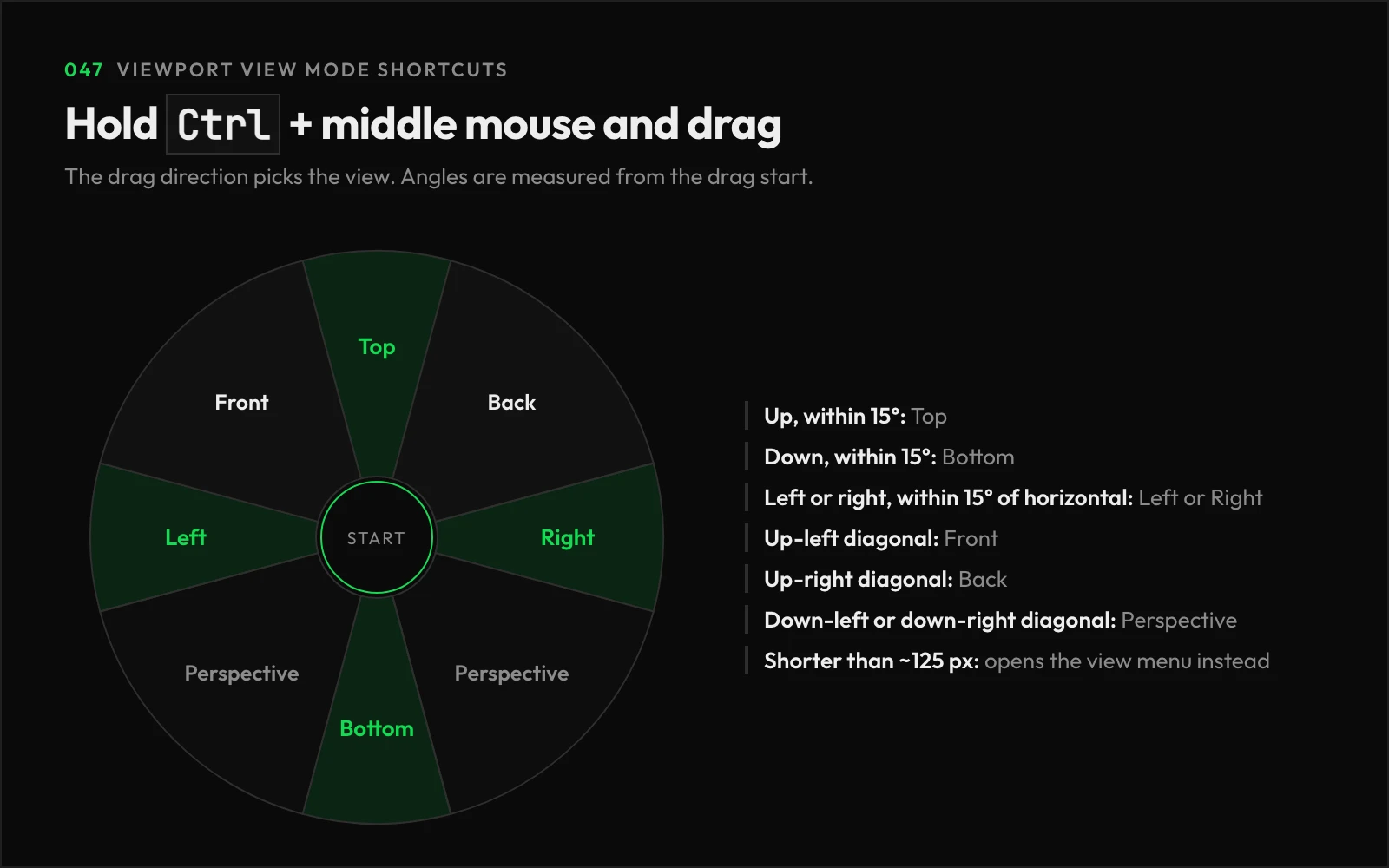
A line follows the cursor while you drag. A short drag, under about 125 pixels, opens the view menu instead of switching directly.
Are there keyboard shortcuts for these views?
Yes, the same views have hotkeys:
| View | Shortcut |
|---|---|
| Perspective | Alt + G |
| Front | Alt + H |
| Back | Alt + Shift + H |
| Top | Alt + J |
| Bottom | Alt + Shift + J |
| Left | Alt + K |
| Right | Alt + Shift + K |
| Next view | Ctrl + Shift + Space |
The hotkeys can be rebound in Editor Preferences > General > Keyboard Shortcuts.
Why isn’t the drag gesture working?
The drag gesture works in level editor viewports only, so make sure you’re in one, and keep Alt and Shift released while you drag.
Links
Check out the following resources to learn more about the subject.
Unreal Directive is free and ad-free.
If it saved you time, you can help keep it that way.