

The Preview Mesh
Hold Backslash to show a preview mesh under the cursor in the level viewport, and set your own preview meshes in Editor Preferences.
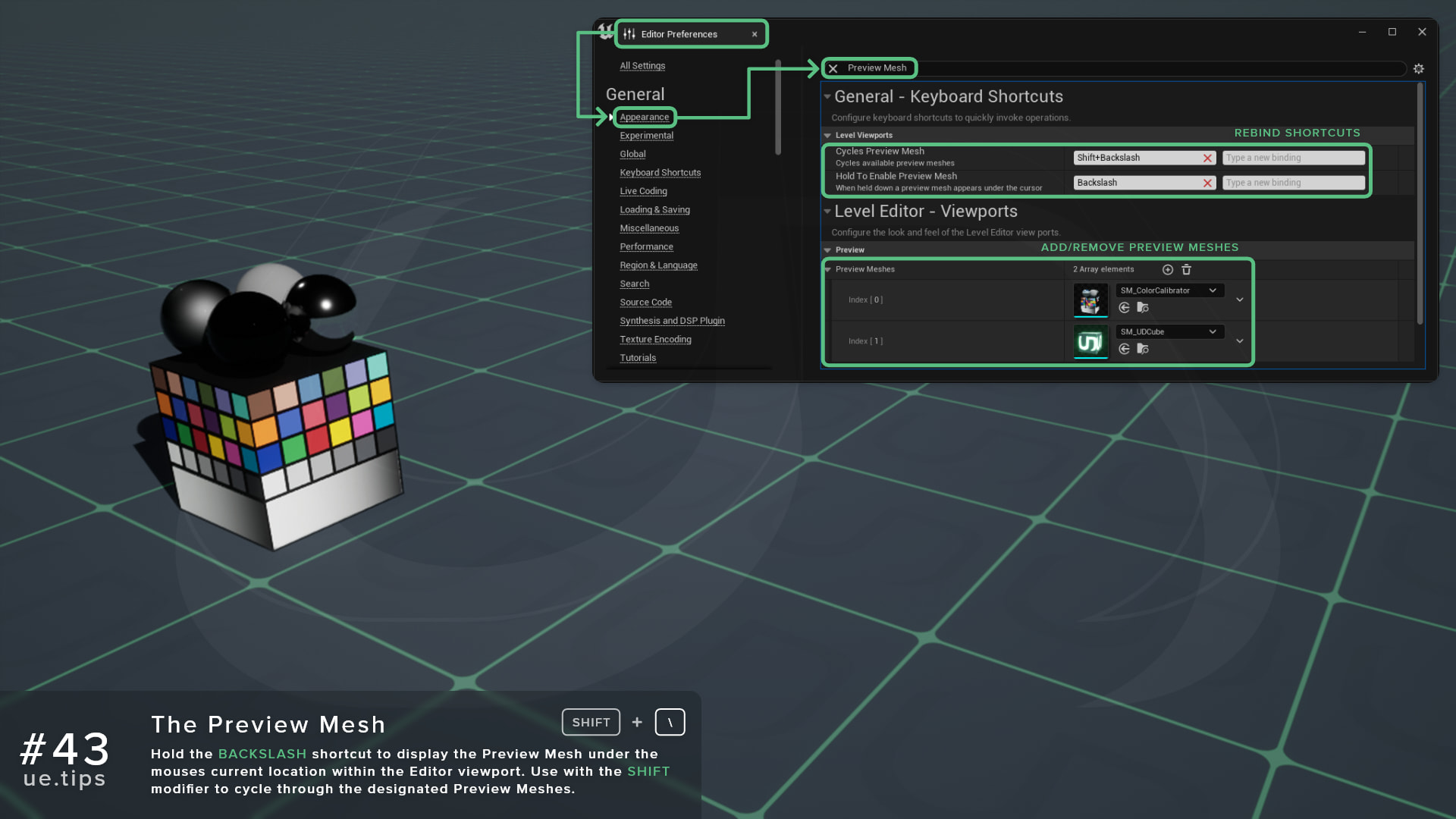
Hold the Backslash key, \, to display the Preview Mesh under the mouse cursor in the level viewport, and release it to hide the mesh again. Use it with the Shift modifier to cycle through the designated Preview Meshes.
This is useful for previewing a known test mesh under a specific environment’s lighting and materials, without placing anything in the level.
| Shortcut | Description |
|---|---|
Hold \ | Hold To Enable Preview Mesh |
Shift + \ | Cycles Preview Mesh |
How do I choose the preview meshes?
The list of meshes lives in Editor Preferences > Level Editor > Viewports > Preview > Preview Meshes. In Unreal Engine 5.8, the list holds one mesh by default, SM_ColorCalibrator from /Engine/EditorMeshes/ColorCalibrator/.
Add your own Static Meshes to the array, such as a character-sized reference mesh. Shift + \ steps to the next mesh in the list and wraps back around to the start.
The list is saved per user and per project, so each project can have its own set of test meshes.
Frequently asked questions
Where does the mesh appear?
It sits on the World Static geometry under your cursor. When there’s nothing under the cursor, the mesh stays at its last position.
Does the preview mesh cast shadows?
Yes, it casts shadows while it’s visible, which makes it handy for judging lighting.
Can I change the shortcuts?
Both shortcuts can be rebound in Editor Preferences > General > Keyboard Shortcuts.
Unreal Directive is free and ad-free.
If it saved you time, you can help keep it that way.