

The Audio Widgets Plugin
Use the AudioWidgets plugin's ready-made UMG widgets for meters, sliders, knobs, and scopes.
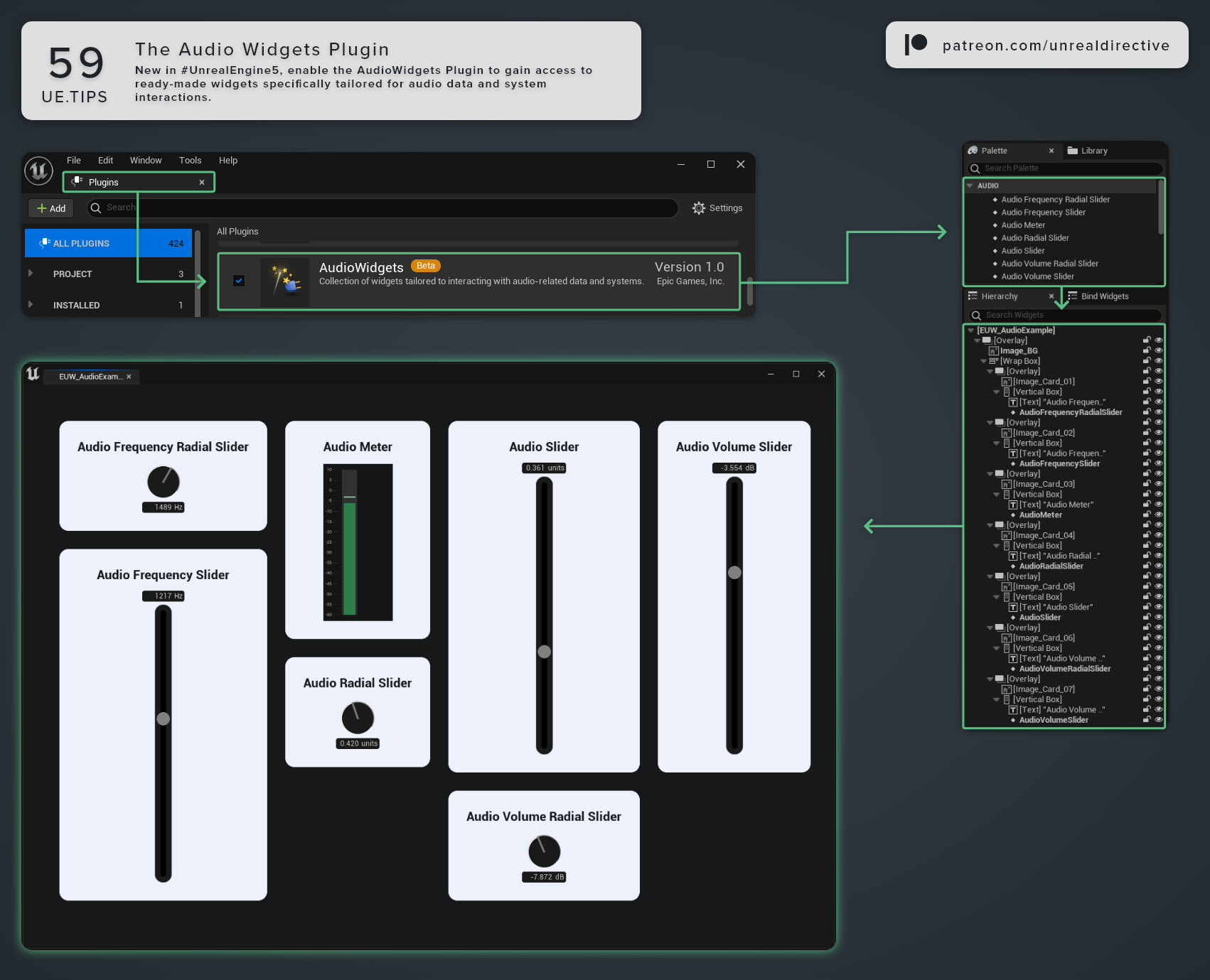
Use the AudioWidgets plugin to gain access to ready-made UMG widgets specifically tailored for audio data and audio system interactions. In Unreal Engine 5.8, the plugin is neither Beta nor Experimental.
Do I need to enable it?
Usually, no. MetaSounds is enabled by default and depends on AudioWidgets, so the plugin loads along with it. If MetaSounds is off in your project, enable AudioWidgets in the Plugins window under the Audio category.
Which widgets does it add?
The widgets show up in the UMG Palette under two categories:
| Palette Category | Widgets |
|---|---|
| Audio | Audio Meter, Audio Slider, Audio Volume Slider, Audio Frequency Slider, Audio Radial Slider, Audio Volume Radial Slider, Audio Frequency Radial Slider, Audio Oscilloscope, Audio Vectorscope |
| AudioMaterial | Audio Material Button, Audio Material Knob, Audio Material Slider, Audio Material Meter, Audio Material Envelope |
Frequently asked questions
What’s the difference between the sliders?
Audio Slider maps its value through custom curves, while Audio Volume Slider comes with default curves for decibels and Audio Frequency Slider has a frequency output range.
How do I get the Oscilloscope or Vectorscope to show something?
Both read from an Audio Bus asset, so assign one to the widget’s Audio Bus property. The Start Processing and Stop Processing functions control when it reads from the bus.
What does the Audio Meter display?
It shows the current level, a slower peak-hold value, and a clipping indicator. Keep in mind that it works in linear volume values rather than decibels.
Links
Check out the following resources to learn more about the subject.
Unreal Directive is free and ad-free.
If it saved you time, you can help keep it that way.