

The Console Variables Editor Plugin
Track, toggle, and save your most used console variables as presets with the Console Variables Editor.
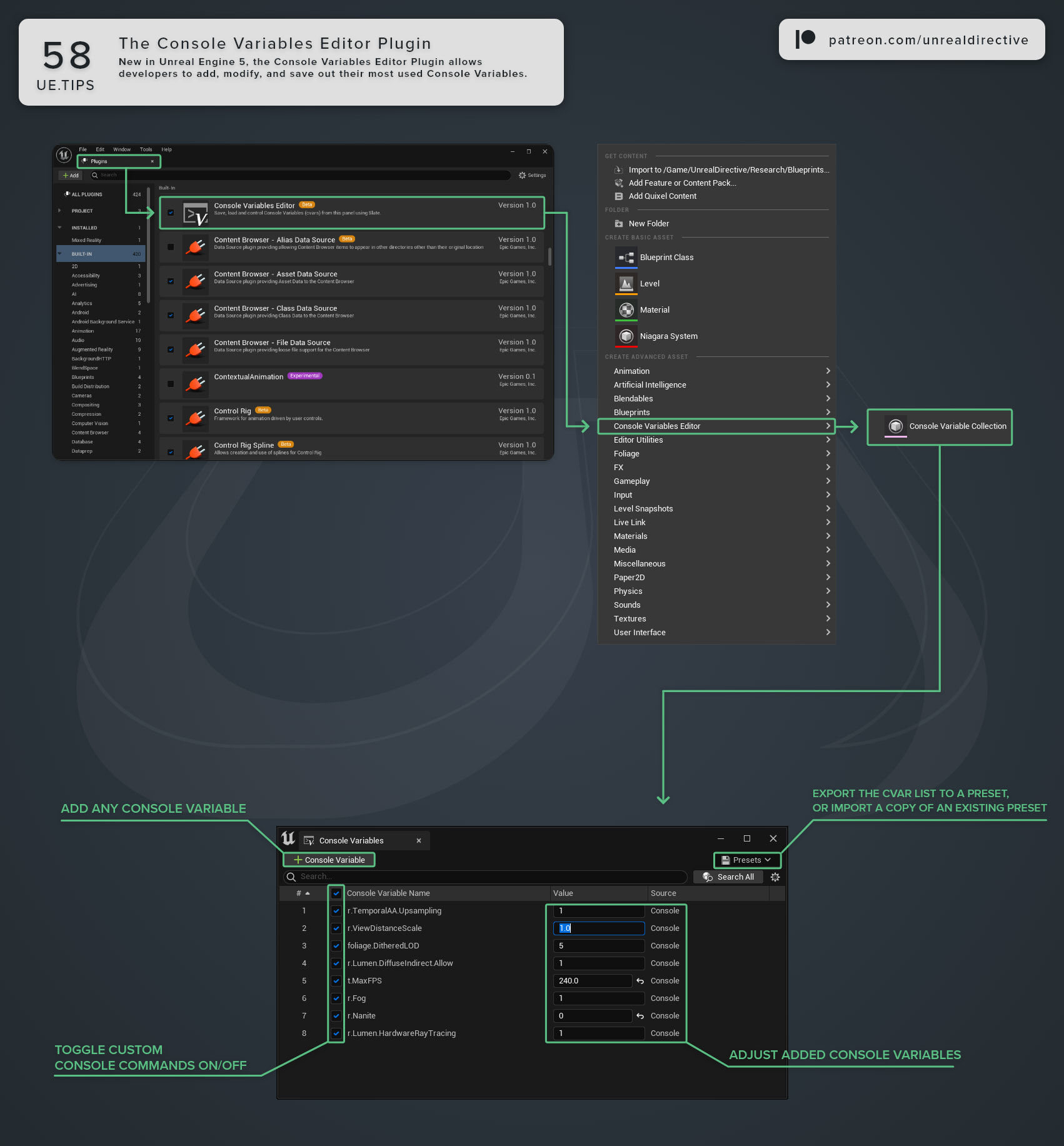
The Console Variables Editor plugin allows you to add, modify, toggle, and save out your most used console variables within a single editor window. It’s great for keeping the handful of cvars you constantly flip, such as debug views or rendering tweaks, one click away.
How can I open the Console Variables Editor?
Open it from Window > Console Variables.
As of Unreal Engine 5.8, the plugin is enabled by default and no longer marked as Beta. In Unreal Engine 5.6 and 5.7, it was a Beta plugin that you had to enable yourself in the Plugins window, where it’s listed under the Virtual Production category.
What can it do?
Here’s what you’ll be working with:
| Feature | What It Does |
|---|---|
| Tracked list | Shows each variable’s name, value, and source. Type a cvar or command into the window’s console input to add it. |
| Checkbox | Unchecking a row reverts that variable to the value it had when the plugin loaded. Checking it again reapplies your value. |
| Search All | Searches every console variable in the engine, not only the ones in your list. |
| Presets | Save Preset and Save Preset As write your list to a Console Variable Collection asset, which you can load later or share with your team. |
| Console commands | Commands such as stat fps get an Execute button. |
Frequently asked questions
Does it pick up cvars I change from the regular console?
Yes. The Add All Changed Console Variables to Current Preset setting is on by default, so variables you change outside the window get added to your current preset. Console commands like r.SetNearClipPlane or stat fps are the exception and aren’t tracked this way. If there are variables you’d rather it ignore, add them to the Changed Console Variable Skip List.
Where are the plugin’s settings?
Under Project Settings > Plugins > Console Variables Editor. Besides the tracking options above, Unchecked Row Display Type chooses whether unchecked rows show the live value or the value that applies when you check the row again, and Preset Import Mode controls what happens to your current list when you import a preset. The default is Add to Existing.
Does it work with Multi-User?
The plugin depends on the Multi-User plugins, and in a Multi-User session, cvar changes can sync to other session members.
Links
Check out the following resources to learn more about the subject.
Unreal Directive is free and ad-free.
If it saved you time, you can help keep it that way.