

Hide Editor Grid Lines
Turn off the background grid in the Blueprint and Material editors for a cleaner graph.
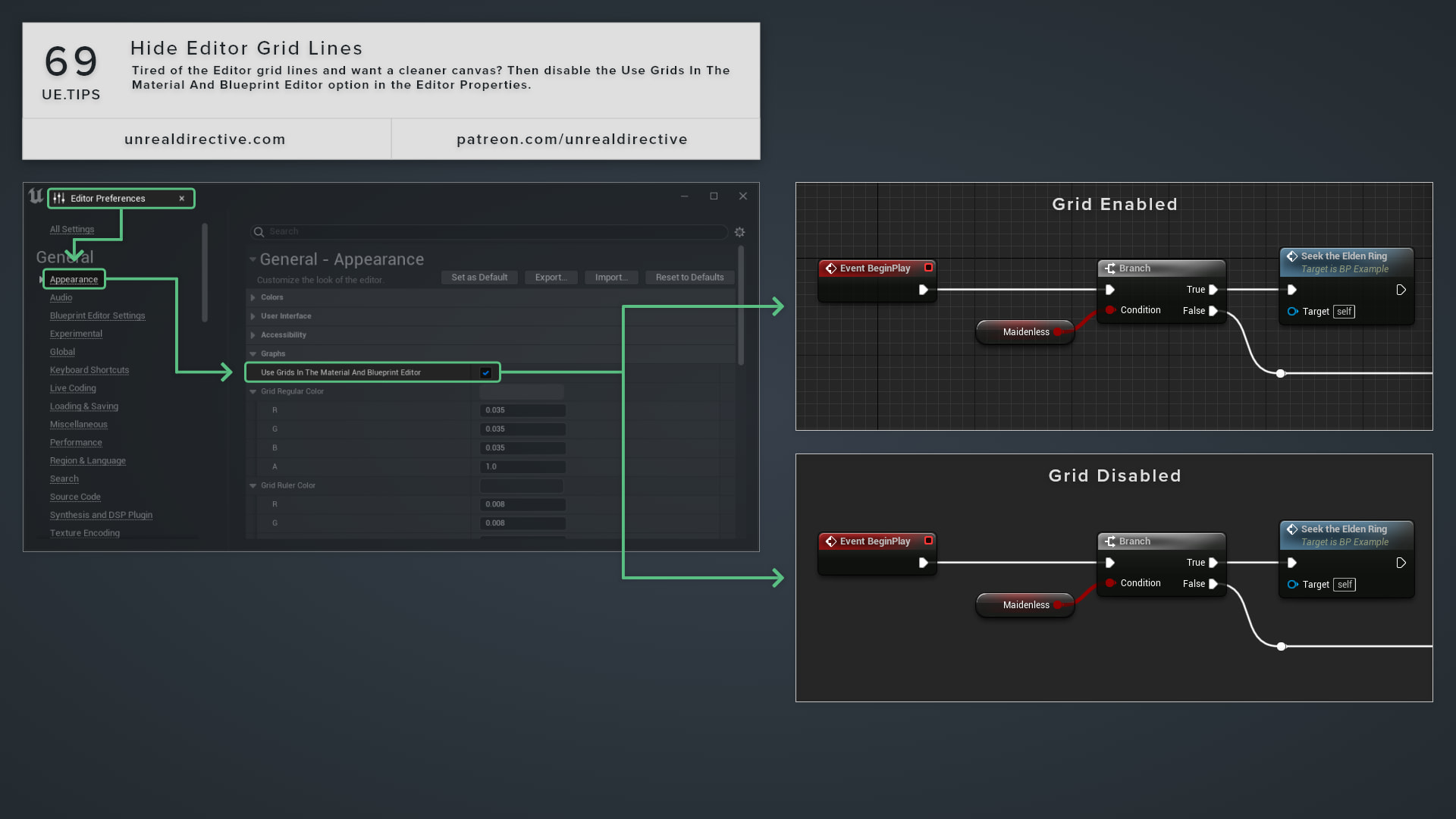
Tired of the editor grid lines and want a cleaner canvas? Then disable the Use Grids In The Material And Blueprint Editor option in the Editor Preferences.
I personally enjoy having a no-grid canvas, as it cleans up visual clutter and improves screenshot possibilities.
Where can I find the option?
Open Edit > Editor Preferences, then go to General > Appearance and scroll down to the Graphs category. On macOS, Editor Preferences sits in the application menu instead of the Edit menu.
The same category has a few related settings worth knowing about.
| Setting | Default | Description |
|---|---|---|
| Use Grids In The Material And Blueprint Editor | On | Draws the grid behind graph editors. |
| Grid Anti-Alias | On | Anti-aliases the grid lines. |
| Grid Snap Size | 16 | Node snapping size, from 1 to 100. |
Frequently asked questions
Does it only affect the Material and Blueprint editors?
Despite the name, it also hides the grid in the other node graph editors.
Do nodes still snap with the grid hidden?
Yes. Grid Snap Size still applies, so your nodes line up the same way they did before.
Does it change the setting for all my projects?
No. The setting is saved per user, per project, so other projects keep their own value.
Links
Check out the following resources to learn more about the subject.
Unreal Directive is free and ad-free.
If it saved you time, you can help keep it that way.