

Post Process Pixelization
Create a pixelization post process material for a retro look in Unreal Engine.
You can effortlessly integrate a pixelation shader into your project to add a unique, retro visual style. Let me show you how.
Creating the post process effect
Create a new material
Begin by creating a new material and giving it a suitable name, such as
M_Pixelization_PP. This naming recommendation is based off established naming conventions in the industry.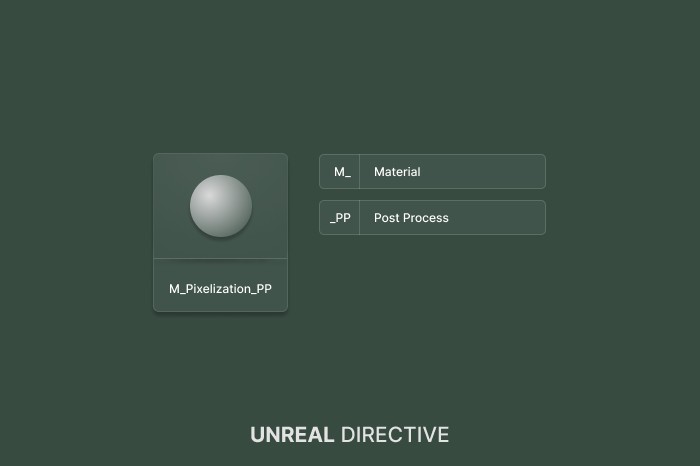
Configure the material settings
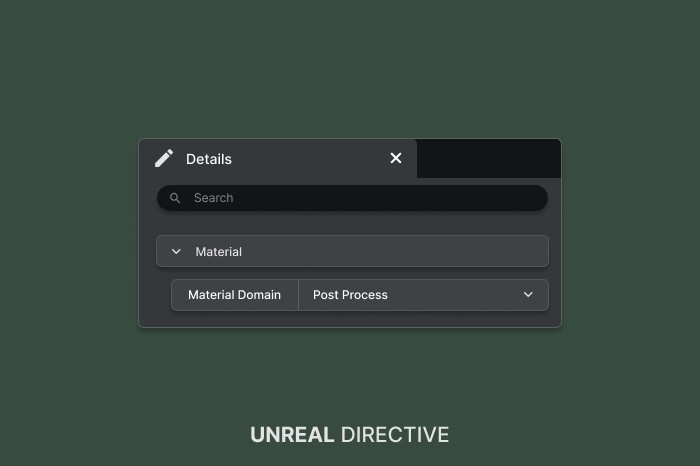
Open the material, navigate to its Details panel, and change the Material Domain to “Post Process”.
Setup the node sequence
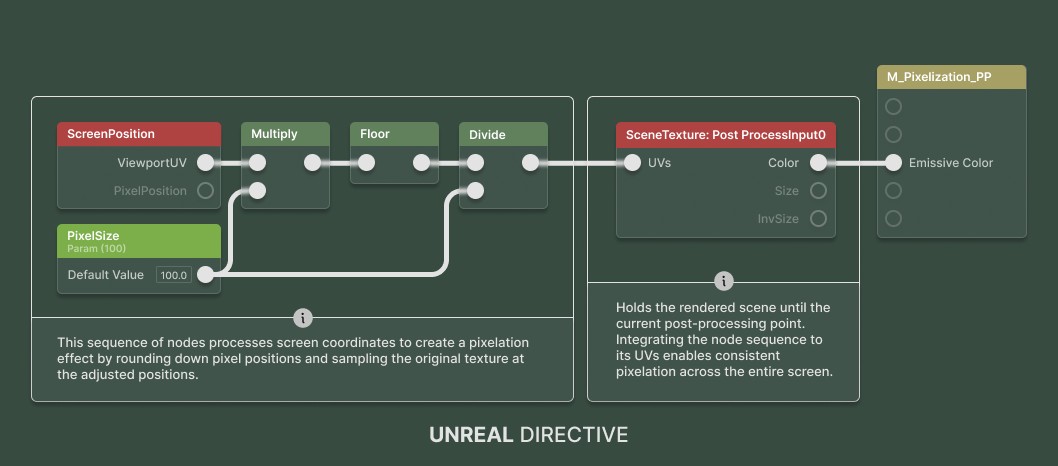
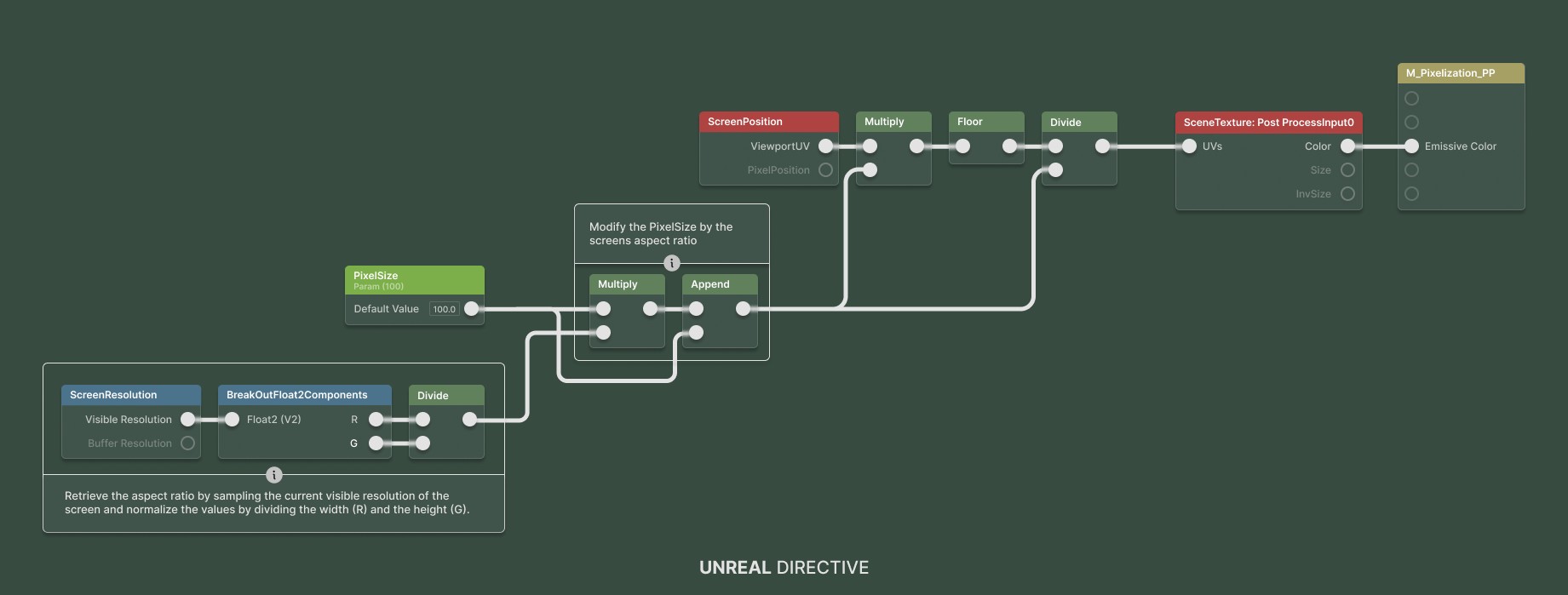
In the material’s graph, lay out the following node sequence:
Assign the material
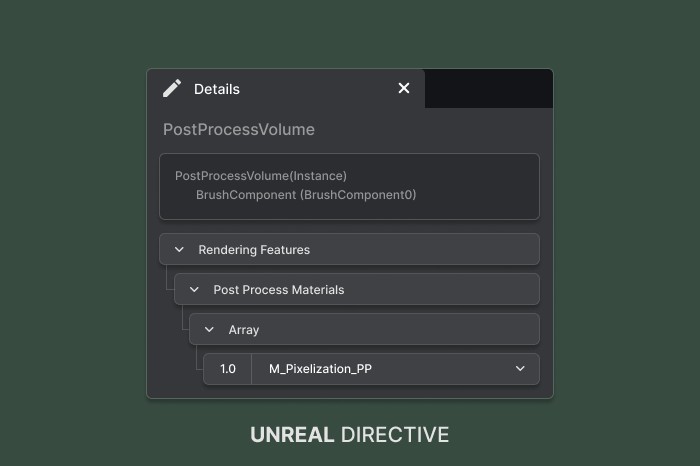
Lastly, insert the new material into the Post Process Materials array, under Rendering Features, of the Post Process Volume present in your level. Add a Post Process Volume to your scene if you don’t have one already.
Optional. Don’t forget to also enable the “Infinite Extent (Unbound)” option to ensure the Post Process Volume affects the whole level.
Experiment
With the material set, the pixelization effect is active. Adjust the PixelSize to suit your needs. It sets the number of pixel blocks across the screen, so a higher value gives smaller pixels.
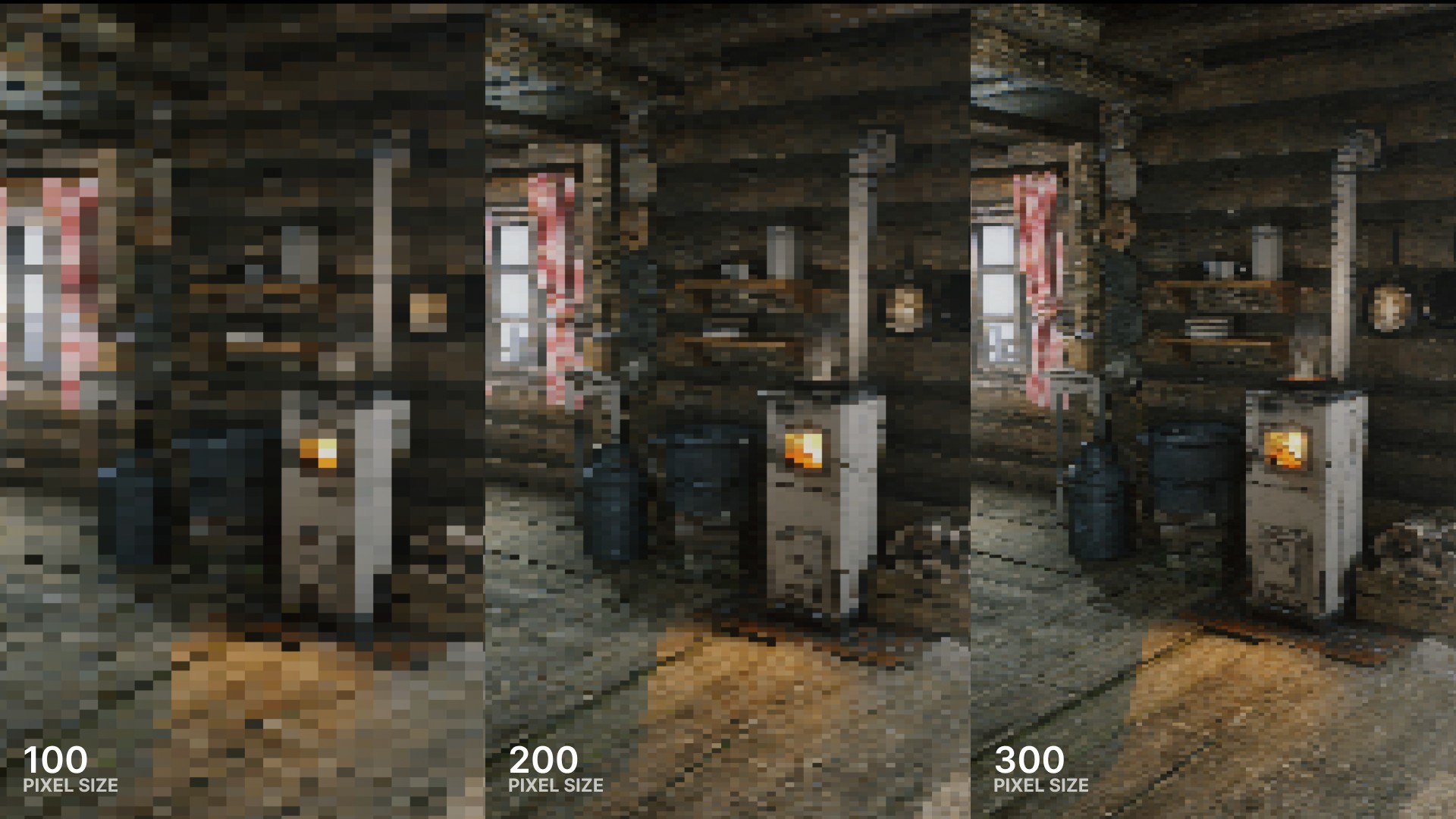
Environment is “Log Cabin” by Gabro Media
Frequently asked questions
Here are some frequently asked questions from the community:
How can I ensure the pixels are square?
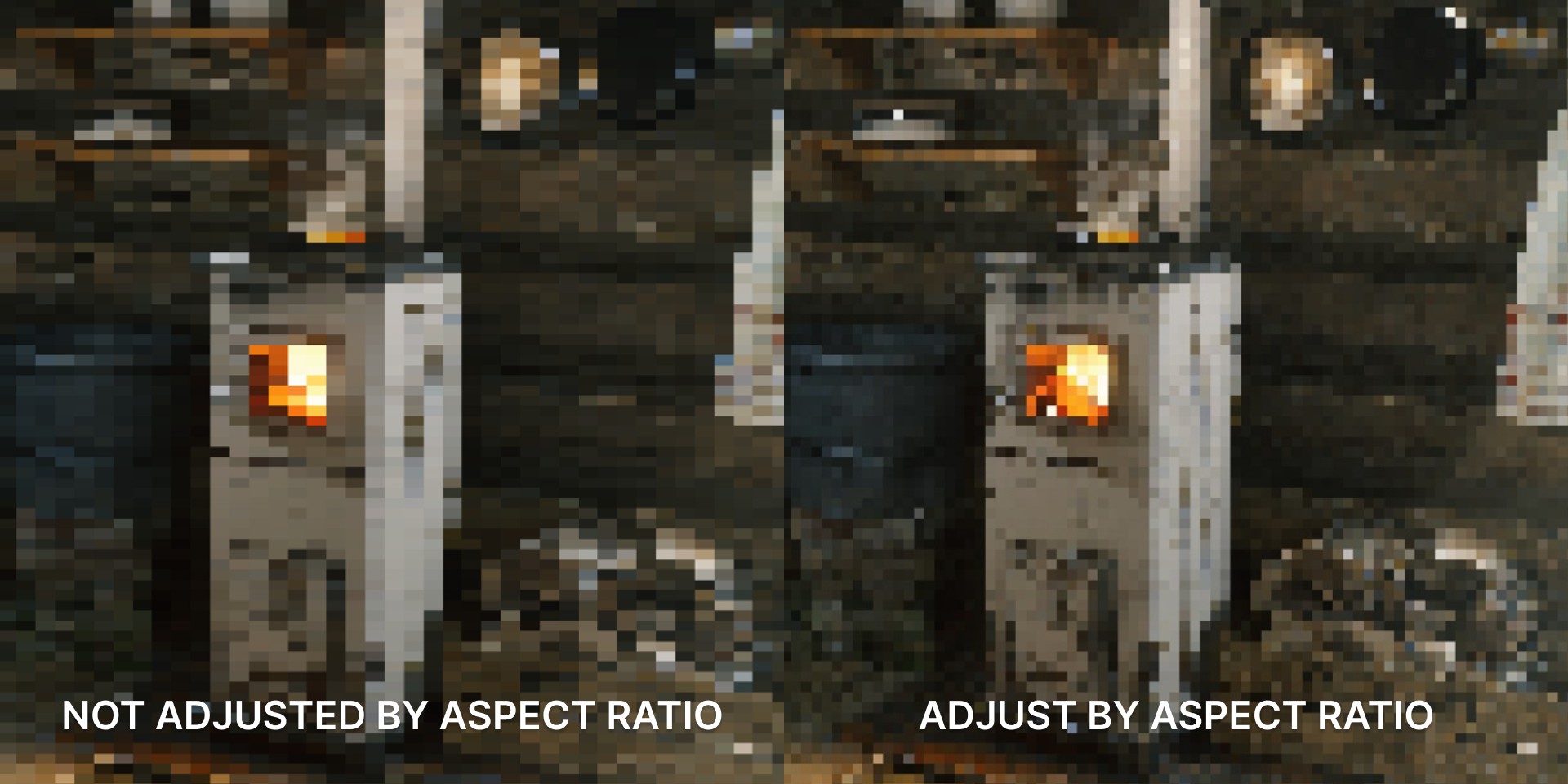
The above implementation was the quick and easy method to achieve a pixelated look and feel. However, as you may have noticed, the sizing of the pixels changes depending on the aspect ratio of your screen.
To maintain uniformly square pixels, factor the aspect ratio into your implementation by dividing the ScreenResolution node’s Visible Resolution width by its height and multiplying PixelSize by the result for the horizontal axis, as demonstrated below:
Take a look at this comparison illustrating the results before and after taking the aspect ratio into account:
How does this affect performance?
Keep in mind that a Post Process effect such as this runs on every pixel of the final rendered image, so its cost scales with the rendered resolution rather than with how intricate the scene is. This material only does a few math nodes and one scene texture sample per pixel.
To strike a balance between quality and performance, consider adjusting the screen resolution, the screen percentage, or using an upscaler such as Temporal Super Resolution. Additionally, make sure to profile your project to identify any assets that inherently impact performance.
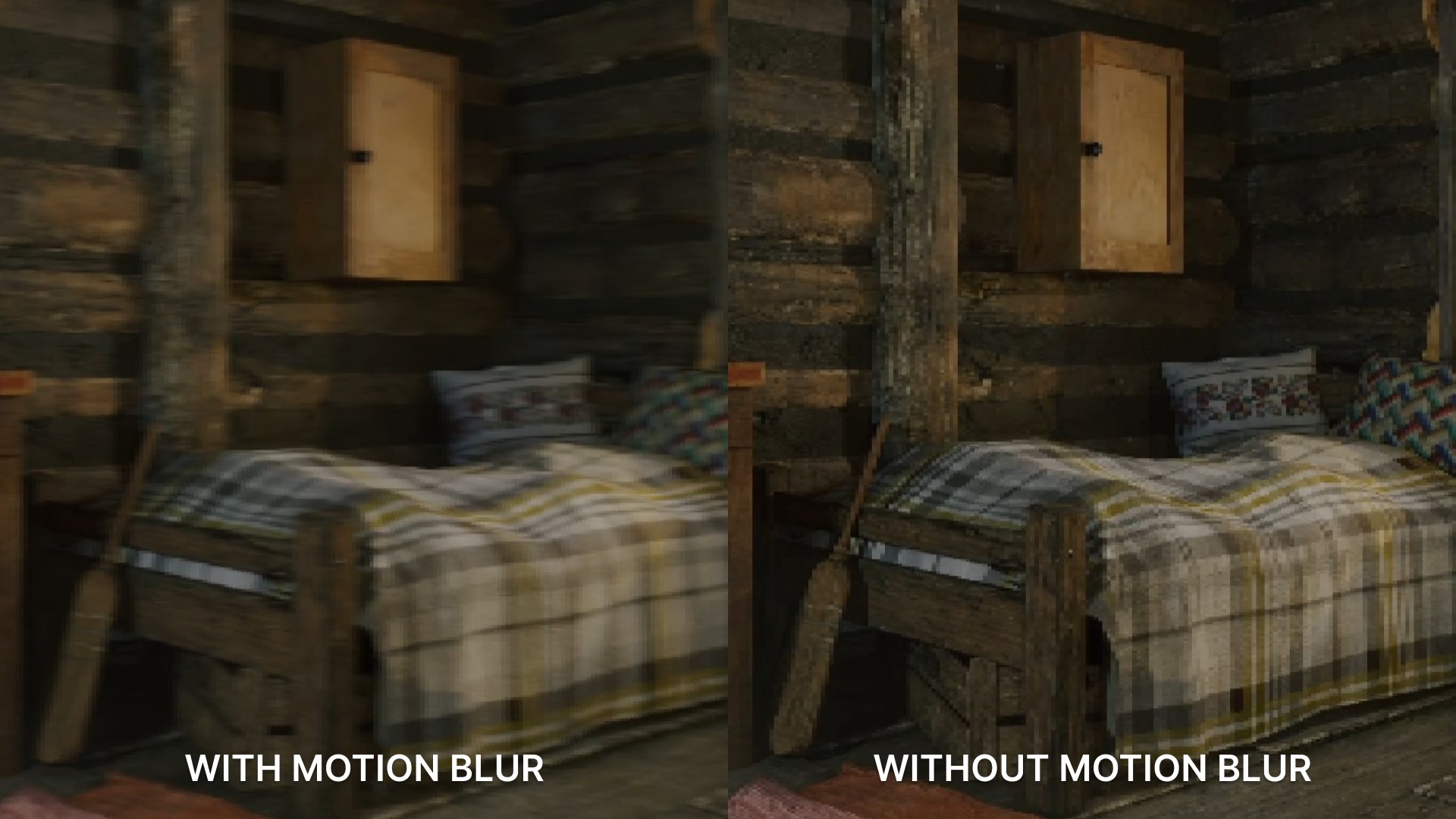
Why does everything appear blurry while moving around a scene?
A blurry scene is due to Motion Blur. This setting simulates a blurring of objects in motion, giving a sense of movement, and post process materials run after it by default, so each big pixel picks up the smear.
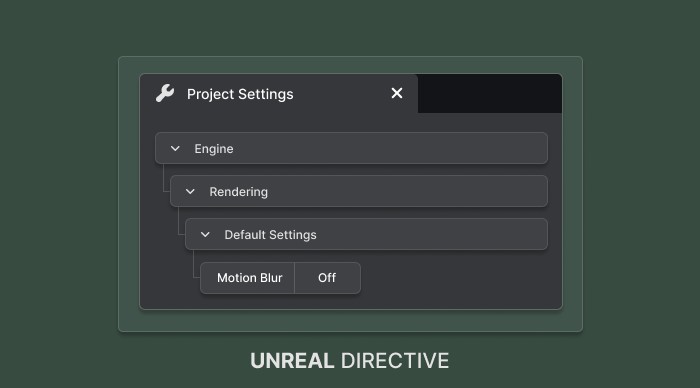
Unfortunately, this negatively impacts the pixel shader, so disable it to improve clarity. Turn off Motion Blur in Project Settings → Engine → Rendering → Default Settings, or set Rendering Features → Motion Blur → Amount to 0 in the Post Process Volume.
Wouldn’t simply reducing the screen percentage yield the same outcome?
Yes, and no. While lowering the screen resolution can result in a pixelated appearance, the visual quality isn’t as impressive.
For example:
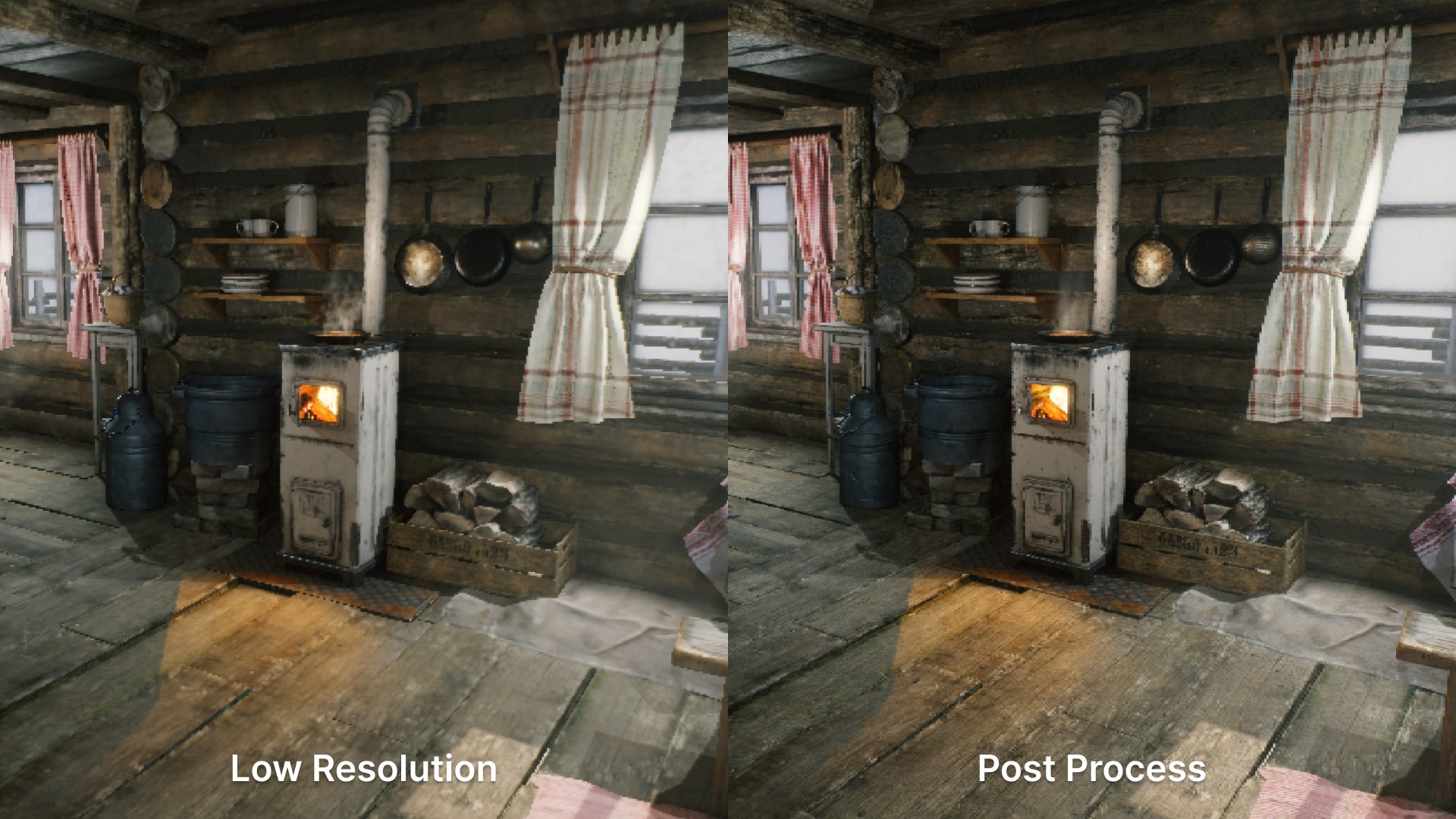
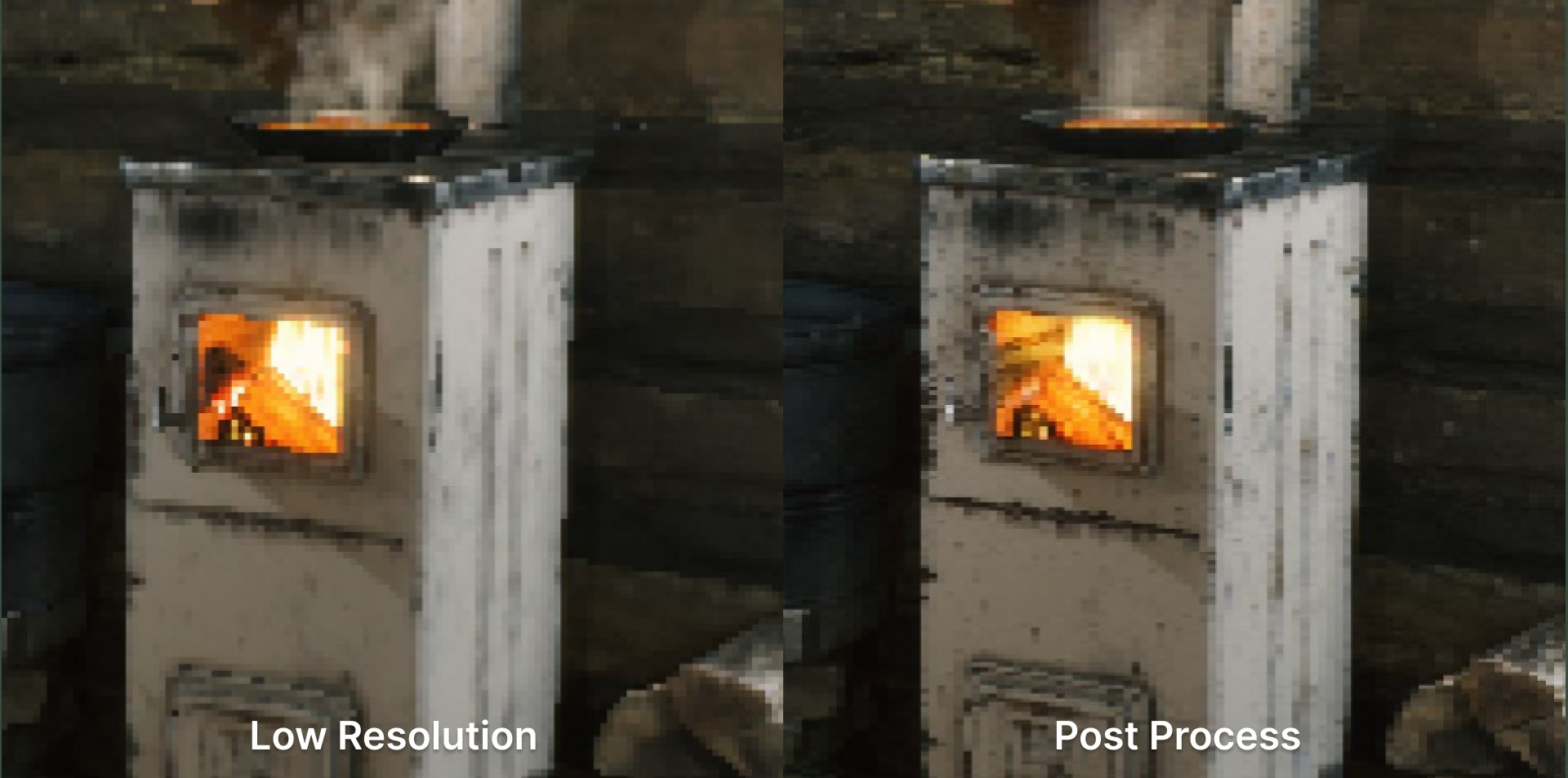
That said, this is a great method for achieving the pixelated look while also being more performant, since the scene renders fewer pixels.
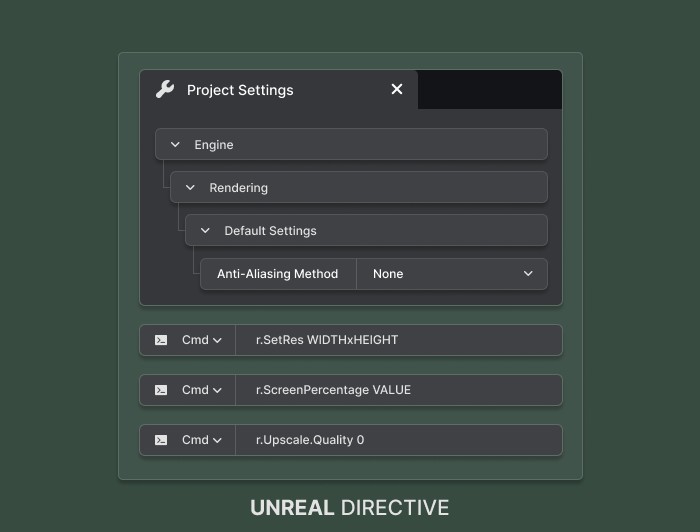
To reduce the rendered resolution:
- Set the Anti-Aliasing Method to None in Project Settings → Engine → Rendering → Default Settings (
r.AntiAliasingMethod) - Modify the screen resolution using the
r.SetResconsole command or through the Game User Settings - Adjust the screen percentage with the
r.ScreenPercentageconsole command or through the Game User Settings - Set the upscale quality to
0using ther.Upscale.Qualityconsole command, so the upscaled pixels stay sharp. The default is3, a bicubic filter
Is this approach superior to conventional methods?
While effective in creating a pixelated appearance, this doesn’t replace traditional pixel-based assets. Pixel-based assets are specifically crafted to ensure that each pixel contributes to the overall image and style. The Post Process Pixelization method, on the other hand, simply modifies the final rendered image. It doesn’t take into account the individual assets within the scene, which may lead to loss of detail or unintended visual artifacts.
Links
Check out the following resources to learn more about the subject.
Unreal Directive is free and ad-free.
If it saved you time, you can help keep it that way.