

Color Picker Themes
Save reusable color swatches in the Unreal Engine color picker with color themes.
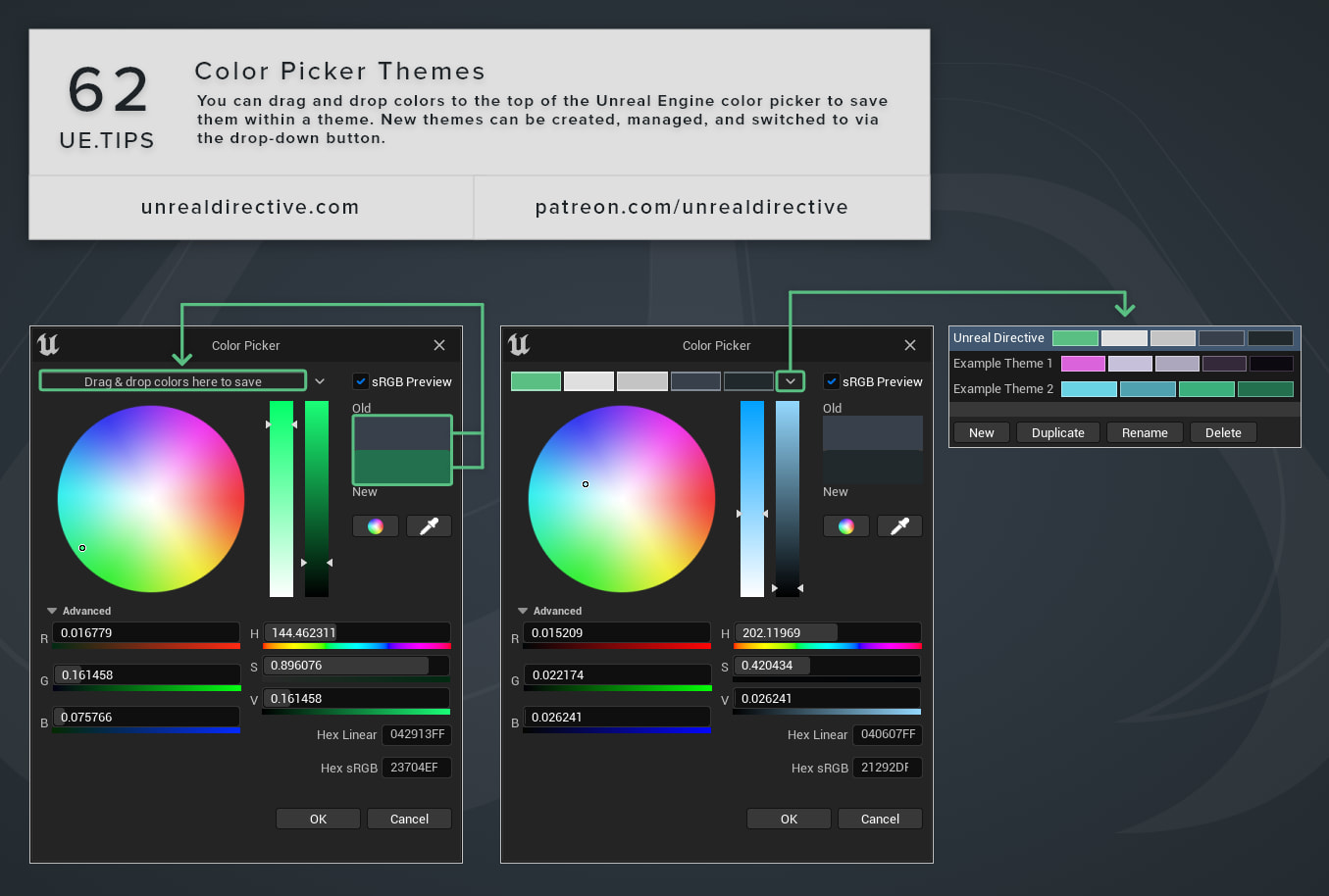
You can save colors to a theme at the top of the Unreal Engine color picker and reuse them later. Each theme is a named row of color swatches, and new themes can be created, managed, and switched to via the combo button at the start of the themes bar.
How do I save and manage colors?
Here are the actions you’ll use on the themes bar:
| Action | How |
|---|---|
| Show or hide the themes bar | Click the themes toggle button in the color picker. |
| Add a color | Click the + button on the themes bar to add the currently selected color. |
| Use a saved color | Click its swatch. |
| Reorder colors | Drag a swatch left or right along the bar. |
| Delete a color | Drag the swatch onto the delete button that replaces the + button while you drag, or drag it off the bar. |
| Label a color | Right-click the swatch and enter a label. |
How do I manage themes?
Click the combo button at the start of the themes bar to open the theme menu:
- Recents holds the colors you’ve used most recently, up to 46. Its swatches are managed for you, so you can’t add, drag, or delete them by hand.
- Saved Color Themes lists your themes. Pick one to make it the active theme.
- Create New Theme adds an empty theme.
- Edit Current Theme has Rename, Duplicate, and Delete for the active theme.
Frequently asked questions
Can I still drag a color onto the bar?
In Unreal Engine 5.8, dragging a color onto the bar from the main color preview doesn’t work, so use the + button instead.
Are my themes shared with my team?
Themes save to your per-project user settings, so they stay on your machine and in the current project. Your teammates and your other projects won’t see them on their own.
Links
Check out the following resources to learn more about the subject.
Unreal Directive is free and ad-free.
If it saved you time, you can help keep it that way.