

Titlebar Statistics
Show the editor's frame rate, memory use, object count, and stall count in the main window with one Editor Preferences setting.
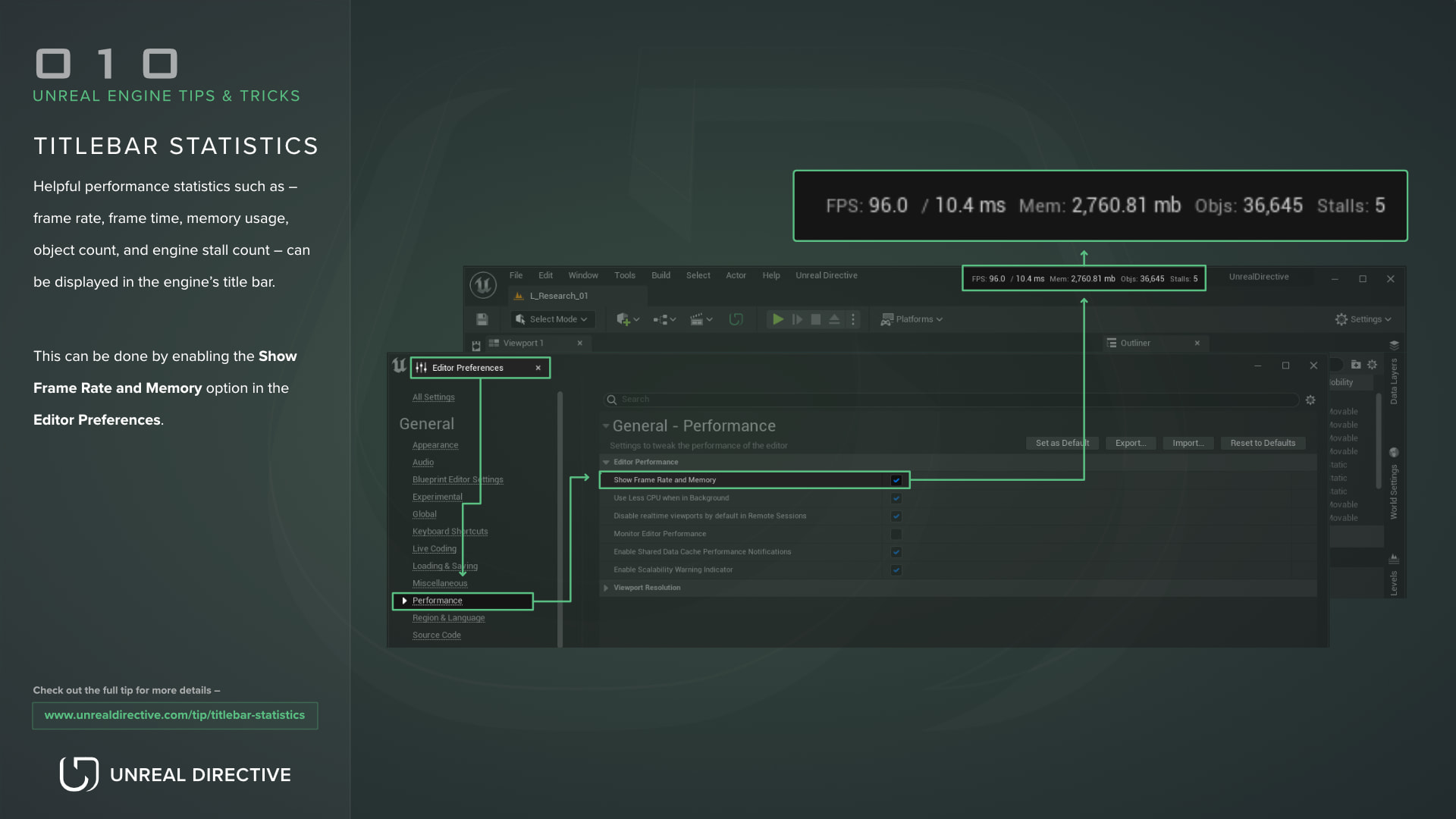
In the Editor Preferences window, search for and enable the Show Frame Rate and Memory option. It can be found under General > Performance, in the Editor Performance category, and it’s off by default. Once enabled, multiple helpful statistics are displayed in the top right of the editor’s main window.
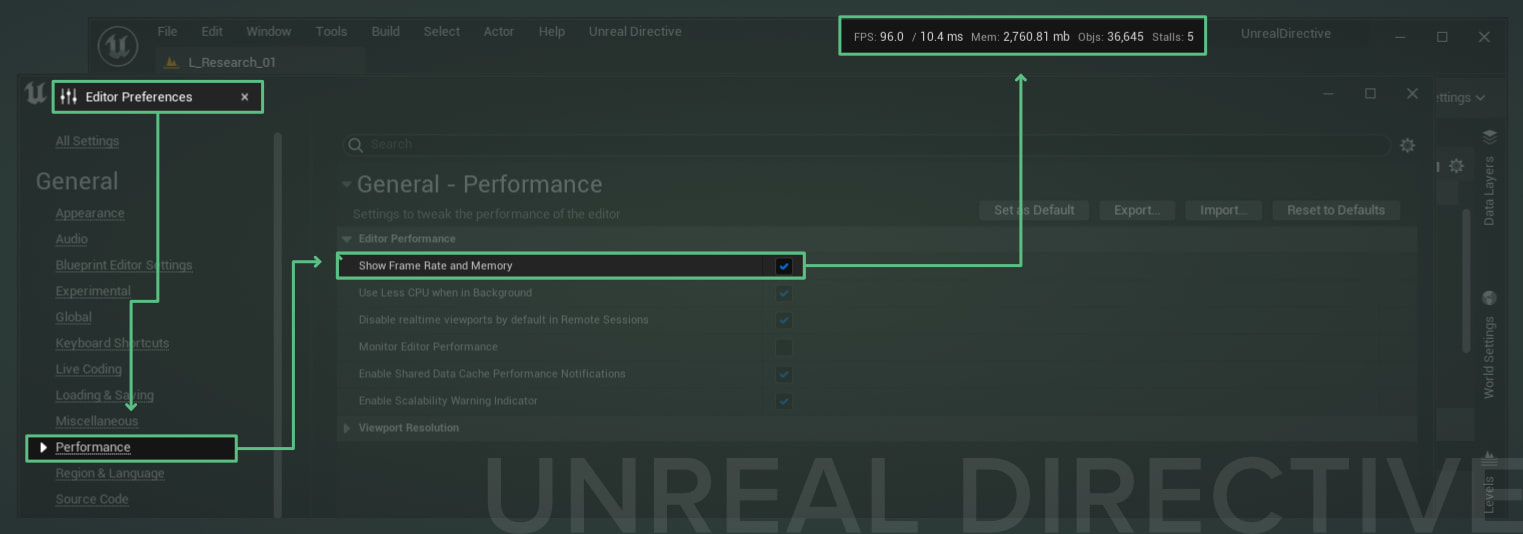
These statistics are:
Frame rate and frame time
The FPS: statistic shows the editor’s average frame rate, followed by the matching average frame time in milliseconds after the /. These cover the whole editor rather than a single viewport, so they won’t always match stat fps in a viewport.
Memory usage
The Mem: statistic displays the amount of physical RAM the opened Unreal Engine editor is currently using, in megabytes.
Object count
The Objs: statistic displays the total number of objects that have been claimed by the editor. This is the total size of the global object array minus its free slots.
It’s important to know that this isn’t just the objects within the loaded level, but the editor as a whole. For example, a blank level still shows a large number.
Stalls
The Stalls: statistic displays the number of times the editor has stalled since the main editor window opened. In Unreal Engine 5.8, a stall is counted whenever a single frame takes longer than 2 seconds.
If this statistic keeps climbing, the editor is regularly freezing for seconds at a time, which points to a heavy project, a slow asset operation, or hardware limitations.
While simple, these metrics are persistent and prove to be quite helpful for keeping track of how well your project is performing during development.
Frequently asked questions
Why don’t I see the Stalls statistic?
Stalls only appears in the editor on Windows and Linux.
Why does the frame rate drop when I switch to another application?
When the editor isn’t the foreground application, Use Less CPU when in Background throttles it, so the frame rate drops. That setting is in the same Performance section and is on by default.
How do I see the numbers for a single viewport?
Use stat fps or stat unit instead.
Links
Check out the following resources to learn more about the subject.
Unreal Directive is free and ad-free.
If it saved you time, you can help keep it that way.