

The Visual Logger
Use the Visual Logger to record, visualize, and replay in-game events for debugging.
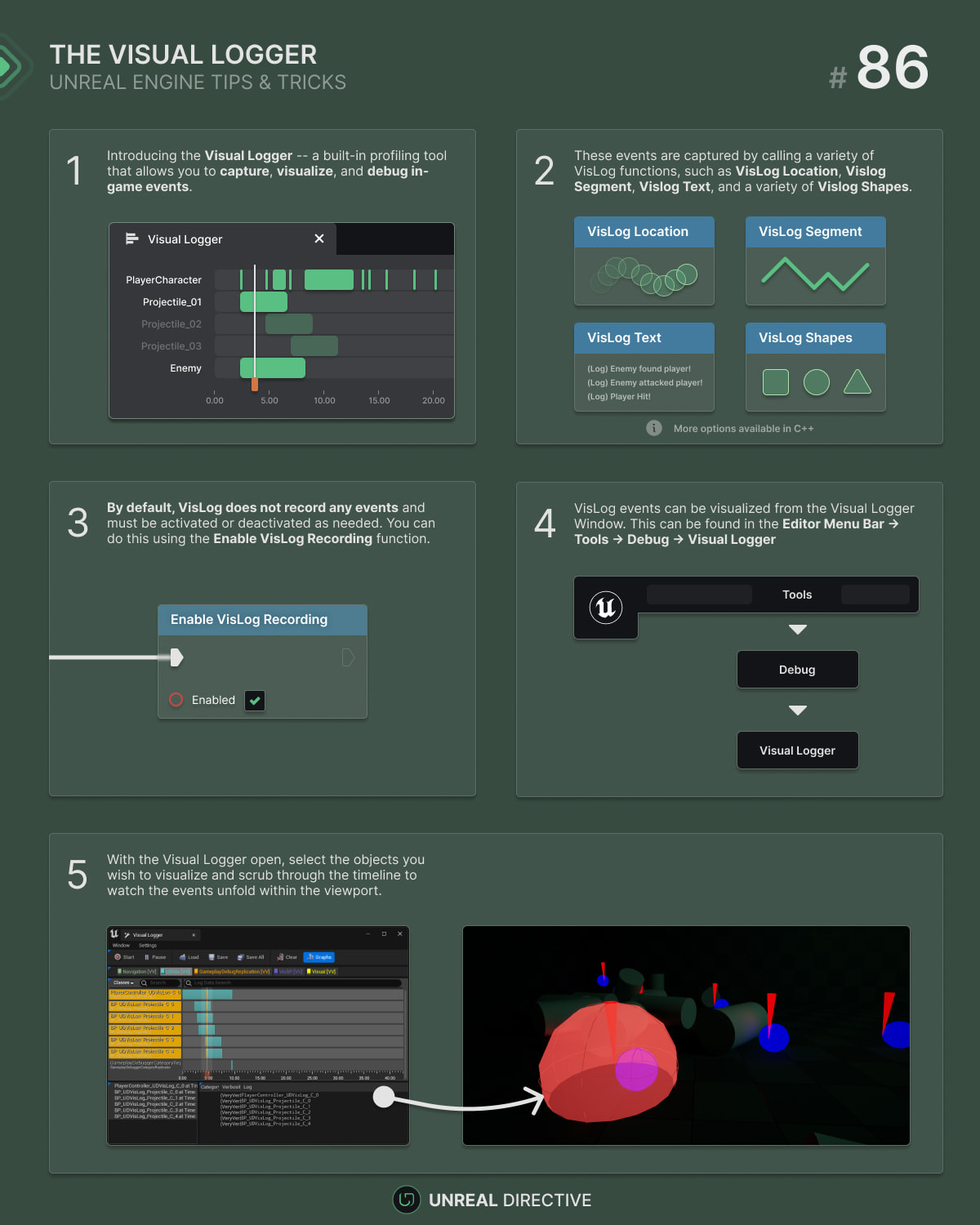
The Visual Logger, VisLog for short, is a profiling tool that allows you to easily capture, visualize, and debug in-game events. It’s commonly used with AI debug visualization, however, it’s great for a plethora of other use-cases, such as:
- Projected actor paths
- Collision traces
- Attack and projectile trajectories
- Networking debugging (client vs. server data comparisons)
- Use with the Environment Query System (EQS)
- Etc.
How can I open the Visual Logger?
There are two methods that you can use to open the Visual Logger:
Method 1: Menu Bar
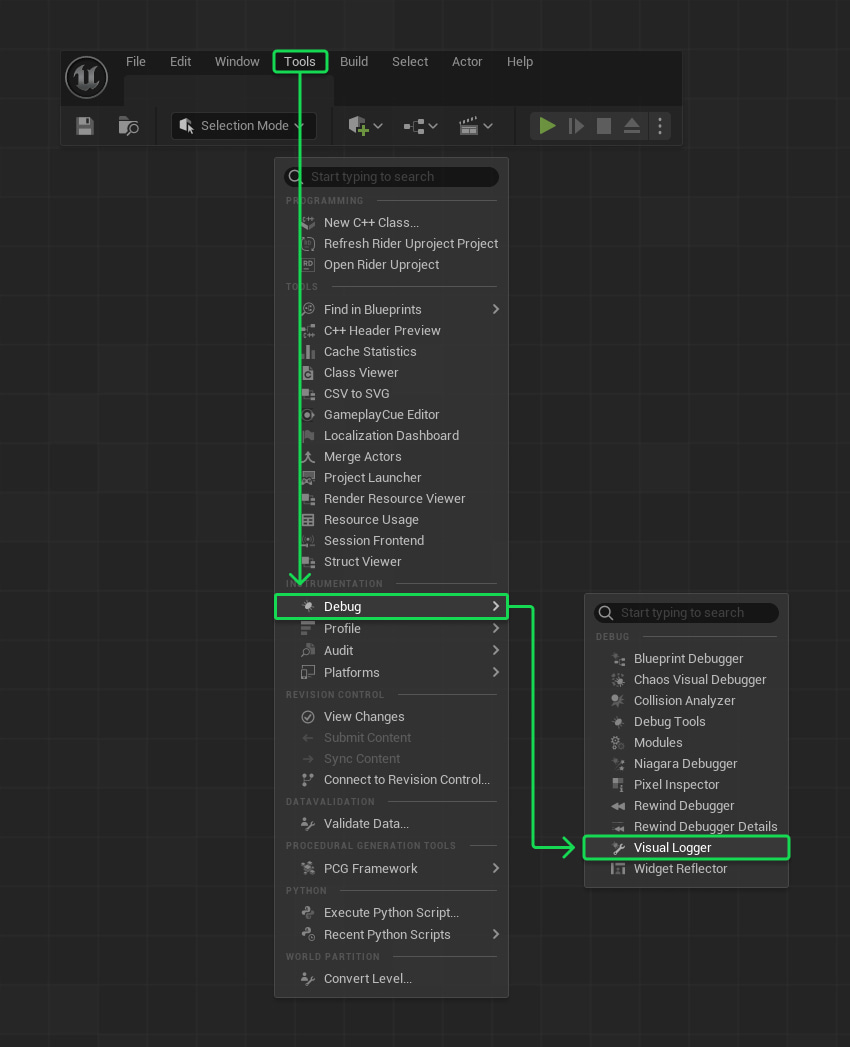
The Visual Logger can be opened from the Editor Menu Bar.
Menu Bar
Locate the menu bar at the top of your Unreal Engine editor.Tools
In the editor menu bar, click on theToolsoption.Debug
In theToolsmenu, click on theDebugoption.Visual Logger
In theDebugmenu, click onVisual Loggerto open up the Visual Logger window.
Method 2: Console Command
Use the VisLog console command to open the Visual Logger window.
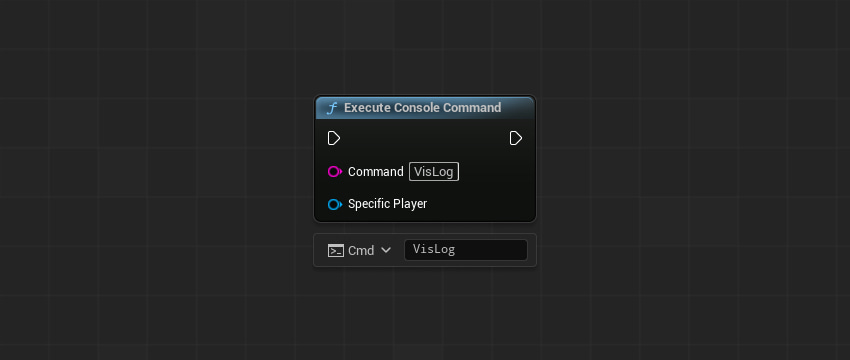
The VisLog command also takes a few arguments:
| Command | Description |
|---|---|
VisLog | Opens the Visual Logger window. |
VisLog record | Starts recording. Outside the editor, it records to a file instead. |
VisLog stop | Stops recording. |
VisLog disableallbut <Category> | Blocks every log category except the one given. |
Is the VisLog recording by default?
No. The VisLog only records data when recording is enabled.
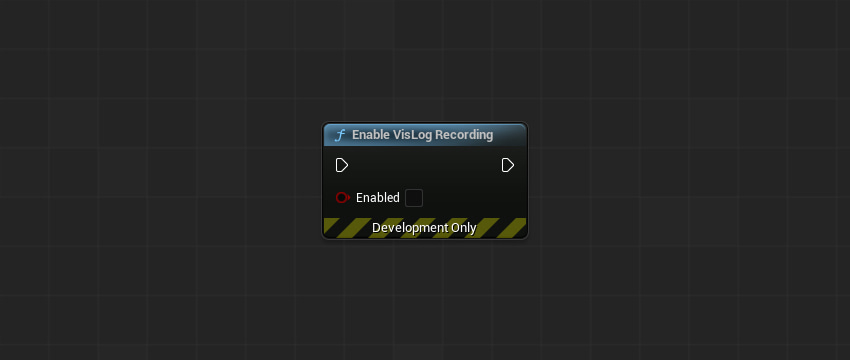
Press Start in the Visual Logger toolbar, run VisLog record, or use the Enable VisLog Recording function to toggle VisLogging on and off.
FVisualLogger& VisualLogger = FVisualLogger::Get();
VisualLogger.SetIsRecording(true);
Once you’ve recorded something, the Save and Load buttons in the toolbar let you store the recording as a .vlog file, so you can share it or review it later.
How do I capture VisLog events?
There are a variety of functions and macros that can be used to capture VisLog events. Here are a few common ones:
VisLog Location
The VisLog Location function records a particular location, represented as a sphere with a specified radius.
This function can be great for visualizing:
- Hit traces
- Object/data locations
- Paths along segments
- Etc.

VisLog Segment
The VisLog Segment function records a line with a specified start and end position.
This function can be great for visualizing:
- Distance between objects
- Trajectories and paths

VisLog Text
The VisLog Text function is useful for logging a simple text string, perfect for capturing data related to a specific event.
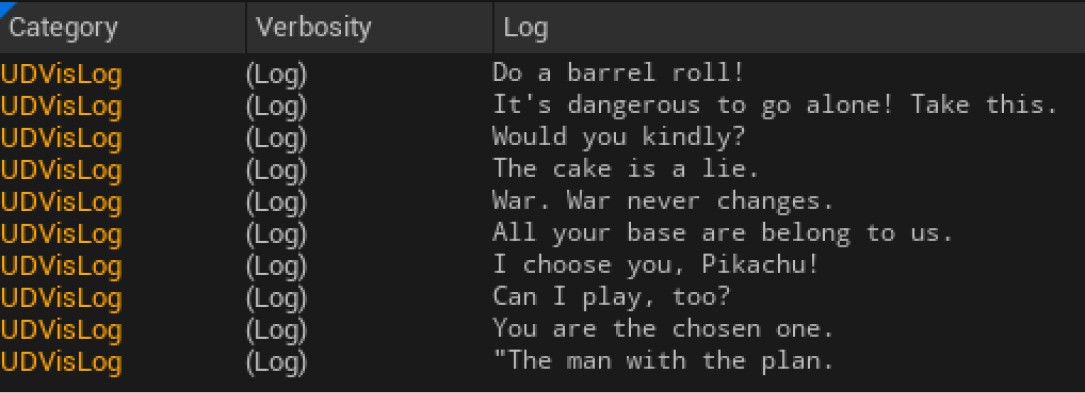
VisLog Shapes
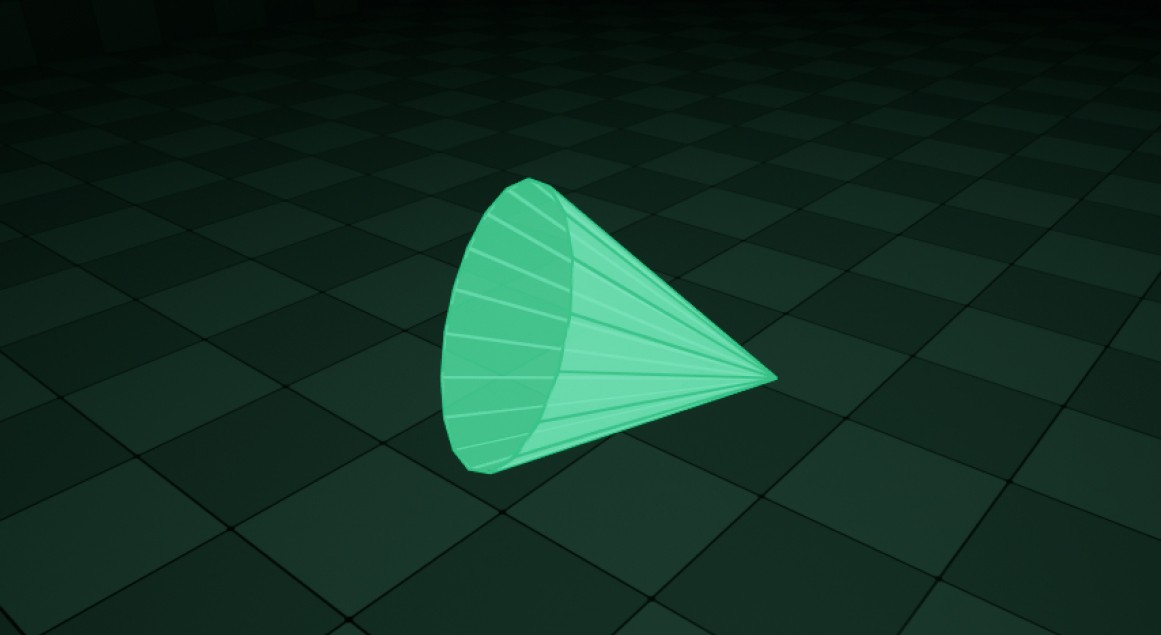
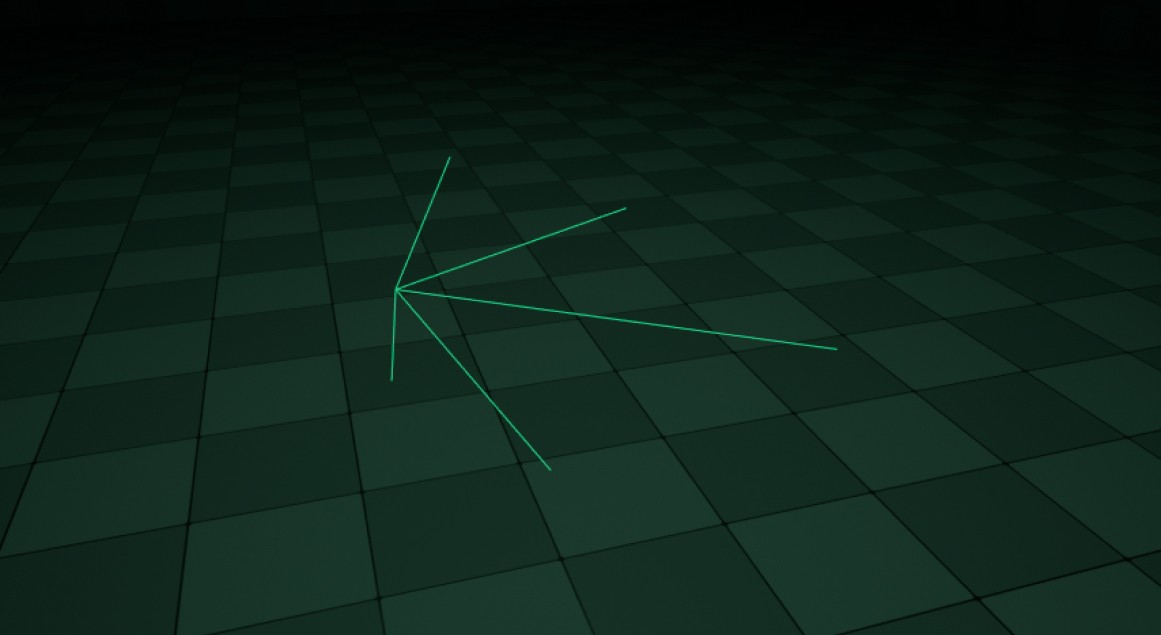
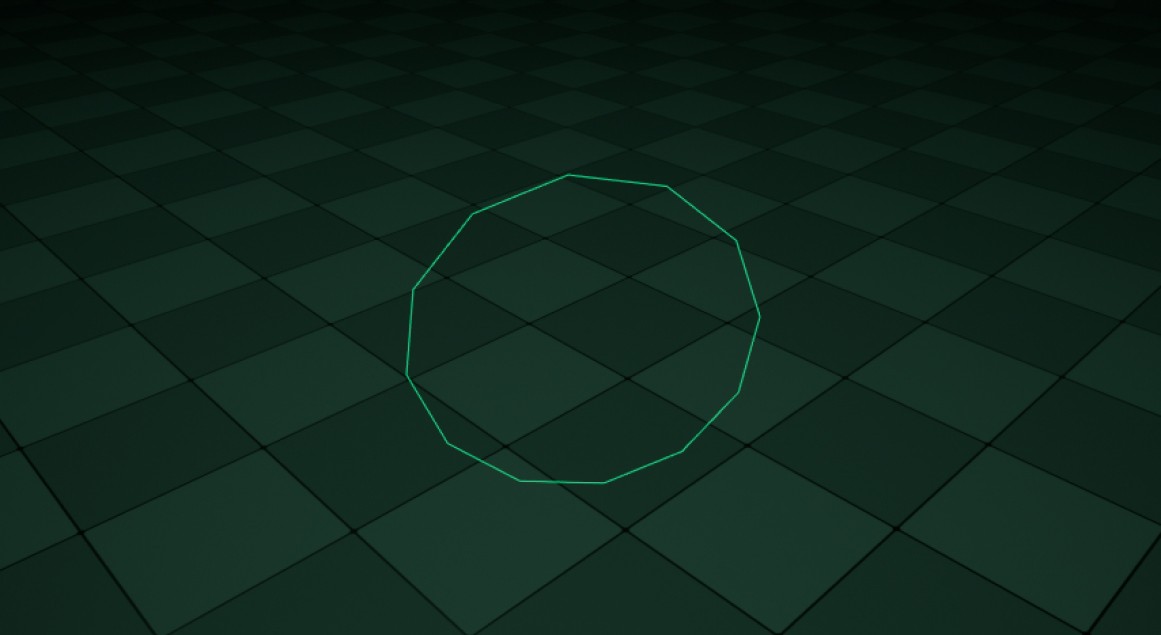
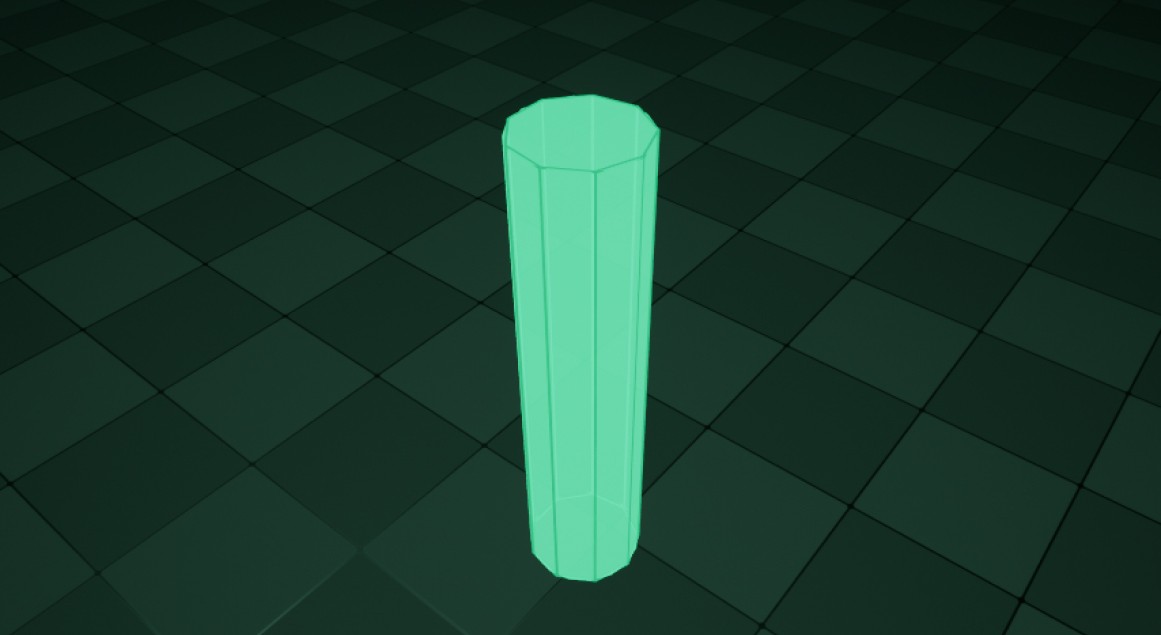
A vast array of shapes is available for visualization, enabling you to represent almost anything. In Unreal Engine 5.8, Blueprints have VisLog nodes for Sphere, Cone, Cylinder, Capsule, Box, Oriented Box, Arrow, and Circle shapes, and C++ has a matching UE_VLOG_* macro for each of them.
UE_VLOG_BOX

UE_VLOG_CONE
UE_VLOG_ARROW
UE_VLOG_CIRCLE
UE_VLOG_CYLINDER
And more…
While I covered the common ones, I want to at least mention the interesting ones.
There are multiple other C++ macros that might prove useful, and these ones have no Blueprint node:
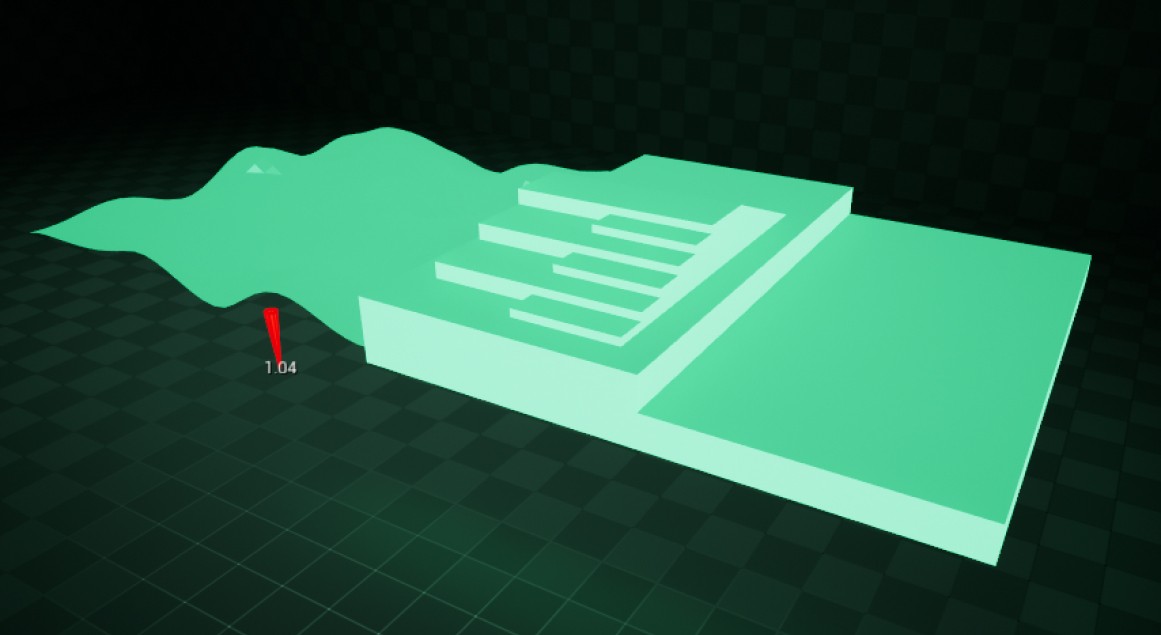
UE_VLOG_MESH
The UE_VLOG_MESH macro is used to draw a custom mesh using vertices and indices. Useful for debugging issues related to collision or navigation.
The procedural mesh and Geometry Script functions are quite useful when using this macro.
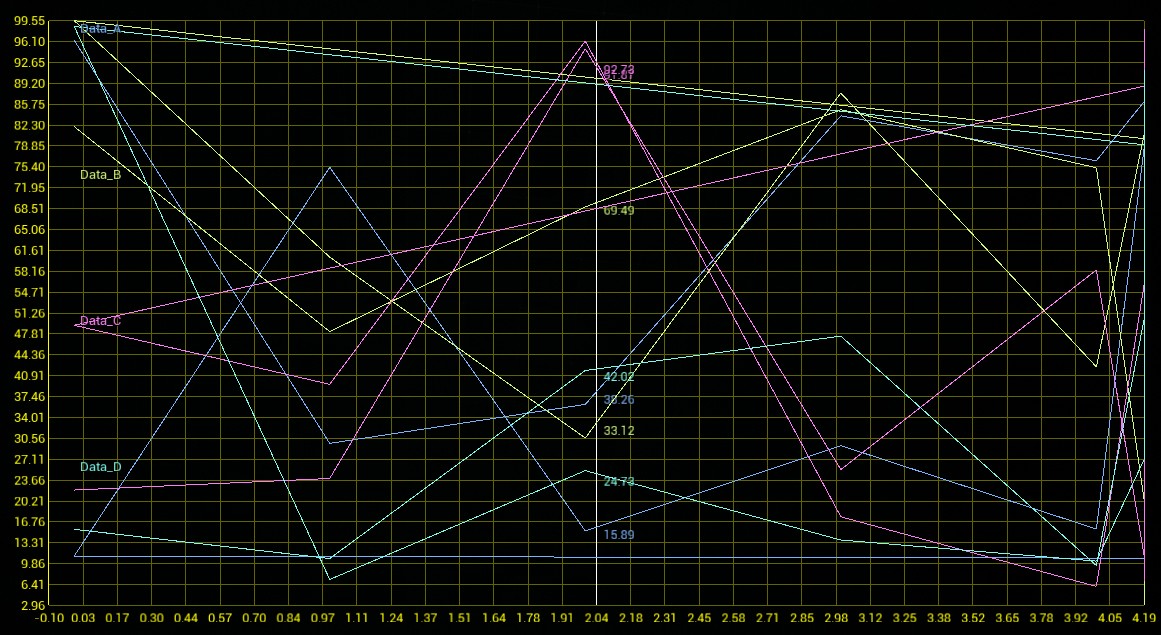
UE_VLOG_HISTOGRAM
The UE_VLOG_HISTOGRAM macro is used to add data points to a named graph that’s drawn on top of the viewport. It can be used to track values over time, such as AI decision-making weights or character attribute changes.
To see the graph, make sure to enable the Graphs button in the Visual Logger toolbar.
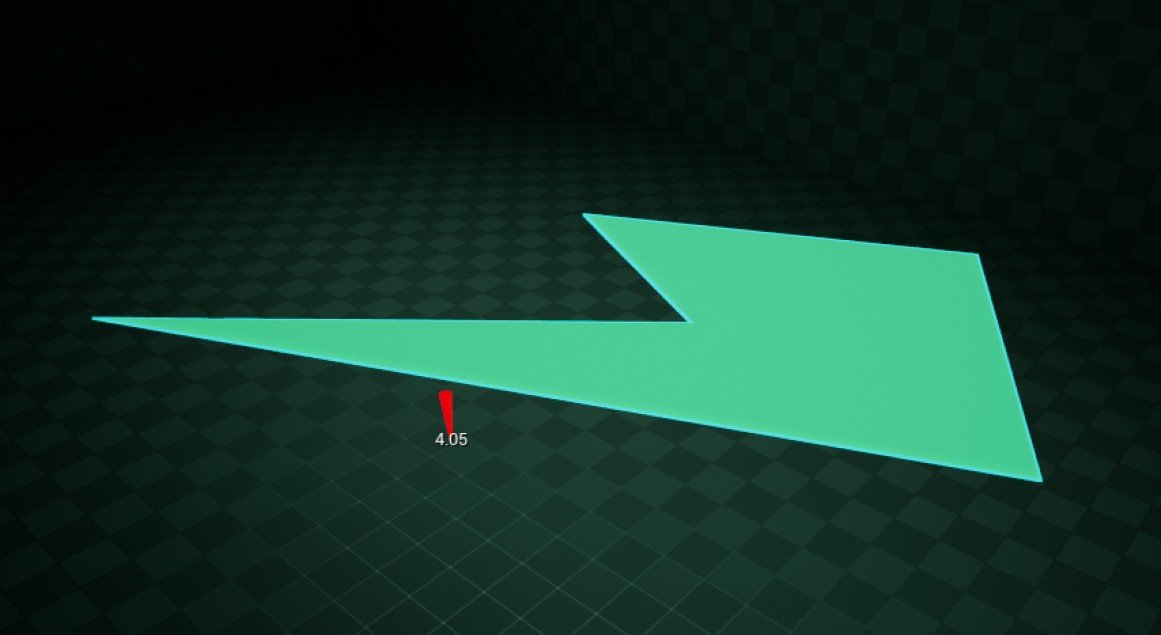
UE_VLOG_CONVEXPOLY
The UE_VLOG_CONVEXPOLY macro is used to draw a convex polygon from a list of points. It can be used to visualize areas or regions, such as navigation, pathing, or sight.
UE_VLOG_EVENT_WITH_DATA
The UE_VLOG_EVENT_WITH_DATA macro is used to provide custom event-based data to the Visual Logger. It can be used to record specific events or actions with associated data, providing more context for debugging and analysis.

UE_VLOG_EQS
The UE_VLOG_EQS macro is used to log data related to the Environment Query System (EQS), which itself is a system for querying the environment to make AI-based decisions.
This macro, in particular, logs the results of EQS queries, providing insights into AI decision-making. To use it, include EnvironmentQuery/EnvQueryDebugHelpers.h from the AIModule.
How can I get started with the Visual Logger in C++?
Thankfully, it’s pretty straightforward to get started with the Visual Logger in C++. Here are some code snippets to get you started:
Include
This is the required C++ include for the Visual Logger.
#include "VisualLogger/VisualLogger.h"Define Static Log
When dealing with VisLogging, you might want to define a specific log category. Each VisLog entry belongs to one, and you can filter by it in the Visual Logger.
DEFINE_LOG_CATEGORY_STATIC(LogUDVisLog, Log, All);Class
The class used to call VisLog functions.
FVisualLoggerExample
Here’s a minimal viable example for drawing a VisLog box. Every UE_VLOG_* macro already checks whether the Visual Logger is recording, so there’s no need to check it yourself.
The first argument is the log owner, and the Visual Logger groups entries by it. Pass the actor you’re debugging, such as this, so its entries get their own row.
#include "VisualLogger/VisualLogger.h"

DEFINE_LOG_CATEGORY_STATIC(LogUDVisLog, Log, All);

void AUDVisLogExample::Example()
{
#if ENABLE_VISUAL_LOG
	const FVector BoxLocation = GetActorLocation() + FVector(500.0f, 0.0f, 0.0f);
	const FVector BoxExtent(100.0f, 100.0f, 100.0f);
	const FBox Box(BoxLocation - BoxExtent, BoxLocation + BoxExtent);
	UE_VLOG_BOX(this, LogUDVisLog, Log, Box, FColor::Blue, TEXT("Draw Box"));
#endif
}
Frequently asked questions
Does the Visual Logger work in Shipping builds?
No. ENABLE_VISUAL_LOG is only on for desktop platforms with logging and debug drawing enabled, and debug drawing is off in Shipping and Test builds unless it’s an editor build. When it’s off, the macros compile to nothing.
The VisLog Blueprint nodes are Development Only, so they’re stripped from Shipping builds as well. Their default log category is VisLogBP.
Where can I find the Visual Logger settings?
Under Editor Preferences → Advanced → Visual Logger.
Links
Check out the following resources to learn more about the subject.
Unreal Directive is free and ad-free.
If it saved you time, you can help keep it that way.