

Area-Specific Color Grading
Use the Color Correction Regions plugin to color grade only what's inside a shaped region of your level.
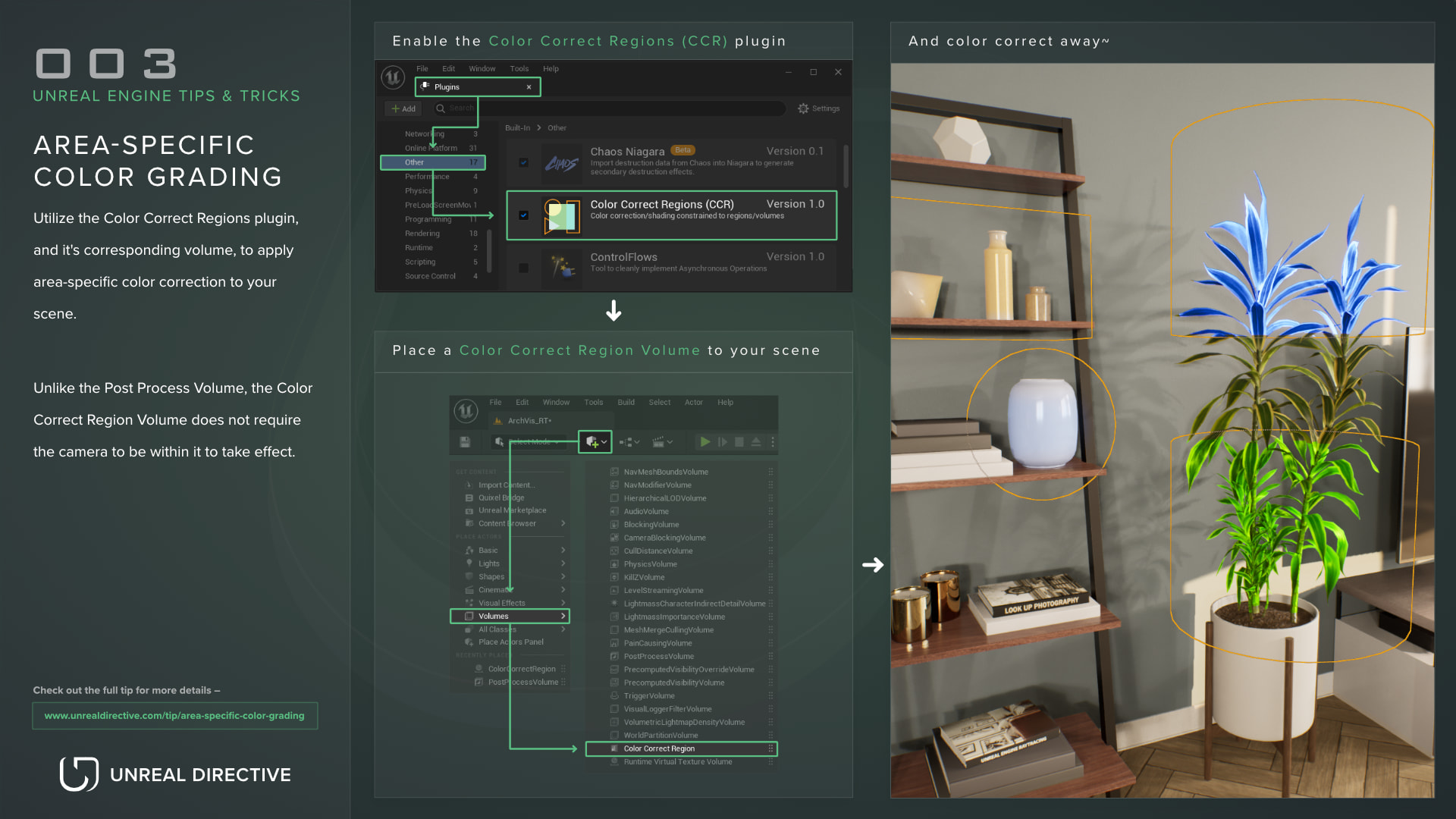
Use the Color Correction Regions plugin, and its corresponding actor, to apply area-specific color correction to your scene. The region can be a sphere, box, cylinder, or cone, and unlike the Post Process Volume, the Color Correction Region doesn’t require the camera to be within it to take effect.
Why not just use a Post Process Volume?
Color grading within Unreal Engine can prove to be quite tricky at times. Outside of adjusting lighting, materials, and the textures themselves, you have the Post Process Volume, which is a great tool for artists and designers to adjust the overall look and feel of the world.
However, the Post Process Volume has two limits that don’t give artists and designers the creative freedom they need.
The first is proximity. Unless you enable Infinite Extent, the Post Process Volume only takes effect while the camera is inside it.
The second is scope. Once the camera is inside, the volume grades the entire frame equally.
How do I use the Color Correction Regions plugin?
Thankfully, there’s a built-in solution that addresses both of these limits: the Color Correction Regions plugin, CCR for short. It ships with the engine but is disabled by default. In Unreal Engine 5.8, it’s listed in the Plugins browser as Color Correction Regions (CCR) and isn’t marked Beta or Experimental.
- Enable Color Correction Regions (CCR) in the Plugins browser and restart the editor.
- Open the Place Actors panel and look under Volumes.
- Place one of the two new actors in your level:
- Color Correction Region grades whatever is inside its shape.
- Color Correction Window grades whatever is behind a flat square or circle, as seen from the camera.
- Adjust its shape, scale, falloff, and intensity to control how the effect blends into the rest of the scene.
Both actors have color grading properties similar to the Post Process Volume, but they only apply that grading within their bounds. This gives artists and designers the means to truly fine-tune the world to meet their vision.
What do the settings do?
Here are the settings you’ll find in the Details panel:
| Setting | Description |
|---|---|
| Type | The shape of the region. Choose Sphere, Box, Cylinder, or Cone. Windows use Square or Circle. |
| Priority | Which region wins where regions overlap. Higher numbers take priority. Windows sort by distance from the camera instead. |
| Intensity | How strongly the region affects the scene, from 0 to 1. |
| Inner | The inner edge of the falloff, from 0 to 1. Swapped with Outer if it’s higher. |
| Outer | The outer edge of the falloff, from 0 to 1. |
| Falloff | Softens the edge of the region. |
| Invert | Affects everything outside the region instead of inside it. |
| Temperature Type | The temperature algorithm. Choose Temperature (Legacy), White Balance, or Color Temperature. |
| Temperature | The color temperature, from 1500 to 15000. |
| Tint | The temperature tint, from -1 to 1. |
| Color Grading Settings | The same color grading settings found in the Post Process Volume. Saturation, Contrast, Gamma, Gain, and Offset for Global, Shadows, Midtones, and Highlights, plus ShadowsMax, HighlightsMin, and HighlightsMax. |
| Enable Color Grading | Turns the region’s color correction on or off. |
| Enable Per-Actor CC | Limits the effect by actor, using custom stencil values. |
| Per-Actor CC Mode | Choose Exclude Selected Actors or Affect Only Selected Actors. |
| Actor Selection | The actors that Per-Actor CC includes or excludes. |
Frequently asked questions
Why isn’t Per-Actor CC working?
Per-Actor CC turns on Render CustomDepth Pass for the selected actors and assigns them stencil values from 127 to 255, so it needs the custom stencil buffer. Set Project Settings > Engine > Rendering > Custom Depth-Stencil Pass to Enabled with Stencil.
If your project already uses stencil values in that range, move the reserved range with r.CCR.StencilIdRangeMin and r.CCR.StencilIdRangeMax.
How many regions can I use?
Do not overuse this feature, as having a lot of these in your scene can prove to be quite costly performance-wise.
Can I use it to fix lighting problems?
It’s ideal to not use color grading to fix exposure, lighting, or texture-related issues. Instead, aim to solve those within their own domain.
What scene is used in the videos?
The example scene is the Archviz Interior sample from Epic Games.
Links
Check out the following resources to learn more about the subject.
Unreal Directive is free and ad-free.
If it saved you time, you can help keep it that way.