

Viewport Split View Layouts
Use the Viewport Sizing menu to split the level editor into up to four viewports, then maximize and restore them.
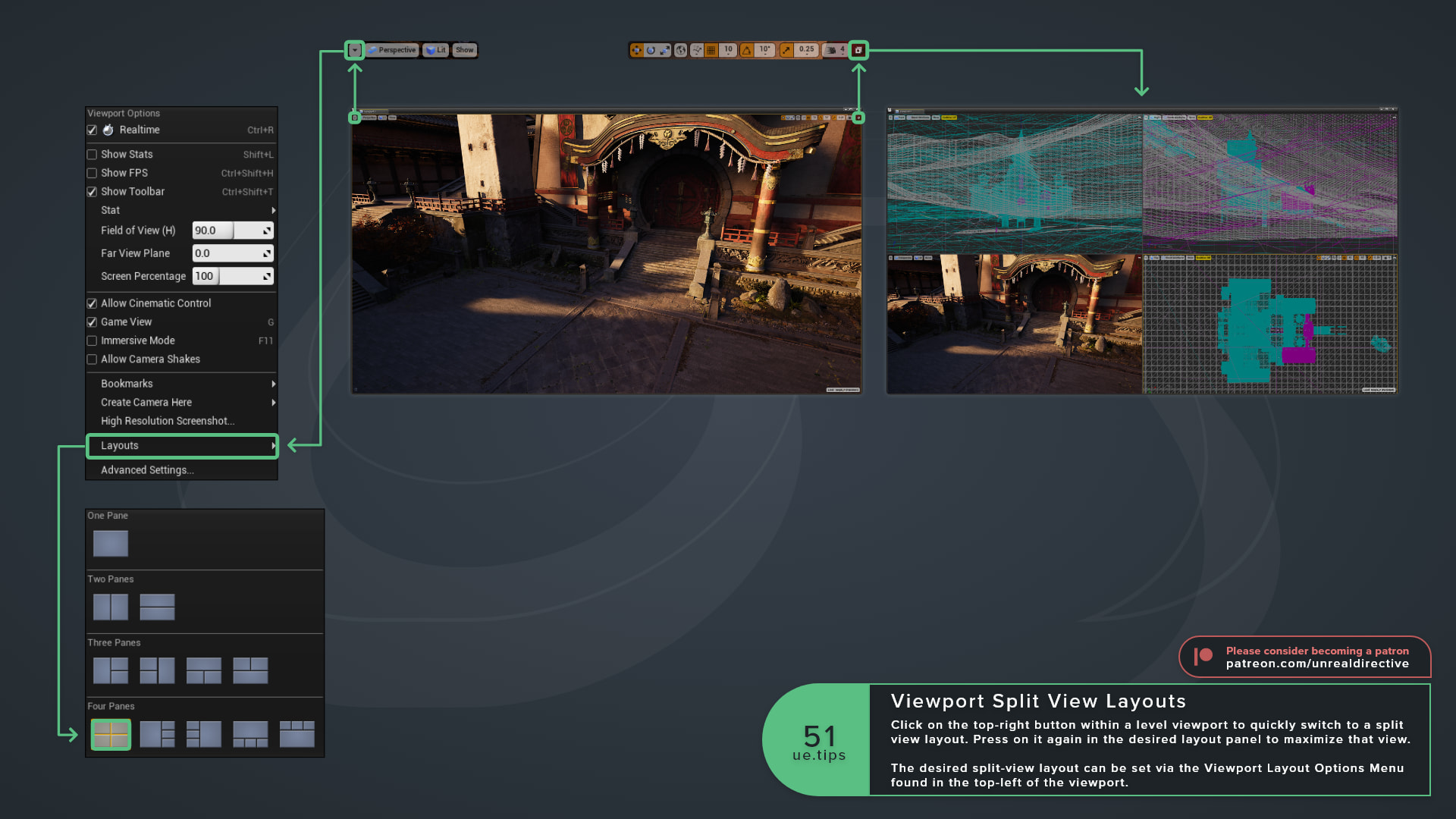
Open the Viewport Sizing menu, the ... button at the right end of the viewport toolbar, to switch a level viewport to a split-view layout. Pick a One, Two, Three, or Four Pane layout.
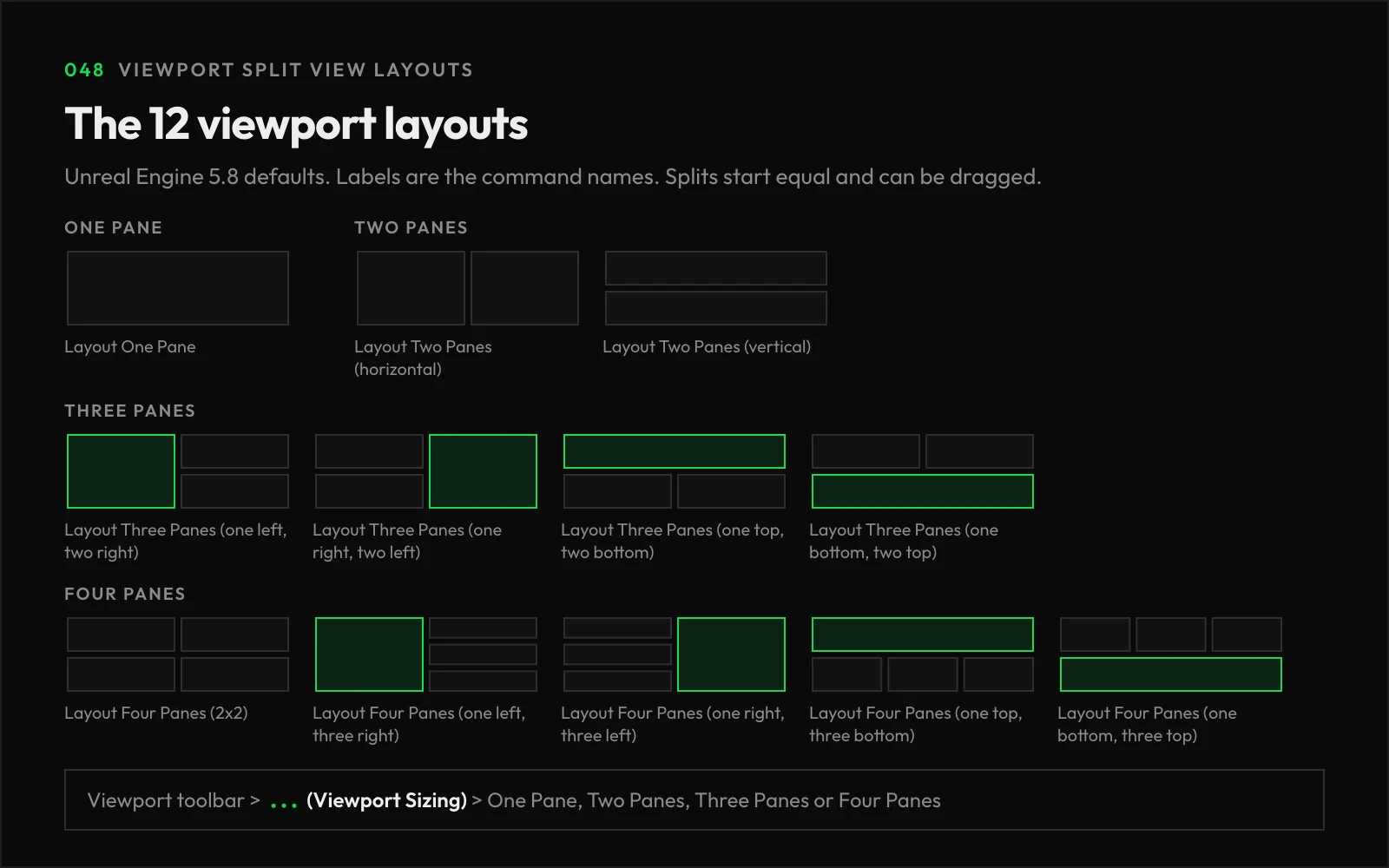
Here’s how the layouts are grouped:
| Group | Layouts |
|---|---|
| One Pane | A single viewport |
| Two Panes | Side by side, or one above the other |
| Three Panes | One large pane on the left, right, top, or bottom, with two smaller panes |
| Four Panes | A 2x2 grid, or one large pane on the left, right, top, or bottom, with three smaller panes |
Each pane keeps its own view type, view mode, and show flags, so set each one up from its own viewport toolbar. For example, a perspective pane next to an orthographic top pane.
How do I maximize a single pane?
To fill the layout with one pane, use Maximize Viewport in that pane’s Viewport Sizing menu, or its toolbar icon. The same entry changes to Restore All Viewports while the pane is maximized, which brings the split layout back.
The menu also has Immersive View, which makes the viewport fill the whole Level Editor window.
| Command | Shortcut |
|---|---|
| Maximize Viewport | None by default |
| Immersive View | F11, or Ctrl + F11 on macOS |
Can I add shortcuts for the layouts?
Maximize Viewport and the layouts ship without default shortcuts, and you can bind them in Editor Preferences > General > Keyboard Shortcuts.
Links
Check out the following resources to learn more about the subject.
Unreal Directive is free and ad-free.
If it saved you time, you can help keep it that way.