Blueprint Variables: What you need to know

When it comes to Unreal Engine development and programming in general, there is a requirement to have an information storage container that can be referenced and mutated (we call these variables). Without variables, it’s the equivalent of processing information without memories.
The basics
Variables are used everywhere inside of Unreal Engine development. Having a core understanding of what variables are will go a long way in being better prepared to create and utilize variables properly.
What is a variable?
A variable is an information storage container that stores a value or reference to an object. These containers can then be referenced and/or mutated at a later time.
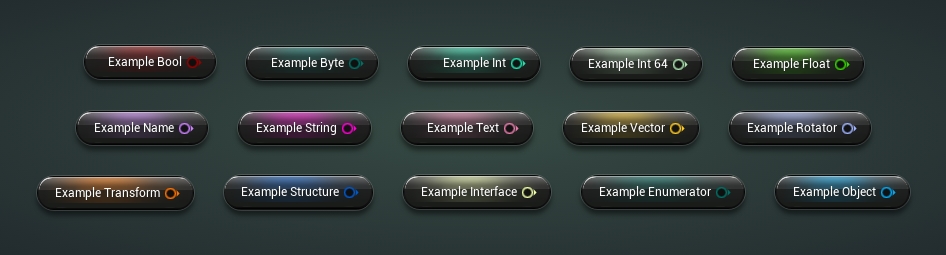
Common Variable Types
| Data Type | Example Value |
|---|---|
| Boolean | True / False |
| Float | 3.14159 |
| Integer | 12 |
| String | “Demonquin” |
| Text | “It’s dangerous to go alone! Take this.” |
| Name | spine_03 |
| Vector | X = 44.5, Y = 19.25, Z = -404 |
| Rotator | Roll = 180, Pitch = -90, Yaw = 45 |
| Enumerator | Running |
Why are variables used?
Variables are used to enable your programmed logic to react to changing environments, rather than always return the same output in all scenarios.
How do I create a variable?
There are multiple methods to create a variable –
Primary Method
This is the primary and most common method to create variables for blueprints.
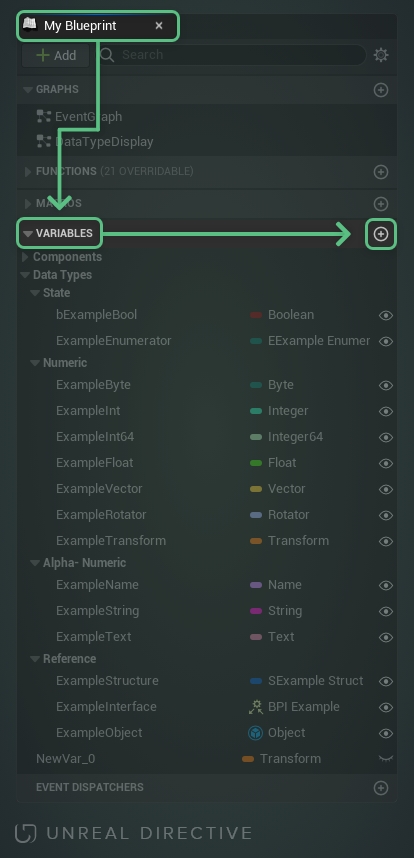
- Locate the My Blueprint Panel located to the left of the blueprint window
- Under the Variables or Local Variables section, click the plus button
- Name the variable using proper naming conventions
- Click on the variable type dropdown and select the type of variable you desire
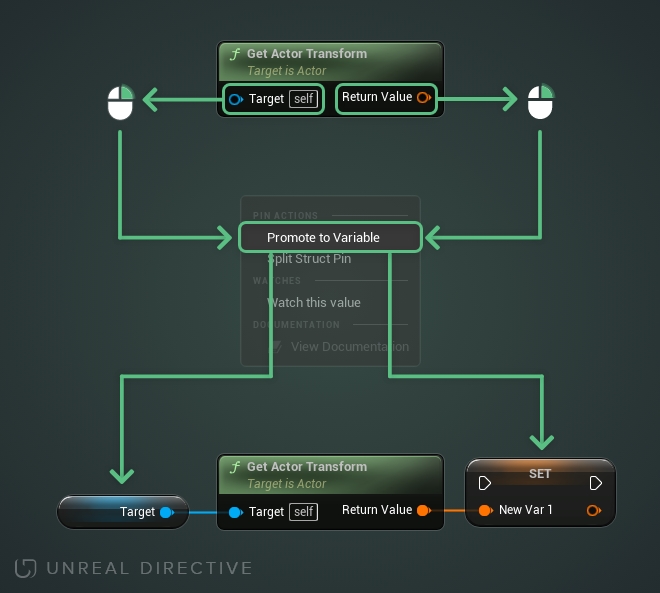
Promote to Variable
All blueprint node property pins can be promoted to a variable.
Right-click on a property pin → Select the Promote To Variable option
What is the GET variable node?
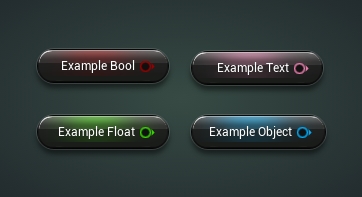
The GET variable node allows the retrieval of the variable’s information.
What is the SET variable node?
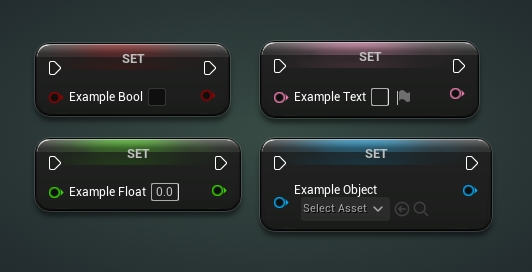
The SET variable node allows for the mutation of the variable’s stored information.
How do I access the GET/SET variable nodes?
There are multiple different methods to retrieve the GET/SET variable nodes —
Drag and drop
A variable can be dragged from the variable or local variable sections and dropped onto the blueprint graph.
- Locate the Variables or Local Variables section under the My Blueprint Panel
- Find the desired variable
- Hold the left mouse button and drag to an open space within the blueprint graph
- Let go of the left mouse button to open up a popup menu
- Select desired option from the menu
Tips
- Hold CTRL when letting go of the left mouse button to bypass the menu and place the GET node.
- Hold ALT when letting go of the left mouse button to bypass the menu and place the SET node.
Action menu
The SET/GET variable node of the desired variable can be found within the Action Menu.
- Right-click within the blueprint graph to open the Action Menu
- Locate the desired variable by using the search feature or by manually finding it within the Variables section
- Select the desired option for the desired variable
All Actions for this Blueprint
Node property pins
The SET/GET variable nodes can be retrieved by drag dropping from an existing node’s property pin.
- Hold the left mouse button on the desired node pin and drag it to an open space within the blueprint graph
- Let go of the left mouse button to open a content-aware Action Menu
- Locate the desired variable by using the search feature or by manually finding it within the Variable section
- Select the desired option for the desired variable
Notes
- If the property of the pin is an object, you can retrieve that objects public variables SET/GET nodes
What is a local variable?
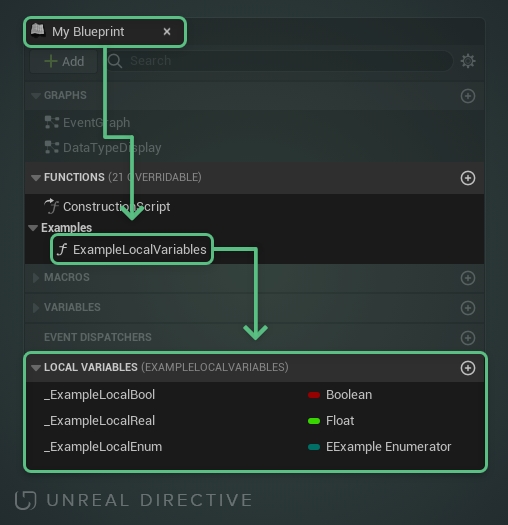
A local variable is a variable that only exists where they are defined. In the case of blueprints, both functions and macros allow for local variable creation and utilization.
Function Local Variables
Local variables within functions can be created via the Local Variables section found within the My Blueprint Panel.
Notes
- Function local variables will always start with their default values upon function execution
- Function inputs are established as local variables by default and can be accessed via the Blueprint Action Menu
Macro Local Variables
Local variables within Macro’s are fundamentally different with two clear differences –
- Local variables are nodes themselves
- Local variable data can only be set via the Assign node
Notes
- Use the Assign node to store a value in the attached local variable node
- The data is contained in the node itself
- Wildcard data type means that it accepts and conforms the node to the data type that is hooked up to it
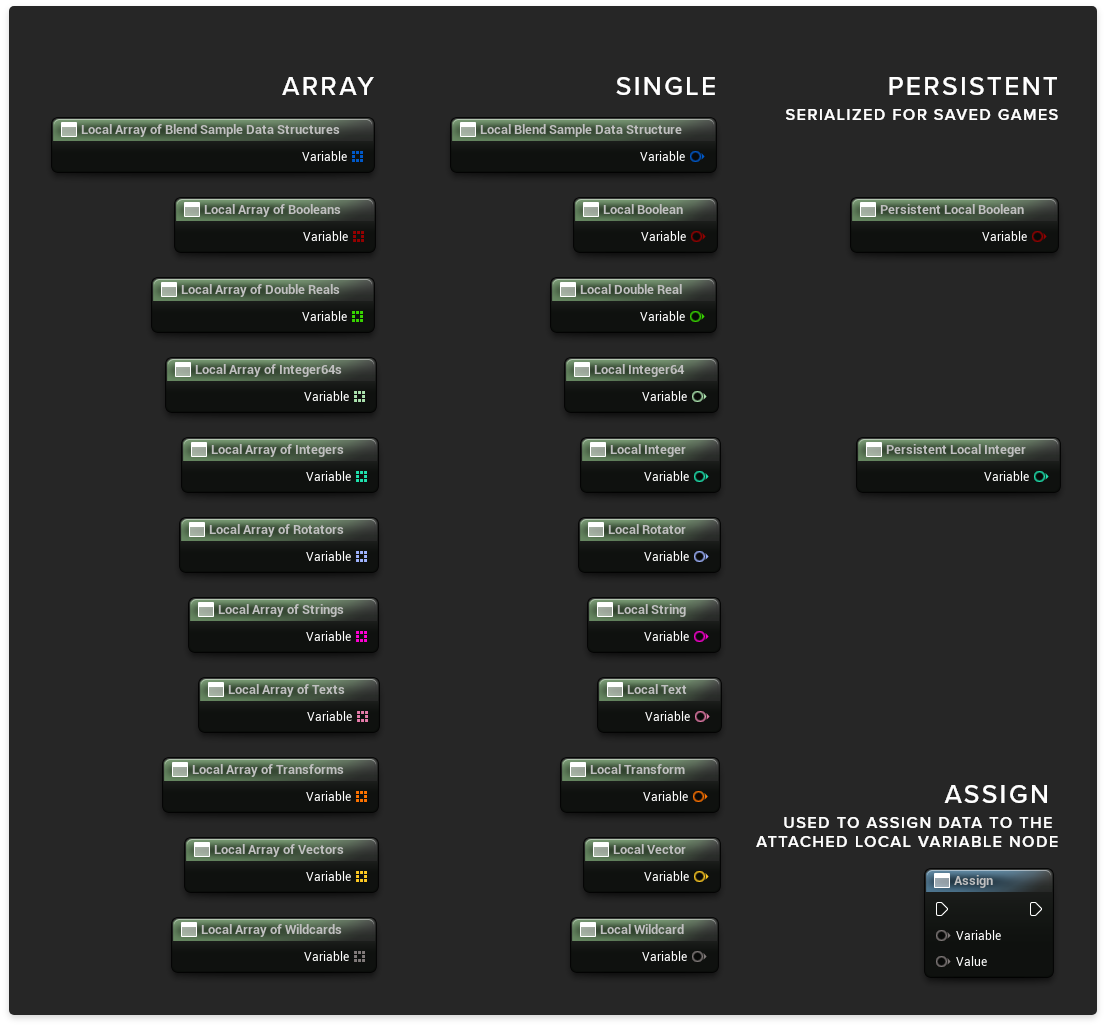
The anatomy of a variable
The variable section
The variable section, located within the My Blueprint Panel, is where variables are mainly interfaced.
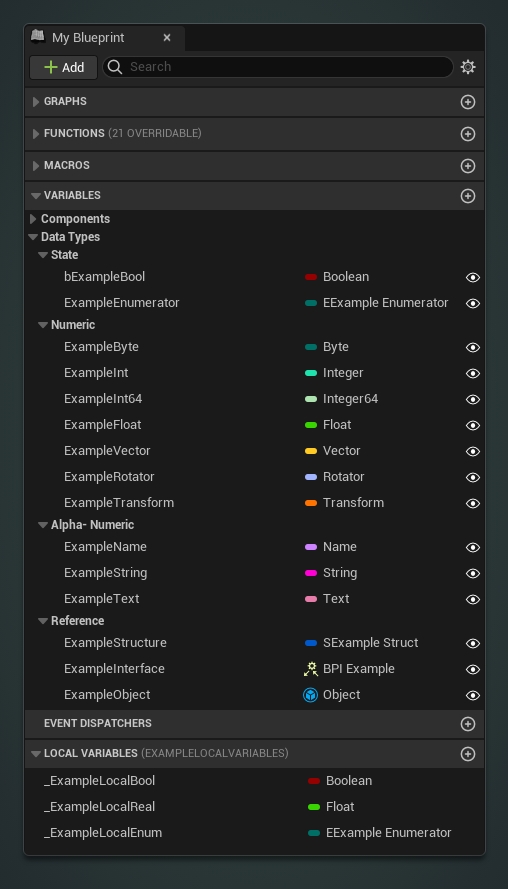
Here is everything you can do within this section –
Creating a variable
New variables can be created by clicking on the plus button within the Variable Bar

Variable Right-Click Options
Right-clicking on a variable opens up an action menu. From this menu, you can –
| Action | Shortcut | Description |
|---|---|---|
| Rename | F2 | Allows the renaming of a variable. (Make sure to follow proper naming conventions!) |
| Find References | ALT+SHIFT+F | Searches the blueprint for all references of the variable. |
| Replace References | Replace all references of the variable with another variable of the same type. | |
| Cut | CTRL+X | Copies the variable to your clipboard AND deletes the variable. |
| Copy | CTRL+C | Copies the variable to your clipboard. |
| Duplicate | CTRL+D | Duplicates the variable. |
| Delete | DEL | Deletes the variable from the blueprint. |
| Move To Parent | Moves the variable to the direct parent blueprint. (Only available in child blueprints.) |
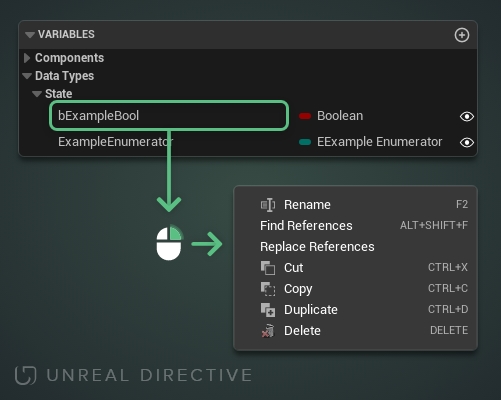
Copy a variable to a different blueprint
Variables can be copied over to different blueprints.
- Right-click on the desired variable
- Select the COPY or CUT option
- Navigate to the desired blueprints variables section
- Right-click on the variable section bar
- Select the Paste Variable option
Note, using the cut option will remove that variable once the variable has been pasted.
Changing the variable type
A variable’s type can be changed.
- Locate the desired variable
- Click on the variable type to open the variable type dropdown
- Select the desired variable type
Changing a variables container type
A variable’s container type can be changed between single and array.
- Locate the desired variable
- Right-click on the variable type
Note, additional options can be found within the Variables Details Panel.
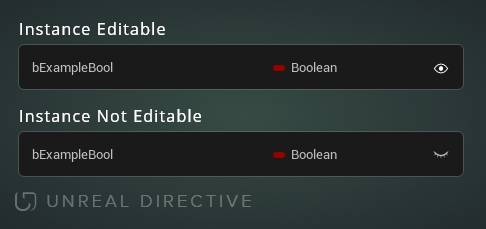
Toggle variable instance editing
A variables instance editing option can be toggled on or off.
- Locate the desired variable
- Click on the eye icon on the right side of the variable column
Details Panel
The details panel for a variable is where the variable’s properties are configured.
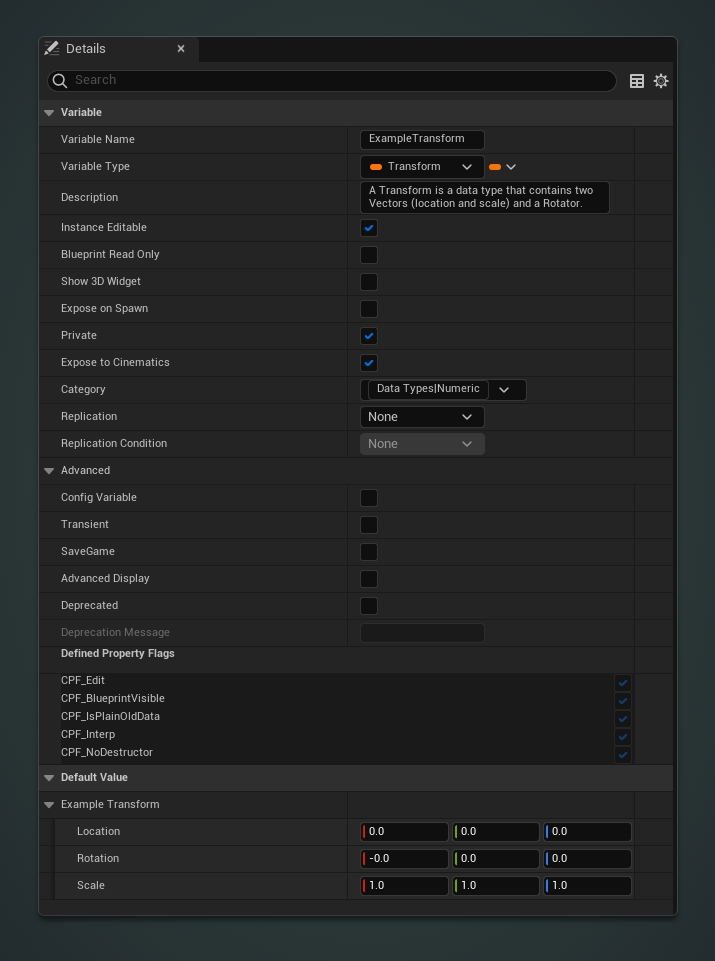
Variable Name
This is where the name of the variable will be declared.
Make sure to follow proper naming conventions as it is critically important that the name of the variable clearly states the variable’s intended purpose.
Examples Here are some good and bad examples to provide a better understanding of how to property name variables –
| Type | Container Type | Good Example ✓ | Bad Example ✘ |
|---|---|---|---|
| Boolean | Single | bDead | isplayerdead? |
| Actor | Array | Targets | TargetList |
| Vector | Single | CurrentLocation | Loc |
| Transform | Array | ActorTransforms | transforms |
| Int | Single | Score | IntScore |
| Int | Array | PlayerScores | ScoreArray |
| Real | Single | Height | Var_0 |
Variable Type
This is where the variable type and variable container type are set.
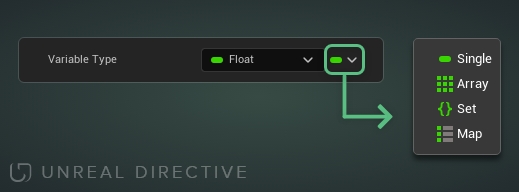
| Type | Description |
|---|---|
| Single | Contains a singular variable. |
| Array | Contains multiple values of a given variable type. |
| Set | Contains multiple unique values of a given variable type. |
| Map | Contains key/value pairs that support efficient lookups and retrievals of values. |
Description
The description will explain what the variable is for.
It’s critically important that this field gets filled out and that it clearly states what the variable is intended for.
Where will the description of the variable be viewable from? Hovering the mouse over the variable in the My Blueprint Panel
Instance Editable
Enable this option to allow the variable to be editable on any instance of the blueprint.
Note: This can also be adjusted by locating the variable within the My Blueprint Panel and clicking on the eye icon.
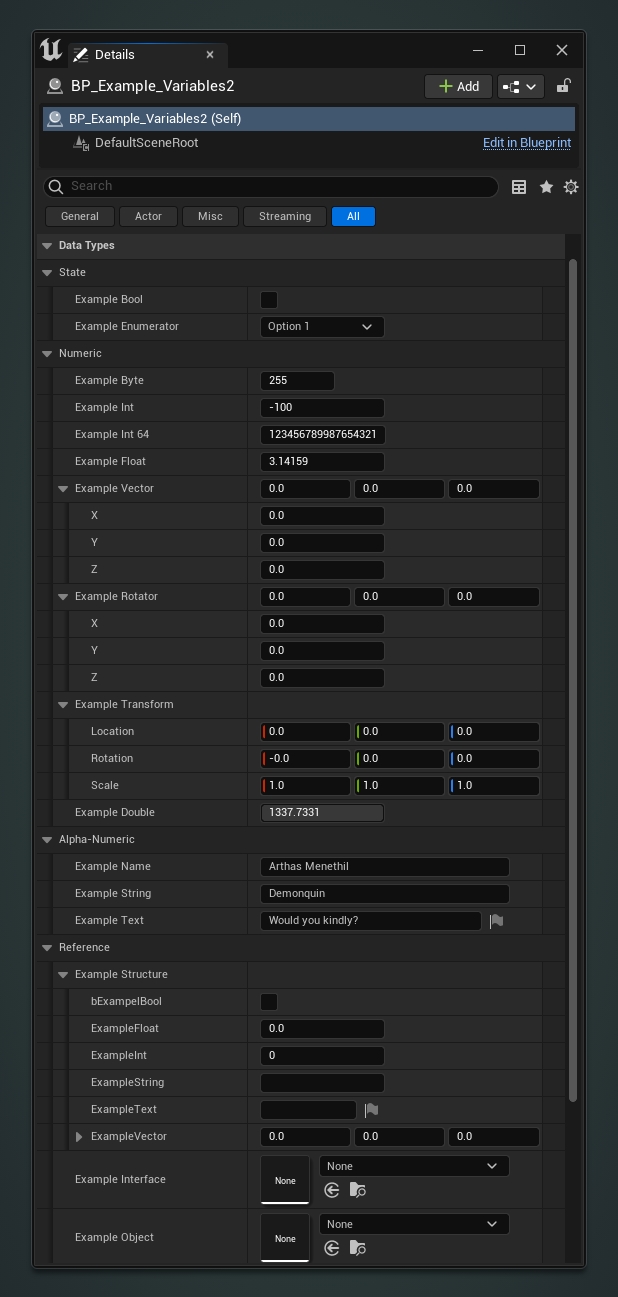
When a variable has been set to Instance Editable, the variable will be editable via the blueprints details panel when it has been placed in a level.
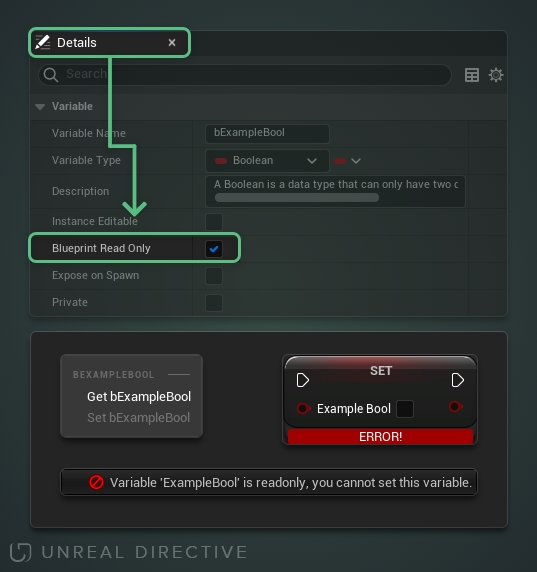
Blueprint Read Only
As the name suggests, this makes the variable read only. This means that the variable’s value can not be changed away from the established default value.
In addition, all SET nodes for the variable will be disabled.
Show 3D Widget
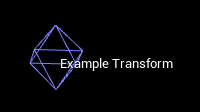
Enable this option to gain access to a 3D Transform Widget within the level viewport. This will allow direct manipulation of the variable.
Only available on the following variable types –
| Data Type | Option Available |
|---|---|
| Boolean | |
| Byte | |
| Integer | |
| Integer 64 | |
| Float | |
| Name | |
| String | |
| Text | |
| Vector | ✓ |
| Rotator | |
| Transform | ✓ |
| Structure | |
| Interface | |
| Object | |
| Enumerator |
Important: Requires Instance Editable to be enabled.
3D Widget
When the actor is selected in the Editor Viewport, a diamond wireframe with the variables name will be visible. Select this diamond to start manipulating the variables location.
Expose on Spawn
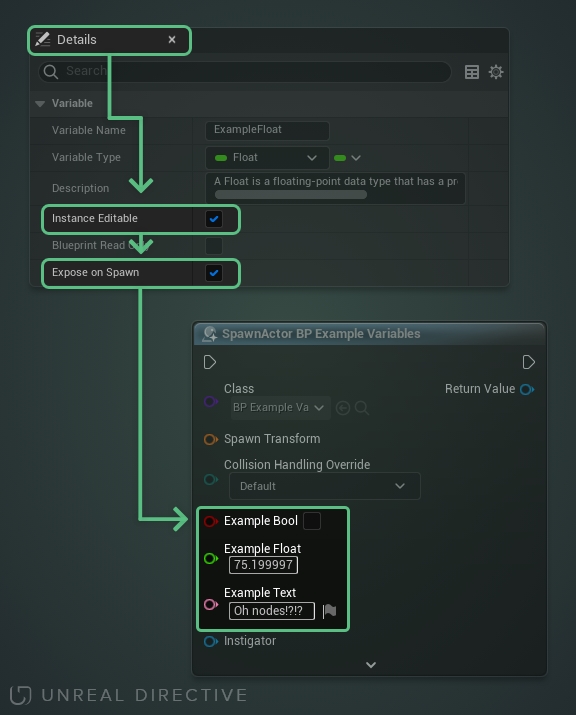
Enable this option to allow the variable to be configurable on the Spawn/Creation nodes; such as the Spawn Actor node.
Important: Requires Instance Editable to be enabled.
Private
Enable this option to make the variable only accessible from within the owning blueprint. No other blueprint, including child blueprints, will be able to access it.
It’s ideal to enable this option for variables you don’t want to be accessed outside of the owning blueprint.
Expose to Cinematics
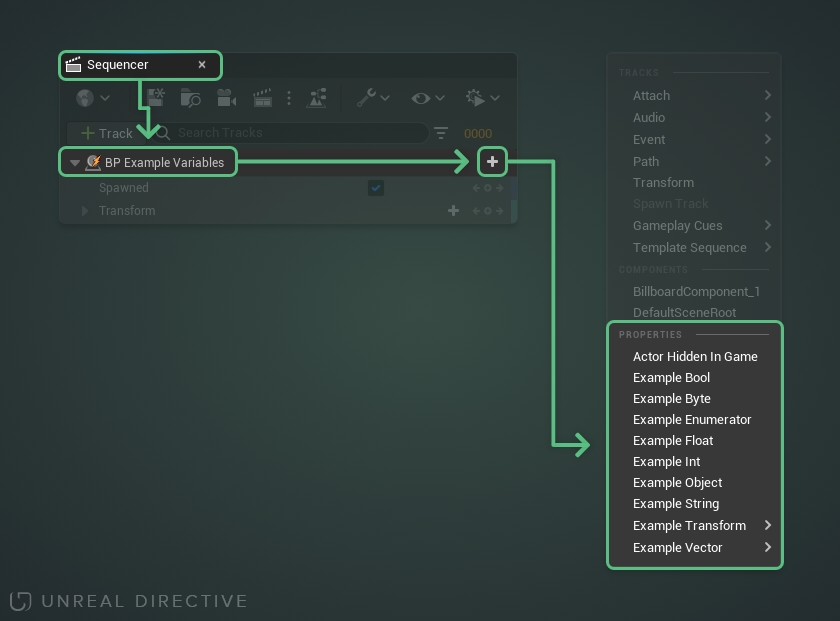
Enable this option to expose the variable to the sequencer.
Availability
| Data Type | Option Available |
|---|---|
| Boolean | ✓ |
| Byte | ✓ |
| Integer | ✓ |
| Integer 64 | |
| Float | ✓ |
| Name | |
| String | ✓ |
| Text | |
| Vector | ✓ |
| Rotator | |
| Transform | ✓ |
| Structure | |
| Interface | |
| Object | ✓ |
| Enumerator | ✓ |
Category
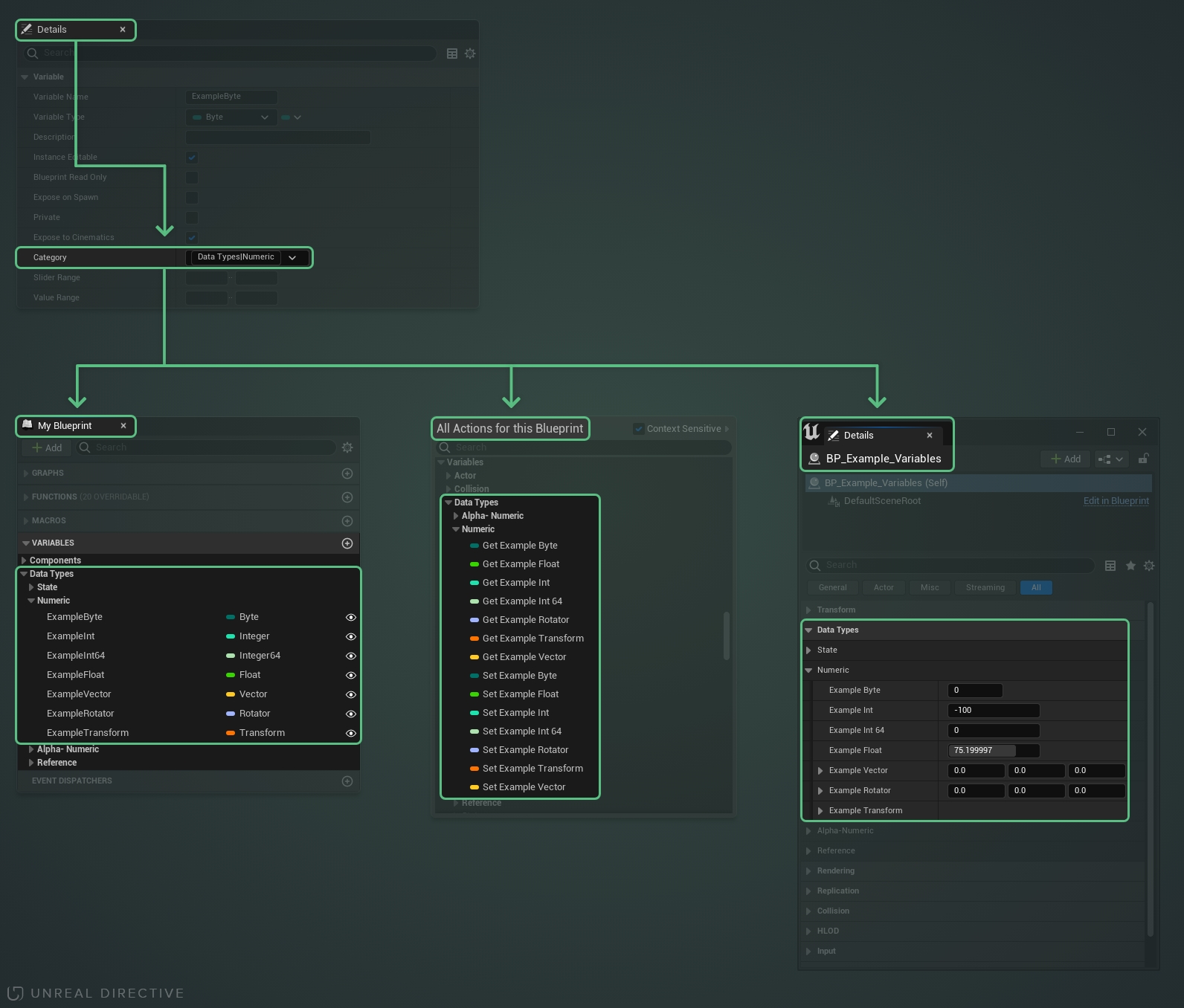
When set, this will change where the variable will be located in both the Actions Menu and in the Variables section under the blueprints My Blueprint Panel.
It’s ideal to set a category rather than leave it to the default as it will allow developers to find the variable more easily.
Nested categories can be accomplished by placing a vertical bar ( | ) in between the two category names.
Slider Range
Used to establish a minimum and/or maximum range when sliding numeric variables within the editor.
Only available on the following single variable types –
| Data Type | Option Available |
|---|---|
| Boolean | |
| Byte | ✓ |
| Integer | ✓ |
| Integer 64 | |
| Float | ✓ |
| Name | |
| String | |
| Text | |
| Vector | ✓ |
| Rotator | ✓ |
| Transform | |
| Structure | |
| Interface | |
| Object | |
| Enumerator |
Tip: You can slide a numeric variable by holding the left mouse button and dragging left or right.
Value Range
Used to establish a minimum and/or maximum range when editing numeric variables.
Only available on the following single variable types —
| Data Type | Option Available |
|---|---|
| Boolean | |
| Byte | ✓ |
| Integer | ✓ |
| Integer 64 | |
| Float | ✓ |
| Name | |
| String | |
| Text | |
| Vector | ✓ |
| Rotator | ✓ |
| Transform | |
| Structure | |
| Interface | |
| Object | |
| Enumerator |
Note: Acts as a Slider Range
Bitmask
Enable this to treat the variable as a bitmask.
Only available to Integer variables.
Bitmask Enum
Choose an optional enumeration type for bitmask flags.
Notes
- Requires Bitmask to be enabled
- Changing this will reset the default value
Replication
Enable to have the variable be replicated over the network. This is generally for multiplayer purposes only.
Available Options –
| Option | Description |
|---|---|
| None | The variable is not replicated. This is the default value. |
| Replicated | The blueprint will receive updates that are performed by the Server. |
| RepNotify | Creates a special function that is automatically called any time the variable’s value changes. This is great for when additional logic should be executed when the variable changes. Occurs on both Network Authority and Remote Machines. |
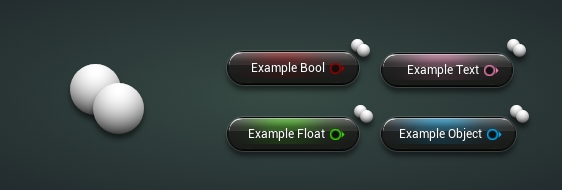
Replicated Node Icon
A double sphere icon will be visible on variable nodes that have been set to Replicated or RepNotify.
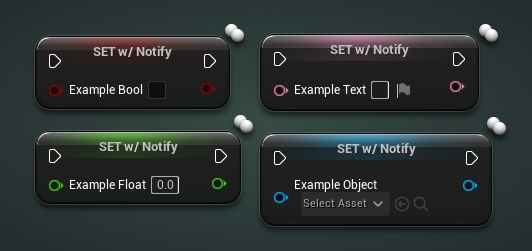
RepNotify SET Node Naming
The SET variable node will have an w/ Notify appended to its name when set to RepNotify.
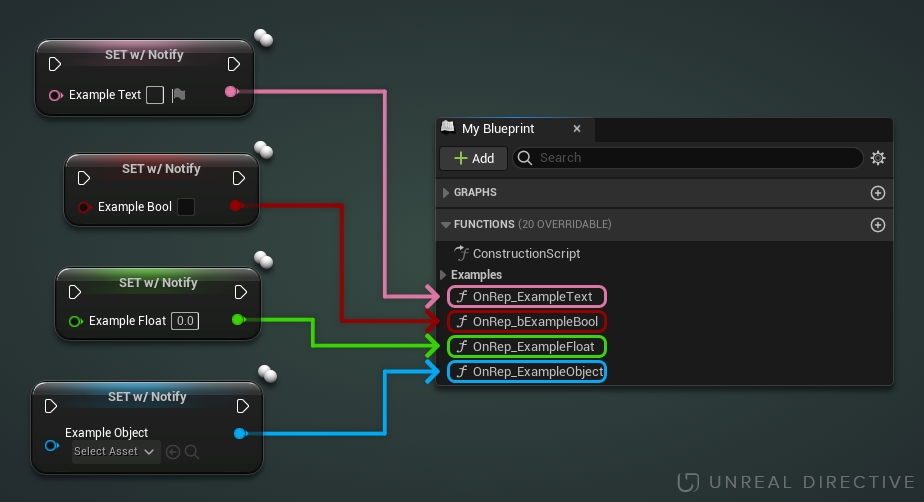
RepNotify OnRep Function
When a variable is set to RepNotify, an OnRep Function will automatically be created in the My Blueprint Function section. This function will be called on both Network Authority and Remote Machines whenever the RepNotify variable is changed.
This method is ideal when requiring logic to be executed in conjunction to any changes in a variable.
Replication Condition
The condition when the variable should be replicated.
Available Options –
| Option | Description |
|---|---|
| None | No special condition set. The default option. |
| Initial Only | Will only attempt to send on the initial bunch. |
| Owner Only | Will only send to the actor’s owner. |
| Skip Owner | Will only send to every connection EXCEPT the owner. |
| Simulated Only | Will only send to simulated actors. |
| Autonomous Only | Will only send to autonomous actors. |
| Simulated Or Physics | Will only send to simulated OR bRepPhysics actors. |
| Initial or Owner | Will only send on the initial packet, or to the actors owner. |
| Custom | No special condition, but wants the ability to toggle on/off via SetCustomIsActiveOverride |
| Replay Or Owner | Unknown |
| Replay Only | Unknown |
| Only No Replay | Unknown |
| Simulated Or Physics no Replay | Unknown |
| Skip Replay | Unknown |
Config Variable
Enable to have the variables default value be established via a config file (if present).
This option is useful when needing to customize default values and behaviors between different projects.
Transient
Enable to flag the variable as not needing to be saved or loaded and to have its initial value be zero or null.
This option is useful when needing to reference an object or actor whose value isn’t established until run-time.
Save Game
Enable to make the variable serializable by a Save Game object.
This option is useful when the variable should be a part of a save system.
Advanced Display
Enable to hide the variable in the blueprints Class Defaults section.
This option is useful when you don’t want other developers from adjusting this variable from the blueprint, and child blueprints, Class Defaults section.
Deprecated
Marks the variable as obsolete and produces a compiler warning indicating that the variable should be either removed or replaced.
Make sure to fill out the deprecation message.
Deprecation Message
The message that will be included with the compiler warning.
It is ideal to state what variable is replacing the deprecated variable. This helps other developers, and future you.
X is no longer being used. Please replace with Y.
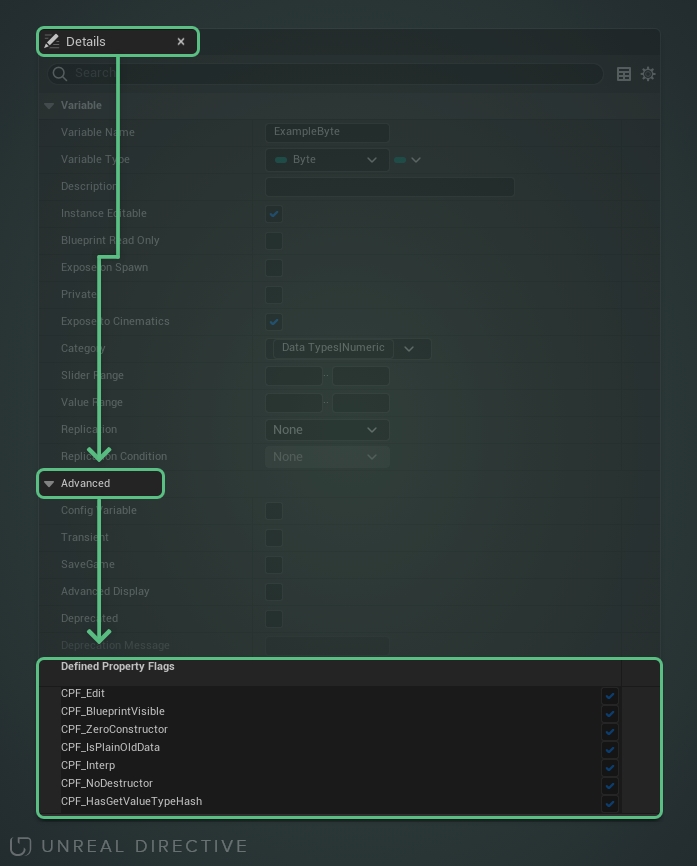
Defined Property Flags
Displays the current property flags attached to the variable. While these cannot be set directly, they change based on the other Details Panel options.
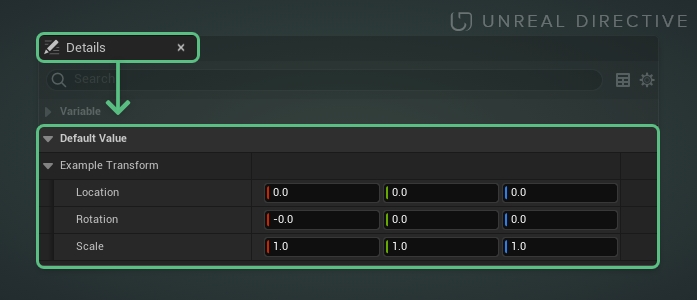
Default Value
The value the variable has by default before any modifications.
Variable types
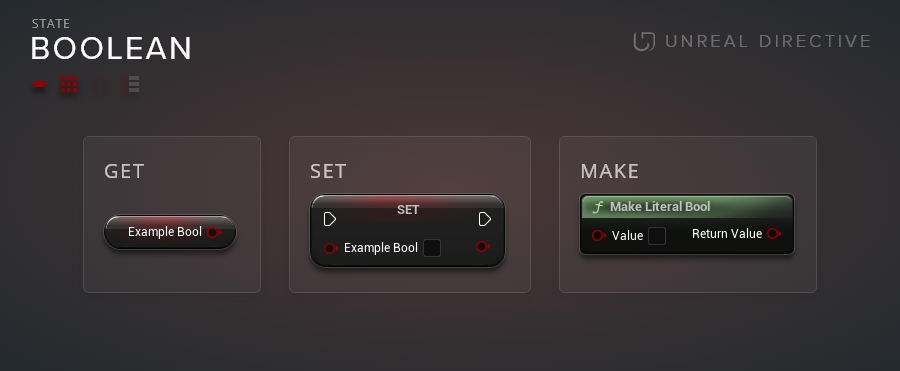
Boolean
A Boolean is a data type that can only have two different values; true or false.
When is it appropriate to use a Boolean data type?
Booleans are great for control statements, such as Branch Nodes, to determine the flow of execution.
Additional Resources
Byte
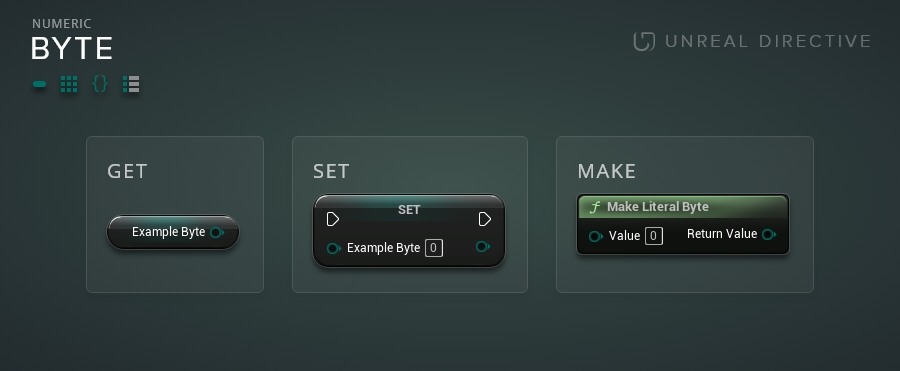
A Byte is a data type that can hold the whole number values from 0 to 255.
When is it appropriate to use a Byte data type?
Bytes are great when high efficiency and speed are required; e.g. networking or control systems.
For all practical purposes, it’s recommended to use an integer instead.
Additional Resources
Double
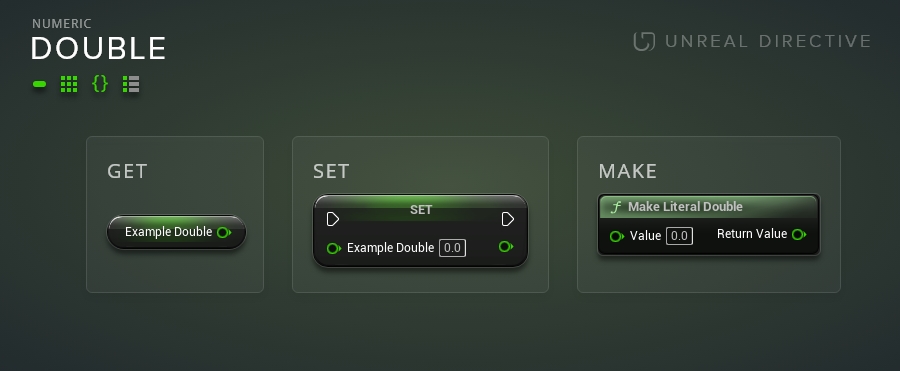
A Double is a floating point data type that has double the precision of a regular float. This precision is roughly typical at 16 significant digits.
As of Unreal Engine 5, this is the default option when creating a Float variable. During packaging, it will be converted to a regular float if it doesn’t exceed the precision of a regular float.
When is it appropriate to use a Double data type?
Doubles are great when a high degree of precision is required; e.g. large world coordinates.
Enumerator
An Enumerator is a data type that assigns names to integer values.
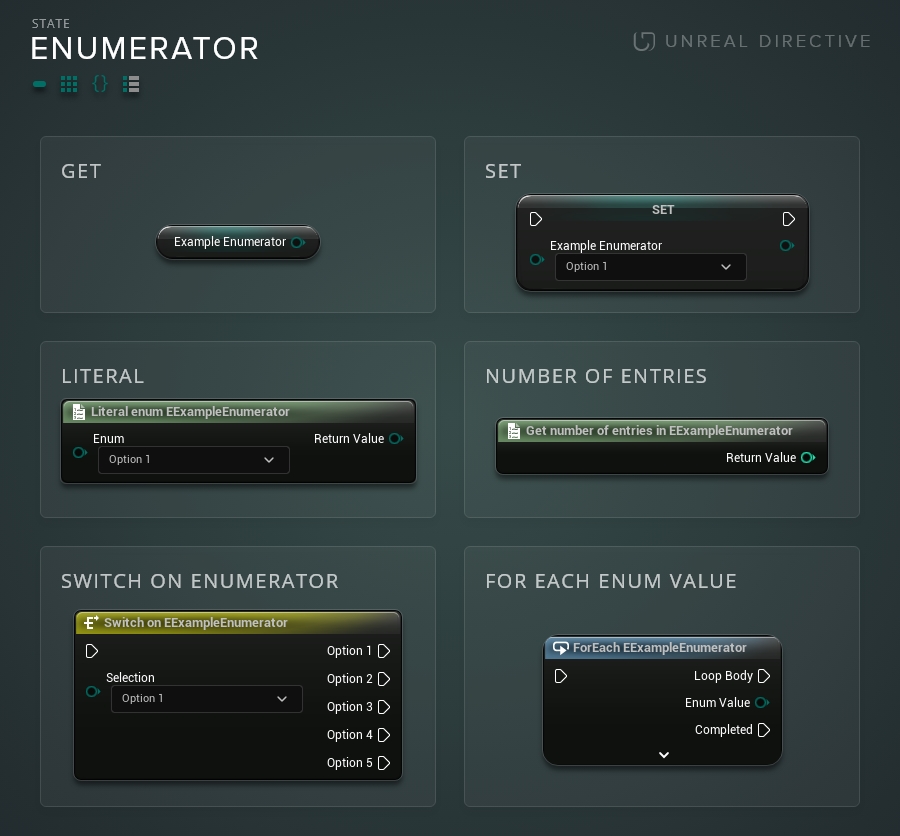
When is it appropriate to use an Enumerator?
An Enumerator should be used when defining complex states. e.g. —
| Index | Enumerator |
|---|---|
| 0 | Standing |
| 1 | Walking |
| 2 | Jogging |
| 3 | Running |
| 4 | Sprinting |
Additional Resources
- Unreal Documentation: Enum Actions
- Video: Blueprint Essentials: Enum Variables
- Video: WTF Is? An Enum
Float
A Float is a floating-point data type that has a prevision of roughly 7 significant digits.
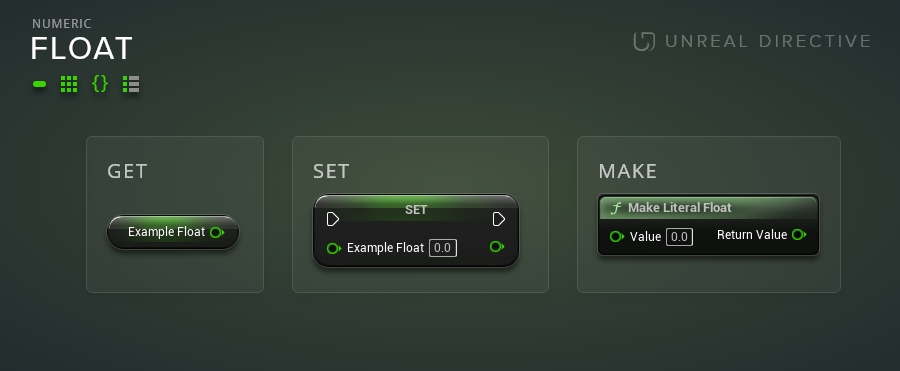
When is it appropriate to use a Float data type?
Floats are ideal when decimal point precision (up to 7 significant digits) is required.
Additional Resources
Integer
An Integer is a data type that can hold the whole number values from -2,147,483,648 to 2,147,483,647.
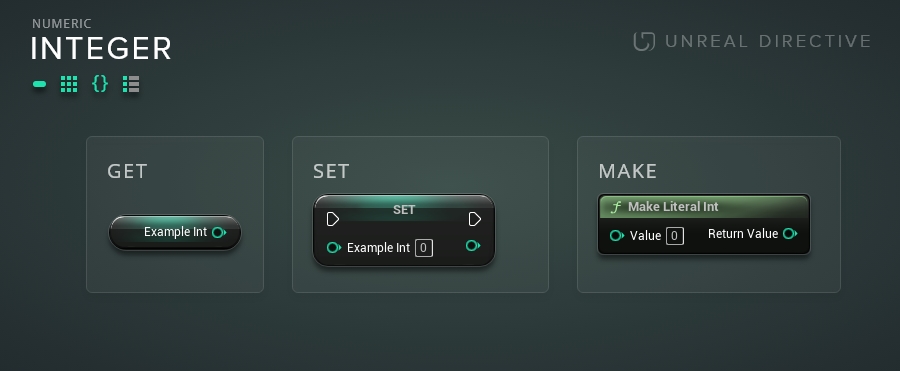
When is it appropriate to use an Integer data type?
Integers are useful for indexing or when decimal point precision is not required.
Additional Resources
Integer 64
A Integer 64 is a data type that can hold the whole number values from -9,223,372,036,854,775,808 to 9,223,372,036,854,775,807.
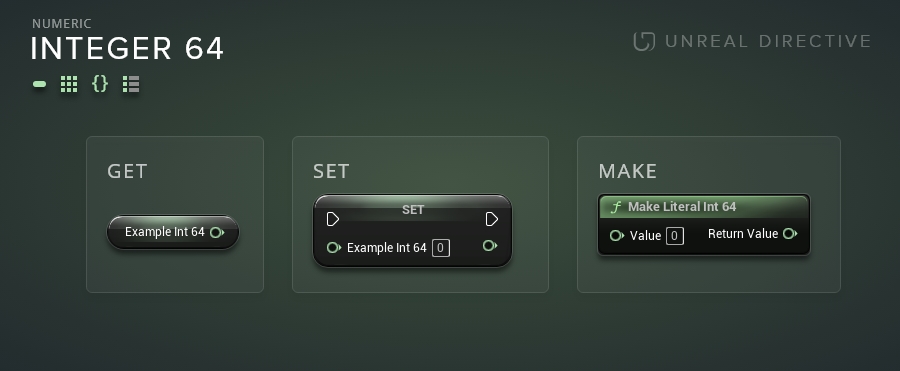
When is it appropriate to use an Integer 64 data type?
An Integer 64 is generally used when the value required is beyond the limits of a regular Integer and doesn’t require decimal precision.
Additional Resources
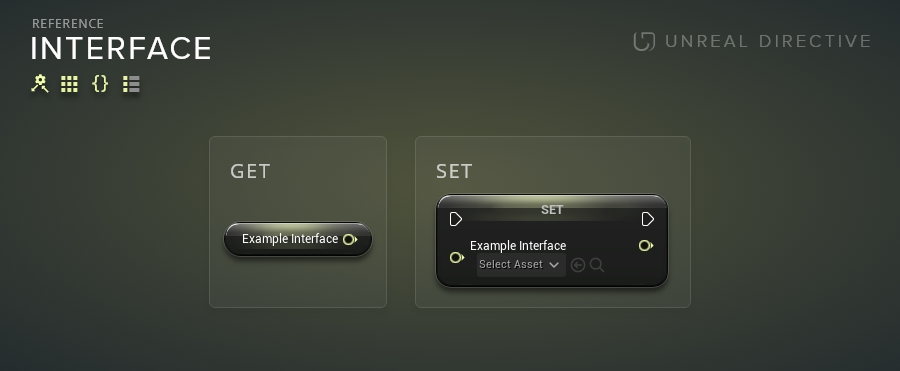
Interface
An Interface is a data type that stores a reference to an Unreal Engine Interface.
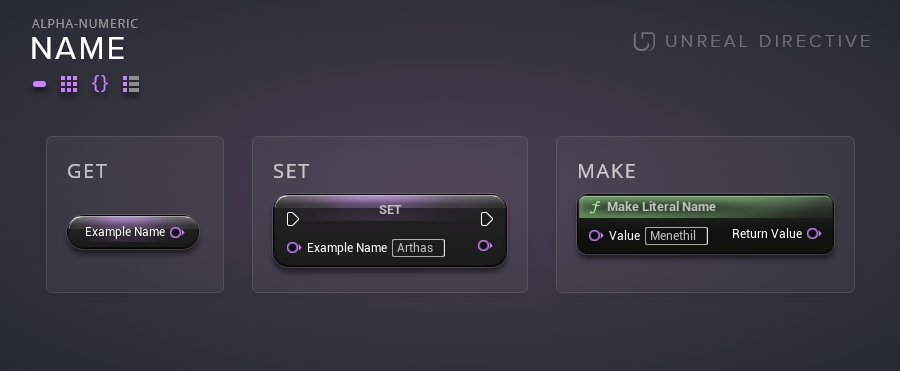
Name
A Name is a data type that can hold alpha-numeric characters.
When is it appropriate to use a Name data type?
Name variables are generally used for —
- naming assets
- dynamic material parameters
- actor tags
- component tags
- skeleton bone names
or when a small memory footprint is required; e.g. sending over a network or saving to disk.
Additional Resources
Object
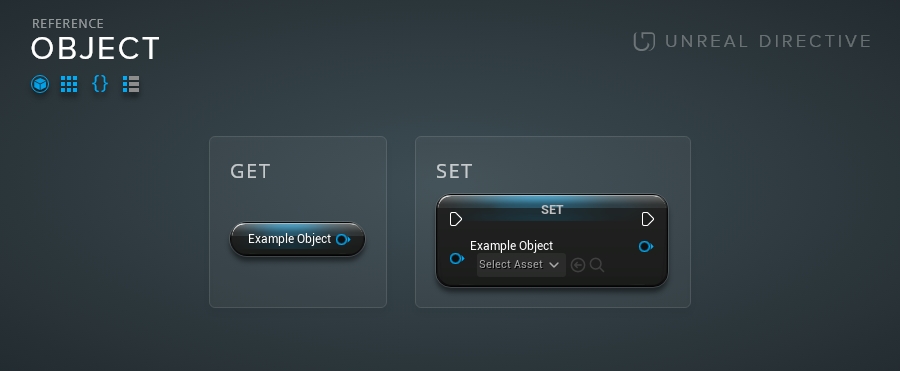
An Object is a data type that stores a reference to an Unreal Engine Object.
Objects are references to other blueprints, actors, pawns, widgets, etc.
When is it appropriate to store an object reference?
It’s generally ideal to reference an object if it’s going to be used often.
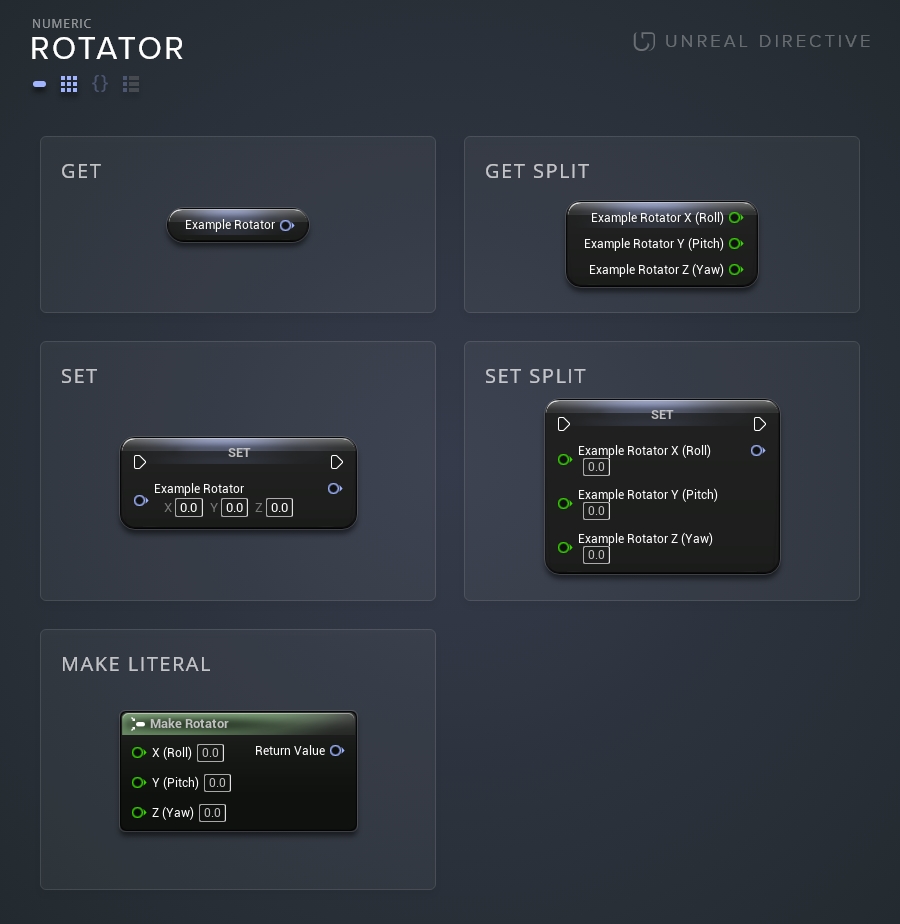
Rotator
A Rotator is a data type that holds rotational information comprised of three Float components — Roll, Pitch, and Yaw.
What are Roll, Pitch, and Yaw?
The Roll, Pitch, and Yaw are terms based on aircraft terminology.
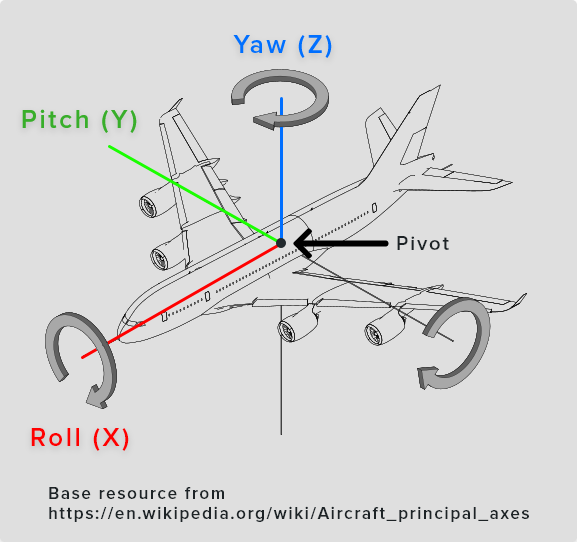
Roll is the rotation based on the X-axis of the object’s center of gravity (pivot). An increase in the roll value will rotate the object clockwise, and a decrease in the roll value will rotate the object counterclockwise.
Pitch is the rotation based on the Y-axis of the object’s center of gravity (pivot). An increase in the pitch value will rotate the object upward, and a decrease in the roll value will rotate the object downward.
Yaw is the rotation based on the Z-axis of the object’s center of gravity (pivot). An increase of the yaw value will rotate the object to the right, and a decrease of the yaw value will rotate the object to the left.
Other things to keep in mind —
- The objects FRONT is the positive X-axis
- The objects RIGHT is the positive Y-axis
- The objects TOP is the positive Z-axis
When is it appropriate to use a Rotator data type?
A Rotator is used to store three-dimensional rotational data of an object.
Additional Resources
String
A String is a data type that can hold alpha-numeric characters.
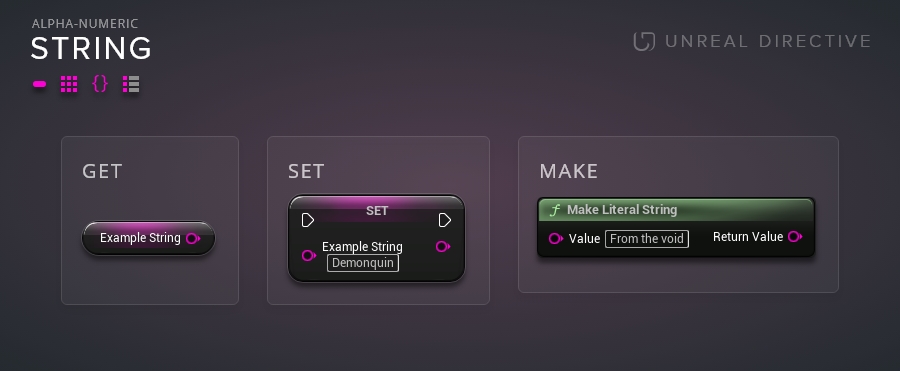
When is it appropriate to use a String data type?
Strings are generally used when alpha-numeric characters need to be manipulated. In addition, Strings are often used for internal naming schemes alongside Names.
Additional Information
Unlike the Name and Text variable types, Strings can be searched, modified, and compared against each other. Do note that string manipulation can be quite performance inhibitive and should be used sparingly.
Additional Resources
Structure
A Structure is a collection of different data types.
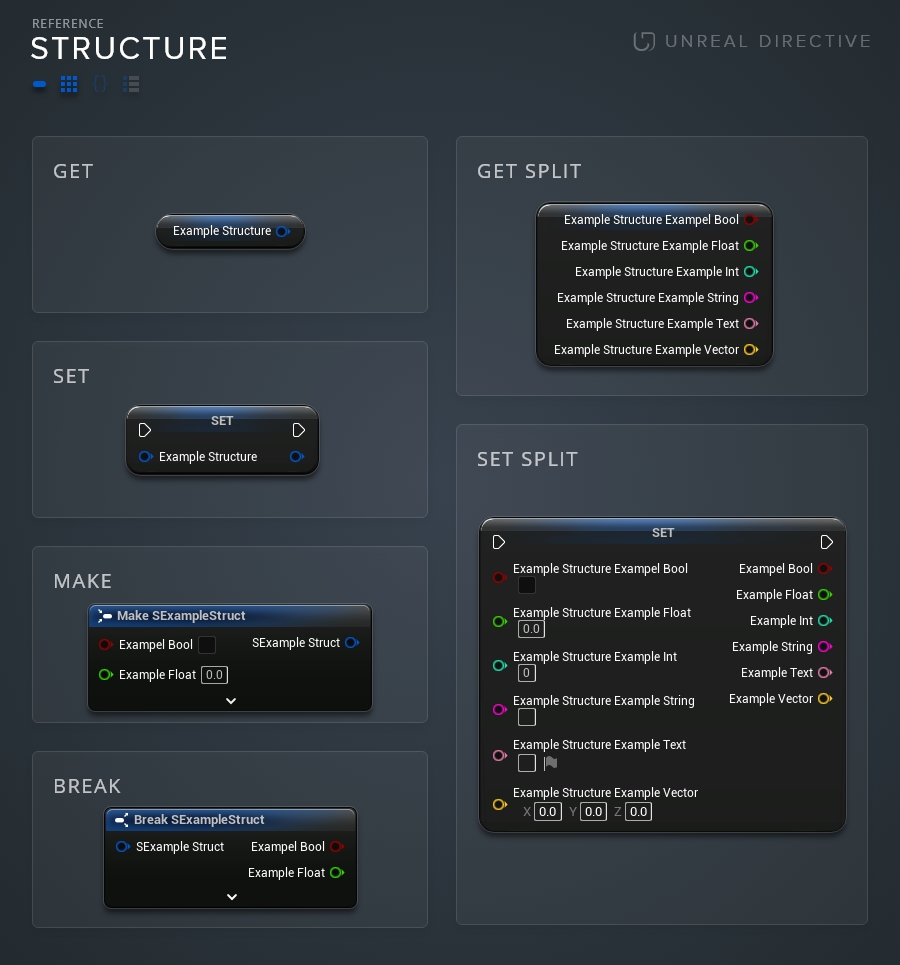
When is it appropriate to use a Structure data type
Structures should be created and used when needing to store and manipulate many different data types.
Additional Resources
- Unreal Documentation: Struct Variables In Blueprints
- Video: WTF Is? A Struct Part 1
- Video: WTF Is? A Struct Part 2
Text
A Text is a data type that can hold alpha-numeric characters and supports Text Localization.
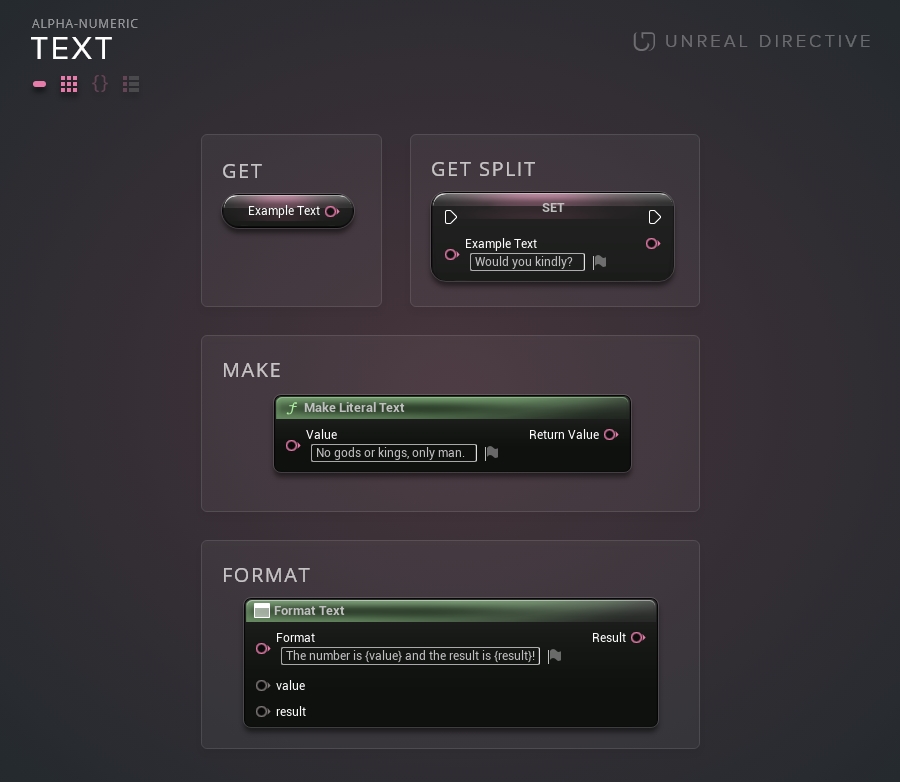
When is it appropriate to use a Text data type?
Text data types are generally used when visibly displaying text (e.g. Player HUD, Quest Log, etc.) or when language localization is required.
Additional Resources
Transform
A Transform is a data type that contains two Vectors (location and scale) and a Rotator.
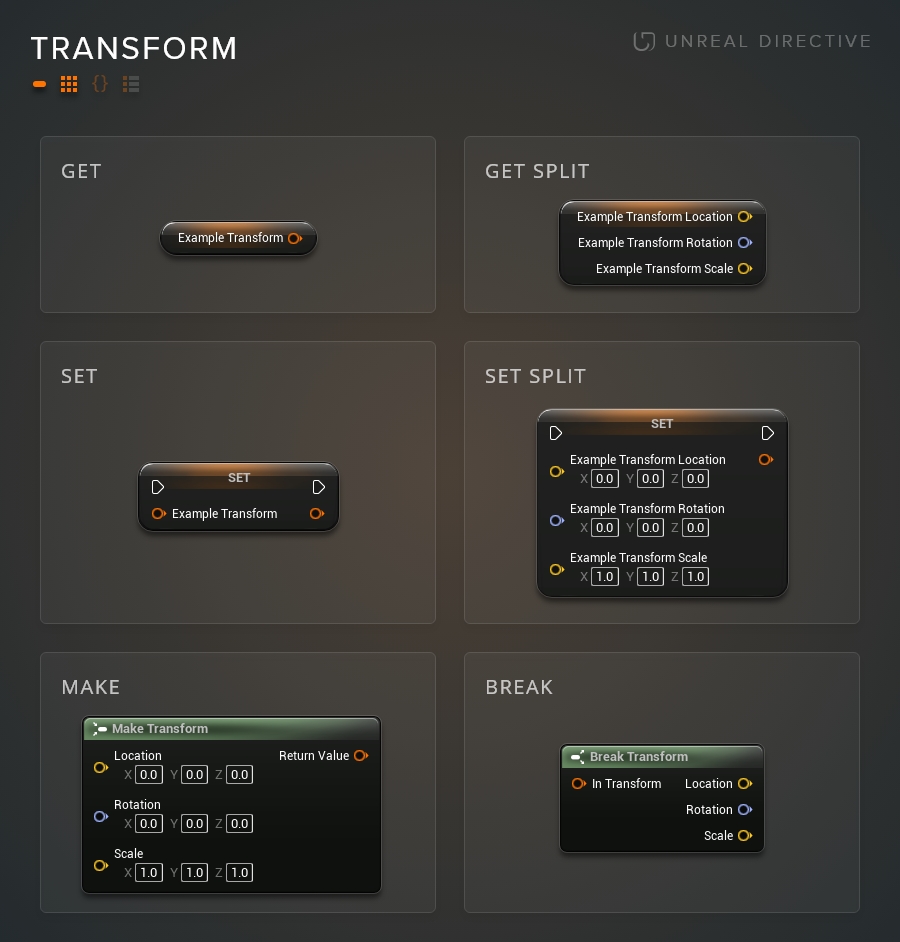
When is it appropriate to use a Transform data type?
Transforms are used when needing to store the location, rotation, and/or scale of an object.
Additional Resources
- Unreal Documentation: Transform Actions
- Unreal Documentation: Transforming Actors
- Video: WTF Is? A Transform
Vector
A Vector is a data type that is comprised of three Float components (X, Y, Z).
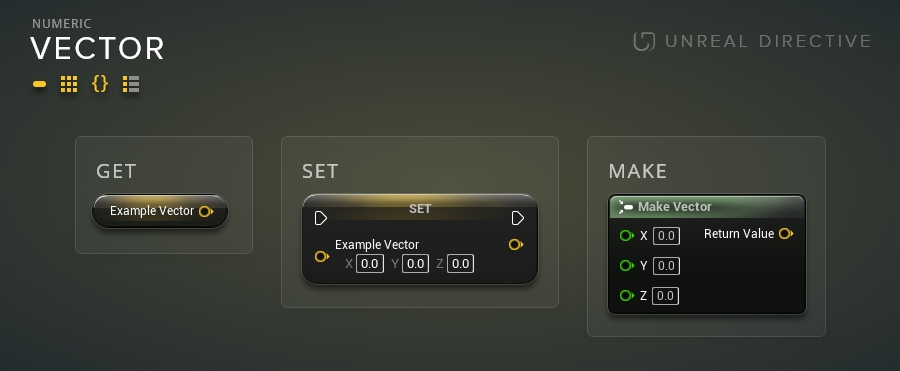
When is it appropriate to use a Transform data type?
Vectors are generally used to store three-dimensional location or scale data of an object.
Additional Resources
Variable Container Types
Single
The Single container type allows variables to only store a singular value.
This is the most commonly used container type for variables.

When is it appropriate to use the Single container type?
Use the Single container type when needing to store, read, and/or modify a singular data entry.
Array
The Array container type allows variables to hold an ordered list of values. Arrays can contain duplicate values.
When is it appropriate to use the Array container type?
The Array container type is ideally used when needing to store, read, and/or modify multiple data entries. Array’s are especially useful when retrieving a value based on an Integer index.
Additional Resources
- Unreal Documentation: Blueprint Arrays
- Unreal Documentation: Working with Arrays
- Video: WTF Is? An Array
Set
The Set container type allows for variables to hold an ordered list of unique values. Sets cannot contain duplicate values.
When is it appropriate to use the Set container type?
The Set container type is ideally used when the uniqueness of a variable entry is important. e.g. Sets helps tremendously when trying to compare two different containers and finding the difference.
What variables can use the Set container type?
| Data Type | Option Available |
|---|---|
| Boolean | |
| Byte | ✓ |
| Integer | ✓ |
| Integer 64 | ✓ |
| Float | ✓ |
| Name | ✓ |
| String | ✓ |
| Text | |
| Vector | ✓ |
| Rotator | |
| Transform | |
| Structure | |
| Interface | ✓ |
| Object | ✓ |
| Enumerator | ✓ |
Additional Resources
- Unreal Documentation: Blueprint Sets
- Unreal Documentation: Working with Sets
- Video: WTF Is? Variable: Set
Map
The Map container type allows for variables to hold key/value pairs that support efficient lookups and the retrieval of values.
When is it appropriate to use the Map container set?
The Map container type is ideally used when efficient look-ups and retrieval of values are important.
What variables can use the Map container type?
| Data Type | Option Available |
|---|---|
| Boolean | |
| Byte | ✓ |
| Integer | ✓ |
| Integer 64 | ✓ |
| Float | ✓ |
| Name | ✓ |
| String | ✓ |
| Text | |
| Vector | ✓ |
| Rotator | |
| Transform | |
| Structure | |
| Interface | ✓ |
| Object | ✓ |
| Enumerator | ✓ |
Additional Resources
- Unreal Documentation: Blueprint Maps
- Unreal Documentation: Working with Maps
- Video: WTF Is? Variable: Map
Best practices
Development practices that should be adhered to in order to improve code readability and stability.
Always follow naming conventions
Variable naming conventions have been established to make sure that other developers, and future you, clearly know what the variable does.
I recommend following Allar’s Unreal Engine Style Guide.
Private internal variables
Variables that shouldn’t be accessed by external blueprints should be set to private.
Create Getter and Setter Functions
Ideally, variables shouldn’t be accessed by external blueprints. Instead, they should be read via getter functions and set via setter functions.
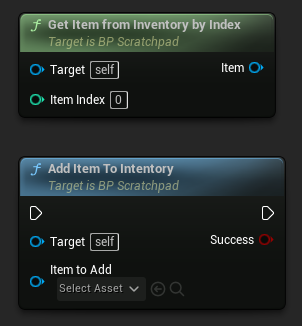
This massively helps with future extendability and debugging.
Notes
- Getter functions are Const Pure Functions
- Setter functions are Impure Functions
- Getters are also called Helper functions
- Setters are also called Modifier Functions
- Make sure the variables that have getter/setter function setup are also set to private!
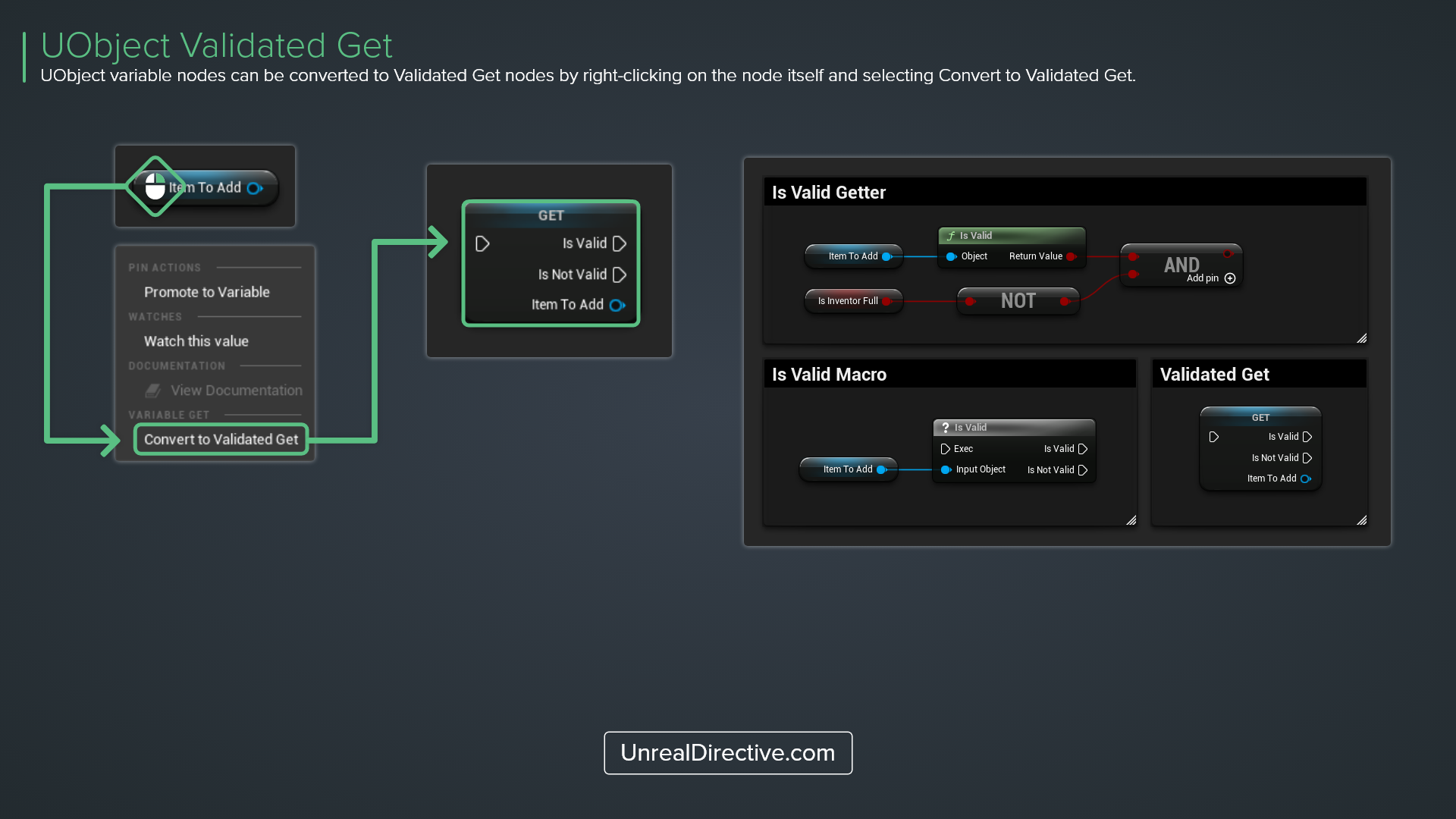
Always validate object references
One of the leading causes of engine crashes is attempting is to attempt functionality on a null (empty) object reference. To safeguard against this, utilize the following —
| Method | Description |
|---|---|
| Validated Get | Object reference nodes have an option to be converted to a Validated Get node. This combines the Object Reference Node with a Is Valid Macro. |
| Is Valid Macro | A Macro used to verify if the object reference is valid or not. Used when Validated Get isn’t an option. |
| Is Valid Getter | A pure function that returns a Boolean; true (valid), false (invalid). Useful when needing to chain arguments. |
Tips and tricks
Tips and tricks to help you improve your development workflow. You can find more tips like these here.
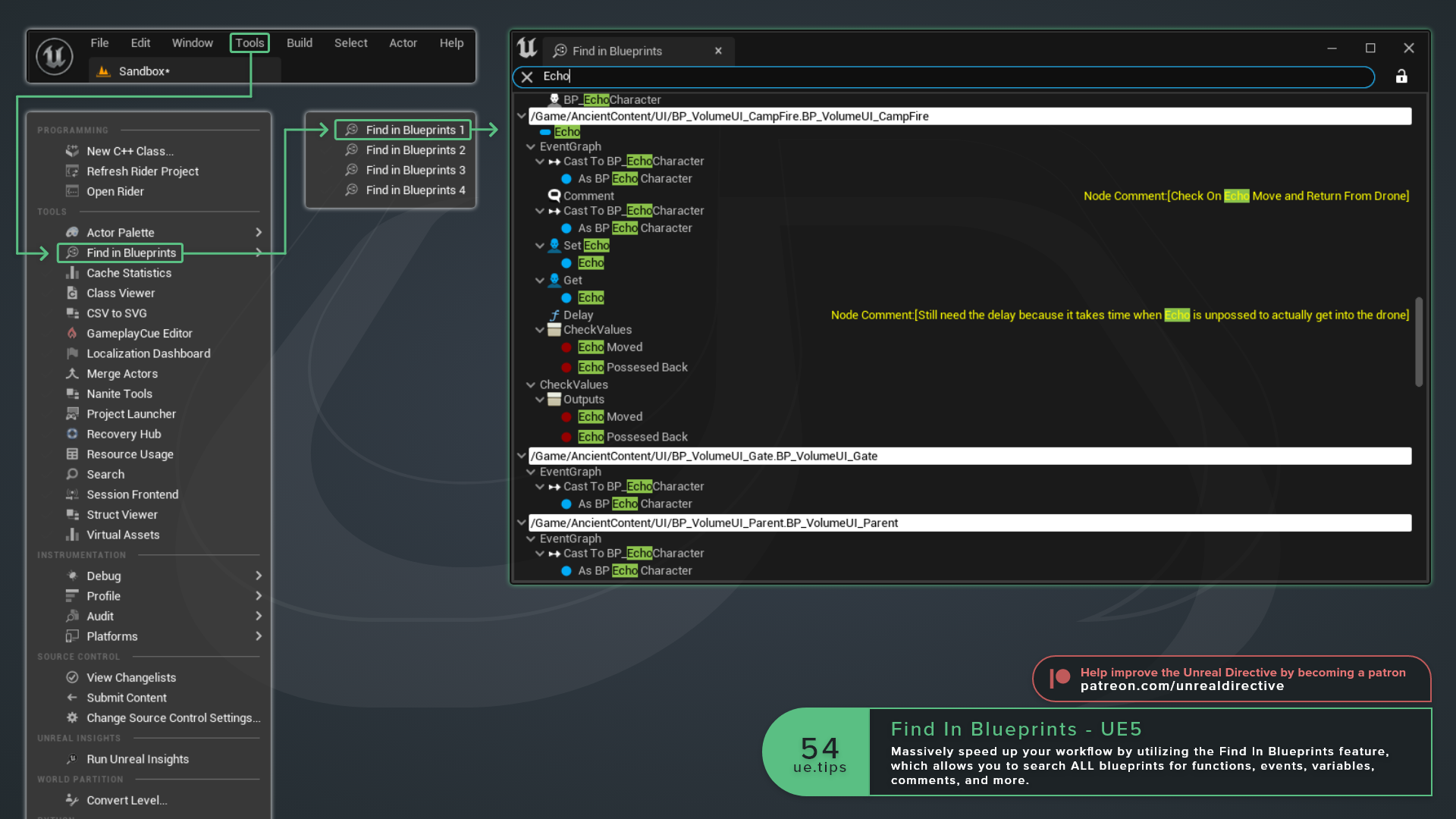
Find In Blueprint Tool
Utilize the Find In Blueprints tool to quickly search through ALL blueprints for specific functions, events, variables, comments, etc.
Quick change variable container type
From within the Variable or Local Variable section, right-click on the variable container type to quickly change between single or array.
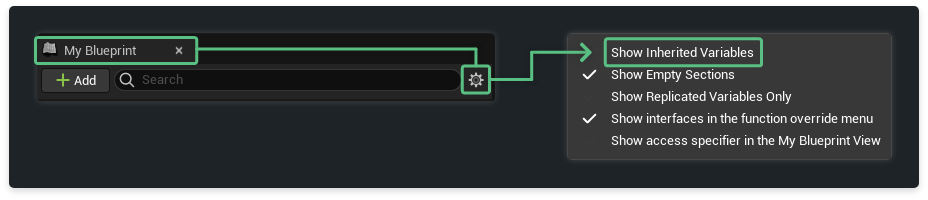
Show inherited variables
By default variables established in parent blueprint classes are not displayed. To display them —
- Locate the My Blueprint Panel
- To the right of the search field, click on the settings button
- Select the Show Inherited Variables option
Quickly replace variables
Blueprint Variables can be quickly replaced with an alternative variable of the same type. Simply drag and drop the alternative variable onto the variable node you wish to replace.
Note: The drop location must be on the node itself and not on the pin or text.
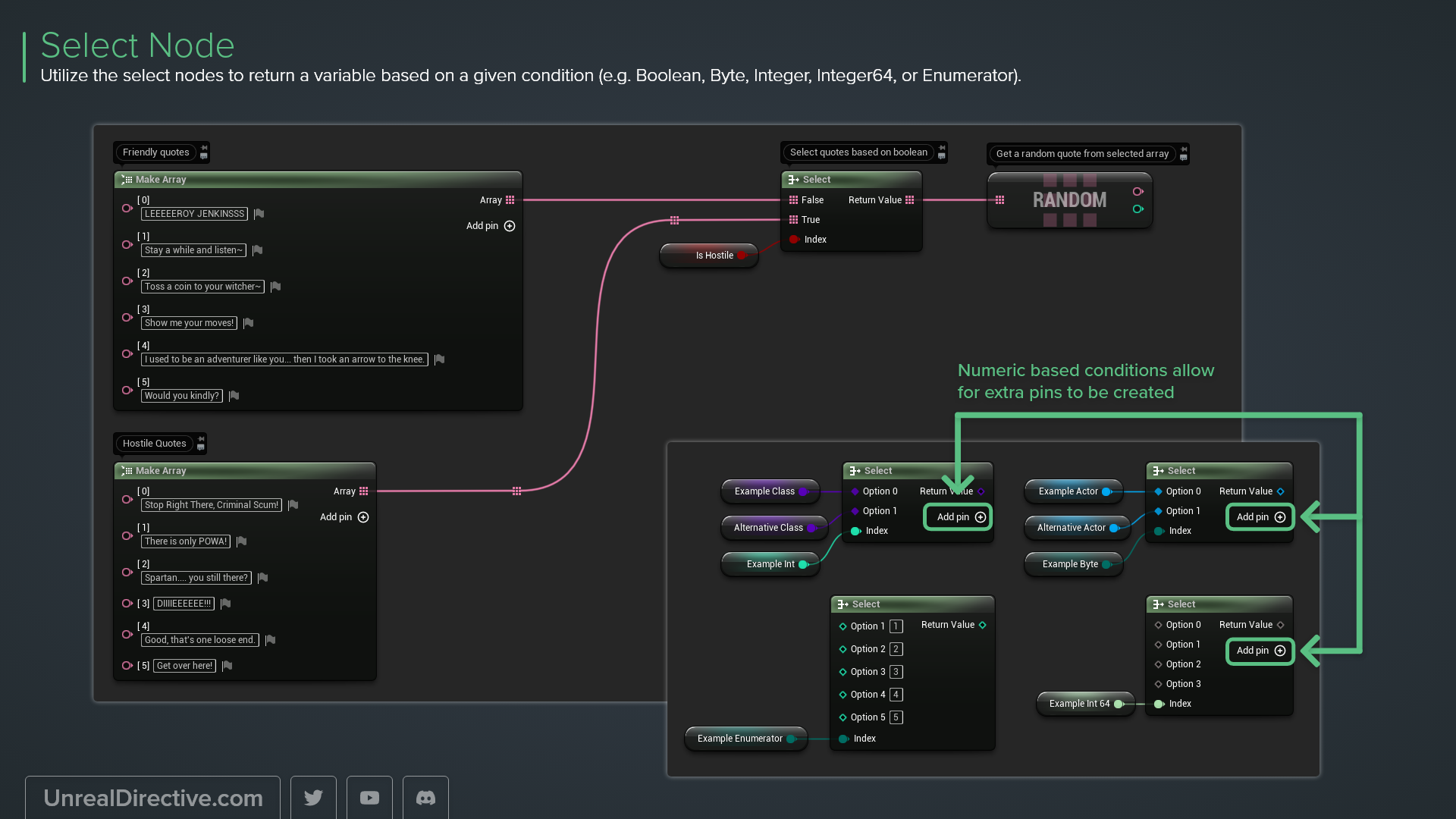
The select node
Utilize the select nodes to return a variable based on a given condition (e.g. Boolean, Byte, Integer, Integer64, or Enumerator).
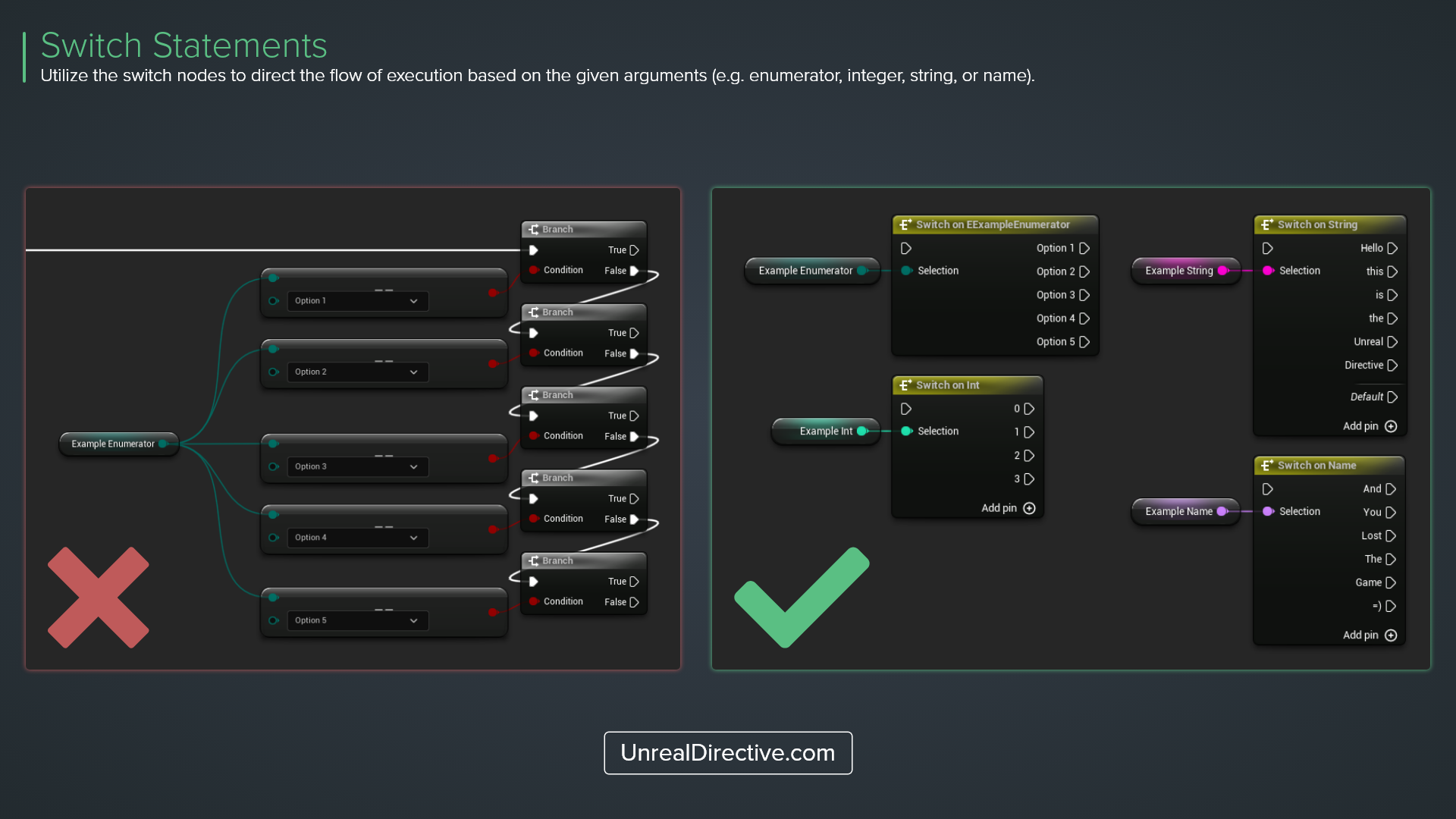
Switch statements
Utilize the switch nodes to direct the flow of execution based on the given arguments (e.g. enumerator, integer, string, or name).
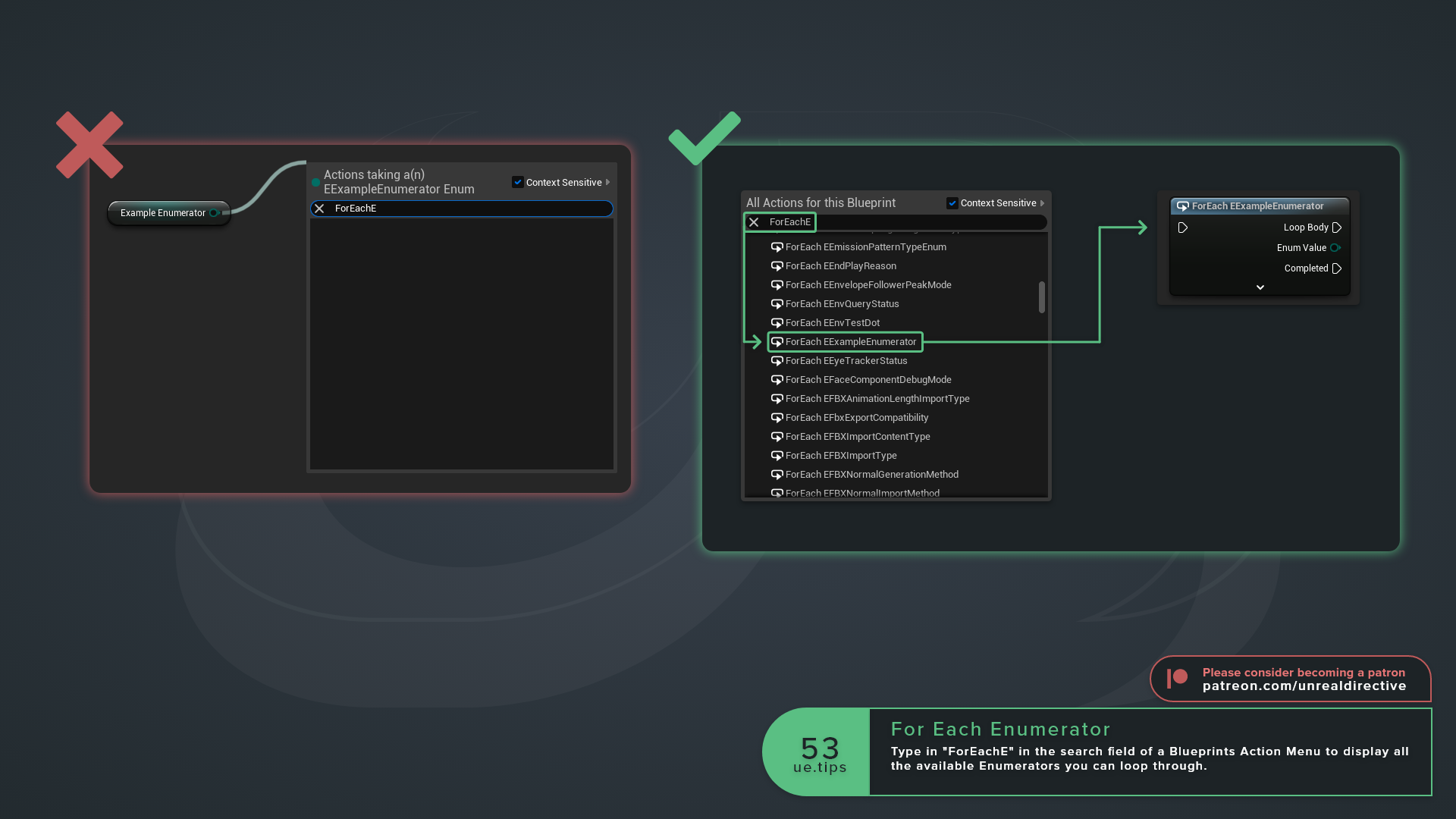
For Each Enumerator
Enumerators can be looped through. Simply open up the Action Menu by pressing the TAB key and type in “ForEachE” in the search field. This will display all the available Enumerators you can loop through.
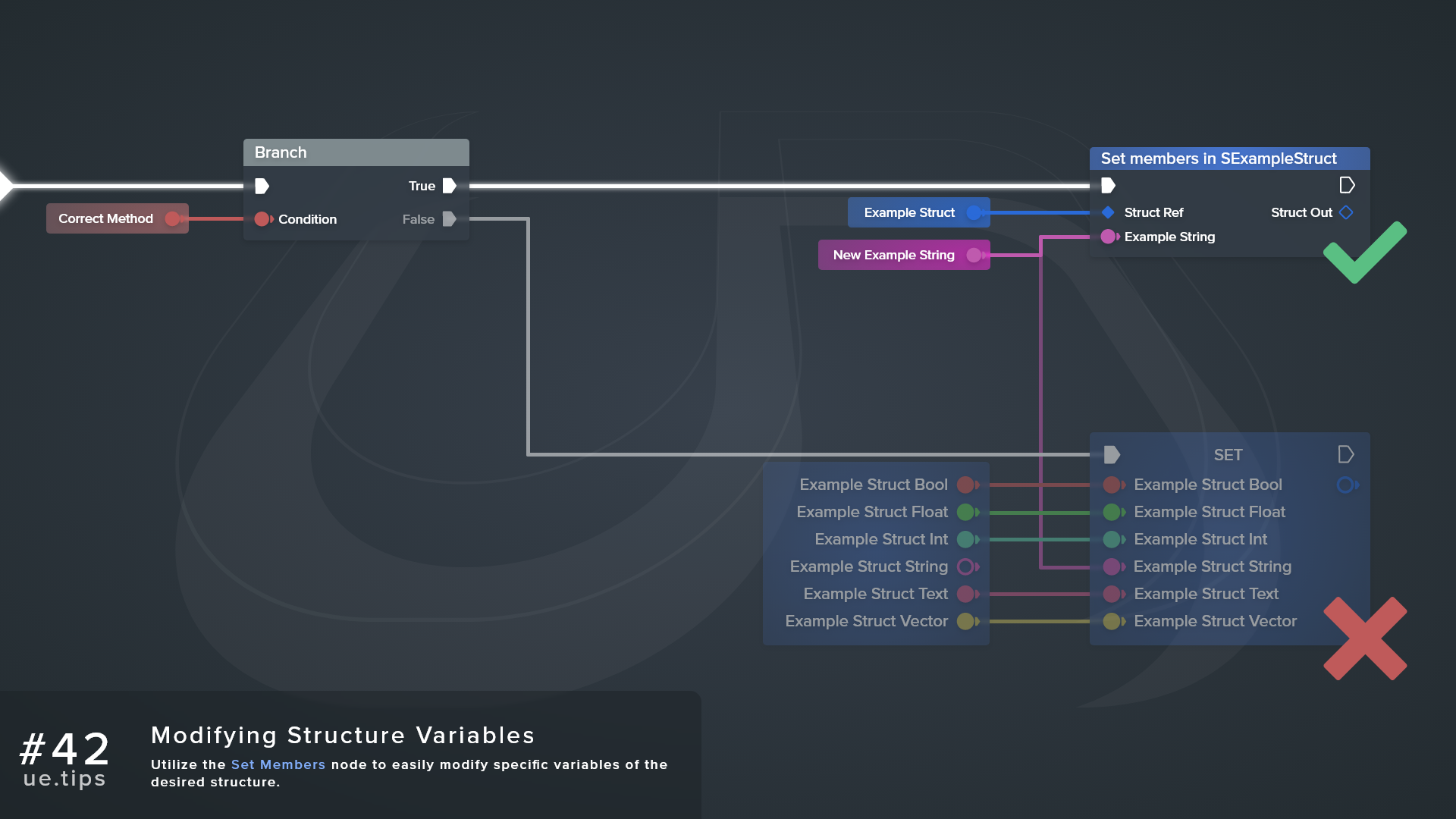
Modify Structure Variables
Utilize the Set Members node to easily modify specific variables of the desired structure.
Node Pin Drop Content
Speed up blueprint workflows by drag dropping variables and functions onto existing node input and output pins. This will automatically spawn and connect them.
Keyboard Shortcuts
Here is a quick list of keyboard shortcuts to speed up node organization. Works for Blueprints, Materials, Niagara, ControlRig, etc.
Check out the Keyboard Shortcuts resource for a full list.
| Direction | Shortcut |
|---|---|
| Straighten | Q |
| Align Left | SHIFT+A |
| Align Right | SHIFT+D |
| Align Top | SHIFT+W |
| Align Bottom | SHIFT+S |
| Align Center | ALT+SHIFT+S |
| Align Middle | ALT+SHIFT+W |
Numeric Input Math
Numeric inputs within Unreal Engine accept and automatically calculate simple mathematical equations.