

Function Parameter Descriptions
Add per-pin tooltips to C++ and Blueprint functions with the @param and @return comment tags.
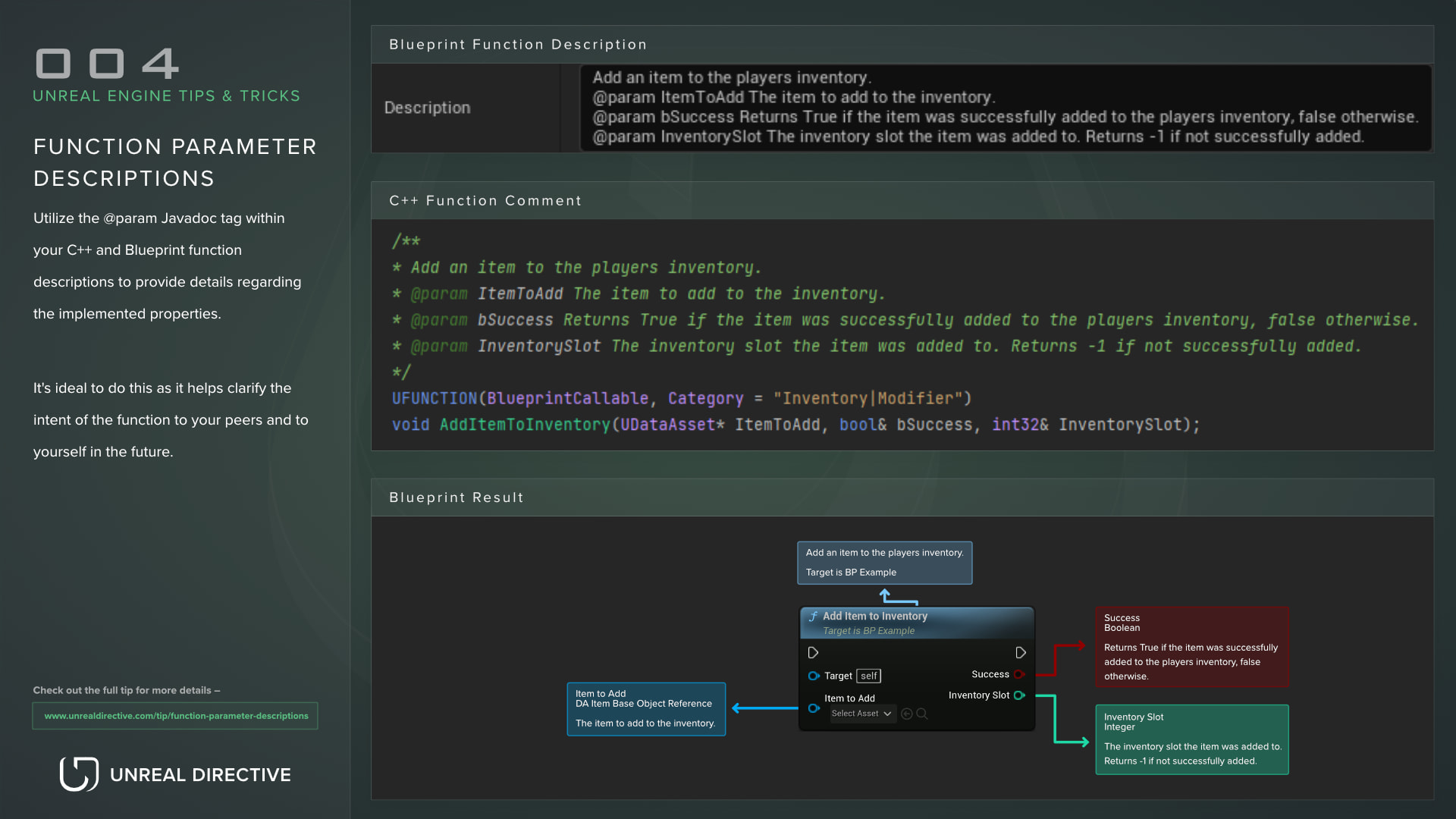
Use the @param Javadoc tag within your C++ and Blueprint function descriptions to provide details regarding each input and output. It’s ideal to do this as it helps clarify the intent of the function to your peers and yourself in the future.
Explanation
Adding a proper description to your C++ or Blueprint functions lets your peers and future you know the purpose of that specific function. Without one, questions come up in development that can cause delays or incorrect implementations.
Let me demonstrate how you can approach adding descriptions to functions with minimal examples.
C++ function example
For this example, I’ll create a Blueprint-callable function that adds an item to the player’s inventory. This function accepts a custom UDataAsset called ItemToAdd as an input and outputs two parameters: a boolean bSuccess and an int32 InventorySlot.
UFUNCTION(BlueprintCallable, Category = "Inventory|Modifier")
void AddItemToInventory(UItemBase* ItemToAdd, bool& bSuccess, int32& InventorySlot);
Now, the above function isn’t very detailed, and that’s exactly how a function without an accurate description reads. As a result, questions are left unanswered and have to be figured out or assumed.
For example:
- What accounts for a success or a failure?
- Is the inventory slot where the item was added?
- What inventory slot is returned on a failure?
Do keep in mind that while these questions are basic, this is a basic example. On a more involved function, these questions can cause massive issues in development.
To answer them, use the Javadoc-style comments described in Epic’s C++ coding standard, along with the @param tag.
- Unreal Engine uses a Javadoc-based system to extract comments from code and build documentation.
@paramis a tag that adds a description to one of the function’s inputs or outputs.
/**
* Add an item to the players inventory.
* @param ItemToAdd The item to add to the inventory.
* @param bSuccess Returns True if the item was successfully added to the players inventory, false otherwise.
* @param InventorySlot The inventory slot the item was added to. Returns -1 if not successfully added.
*/
UFUNCTION(BlueprintCallable, Category = "Inventory|Modifier")
void AddItemToInventory(UItemBase* ItemToAdd, bool& bSuccess, int32& InventorySlot);
Now the function has those questions answered. A base comment briefly describes what the function does, and each @param tag describes one parameter.
When compiled, this comment is visible in your IDE and in the Blueprint graph when hovering over the function and its pins.
If your function has a single return value, describe it with the @return tag. For example:
/**
* Add an item to the players inventory.
* @param ItemToAdd The item to add to the inventory.
* @return Returns True if the item was successfully added to the players inventory, false otherwise.
*/
UFUNCTION(BlueprintCallable, Category = "Inventory|Modifier")
bool AddItemToInventory(UItemBase* ItemToAdd);
Blueprint function example
This Blueprint example is a one-to-one replication of the C++ function, with the same ItemToAdd input and bSuccess and InventorySlot outputs.
And similarly to the C++ example, you can use the @param tag to define each parameter. Select the function and type the tags into the Description field under the Graph category of the Details panel.
Add an item to the players inventory.
@param ItemToAdd The item to add to the inventory.
@param bSuccess Returns True if the item was successfully added to the players inventory, false otherwise.
@param InventorySlot The inventory slot the item was added to. Returns -1 if not successfully added.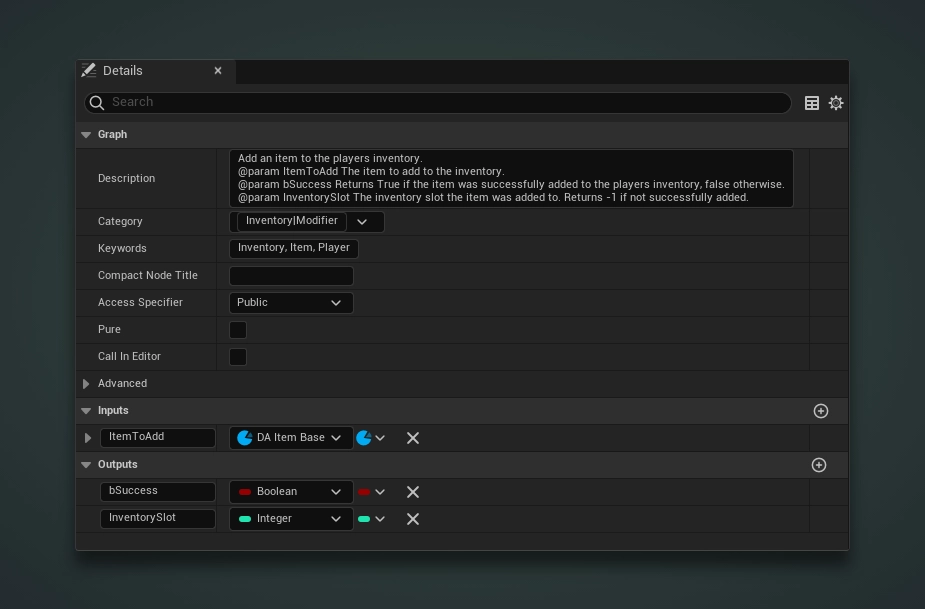
The results
For the C++ example, this is what appears in your IDE whenever you hover over the function. As you can see, the @param tags are working, and each parameter’s description is visible.
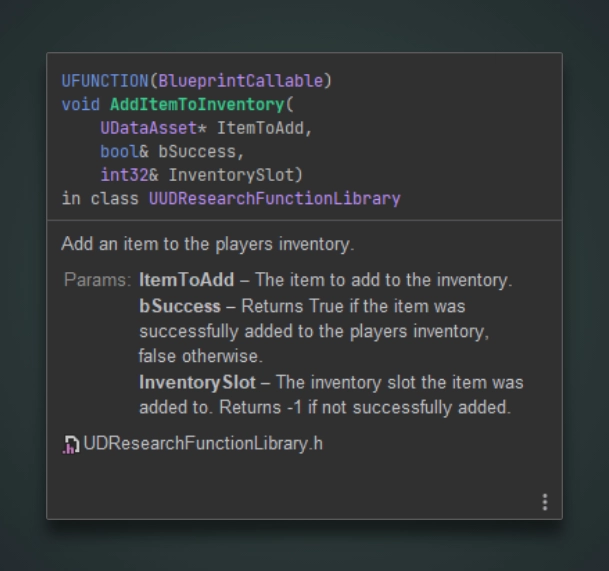
JetBrains Rider tooltip
For both the C++ and Blueprint examples, this is the result within the Blueprint graph editor. Hovering over the node displays the function description, and hovering over each pin displays that pin’s description.
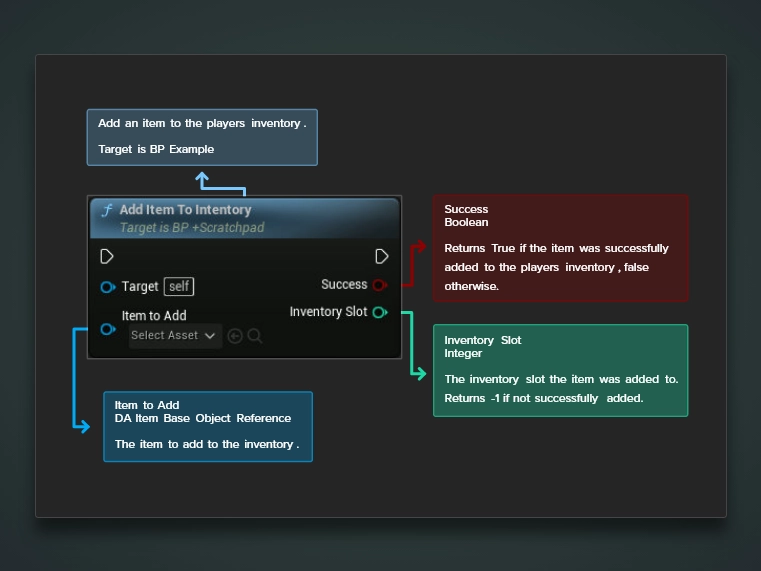
Frequently asked questions
Why aren’t my new descriptions showing up?
Pin tooltips are set when a node is placed, so existing nodes keep their old tooltips until you use Refresh All nodes in the Blueprint editor or restart the editor.
Why is one of my pins missing its description?
The name after @param must match the parameter name exactly, including the b prefix on bools. A mismatched name leaves that pin without a description.
Why is part of my description cut off?
Each description runs until the next @, so keep @ out of your descriptions. The node tooltip itself only shows the text before the first @param or @return tag, while @see and @note lines stay in the tooltip as “See:” and “Note:”.
Can I put a dash after the parameter name?
Yes. A dash right after the parameter name is stripped, so @param ItemToAdd - The item to add also works. And @returns is accepted as well as @return.
Links
Check out the following resources to learn more about the subject.
Unreal Directive is free and ad-free.
If it saved you time, you can help keep it that way.