Modular Game Features: What you need to know
The Modular Game Feature system is a new addition to Unreal Engine 4.27 and Unreal Engine 5 that allow developers to author standalone features for their projects.
These standalone features help compartmentalize Unreal projects, thus keeping the codebase clean and readable. And due to the nature of a modular game feature, these will help avoid accidental dependencies.
The essential aspects of this system are —
- Easily inject new content into an existing project
- The core game is entirely unaware of its existence
- Dynamically loadable and unloadable without breaking the game
The sections below cover setup, activation, and the pieces you need to understand before adding a modular feature to a project.
Video
Prefer this content in video format?
Requirements
4.27
experimental
5.0+
supported
Required Plugins
Game Features
Support for modular Game Feature Plugins.
Modular Gameplay
Base classes and subsystems to support modular use of the gameplay framework.
Important notes
Here are critical aspects to know when you’re implementing a new Game Feature —
- Game Features are essentially project-specific plugins
- Game Features can be moved to other projects
- Game Features should reference plugins it requires
- Game Features should not be referenced by the base game itself
- Game Features can contain content and/or code
- Game Features are required to be placed under
/{ProjectName}/Plugins/GameFeatures/* - Game Features can be configured via the Data Asset found within the root folder of the Game Feature
- Game Features will activate for everyone within a multiplayer session
C++ Notes
Important notes that are C++-specific
#include "GameFeaturesSubsystem.h"is the required include- GameFeatures must be included in the Build.cs file for the project or plugin
using UnrealBuildTool;

public class UDR_ModularGameplay : ModuleRules
{
	public UDR_ModularGameplay(ReadOnlyTargetRules Target) : base(Target)
	{
		PCHUsage = PCHUsageMode.UseExplicitOrSharedPCHs;

		PublicDependencyModuleNames.AddRange(new string[] {
			"Core",
			"CoreUObject",
			"Engine",
			"InputCore",
			"GameFeatures"
		});

		PrivateDependencyModuleNames.AddRange(new string[] {  });
	}
}
Creating a Game Feature plugin
1. Enable the Required Plugins
Before you can create a Game Feature, you must enable the following two required plugins —
- Game Features
- Modular Gameplay
Once these two plugins have been enabled, restart the editor.
2. Add entry to PrimaryAssetTypesToScan
Once the editor has been restarted, you will receive a message in your message log stating the following —
Asset Manager settings do not include an entry for assets of type GameFeatureData, which is required for game features plugins to function. [Add entry to PrimaryAssetTypesToScan]
Adding this entry is required for the engine to acknowledge the Primary Asset Type associated with the Game Modules.
To fix this issue, follow either the automated or manual method below.
Note: If this message doesn’t appear in your Message Log, you can skip this step
Automated Method
Click the link appended to the end of the message – Add entry to PrimaryAssetTypesToScan – to automatically fix that issue.
No further action is required.
Manual Method
Only Required for Unreal Engine 4.27
Navigate to Project Settings
Asset Manager
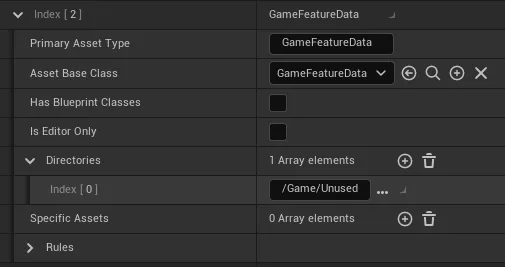
Create a new Primary Asset Types to Scan Array Element
Fill in the following 2 values
- Primary Asset Type: GameFeatureData
- Asset Base Class: GameFeatureData
Create a new Directory
Add "/Game/Unused" In the newly created directory
Everything is all set!
3. Creating the Plugin
5.0+
Creating a game feature plugin is done the same way you make other plugins. To create a new Game Feature plugin, follow these steps —
Open the Plugins window
Editor Menu Bar → Edit → Plugins
Open the New Plugin window
Press the
+ Addbutton in the top left of the Plugins windowChoose a Game Feature Template from the list
Game Feature templates are prefixed with
Game Feature.- Game Feature (Content Only)
- Game Feature (With C++)
Enter a plugin name
- Name the plugin something that makes sense for the Game Feature you’re creating.
- Do not use spaces or special characters
- Do not use the word “Plugin” in the name (as it’s redundant)
Enter descriptor data
Fill out all the necessary information.
- Author
- Description
- etc.
Confirm and create the plugin
Press the
Create Pluginbutton in the bottom right of the New Plugin windowNew Game Feature plugin created!
- The new Game Feature has now been added to your project and a configuration window will appear.
- You can find the newly created Game Feature in your projects plugins directory
*/{ProjectDir}/Plugins/GameFeatures/*
4.27
Unfortunately, the template doesn’t exist in Unreal Engine 4.27. Therefore, it requires a bit of manual labor.
I created a template that you can utilize; here are the instructions for that —
Download the template
The custom template can be downloaded from here
Unzip the template
Unzip the template and place its contents in your projects Game Features directory
- Example:
{ProjectDir}/Plugins/GameFeatures/
- Example:
Open the project
Edit the template to suit your needs
Additional Notes
- You can edit the plugin itself in the Plugin Window
- You can edit the game module itself via the ExampleFeature Data Asset located in the root of the game feature
- If you come across any issues with the Data Asset, you can create a new one by Right Click Content Browser -> Miscellaneous -> Data Asset -> Game Feature Data and rename it to the game feature name
- Enable/disable the game feature via the console commands, or via C++ outlined in the article
- Editing the States isn’t available in the Data Asset
Opening the Game Feature configuration window
The Game Feature configuration window automatically opens after it has been created. To find and open the configuration window manually —
Open the content browser
- Navigate to the Editor Menu Bar → Window → Content Browser.
- Otherwise, you can use the
CTRL + Spaceshortcut to open the Content Browser.
Navigate to the Game Feature directory
- Locate your game feature under the
Pluginsdirectory in the sources panel - If the sources panel isn’t visible, enable
Show Sources Panelin the Content Browser settings - If the plugins directory isn’t visible, enable
Show Plugin Contentin the Content Browser settings - If you can’t find the Game Feature, make sure you have enabled game feature plugin in the plugins window
- Locate your game feature under the
Open the Game Feature Data Asset that has the same name as the new Game Feature
For example, if the Game Feature is named
YourCustomFeature, the Data Asset will be namedYourCustomFeatureDatain the root of the Game Feature directory.
Configuring the Game Feature
With the Game Feature configuration window opened, you will find three primary categories —
- Feature State
- Actions
- Game Feature
Each of these plays a vital role in setting up and defining the game feature itself.
Feature State
The Feature State category controls the initial and current state of the Game Feature. The state of a Game Feature is divided into four options – Installed, Registered, Loaded, and Active.
| State | Description | Notes |
|---|---|---|
| Initial State | The state of the Game Feature when initially loaded in Editor or Runtime. | |
| Current State | The state the Game Feature current is in. This can be adjusted at any time | |
| Installed | The Game Feature isn’t registered with the engine and will not be visible in the Content Browser. | |
| Registered | The Game Feature is registered with the engine but not loaded into memory. | The ideal initial state. |
| Loaded | The Game Feature is loaded into memory and awaiting activation. | |
| Active | The Game Feature is loaded into memory and is currently active. | Avoid editing the Game Feature while it’s set to active. |
Actions
The Actions category defines what actions occur when the Game Feature is enabled or disabled.
Here are the actions that are currently available as of Unreal Engine 5 Early Access 2 —
Add Cheats
The Add Cheats action allows developers to easily add their own debug commands via registering a Cheat Manager Extension with the game.
Cheats are purely for debugging and will not be included in shipping builds.
Add Components
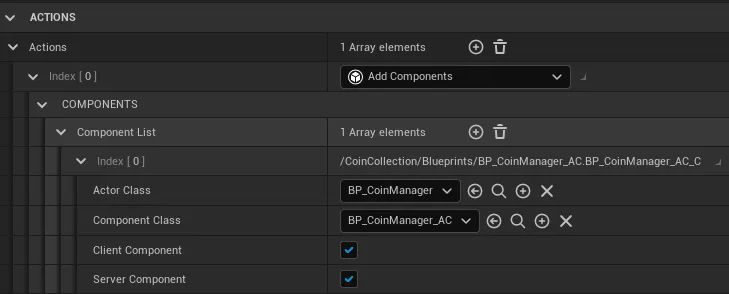
The Add Components action will add a component to the designated actor class if it has been registered to receive components via the Game Framework Component Manager.
There are four options within the action —
| Option | Description |
|---|---|
| Actor Class | The target actor type for component attachment. |
| Component Class | The component to add the actor. |
| Client Component | Adds the component to clients within a multiplayer session. Enabled by default. |
| Server Component | Adds the components to the server within a multiplayer session. Enabled by default. |
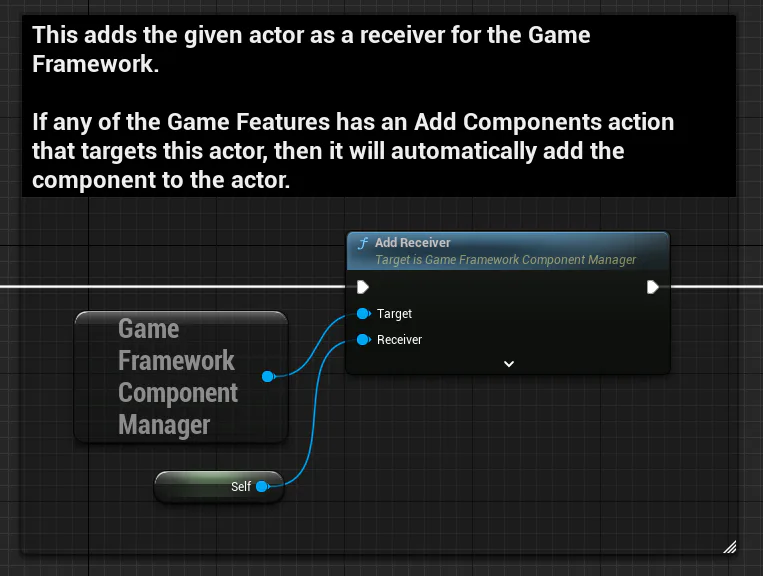
Adding an actor as a Receiver
By default, actors have to be added as receivers to receive Game Feature Components. This step is generally done via BeginPlay.
Depending on the component and needs, consider using C++ to add the receiver during an earlier phase.
Blueprint
C++
if (UGameFrameworkComponentManager* ComponentManager = GetGameInstance()->GetSubsystem<UGameFrameworkComponentManager>())
{
    ComponentManager->AddReceiver(this);
}
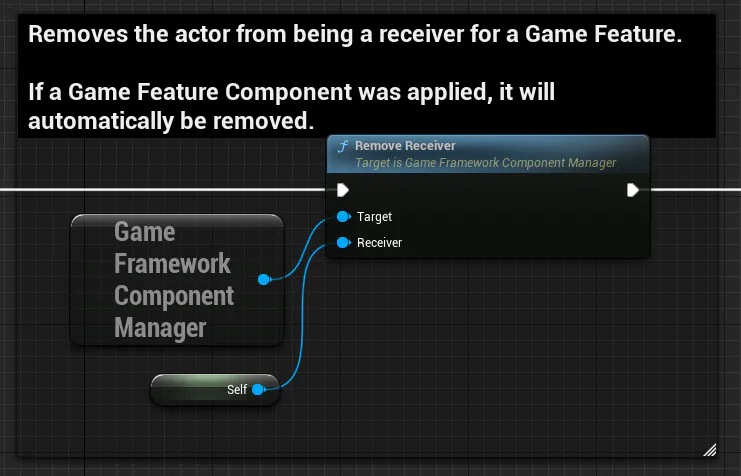
Removing an actor as a Receiver
It is ideal to clean up and remove the actor from being a Game Feature Component receiver during the Destroyed or EndPlay events.
Note: **When an actor is removed as being a receiver, it will automatically remove the Game Feature Components added. There is no need to do that manually.
Blueprint
C++
if (UGameFrameworkComponentManager* ComponentManager = GetGameInstance()->GetSubsystem<UGameFrameworkComponentManager>())
{
    ComponentManager->RemoveReceiver(this);
}
Add Data Registry
The Add Data Registry Action will add a Data Registry to your project.
Add Data Registry source
The Add Data Registry Source will add a data source that will stream intoa Data Registry.
- Each configures the path to each data source must be configured
Custom Actions
An example of what other actions can be added manually via C++. Some, if not all, will be available when Unreal Engine 5 fully releases.
You can find these in the Valley of the Ancients demo.
- Add Abilities
- Add Attributes Defaults
- Add Input Mapping
- Add Level Instances
- Add Spawned Actors
- Add World Systems
Asset Manager
The Asset Manager category is utilized to tell the engine that new assets are available. For example, introducingnew weapons or items to your game.
Setting a Game Feature state during runtime
Game Features can be dynamically enabled and disabled during a runtime session.
Blueprint
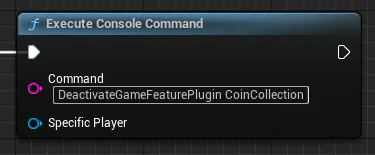
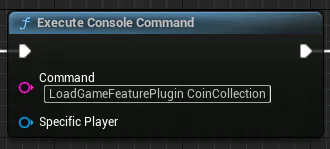
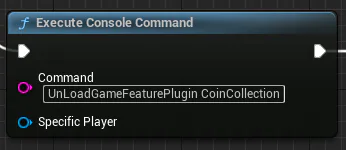
As of Unreal Engine 5 Early Access 2, there are no native blueprint nodes that allow you to toggle on or off Game Features. Thankfully, Epic has exposed that functionality through console commands. Simply utilize the following two commands with the Execute Console Command blueprint node.
As of Unreal Engine 5.0.3, the console commands do not work in Shipped Builds.
Deactivate a game feature
DeactivateGameFeaturePlugin
Load & activate the game feature
Unload the game feature
C++
Important
Don’t forget to add GameFeatures to the Build.cs PublicDependencyModuleNames
FString PluginURL;

// Get the Plugin URL based on the Game Features Name
UGameFeaturesSubsystem::Get().GetPluginURLForBuiltInPluginByName(<GameFeatureName>, PluginURL);

// Deactivate the Game Feature
UGameFeaturesSubsystem::Get().DeactivateGameFeaturePlugin(PluginURL);

// Activate the Game Feature
UGameFeaturesSubsystem::Get().LoadAndActivateGameFeaturePlugin(PluginURL, FGameFeaturePluginLoadComplete());

// Unload the Game Feature
UGameFeaturesSubsystem::Get().UnloadGameFeaturePlugin(PluginURL);

// Load the Game Feature
UGameFeaturesSubsystem::Get().LoadGameFeaturePlugin(PluginURL, FGameFeaturePluginLoadComplete());
Example
For this example, I have a Coin Collection Game Feature. When the green button is stepped on, the feature is toggled on. When the red button is stepped on, the feature is cleaned up and toggled off.
The Coin Collection Feature spawns collectible coins randomly and attaches a coin counter to the player’s viewport.
Frequently Asked Questions
A list of frequently asked questions regarding this feature, and their answers.
When should I use this feature?
Module Game Features should be utilized when you need to update or create new features over the life of your project without the project specifically depending on them. You can also use them baseline for compartmentalizing both code and assets.
What are some usage examples?
With Game Features not being referenced by core gameplay, they can be utilized to control aspects of gameplay, memory management, and more on the fly.
For example, the Fortnite dev team utilizes Game Features for their vehicles. This allows them to enable or disable them for the different game modes easily.
Here are some other example use cases —
- Compartmentalizing code and/or assets
- Weapon Unlocks
- Ability Unlocks
- Level Instances
- Items
- NPCs
- FX
- Dialog
- Weather Effects
- Cutscenes
Just remember that feature-specific Game Features should be self-contained, and disabling them should not affect the core game.
My game feature isn’t activating; why is that?
Make sure that you set your Game Feature state to Active when you want to enable it. Likewise, make sure to put it to Loaded or Registered to disable it.
If it still doesn’t activate, check your logs. There is likely a warning or error that will help you pinpoint the issue.
Why is it recommended not to have the core game depend on a Game Feature?
When you take away something the engine is expecting to be there, it can cause a whole host of issues, such as —
- Game Crashes
- Errors
- Warnings
- General bugs
Links
Check out the following resources to learn more about the subject.