

Declare & Define Native Gameplay Tags
Use the native gameplay tag macros to declare and define Gameplay Tags in C++.
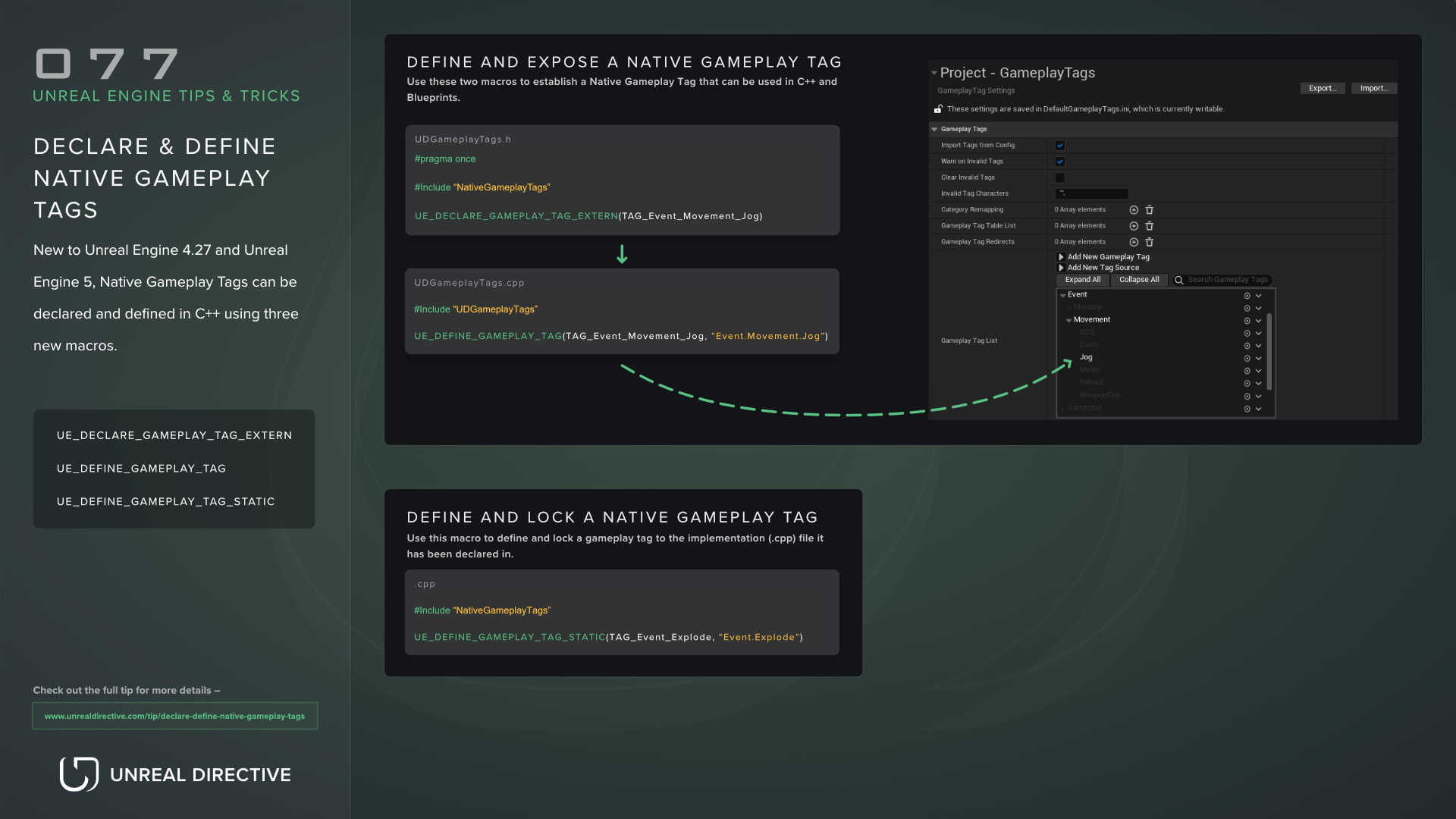
Native Gameplay Tags can be declared and defined in C++ using the macros in NativeGameplayTags.h. They make it easy to add and remove tags without touching the project’s tag list, which is especially helpful for plugins and Game Feature modules that ship their own tags.
Check out the Gameplay Tags Hub for a searchable reference of 300+ tags, best practices, setup guides, and patterns for GAS, CommonUI, and Enhanced Input.
UE_DECLARE_GAMEPLAY_TAG_EXTERN(Tag_Name)

UE_DEFINE_GAMEPLAY_TAG(Tag_Name, "Tag.Name");

UE_DEFINE_GAMEPLAY_TAG_COMMENT(Tag_Name, "Tag.Name", "Developer comment");

UE_DEFINE_GAMEPLAY_TAG_STATIC(Tag_Name, "Tag.Name");
Here’s what each one does and which file it goes in:
| Macro | File | Description |
|---|---|---|
UE_DECLARE_GAMEPLAY_TAG_EXTERN | .h | Declares a tag variable so other files and modules can use it. |
UE_DEFINE_GAMEPLAY_TAG | .cpp | Defines a tag that’s declared in a header. |
UE_DEFINE_GAMEPLAY_TAG_COMMENT | .cpp | Same as UE_DEFINE_GAMEPLAY_TAG, plus a developer comment for the tag. |
UE_DEFINE_GAMEPLAY_TAG_STATIC | .cpp | Defines a tag variable that only the .cpp file it’s defined in can use. |
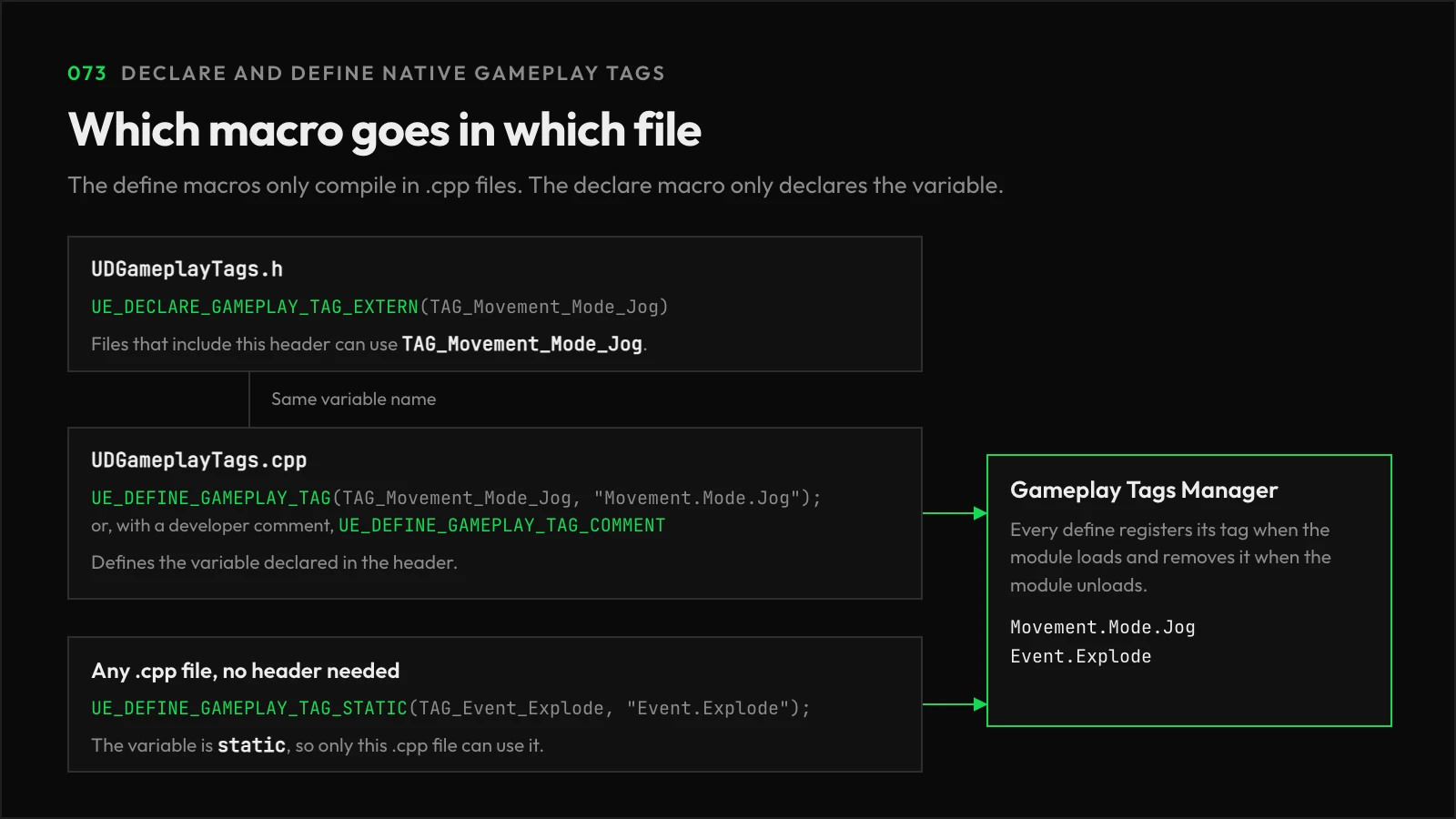
Before using any of them, add the GameplayTags module to your module’s Build.cs dependencies.
Declare and expose a Native Gameplay Tag
To declare and expose a Native Gameplay Tag to your whole project, two macros are required.
The first macro, UE_DECLARE_GAMEPLAY_TAG_EXTERN, goes in the header file. It takes the name of the tag variable, and it’s ideal to prefix that name with TAG_ and replace each period in the tag with an underscore. The macro already ends with a semicolon, so there’s no need to add one after it.
For example, if you want to declare the gameplay tag Movement.Mode.Jog, you would use the name TAG_Movement_Mode_Jog. Like so:
#include "NativeGameplayTags.h"

UE_DECLARE_GAMEPLAY_TAG_EXTERN(TAG_Movement_Mode_Jog)
The second macro, UE_DEFINE_GAMEPLAY_TAG, goes in the implementation file. It takes the same variable name as UE_DECLARE_GAMEPLAY_TAG_EXTERN, along with the tag itself.
For example:
UE_DEFINE_GAMEPLAY_TAG(TAG_Movement_Mode_Jog, "Movement.Mode.Jog");The declaration on its own doesn’t create a tag, since the definition is what registers it. Once both macros are in place, the gameplay tag is readily available for use in C++ and Blueprints, and it shows up in the Project Settings → Gameplay Tags section.
If you’d like the tag to carry a developer comment, use UE_DEFINE_GAMEPLAY_TAG_COMMENT in place of UE_DEFINE_GAMEPLAY_TAG.
Define a Native Gameplay Tag for a specific implementation file
The last macro, UE_DEFINE_GAMEPLAY_TAG_STATIC, also goes in the implementation file. Unlike the previous defining macro, this one should not be paired with UE_DECLARE_GAMEPLAY_TAG_EXTERN, as it defines the tag variable as static, so only the .cpp file it’s in can reference it.
That said, the tag itself is still registered. It’s visible in the Project Settings → Gameplay Tags section, and other code can still get it by name with FGameplayTag::RequestGameplayTag. Only the C++ variable is locked to the file.
UE_DEFINE_GAMEPLAY_TAG_STATIC(TAG_Event_Explode, "Event.Explode");Bonus tip
It’s ideal to establish a dedicated header and implementation file for exposed Native Gameplay Tags rather than declaring and defining them across separate files. This helps with gameplay tag management, and you only have one file to include.
Like so:
#include "NativeGameplayTags.h"

UE_DECLARE_GAMEPLAY_TAG_EXTERN(TAG_Movement_Mode_Walk)
UE_DECLARE_GAMEPLAY_TAG_EXTERN(TAG_Movement_Mode_Jog)
UE_DECLARE_GAMEPLAY_TAG_EXTERN(TAG_Movement_Mode_Run)
UE_DECLARE_GAMEPLAY_TAG_EXTERN(TAG_Movement_Mode_Fly)
UE_DECLARE_GAMEPLAY_TAG_EXTERN(TAG_Movement_Mode_Swim)#include "UDGameplayTags.h"
UE_DEFINE_GAMEPLAY_TAG(TAG_Movement_Mode_Walk, "Movement.Mode.Walk");
UE_DEFINE_GAMEPLAY_TAG(TAG_Movement_Mode_Jog, "Movement.Mode.Jog");
UE_DEFINE_GAMEPLAY_TAG(TAG_Movement_Mode_Run, "Movement.Mode.Run");
UE_DEFINE_GAMEPLAY_TAG(TAG_Movement_Mode_Fly, "Movement.Mode.Fly");
UE_DEFINE_GAMEPLAY_TAG(TAG_Movement_Mode_Swim, "Movement.Mode.Swim");Now with a dedicated gameplay tag file, you simply need to include it in any C++ file you wish to use the gameplay tags in.
Frequently asked questions
Can I put the define macros in a header file?
No. The three define macros only compile in .cpp files, and you’ll get a compile error if the file extension is anything else.
How do I use the tag variable in C++?
The tag variable is an FNativeGameplayTag. It converts to an FGameplayTag implicitly, or you can call GetTag() on it.
Are native tags saved anywhere?
No. Native tags register when their module loads and unregister when it unloads, and they aren’t saved to any .ini file. So, if you remove the macros, the tag is gone from the project.
Links
Check out the following resources to learn more about the subject.
Unreal Directive is free and ad-free.
If it saved you time, you can help keep it that way.