

Dumpticks
Use the dumpticks console command to list every registered tick function in your level and see which ones are enabled.
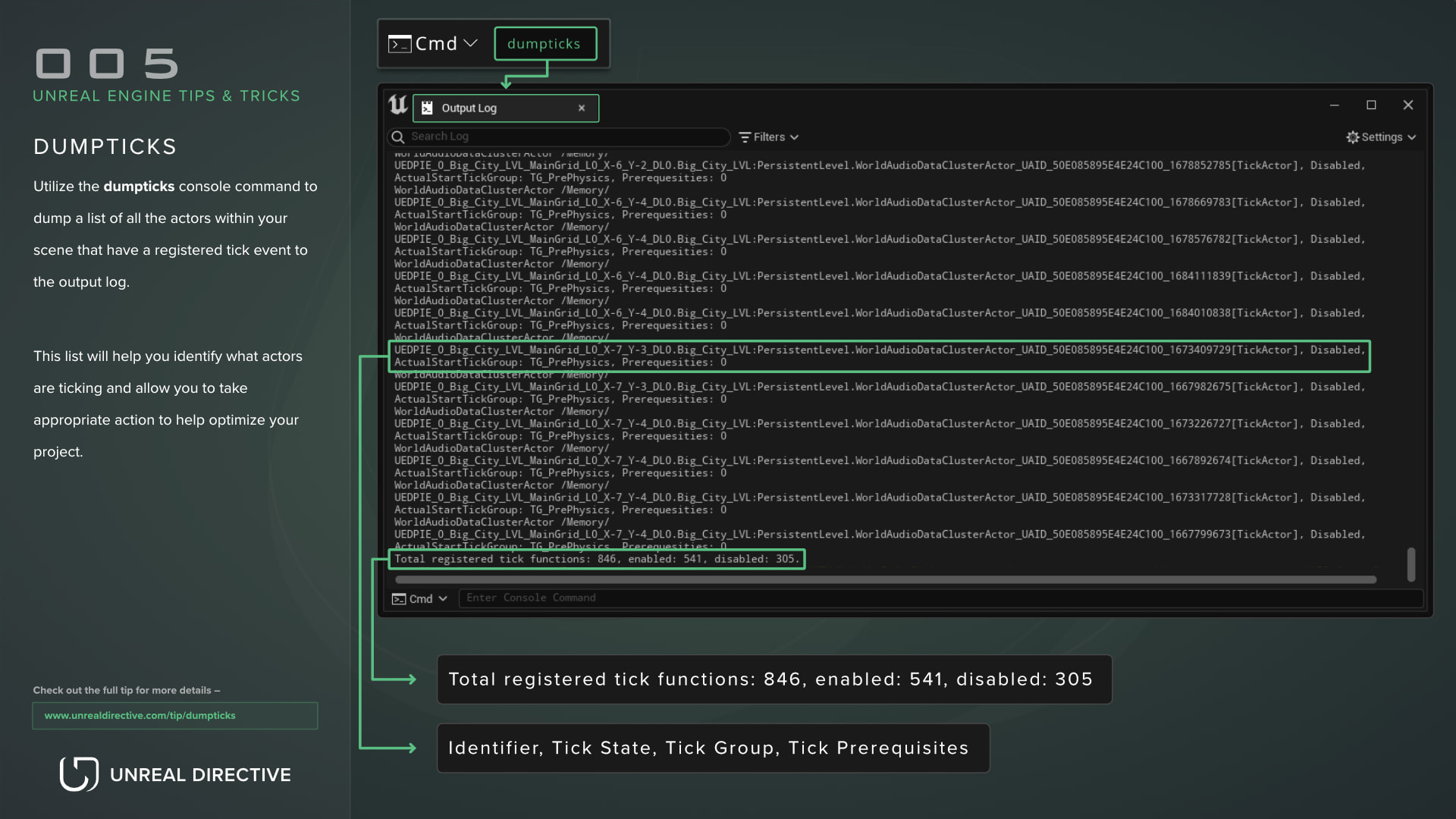
Use the dumpticks console command to dump a list of every registered tick function in your scene to the Output Log.
This list helps you identify which actors and components are ticking, so you can take appropriate action to optimize your project.
| Command | Output |
|---|---|
dumpticks | All registered tick functions, enabled and disabled. |
dumpticks enabled | Only enabled tick functions, including ones cooling down on an interval. |
dumpticks disabled | Only disabled tick functions. |
dumpticks grouped | Enabled tick functions grouped by class and sorted by count. |
Explanation
The dumpticks console command writes the list of tick functions into your Output Log.
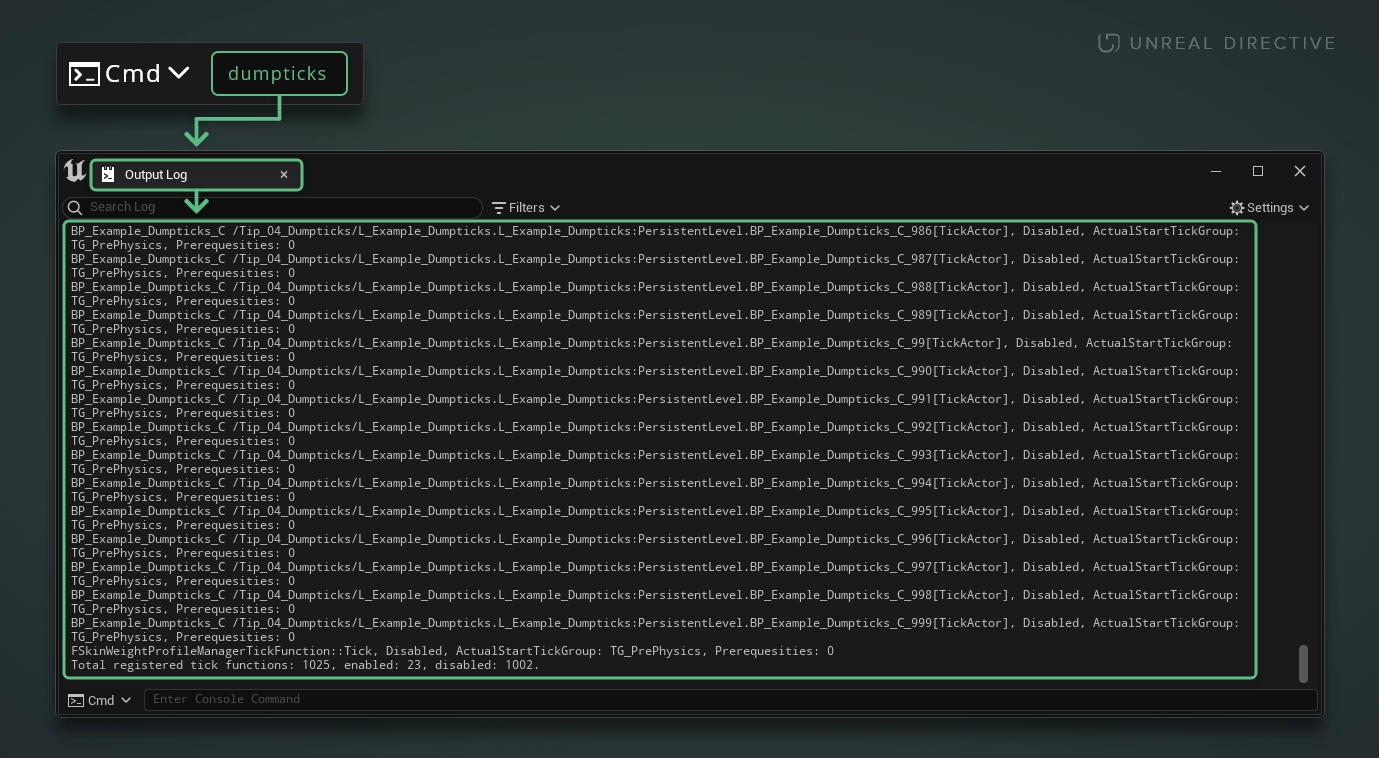
The dumped list appears after the Tick Functions (All) header. Each entry contains helpful information, such as the tick function’s name, its state, its actual start tick group, and its number of prerequisites, with any prerequisites listed on indented lines below it.
The totals can be found on the last line, in the form Total registered tick functions: X, enabled: Y, disabled: Z.
Example: Matrix City demo during editor runtime
Why is the dumpticks console command important?
For ease of development, Start with Tick Enabled is on by default, so a Blueprint actor starts ticking as soon as its Event Tick node has something connected to it. Unfortunately, this comes at a cost.
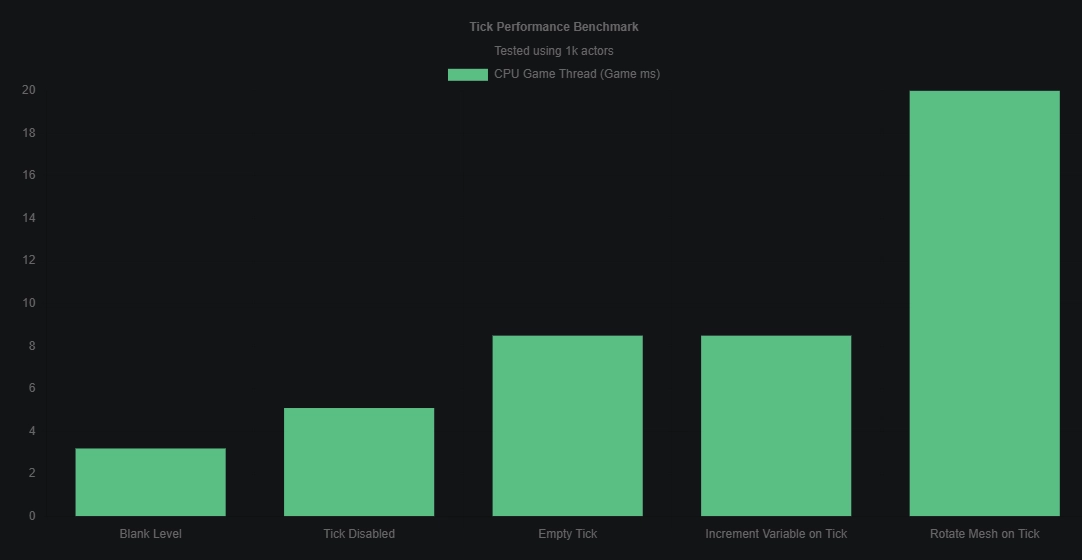
This graph displays performance metrics for different tick setups across 1,000 instances of a simple Blueprint actor.
With a blank level as a baseline, the game thread is updating at 3.2ms. Adding 1,000 basic Blueprint actors to the scene with tick disabled bumps the game thread from 3.2ms to 5.1ms, a 1.9ms increase. Enabling tick bumps that up even further from 5.1ms to 8.5ms, a 3.4ms increase.
This increase is by no means small, as it can be the difference between a performant game and one that’s held back by a CPU bottleneck on lower-end hardware.
Therefore, make sure to use the dumpticks console command to identify which actors are ticking within your scene, and disable tick on those that don’t require it.
Bonus tip: disabling tick
For all Blueprints that don’t require tick to function, it’s ideal to disable tick altogether. You can do this by unchecking Start with Tick Enabled in the Class Defaults, under the Actor Tick category of the Details panel.
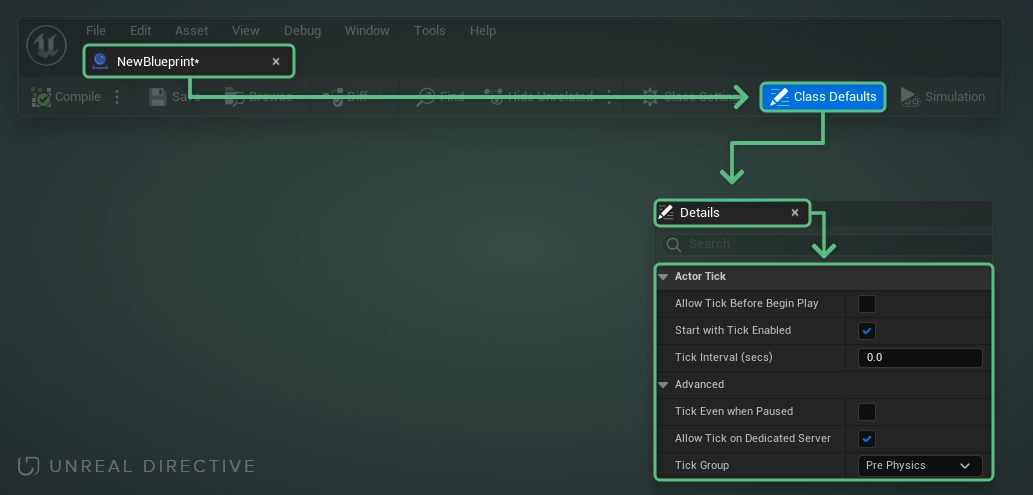
For those working in C++, set these in the actor’s constructor:
// Can still be turned on later with SetActorTickEnabled(true).
PrimaryActorTick.bStartWithTickEnabled = false;

// Never registers a tick function at all. Only settable in defaults.
PrimaryActorTick.bCanEverTick = false;
And if an actor needs to tick but not every frame, set Tick Interval (secs) instead. Actors on an interval show up in dumpticks as Cooling Down for X seconds between ticks.
How can I make dumpticks easier to read?
Looking through the dumpticks output in a large project can be challenging to manage. Thankfully, pasting it into a spreadsheet makes it sortable and searchable, and Google Sheets or an equivalent spreadsheet application is the most accessible way to do that.
- Open the Output Log.
- Right-click inside the Output Log and select Clear Log.
- In the console command field, type
dumpticksand pressEnter. - Click inside the Output Log’s text area and press
Ctrl + A, thenCtrl + C. - Open a blank Google Sheets document.
- Select the first cell and press
Ctrl + V. - In the menu bar, open the Data menu and select Split text to columns.
- Select columns A, B, C, and D.
- Right-click any of the selected columns and select Resize columns A - D.
- In the Resize columns A - D popup, select Fit to data and press OK.
Frequently asked questions
Why do some actors appear more than once?
dumpticks lists tick functions rather than actors, so components with their own tick show up as separate entries from their owning actor.
What’s the quickest way to find the worst offenders?
Use dumpticks grouped. It groups enabled tick functions by class and sorts them by count, with actors listed as NativeClass/ActorClass and components as ComponentClass/OwnerClass/ComponentName.
Why is an actor missing from the list?
Only levels that are currently visible are included. And a Blueprint whose Event Tick node has nothing connected to its execution pin doesn’t register a tick function at all, as long as its native parent class doesn’t tick.
Links
Check out the following resources to learn more about the subject.
Unreal Directive is free and ad-free.
If it saved you time, you can help keep it that way.