

The Asset Picker
Use the Open Asset picker to find, open, place, or move assets from anywhere in the editor.
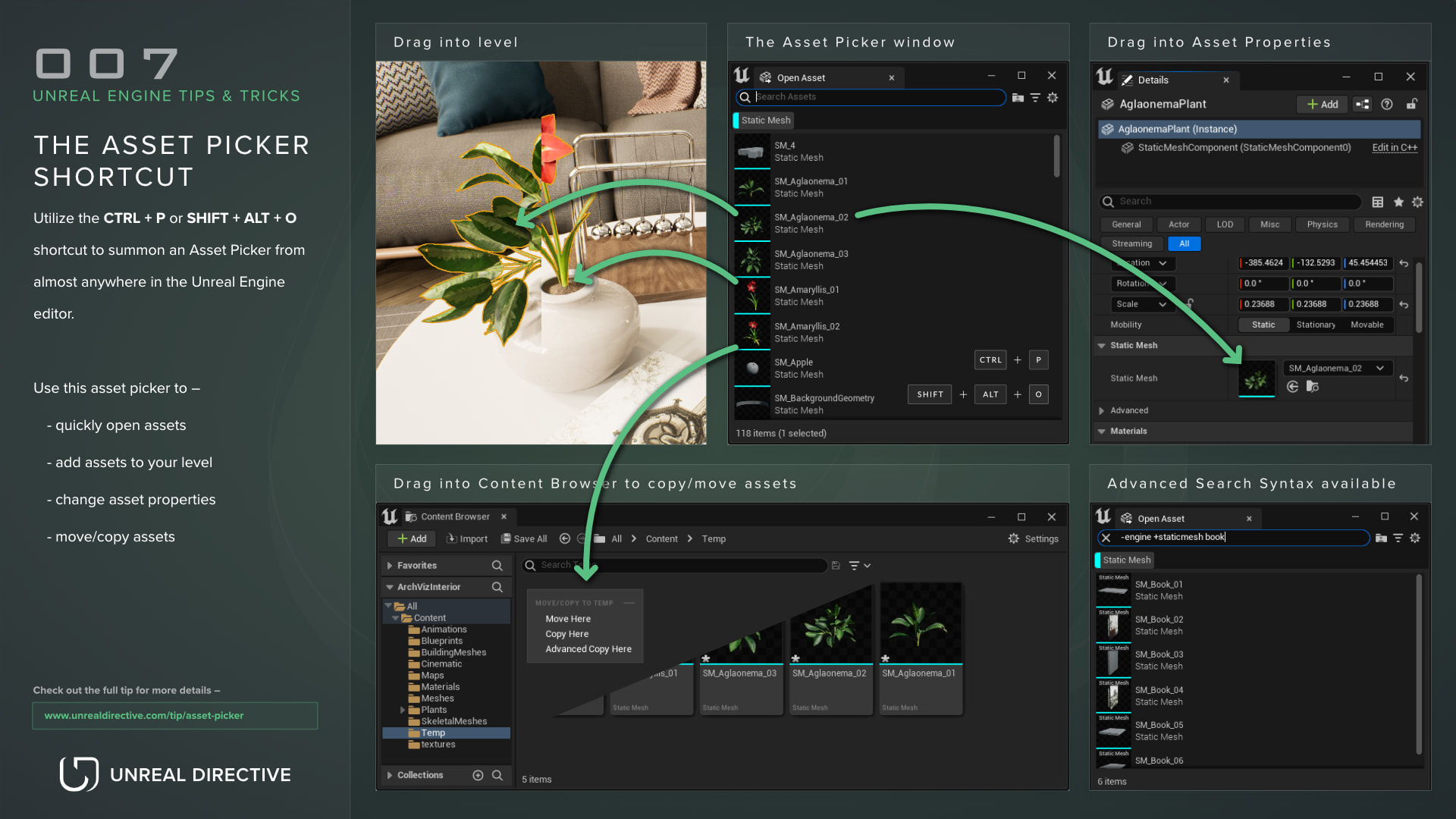
Use the Ctrl + P or Shift + Alt + O shortcuts to summon the Asset Picker from almost anywhere in the Unreal Engine editor.
Use the Asset Picker to:
- quickly open assets
- add assets to your level
- assign assets to properties
- move or copy assets to the Content Browser
| Shortcut | Action |
|---|---|
Ctrl + P | Open the Asset Picker, or close it if it’s already open. |
Shift + Alt + O | Same as Ctrl + P. |
Enter | Open the selected assets and close the picker. |
Ctrl + B | Browse to the selected assets in the Content Browser and close the picker. |
Esc | Close the picker. |
Explanation
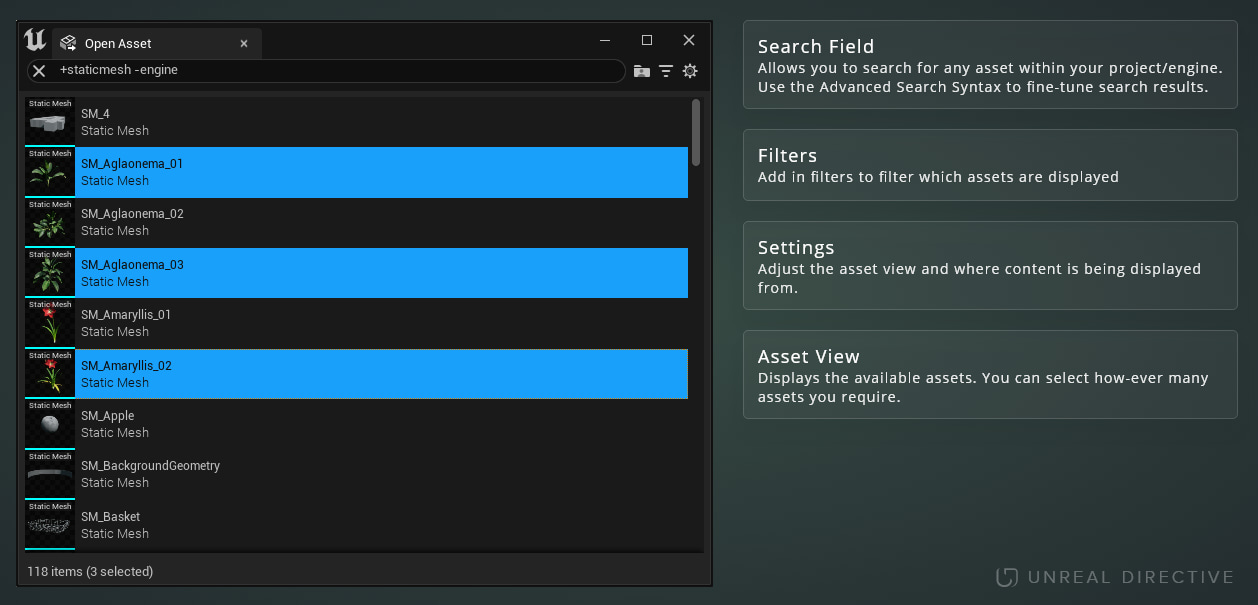
The Asset Picker is a dockable tab named Open Asset, which you can also open from File > Open Asset. It lists all of the assets in your project, along with a search field and filters, allowing you to quickly search, place, open, move, or copy assets.
While the Content Browser already has all of these features, the Asset Picker lets you use them in quick succession without changing the Content Browser’s current folder, which speeds up a general workflow. In addition, it can be summoned almost anywhere in the editor, so it’s ideal to use the Asset Picker in conjunction with the Content Browser.
How do I search for an asset?
The search field supports the same advanced search syntax as the Content Browser, and the filter menu narrows the results by asset type. Use them together to quickly fine-tune your search results.
How do I place assets into the level?
Drag assets from the Asset Picker into the level viewport, which makes for quick set dressing.
How do I assign an asset to a property?
Drag assets from the Asset Picker onto asset properties in the Details panel.
How do I open an asset?
Double-click an asset, or select it and press Enter, to open it in its editor. The picker closes afterward.
How do I move or copy assets to the Content Browser?
Drag assets from the Asset Picker into the Content Browser to move or copy them into its current folder.
Frequently asked questions
How do I find an asset’s location in the Content Browser?
Right-click the asset and select Browse to Asset(s), or press Ctrl + B, to find it in the most recently used Content Browser.
Does the picker keep my view settings?
Yes. The Asset Picker remembers its view settings between uses.
Can I change the shortcuts?
Yes. Open Editor Preferences > Keyboard Shortcuts and look for Open Asset… under System-wide, where both Ctrl + P and Shift + Alt + O are listed and can be rebound.
Links
Check out the following resources to learn more about the subject.
Unreal Directive is free and ad-free.
If it saved you time, you can help keep it that way.